> ## Documentation Index
> Fetch the complete documentation index at: https://docs.oleria.com/llms.txt
> Use this file to discover all available pages before exploring further.
# PingOne
Oleria provides identity security and access management teams with visibility and intelligence into who has access to what, where they got that access, how they are using it, and whether they should even have it. As part of that promise, we deep integrate your PingOne into the Oleria platform. This document provides step-by-step guidance for integrating PingOne with your Oleria workspace.
## Prerequisites
* The user granting these permissions must have Administrative privileges.
Standard integrations are configured with read-only permissions. Use a service account (and not an employee account) with the suggested privileges for the integration to ensure continuity.
## Create an Oleria Application in PingOne
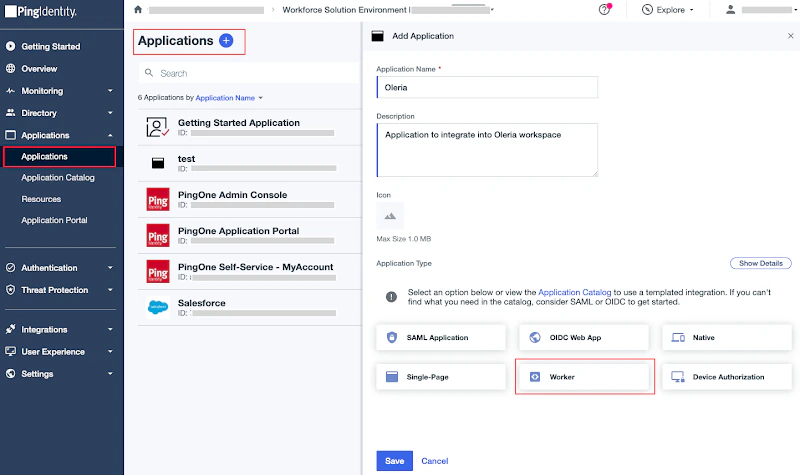
Log in to your PingOne instance, navigate to **Applications**, and click the **+** icon to create a new application.
Enter the application name **Oleria**, select application type **Worker**, and select **Save**.
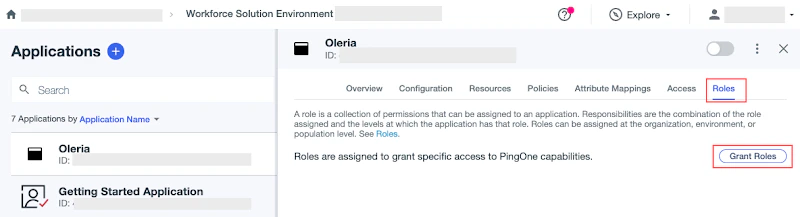
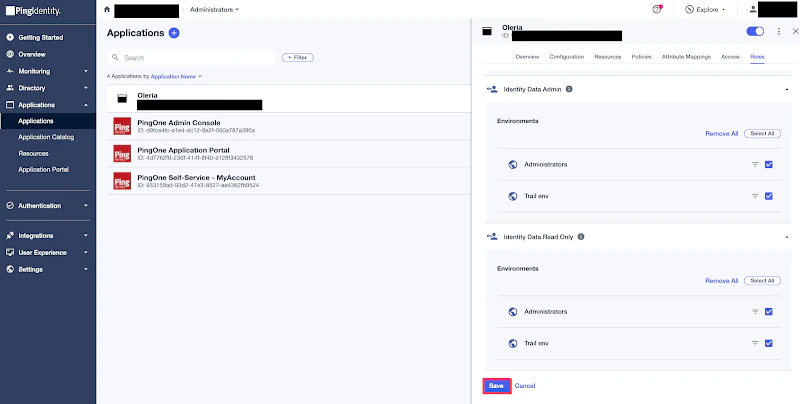
 The newly created application opens showing the **Roles** tab. Select **Grant Roles**.
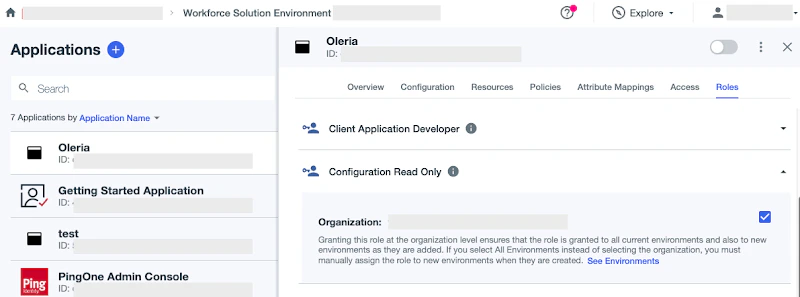
 Select the following roles:
* **Configuration Read Only** (select organization)
* **Identity Read Only** (select all environments)
Select the following roles:
* **Configuration Read Only** (select organization)
* **Identity Read Only** (select all environments)
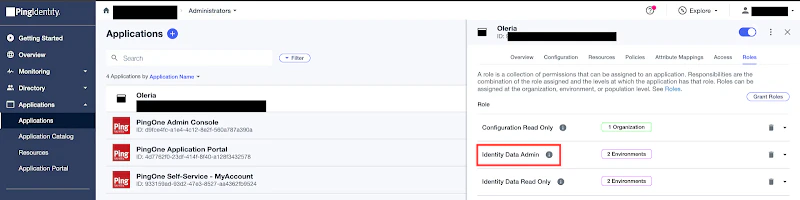
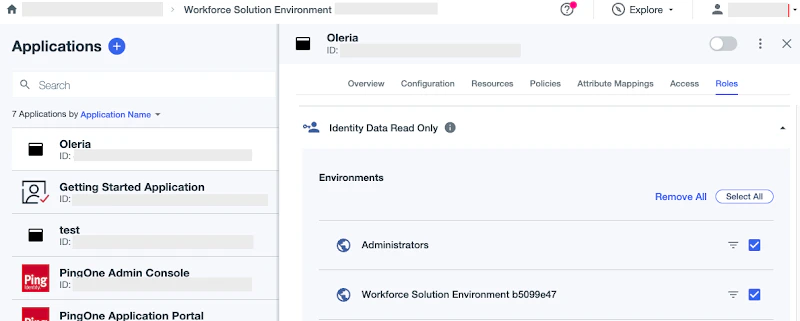 To enable remediations for disabling dormant accounts and removing user accounts from groups, grant the **Identity Data Admin** role and select all environments. Select **Save**.
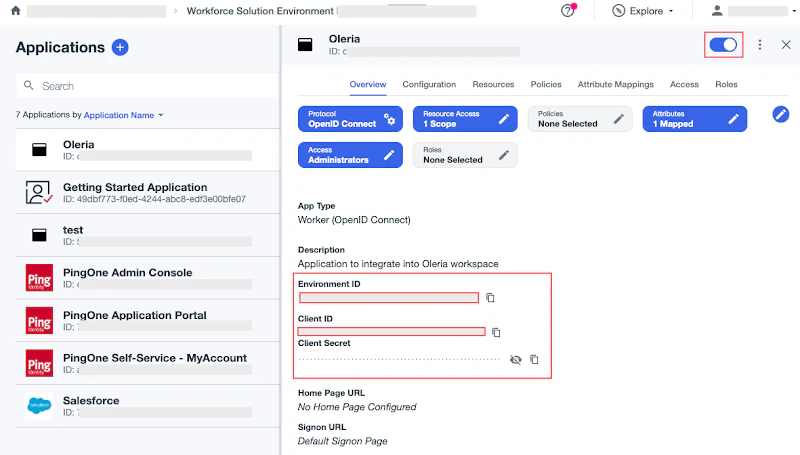
 Enable the Oleria application.
 From the Oleria application **Overview**, note down the following:
* **Environment ID**
* **Client ID**
* **Client Secret**
From the Oleria application **Overview**, note down the following:
* **Environment ID**
* **Client ID**
* **Client Secret**
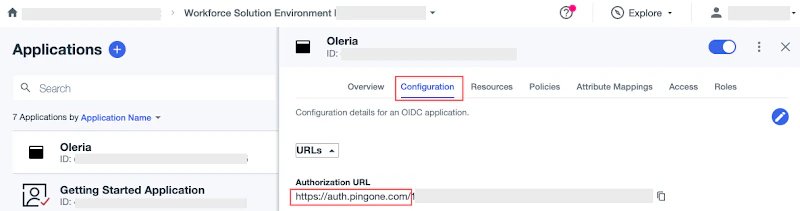
 From the Oleria application **Configuration**, expand **URLs** and note down the region.
 ## Connect PingOne to Oleria
Log in to your Oleria workspace, navigate to **Integrations**, and select **PingOne**. A side page opens - select **Continue**.
## Connect PingOne to Oleria
Log in to your Oleria workspace, navigate to **Integrations**, and select **PingOne**. A side page opens - select **Continue**.
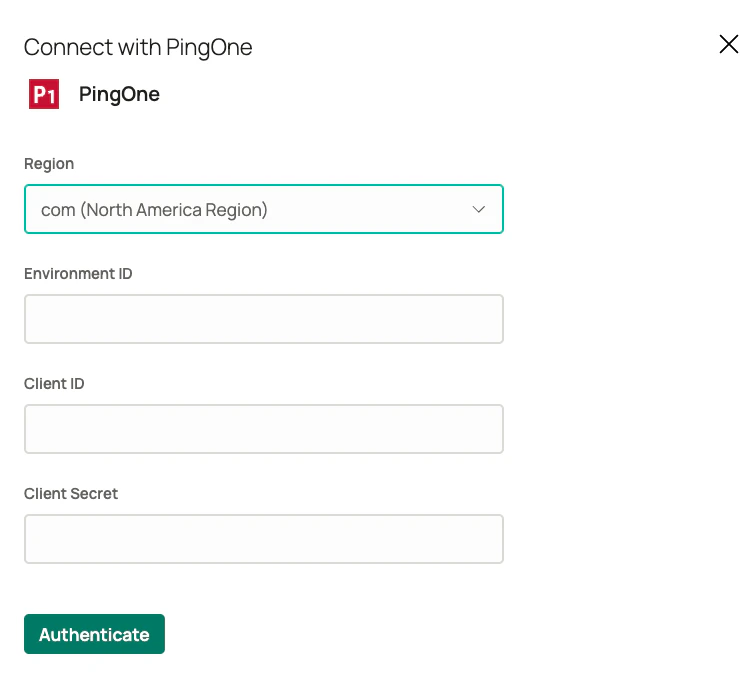
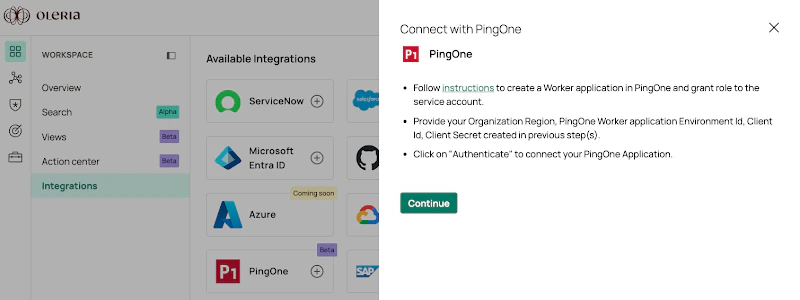 Provide the following information and select **Authenticate**:
* **Region** - from the previous section
* **Environment ID** - from the previous section
* **Client ID** - from the previous section
* **Client Secret** - from the previous section
Provide the following information and select **Authenticate**:
* **Region** - from the previous section
* **Environment ID** - from the previous section
* **Client ID** - from the previous section
* **Client Secret** - from the previous section
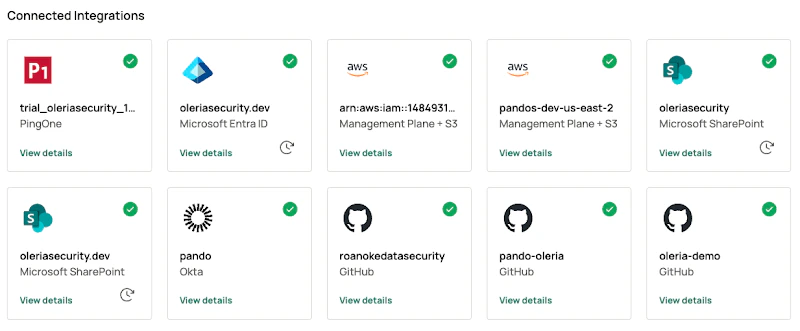
 Find the newly integrated PingOne instance in your Oleria workspace connected integrations.
 ## Contact us
For questions about this integration, contact us at [support@oleria.com](mailto:support@oleria.com).
## Contact us
For questions about this integration, contact us at [support@oleria.com](mailto:support@oleria.com).