> ## Documentation Index
> Fetch the complete documentation index at: https://docs.oleria.com/llms.txt
> Use this file to discover all available pages before exploring further.
# PagerDuty
> Connect your PagerDuty account to Oleria to continuously discover and map who has access across your teams, services, and escalation policies.
Connect PagerDuty to Oleria to gain continuous visibility into who has access across your teams, services, and escalation policies. Oleria reads identity, access, and audit data from the PagerDuty REST API - mapping every user's account role and team memberships in one place - so you can see where access is over-provisioned and take action directly from Oleria. This page provides step-by-step guidance for connecting PagerDuty to Oleria.
## What Oleria discovers
Once connected, Oleria continuously discovers and maps the following from your PagerDuty account:
* **Accounts** - every user in the account, along with their account-level role (owner, admin, user, limited user, observer, restricted access, read-only user, or read-only limited user).
* **Teams** - all teams and their membership, including the scoped role each member holds on that team (observer, responder, or manager).
* **Account roles** - the eight fixed account-level roles PagerDuty defines.
* **Services and escalation policies** - every service and escalation policy, including which teams are assigned to each.
* **Audit activity** - account-wide audit events such as user lifecycle changes and access configuration changes.
Audit activity requires a Business or Enterprise PagerDuty plan. On Free or Team plans, Oleria syncs without audit activity - discovery of accounts, teams, services, and escalation policies is unaffected.
## Prerequisites
* PagerDuty admin role, to create API keys or register OAuth apps
* API token or OAuth app credentials ready before connecting in Oleria (see the next section)
Use a service account rather than a personal employee account for the integration to ensure continuity if the employee leaves or changes roles.
## Connect PagerDuty to Oleria
Oleria supports two authentication methods. Choose the one that fits your environment, then follow the steps for that method end-to-end.
A General Access API key is the simplest path. Best for organizations where a single long-lived key is acceptable and you want to get connected quickly.
Log in to PagerDuty as an admin, navigate to **Integrations** -> **Developer Tools** -> **API Access Keys**, and select **Create New API Key**.
Enter a description (for example, `Oleria connector`). The key type is **General Access REST API Keys**. Within that type, a **Read-only API Key** checkbox limits the key to read-only access:
* **Check "Read-only API Key"** - for discovery only (accounts, teams, services, escalation policies, and audit logs)
* **Leave unchecked** - required if you want Oleria to perform governance actions such as deleting users, revoking sessions, adding or removing team members, or changing account roles
Select **Create Key** and copy the generated token. It is displayed only once.
Store the token securely. PagerDuty shows it only at creation time and cannot retrieve it later. If you lose it, you must create a new key and update the integration in Oleria.
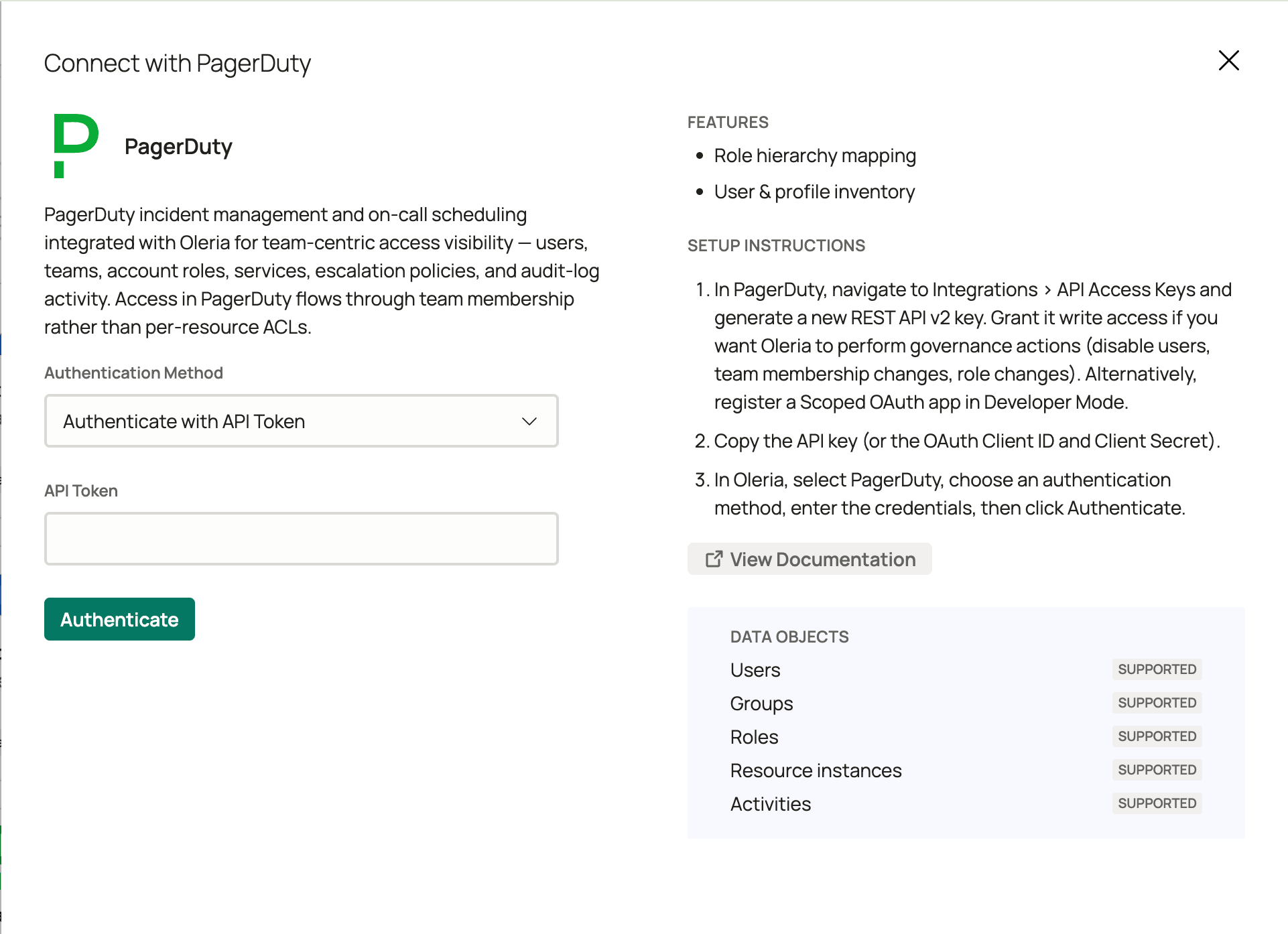
Go to your Oleria workspace, select **Integrations** -> select **PagerDuty**. Select **Continue** and fill in the connection form:
| Field | Notes |
| :-------------------- | :----------------------------------------- |
| Authentication method | Select **Authenticate with API Token**. |
| API Token | Required. Paste the API key created above. |
Select **Authenticate** to validate and save the integration. Oleria checks the credentials against PagerDuty before saving.
 Better for enterprise environments where token rotation matters or fine-grained per-app scoping is required. Oleria reads the token lifetime from PagerDuty's token response and automatically renews it before it expires, so no manual rotation is needed after initial setup.
Log in to PagerDuty as an admin, navigate to **Integrations** -> **App Registration**, and select **+ New App**. Configure the app as follows:
* Set the authorization type to **OAuth 2.0**
* Select the **Client Credentials** grant (server-to-server, no user interaction required)
* Add scopes for the resources Oleria syncs. Grant read scopes for discovery; also grant write scopes if you want Oleria to perform governance actions.
**Read scopes (required for discovery):**
```
abilities.read
users.read
teams.read
services.read
escalation_policies.read
audit_records.read
```
**Write scopes (required for governance actions):**
```
users.write
teams.write
```
`audit_records.read` only has effect on Business or Enterprise plans. If you are on a Free or Team plan, or if this scope is not granted, Oleria syncs without audit activity and no error is shown.
After saving the app, copy the **Client ID** and **Client Secret**. Both values are shown only once.
Store the client secret securely. PagerDuty cannot retrieve it after you close the app registration page. If you lose it, you must regenerate the secret and update the integration in Oleria.
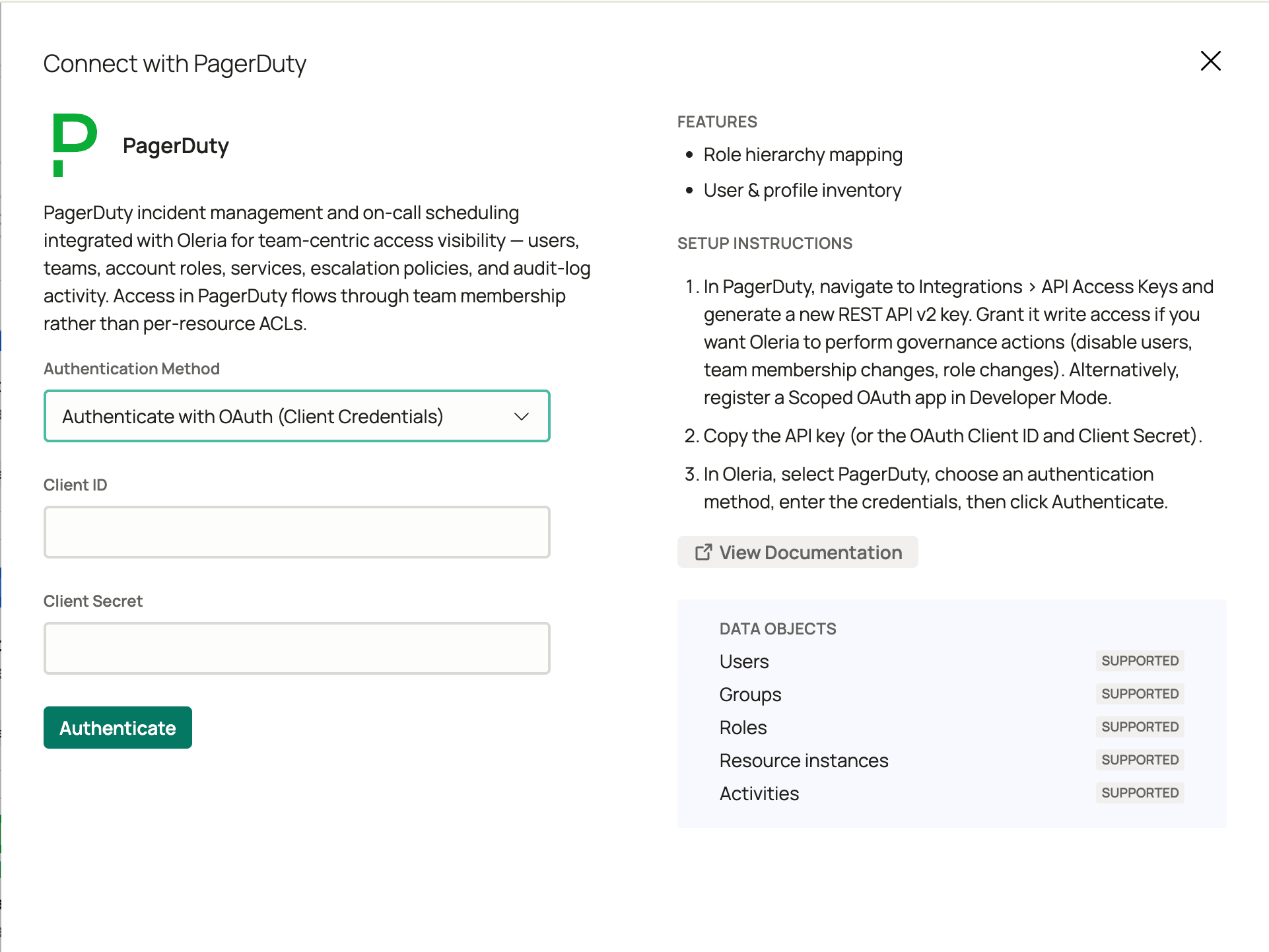
Go to your Oleria workspace, select **Integrations** -> select **PagerDuty**. Select **Continue** and fill in the connection form:
| Field | Notes |
| :-------------------- | :---------------------------------------------------------- |
| Authentication method | Select **Authenticate with OAuth (Client Credentials)**. |
| Client ID | Required. The client ID from your registered OAuth app. |
| Client Secret | Required. The client secret from your registered OAuth app. |
Select **Authenticate** to validate and save the integration. Oleria checks the credentials against PagerDuty before saving.
Better for enterprise environments where token rotation matters or fine-grained per-app scoping is required. Oleria reads the token lifetime from PagerDuty's token response and automatically renews it before it expires, so no manual rotation is needed after initial setup.
Log in to PagerDuty as an admin, navigate to **Integrations** -> **App Registration**, and select **+ New App**. Configure the app as follows:
* Set the authorization type to **OAuth 2.0**
* Select the **Client Credentials** grant (server-to-server, no user interaction required)
* Add scopes for the resources Oleria syncs. Grant read scopes for discovery; also grant write scopes if you want Oleria to perform governance actions.
**Read scopes (required for discovery):**
```
abilities.read
users.read
teams.read
services.read
escalation_policies.read
audit_records.read
```
**Write scopes (required for governance actions):**
```
users.write
teams.write
```
`audit_records.read` only has effect on Business or Enterprise plans. If you are on a Free or Team plan, or if this scope is not granted, Oleria syncs without audit activity and no error is shown.
After saving the app, copy the **Client ID** and **Client Secret**. Both values are shown only once.
Store the client secret securely. PagerDuty cannot retrieve it after you close the app registration page. If you lose it, you must regenerate the secret and update the integration in Oleria.
Go to your Oleria workspace, select **Integrations** -> select **PagerDuty**. Select **Continue** and fill in the connection form:
| Field | Notes |
| :-------------------- | :---------------------------------------------------------- |
| Authentication method | Select **Authenticate with OAuth (Client Credentials)**. |
| Client ID | Required. The client ID from your registered OAuth app. |
| Client Secret | Required. The client secret from your registered OAuth app. |
Select **Authenticate** to validate and save the integration. Oleria checks the credentials against PagerDuty before saving.
 ## Verify the integration
Confirm the PagerDuty instance appears in your Oleria workspace connected integrations. After the first sync completes, you can review the discovered accounts, teams, services, and escalation policies in your Oleria workspace.
If you rotate the API token or regenerate the OAuth client secret, update the credentials in Oleria by editing the integration. Revoked or expired credentials will cause discovery to stop.
## Governance actions
Beyond discovery, Oleria can act on PagerDuty access to remediate risk. Governance actions require a **General Access** API token or an OAuth app with write scopes.
Make sure the credentials you connect with include write access before using governance actions. A read-only API token or an OAuth app with only read scopes will connect successfully, but any governance action will fail when it runs. See the credential setup steps above to configure write access.
| Action | Reversible? |
| :-------------------- | :--------------------------------------------------------------------------------------- |
| Delete user | No - permanent. Deleted users cannot be reinstated. |
| Revoke user sessions | No - sessions cannot be reinstated after revocation. |
| Add user to team | Yes - reversed by removing the user from the team. |
| Remove user from team | No - the user's previous team role is not captured and cannot be automatically restored. |
| Change account role | No - the previous role is not captured and cannot be automatically restored. |
Session revocation has no effect on sessions managed by a SAML single sign-on (SSO) identity provider. The identity provider controls those sessions directly - this is a PagerDuty API limitation, not an Oleria gap.
## Known limitations
* **No disable or suspend state** - PagerDuty has no concept of a disabled or suspended user. Deleting a user is the only deprovisioning path and is permanent.
* **MFA and SSO enrollment** - multi-factor authentication (MFA) and SSO enrollment status are not available via the PagerDuty API. Oleria reports these fields as unavailable, not as a false negative.
* **Audit logs** - audit activity requires a Business or Enterprise plan and credentials that include audit access (a non-read-only API key, or an OAuth app with `audit_records.read`). If either condition is not met, Oleria syncs without audit activity and no error is shown. If you are on a paid plan and see no audit activity, check that your credentials include audit access.
## Contact us
For questions about this integration, contact us at [support@oleria.com](mailto:support@oleria.com).
## Verify the integration
Confirm the PagerDuty instance appears in your Oleria workspace connected integrations. After the first sync completes, you can review the discovered accounts, teams, services, and escalation policies in your Oleria workspace.
If you rotate the API token or regenerate the OAuth client secret, update the credentials in Oleria by editing the integration. Revoked or expired credentials will cause discovery to stop.
## Governance actions
Beyond discovery, Oleria can act on PagerDuty access to remediate risk. Governance actions require a **General Access** API token or an OAuth app with write scopes.
Make sure the credentials you connect with include write access before using governance actions. A read-only API token or an OAuth app with only read scopes will connect successfully, but any governance action will fail when it runs. See the credential setup steps above to configure write access.
| Action | Reversible? |
| :-------------------- | :--------------------------------------------------------------------------------------- |
| Delete user | No - permanent. Deleted users cannot be reinstated. |
| Revoke user sessions | No - sessions cannot be reinstated after revocation. |
| Add user to team | Yes - reversed by removing the user from the team. |
| Remove user from team | No - the user's previous team role is not captured and cannot be automatically restored. |
| Change account role | No - the previous role is not captured and cannot be automatically restored. |
Session revocation has no effect on sessions managed by a SAML single sign-on (SSO) identity provider. The identity provider controls those sessions directly - this is a PagerDuty API limitation, not an Oleria gap.
## Known limitations
* **No disable or suspend state** - PagerDuty has no concept of a disabled or suspended user. Deleting a user is the only deprovisioning path and is permanent.
* **MFA and SSO enrollment** - multi-factor authentication (MFA) and SSO enrollment status are not available via the PagerDuty API. Oleria reports these fields as unavailable, not as a false negative.
* **Audit logs** - audit activity requires a Business or Enterprise plan and credentials that include audit access (a non-read-only API key, or an OAuth app with `audit_records.read`). If either condition is not met, Oleria syncs without audit activity and no error is shown. If you are on a paid plan and see no audit activity, check that your credentials include audit access.
## Contact us
For questions about this integration, contact us at [support@oleria.com](mailto:support@oleria.com).