> ## Documentation Index
> Fetch the complete documentation index at: https://docs.oleria.com/llms.txt
> Use this file to discover all available pages before exploring further.
# Integrations overview
> Connect your identity providers, HR systems, cloud infrastructure, and SaaS apps to Oleria so it can build a continuously updated map of access across your environment.
Integrations are how Oleria gets visibility into your environment. Each integration is a connection between Oleria and a system that owns identity, access, or activity data: an identity provider (IdP), an HR information system (HRIS), a cloud account, or a SaaS application. Once connected, Oleria pulls users, groups, permissions, resource inventory, and activity from that system and folds it into the Oleria identity and access graph.
Connect more systems and Oleria's view gets sharper. With your IdP and HRIS connected, Oleria can correlate "who works here" with "who has access to what." Add SaaS apps and clouds, and Oleria can show you the full path from a hire in Workday to a permission on an S3 bucket.
## How an integration works
Every Oleria integration follows the same lifecycle: **discover** (Oleria lists what it supports), **configure** (you create credentials in the source system and paste them into Oleria), **sync** (Oleria pulls identities, groups, permissions, and activity on a continuous schedule), and **monitor** (Oleria reports connection health and surfaces sync issues). When you no longer need an integration, you disconnect it and Oleria stops syncing that source.
A single connected integration typically captures:
* **Identities**: human accounts, non-human identities (NHIs), and AI identities
* **Groups and roles**: native groups, role assignments, and nested membership
* **Permissions**: down to the individual resource where the source system exposes it (file, repo, bucket, record)
* **Resource inventory**: the objects in the source system that permissions can be granted on
* **Activity**: authentication events and resource-level actions, where supported
What Oleria captures depends on what the source system exposes. Cloud and IdP integrations typically expose the richest data; SaaS applications vary by what their APIs and SCIM endpoints surface.
## Authentication methods
Integrations use the authentication method native to the source system. Some integrations support more than one method; see the per-integration page for which applies to your environment. Pick the right credential type for the application you are connecting:
| Method | Used by | Notes |
| :------------------------------- | :---------------------------------------------------------------------------------------- | :-------------------------------------------------------------------------------------------------------------------------------------------------------------------- |
| OAuth 2.0 (app-level) | Okta, Salesforce, Atlassian, GitHub, Google Workspace, Microsoft Entra ID | Recommended. Create a dedicated app in the source system, grant the required scopes, and connect using its client credentials. |
| Service account + private key | Okta, Google Cloud Platform | Use when the source system supports key-based auth. Rotate keys per your organization's security policy. |
| SCIM 2.0 + bearer token | Atlassian Cloud, any SCIM-enabled tile (see [SCIM-Based Integration](/integrations/scim)) | Best for SaaS apps that expose user and group lifecycle through the SCIM standard. |
| AWS IAM role (assume-role) | AWS IAM and S3 | Oleria assumes a purpose-scoped IAM role in your AWS account. No long-lived credentials are stored, and remediation actions are granted only when explicitly enabled. |
| API key | Snowflake, Sage Intacct, SAP Fieldglass, SAP Success Factors, Workday, Oracle HCM | Used where the source system's auth surface is an API key or username/key pair. |
| File upload (no live connection) | File-Based Integration | For systems that cannot be connected through an API. Upload CSVs on a schedule; Oleria processes them like any other source. |
This table covers the primary authentication patterns. It is not exhaustive - some integrations use methods not listed here. Each integration's setup page lists the exact credential type and required scopes.
In every case, the credentials Oleria stores are scoped to the minimum permissions needed for the integration to function. Standard integrations are configured **read-only by default**.
## Read-only by default, remediation is opt-in
When you first connect an integration, Oleria takes only what it needs to see access: read scopes for users, groups, permissions, and activity. Nothing in the source system changes.
If you want Oleria to act on findings (disable a dormant account, remove a user from a group, revoke a permission), you grant **additional remediation scopes** explicitly during configuration. These scopes are separate from the read scopes and clearly listed on each integration page. Remediation is opt-in per integration, so you can enable it for low-risk systems first and roll it out gradually.
Use a dedicated service account when creating credentials for an integration. Tying the connection to an employee account creates an operational risk: if that employee leaves and the account is disabled, the integration breaks.
## Sync model
Oleria runs each integration on a continuous sync schedule. The first sync after connection pulls a full snapshot of identities, groups, permissions, and inventory from the source system. Subsequent syncs are incremental and refresh changes on a cadence tuned to each source.
Activity data (authentication events, resource actions) is captured separately on a higher-frequency cadence so investigations can be answered with near-current data. The exact cadence varies by source system; you can see the last successful sync timestamp and the data availability window on each connected integration's detail panel.
## Multi-instance support
Oleria supports multiple unique connections for the same application. This is the standard pattern when you operate disparate environments under one tenant - for example, a production Salesforce org alongside a sandbox, or one GitHub organization per business unit. Each instance appears as its own tile in the **Connected** tab and is synced independently.
## Categories of integrations
Use the categories below to find the integration you need. The order reflects how most customers roll out: start with your IdP and HRIS to anchor identity data, then layer on SaaS apps and clouds. The generic connectors at the end let you cover anything that does not have a dedicated tile yet.
### Identity providers (IdPs)
The source of truth for users, groups, and authentication. Connect your IdP first so every other integration can be correlated against it.
On-prem and hybrid AD environments.
Entra ID identities, groups, and SharePoint access.
Okta workforce identity, applications, groups, and admin roles.
Ping Directory user and group store.
PingOne workforce identity tenant.
### HR information systems (HRIS)
The source of truth for employment status, role, and reporting structure. Oleria correlates HRIS data with IdP and SaaS access to detect dormant accounts and over-provisioned users.
Workers, organizations, and lifecycle events from Workday HCM.
Workforce and organization data from Oracle HCM Cloud.
Employee master data and role information.
Contingent workforce and external worker lifecycle.
### SaaS applications
Where access is granted, used, and accumulates risk. Connect the SaaS apps that hold your sensitive data and high-privilege roles.
SCIM provisioning for Atlassian organization, Jira, and Confluence.
GitHub organization members, teams, and repository access.
Google Workspace users, groups, and Drive sharing.
Salesforce users, profiles, permission sets, and object access.
ServiceNow users, groups, and role assignments.
Snowflake users, roles, and warehouse and database privileges.
Sage Intacct users and entitlements.
### Cloud infrastructure
Cloud IAM is where service accounts, NHIs, and AI identities accumulate the broadest blast radius. Connect each cloud account or organization to see who and what can act on your infrastructure.
AWS IAM users, roles, policies, and S3 bucket access, with CloudTrail activity.
GCP organization or project-level IAM, principals, and bindings.
### Generic connectors
For applications that do not have a dedicated tile, use one of the generic connectors. These cover the long tail without waiting on a per-application build.
Any application that exposes a SCIM 2.0 endpoint and issues a bearer token.
Any application that cannot be connected through an API. Upload CSVs on a schedule.
## Connect, monitor, and remove integrations
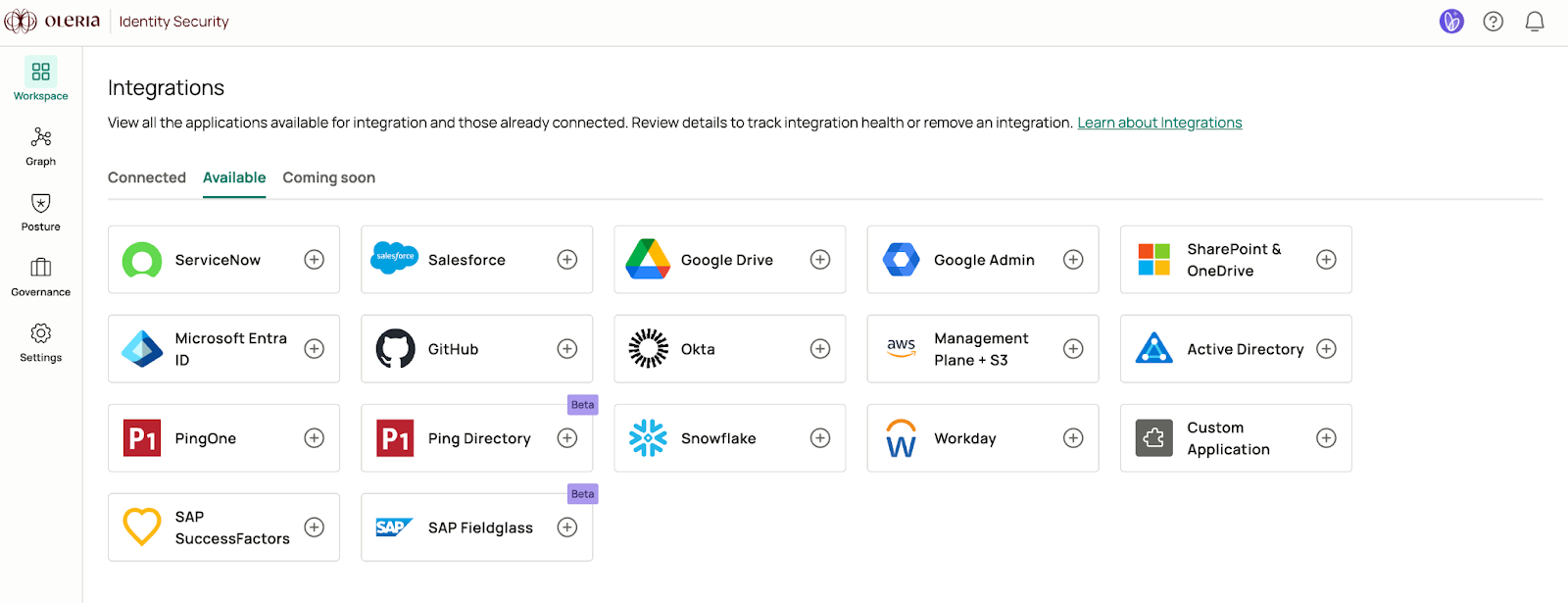
The Integrations page in Oleria is the central place to discover, configure, and operate every connection. Use the **Available** tab to browse supported applications, the **Connected** tab to manage active connections, and the **Coming Soon** tab to preview connectors on the roadmap.
 ### Check integration health
Every connected tile shows a status indicator in the top-right corner. Use it to verify health at a glance:
| Status | Meaning |
| :---------------- | :---------------------------------------------------------------------------------------------------------------------------------------------------------------------------------------------------------------------------------------------- |
| **Healthy** | The last sync completed successfully and the credentials are valid. |
| **Syncing** | A sync is currently running. The next status will reflect its outcome. |
| **Action needed** | Oleria cannot complete a sync. Common causes: expired credentials, revoked scopes, or a permission change in the source system. Open the integration details and contact [support@oleria.com](mailto:support@oleria.com) if the issue persists. |
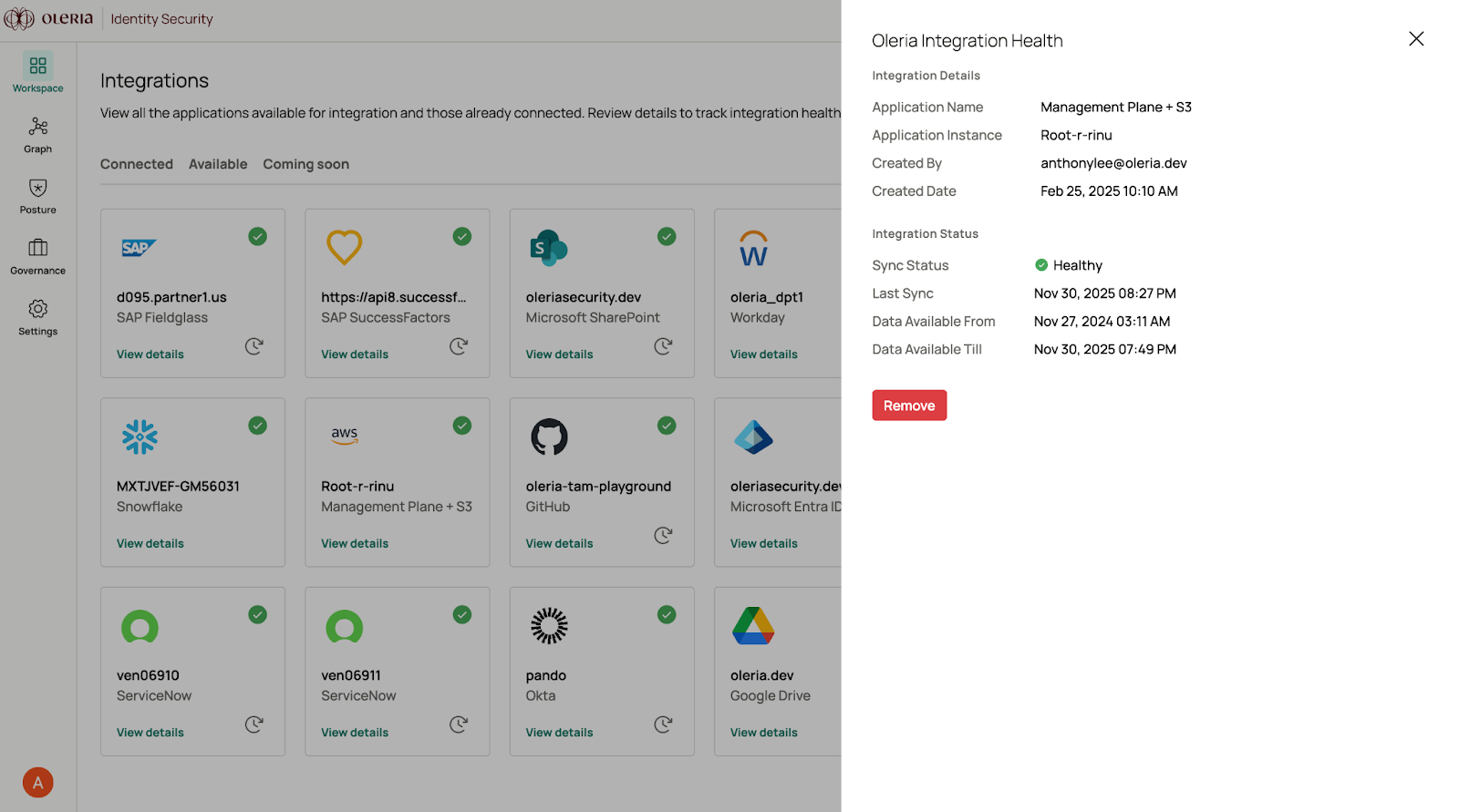
For more depth, open the **Connected** tab and select **View Details** on any tile. The side panel shows the current **Sync status**, the **Last sync timestamp**, and the **data availability** window - the time range for which Oleria has data from this source. Use the data availability window when running access reviews or investigations; it tells you the earliest date Oleria can answer questions about this integration.
### Check integration health
Every connected tile shows a status indicator in the top-right corner. Use it to verify health at a glance:
| Status | Meaning |
| :---------------- | :---------------------------------------------------------------------------------------------------------------------------------------------------------------------------------------------------------------------------------------------- |
| **Healthy** | The last sync completed successfully and the credentials are valid. |
| **Syncing** | A sync is currently running. The next status will reflect its outcome. |
| **Action needed** | Oleria cannot complete a sync. Common causes: expired credentials, revoked scopes, or a permission change in the source system. Open the integration details and contact [support@oleria.com](mailto:support@oleria.com) if the issue persists. |
For more depth, open the **Connected** tab and select **View Details** on any tile. The side panel shows the current **Sync status**, the **Last sync timestamp**, and the **data availability** window - the time range for which Oleria has data from this source. Use the data availability window when running access reviews or investigations; it tells you the earliest date Oleria can answer questions about this integration.
 ### Rotating credentials
When the source system rotates a token, certificate, or key, update the integration in Oleria so syncs do not fail. Open the integration's details from the **Connected** tab, edit the affected field (token, private key, etc.), and save. The next sync runs with the new credential.
### Removing an integration
If a connection is no longer needed, navigate to the **Connected** tab, select **View Details** on the integration, and select **Remove** to permanently delete the configuration.
Removing an integration stops all syncs for that source and removes its identity and access data from the Oleria identity and access graph. Active access reviews and investigations that depended on this source will lose their context. Disconnect with intent.
## Security and audit
Integration credentials are encrypted at rest and only the minimum-required scopes are requested in setup. Oleria is SOC 2 Type II audited. Every integration configuration change (create, update, remove) is recorded in the Oleria audit trail and is available for review by your security and compliance teams.
For detailed prerequisites and step-by-step setup instructions for each integration, select it from the navigation on the left, or pick one from the categories above.
## Contact us
For questions about integrations or to request a connector not listed here, contact us at [support@oleria.com](mailto:support@oleria.com).
### Rotating credentials
When the source system rotates a token, certificate, or key, update the integration in Oleria so syncs do not fail. Open the integration's details from the **Connected** tab, edit the affected field (token, private key, etc.), and save. The next sync runs with the new credential.
### Removing an integration
If a connection is no longer needed, navigate to the **Connected** tab, select **View Details** on the integration, and select **Remove** to permanently delete the configuration.
Removing an integration stops all syncs for that source and removes its identity and access data from the Oleria identity and access graph. Active access reviews and investigations that depended on this source will lose their context. Disconnect with intent.
## Security and audit
Integration credentials are encrypted at rest and only the minimum-required scopes are requested in setup. Oleria is SOC 2 Type II audited. Every integration configuration change (create, update, remove) is recorded in the Oleria audit trail and is available for review by your security and compliance teams.
For detailed prerequisites and step-by-step setup instructions for each integration, select it from the navigation on the left, or pick one from the categories above.
## Contact us
For questions about integrations or to request a connector not listed here, contact us at [support@oleria.com](mailto:support@oleria.com).