> ## Documentation Index
> Fetch the complete documentation index at: https://docs.oleria.com/llms.txt
> Use this file to discover all available pages before exploring further.
# Microsoft Entra ID and M365 SharePoint
Oleria provides identity security and access management teams with visibility and intelligence into who has access to what, where they got that access, how they use it, and if they should even have it. As part of that promise, we integrate applications such as Microsoft Entra ID and M365 SharePoint into the Oleria platform. We provide multiple options for each integration and this document provides step-by-step guidance for integrating Entra ID and M365 SharePoint with your Oleria workspace.
## Prerequisites
* The user granting these permissions must have Global Admin privileges.
Standard integrations are configured with read-only permissions. If you would like to take advantage of Oleria's access remediation capabilities, which are completely optional, you need to configure additional privileges required for write access.
Use a service account (and not an employee account) with the suggested privileges for the integration to ensure continuity.
## Integration Approaches
Oleria currently supports three approaches. Follow the one that is most appropriate for your organization.
1. [Authenticate via Microsoft (automated configuration via OAuth)](#authenticate-via-microsoft-oauth)
2. [Client Secret Authentication (manual configuration)](#client-secret-authentication)
3. [Client Certificate Authentication (manual configuration)](#client-certificate-authentication)
## Authenticate via Microsoft (OAuth)
Log in to your Oleria workspace and select **Integrations**.
* Select **Microsoft Entra ID** to integrate Entra ID, or
* Select **Microsoft SharePoint and OneDrive** to integrate Entra ID, SharePoint, and OneDrive.
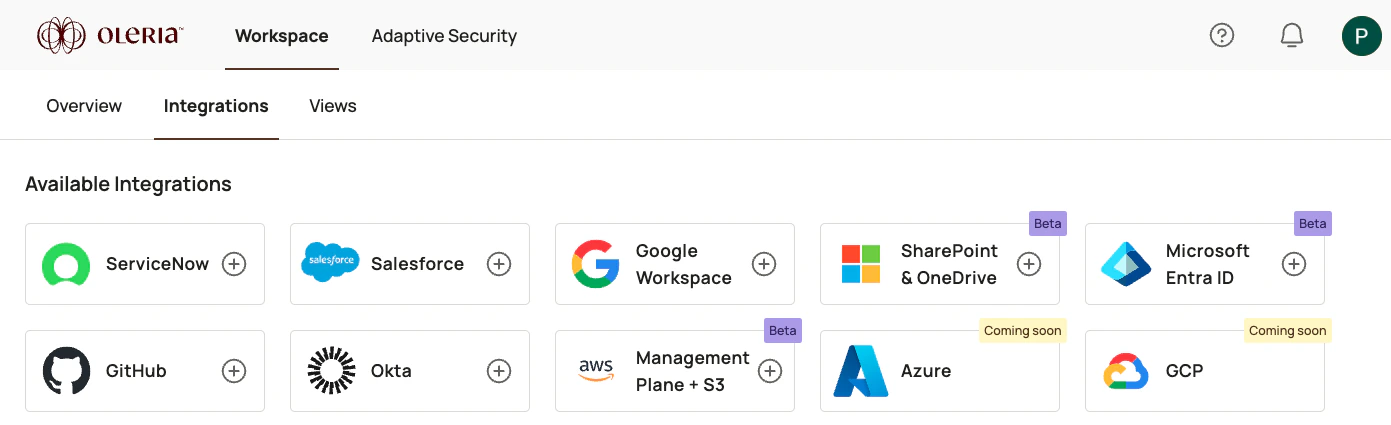 A side panel opens.
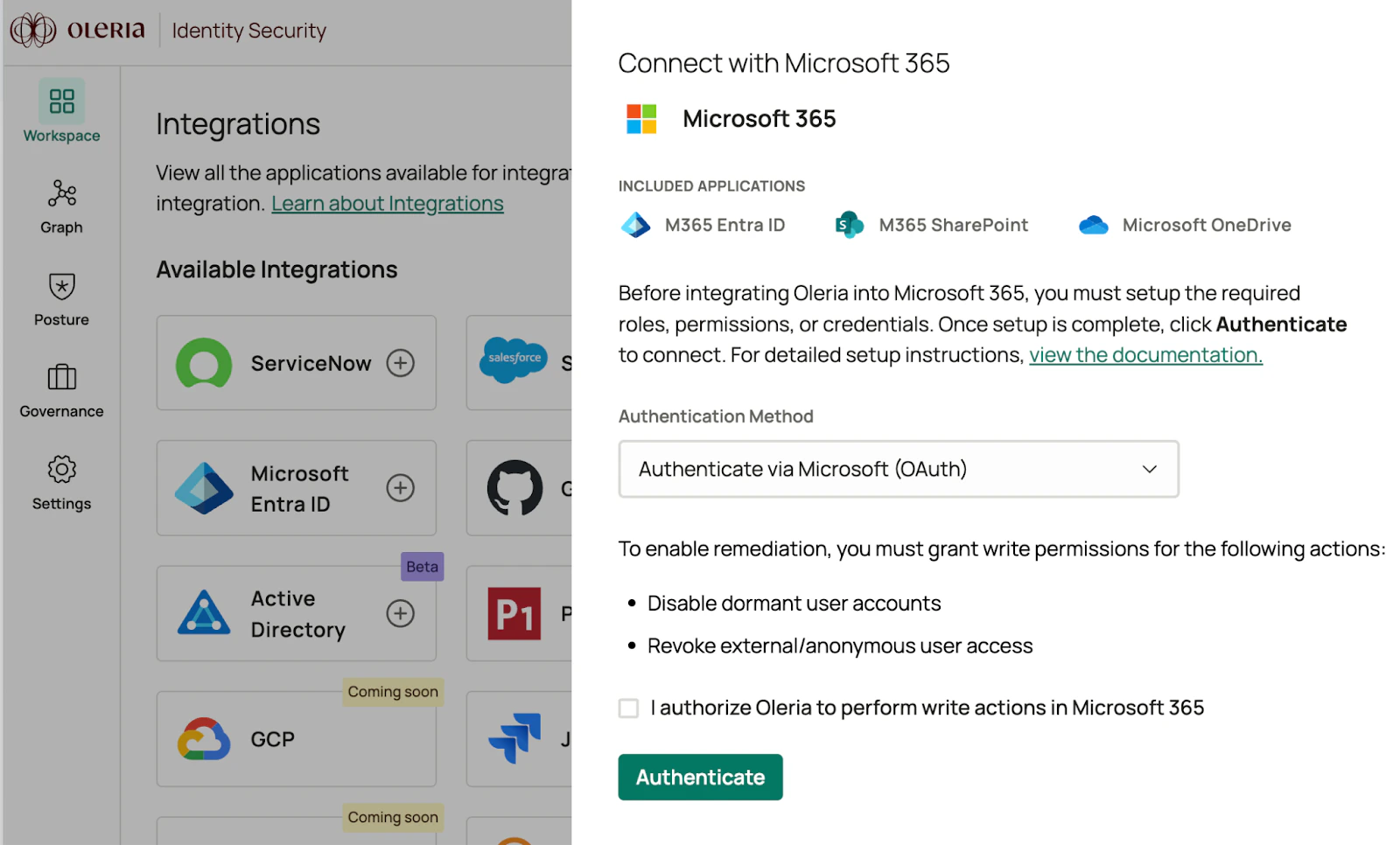 The screen shows an option to enable write permissions to allow Oleria to perform select remediations. The Oleria remediation feature is optional.
To enable remediations, select the checkbox. Otherwise, select **Authenticate** to proceed with the standard read-only permissions scope.
The screen shows an option to enable write permissions to allow Oleria to perform select remediations. The Oleria remediation feature is optional.
To enable remediations, select the checkbox. Otherwise, select **Authenticate** to proceed with the standard read-only permissions scope.
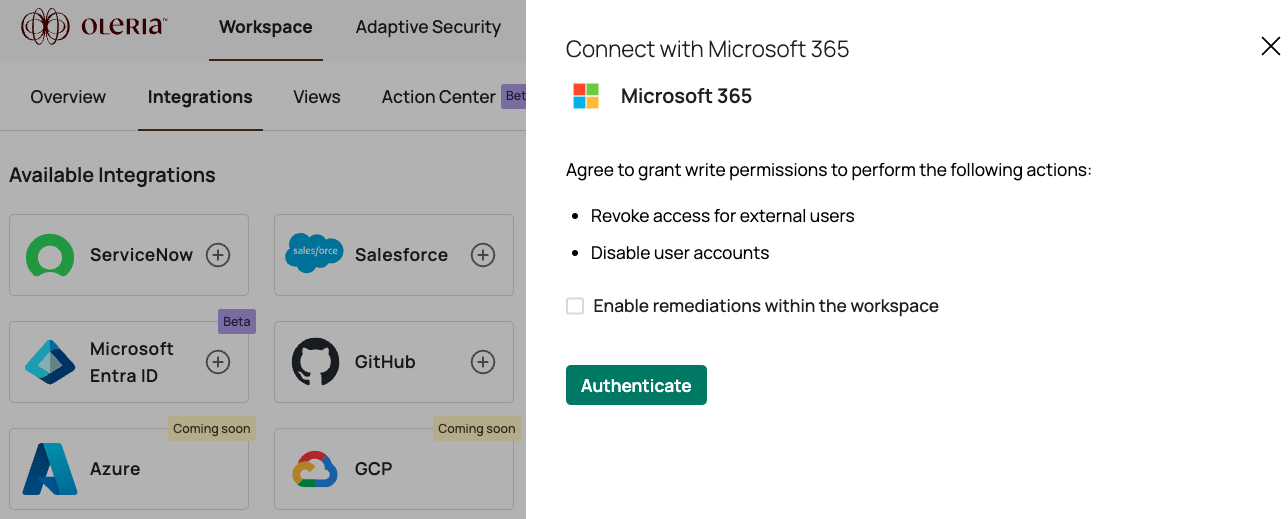 Select your Microsoft account and complete authentication.
A consent form appears to grant permissions for the Oleria application to view your basic profile and read access. Complete the consent form by selecting **Accept**.
Select your Microsoft account and complete authentication.
A consent form appears to grant permissions for the Oleria application to view your basic profile and read access. Complete the consent form by selecting **Accept**.
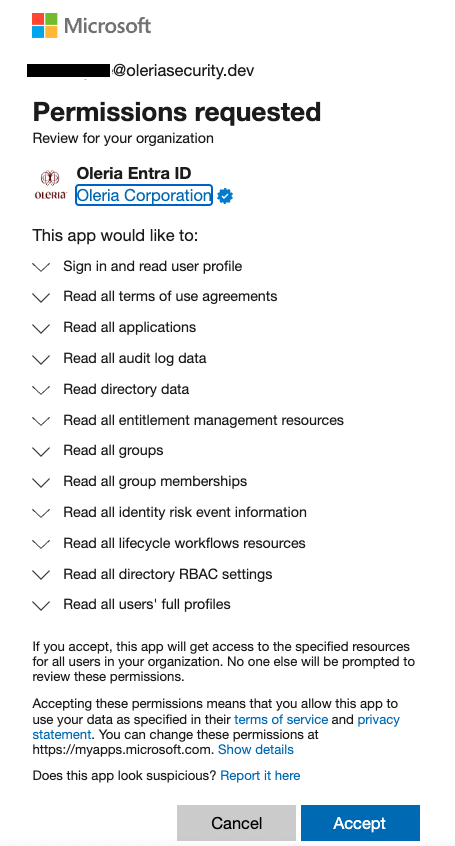
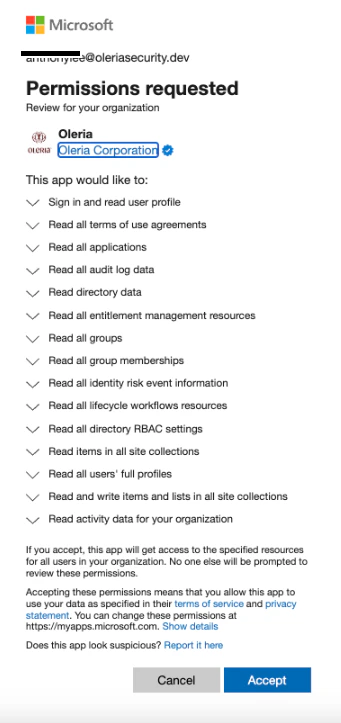
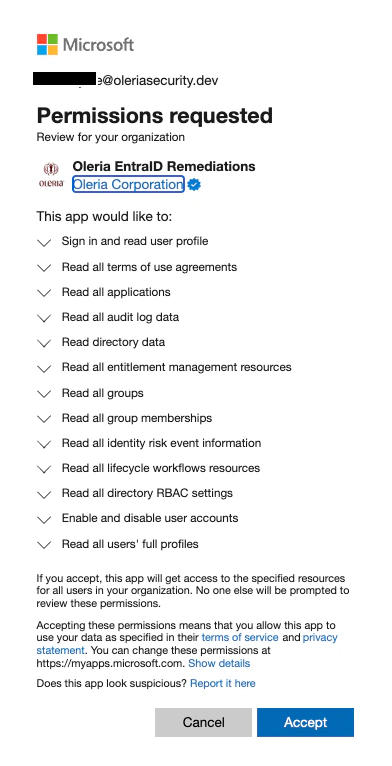
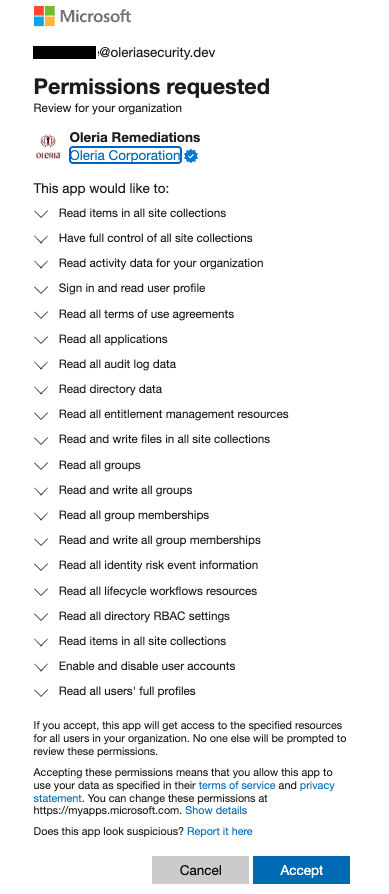
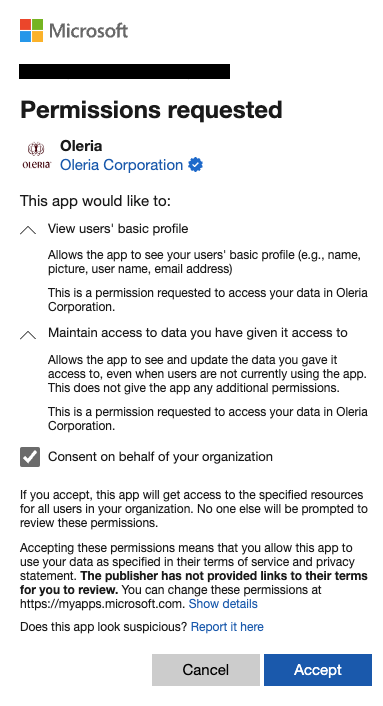 Microsoft's application consent form will appear with a list of requested permissions, which varies depending on your selected application and whether you chose to enable optional remediation capabilities. Complete the consent form by selecting **Accept**.
The permissions vary by integration type:
1. Standard read-only permissions for Entra ID integration (without optional remediations)
Microsoft's application consent form will appear with a list of requested permissions, which varies depending on your selected application and whether you chose to enable optional remediation capabilities. Complete the consent form by selecting **Accept**.
The permissions vary by integration type:
1. Standard read-only permissions for Entra ID integration (without optional remediations)
 2. Standard read-only permissions for SharePoint and OneDrive integration (without optional remediation)
 3. Permissions for Entra ID integration with optional remediation capabilities (includes some write permissions)
 4. Permissions for SharePoint and OneDrive integration with optional remediation capabilities (includes some write permissions)
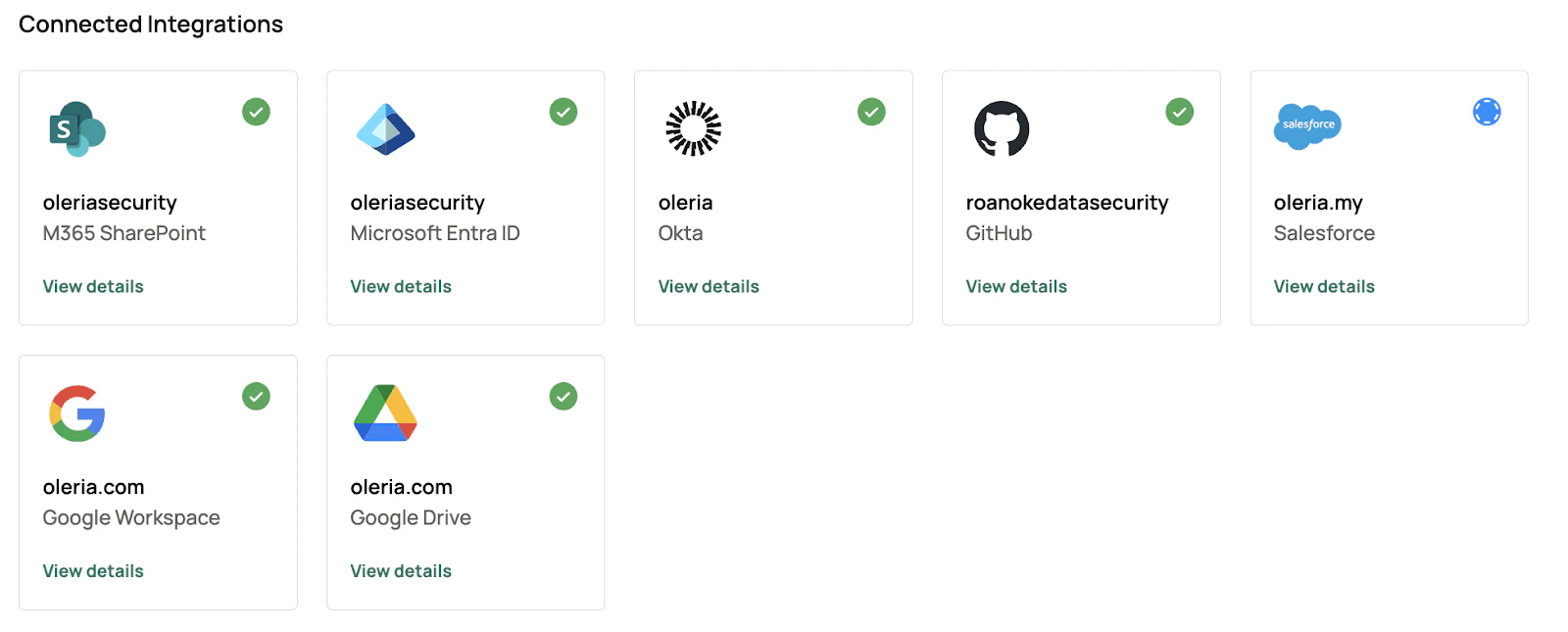
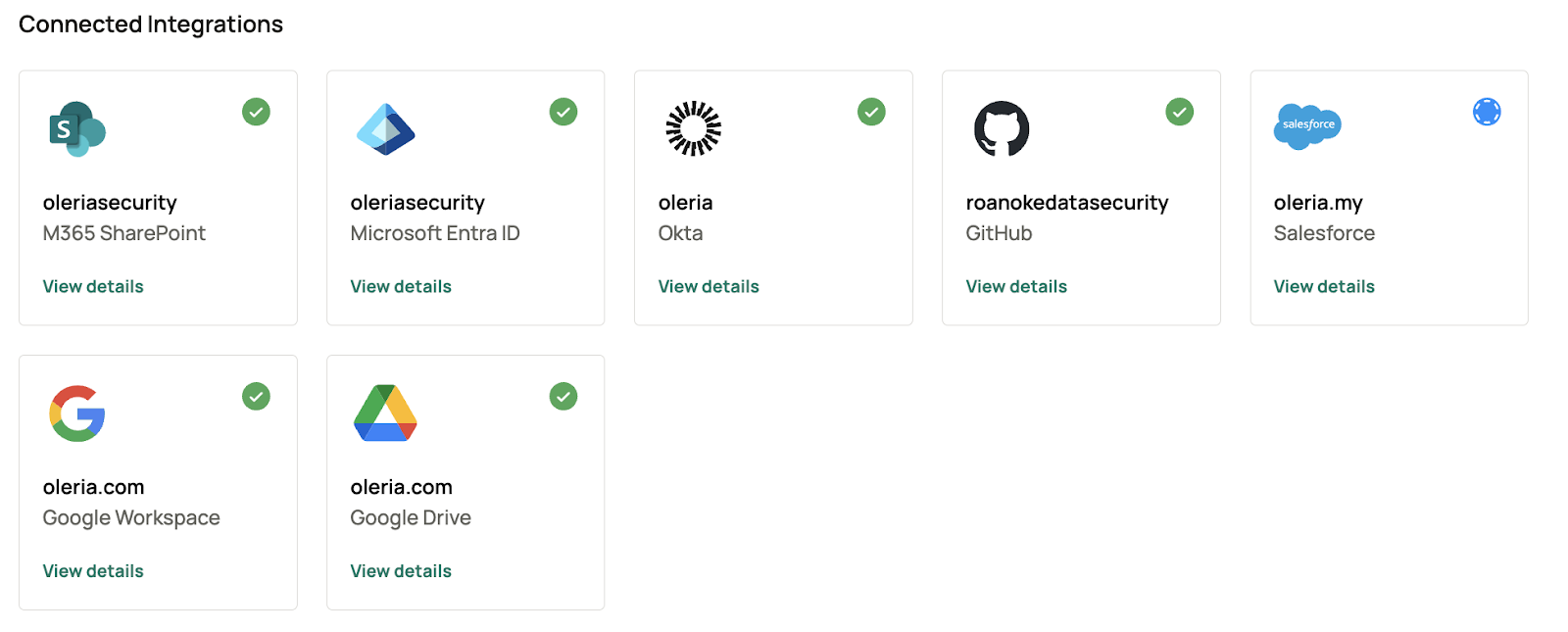
 Find the newly integrated Entra ID and M365 SharePoint instances in your Oleria workspace connected integrations.
 ## Client Secret Authentication
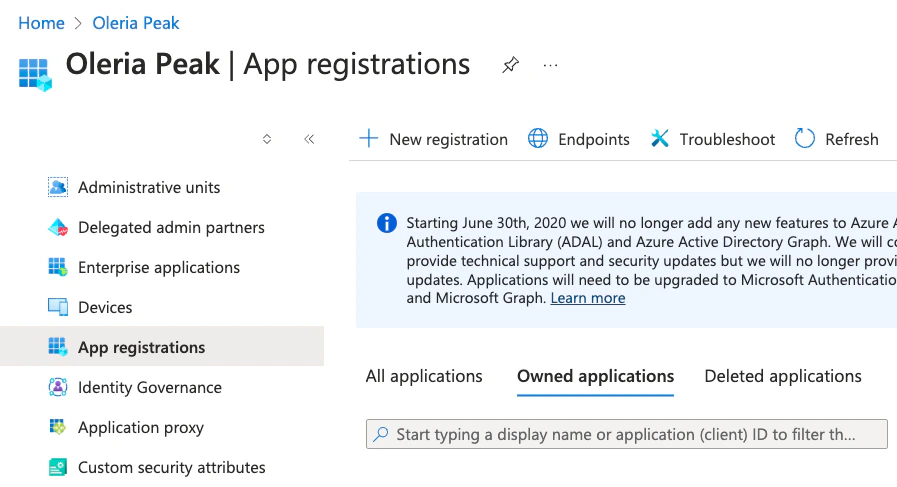
Log in to Microsoft Entra ID, navigate to **App registrations**, and select **New registration**.
## Client Secret Authentication
Log in to Microsoft Entra ID, navigate to **App registrations**, and select **New registration**.
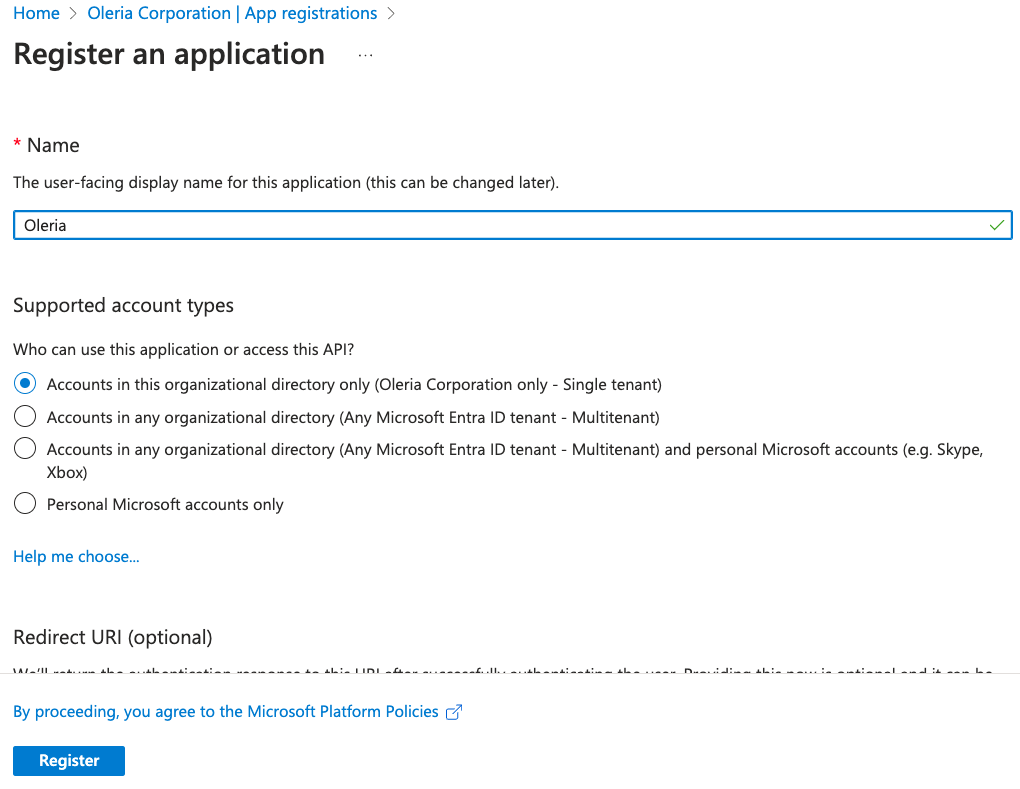
 Give a name to the application (e.g., **Oleria**) and select **Accounts in any organization directory (Any Microsoft Entra ID tenant - Single tenant)**. Select **Register**.
If you add any tenants in the future, you must add another App registration for each individual tenant. Alternatively, select **Accounts in any organizational directory (Any Microsoft Entra ID tenant - Multitenant)** to cover all tenants by default.
Give a name to the application (e.g., **Oleria**) and select **Accounts in any organization directory (Any Microsoft Entra ID tenant - Single tenant)**. Select **Register**.
If you add any tenants in the future, you must add another App registration for each individual tenant. Alternatively, select **Accounts in any organizational directory (Any Microsoft Entra ID tenant - Multitenant)** to cover all tenants by default.
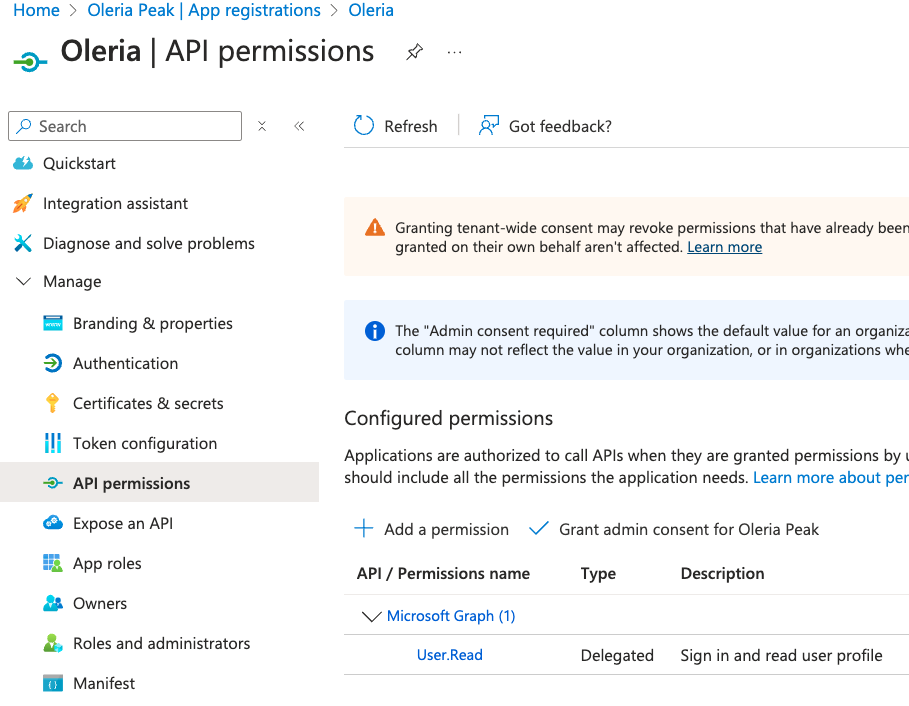
 Open the application and select **Manage** → **API permissions**. Select **Add permission**.
 Select **Microsoft Graph** and select **Application permissions**. Add the permissions appropriate for your integration:
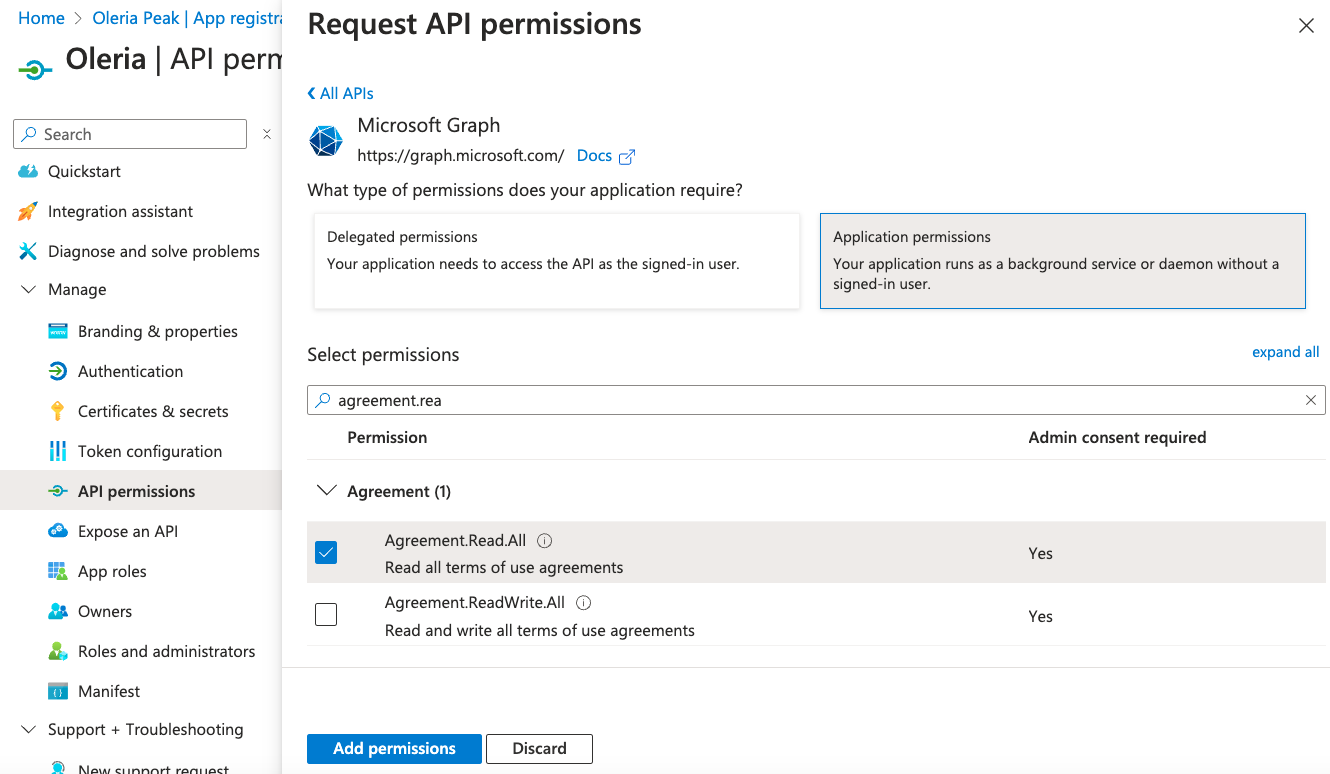 1. Standard read-only permissions for Entra ID integration (without optional remediations)
| API / Permissions name | Type | Permission |
| --------------------------------- | ----------- | ----------------------------------------- |
| Microsoft Graph (15) | | |
| Agreement.Read.All | Application | Read all terms of use agreements |
| Application.Read.All | Application | Read all applications |
| AuditLog.Read.All | Application | Read all audit log data |
| Directory.Read.All | Application | Read directory data |
| EntitlementManagement.Read.All | Application | Read all entitlement management resources |
| Group.Read.All | Application | Read all groups |
| GroupMember.Read.All | Application | Read all group memberships |
| IdentityRiskEvent.Read.All | Application | Read all identity risk event information |
| LifecycleWorkflows.Read.All | Application | Read all lifecycle workflows resources |
| Policy.Read.All | Application | Read your organization's policies |
| profile | Delegated | View users' basic profile |
| RoleManagement.Read.Directory | Application | Read all directory RBAC settings |
| User.Read | Delegated | Sign in and read user profile |
| User.Read.All | Application | Read all users' full profiles |
| UserAuthenticationMethod.Read.All | Application | Read all users' authentication methods |
2. Standard read-only permissions for SharePoint and OneDrive integration (without optional remediation)
| API / Permissions name | Type | Permission |
| --------------------------------- | ----------- | ----------------------------------------- |
| Microsoft Graph (16) | | |
| Agreement.Read.All | Application | Read all terms of use agreements |
| Application.Read.All | Application | Read all applications |
| AuditLog.Read.All | Application | Read all audit log data |
| Directory.Read.All | Application | Read directory data |
| EntitlementManagement.Read.All | Application | Read all entitlement management resources |
| Group.Read.All | Application | Read all groups |
| GroupMember.Read.All | Application | Read all group memberships |
| IdentityRiskEvent.Read.All | Application | Read all identity risk event information |
| LifecycleWorkflows.Read.All | Application | Read all lifecycle workflows resources |
| Policy.Read.All | Application | Read your organization's policies |
| profile | Delegated | View users' basic profile |
| RoleManagement.Read.Directory | Application | Read all directory RBAC settings |
| Sites.Read.All | Application | Read items in all site collections |
| User.Read | Delegated | Sign in and read user profile |
| User.Read.All | Application | Read all users' full profiles |
| UserAuthenticationMethod.Read.All | Application | Read all users' authentication methods |
| Office 365 Management APIs (1) | | |
| ActivityFeed.Read | Application | Read activity data for your organization |
| SharePoint (2) | | |
| Sites.FullControl.All | Application | Have full control of all site collections |
| Sites.Read.All | Application | Read items in all site collections |
3. Permissions for Entra ID integration with optional remediation capabilities (includes some write permissions)
| API / Permissions name | Type | Permission |
| --------------------------------- | ----------- | ----------------------------------------- |
| Microsoft Graph (16) | | |
| Agreement.Read.All | Application | Read all terms of use agreements |
| Application.Read.All | Application | Read all applications |
| AuditLog.Read.All | Application | Read all audit log data |
| Directory.Read.All | Application | Read directory data |
| EntitlementManagement.Read.All | Application | Read all entitlement management resources |
| Group.Read.All | Application | Read all groups |
| GroupMember.Read.All | Application | Read all group memberships |
| IdentityRiskEvent.Read.All | Application | Read all identity risk event information |
| LifecycleWorkflows.Read.All | Application | Read all lifecycle workflows resources |
| Policy.Read.All | Application | Read your organization's policies |
| profile | Delegated | View users' basic profile |
| RoleManagement.Read.Directory | Application | Read all directory RBAC settings |
| User.EnableDisableAccount.All | Application | Enable and disable user accounts |
| User.Read | Delegated | Sign in and read user profile |
| User.Read.All | Application | Read all users' full profiles |
| UserAuthenticationMethod.Read.All | Application | Read all users' authentication methods |
4. Permissions for SharePoint and OneDrive integration with optional remediation capabilities (includes some write permissions)
| API / Permissions name | Type | Permission |
| --------------------------------- | ----------- | -------------------------------------------- |
| Microsoft Graph (20) | | |
| Agreement.Read.All | Application | Read all terms of use agreements |
| Application.Read.All | Application | Read all applications |
| AuditLog.Read.All | Application | Read all audit log data |
| Directory.Read.All | Application | Read directory data |
| EntitlementManagement.Read.All | Application | Read all entitlement management resources |
| Files.ReadWrite.All | Application | Read and write files in all site collections |
| Group.Read.All | Application | Read all groups |
| Group.ReadWrite.All | Application | Read and write all groups |
| GroupMember.Read.All | Application | Read all group memberships |
| GroupMember.ReadWrite.All | Application | Read and write all group memberships |
| IdentityRiskEvent.Read.All | Application | Read all identity risk event information |
| LifecycleWorkflows.Read.All | Application | Read all lifecycle workflows resources |
| Policy.Read.All | Application | Read your organization's policies |
| profile | Delegated | View users' basic profile |
| RoleManagement.Read.Directory | Application | Read all directory RBAC settings |
| Sites.Read.All | Application | Read items in all site collections |
| User.EnableDisableAccount.All | Application | Enable and disable user accounts |
| User.Read | Delegated | Sign in and read user profile |
| User.Read.All | Application | Read all users' full profiles |
| UserAuthenticationMethod.Read.All | Application | Read all users' authentication methods |
| Office 365 Management APIs (1) | | |
| ActivityFeed.Read | Application | Read activity data for your organization |
| SharePoint (2) | | |
| Sites.FullControl.All | Application | Have full control of all site collections |
| Sites.Read.All | Application | Read items in all site collections |
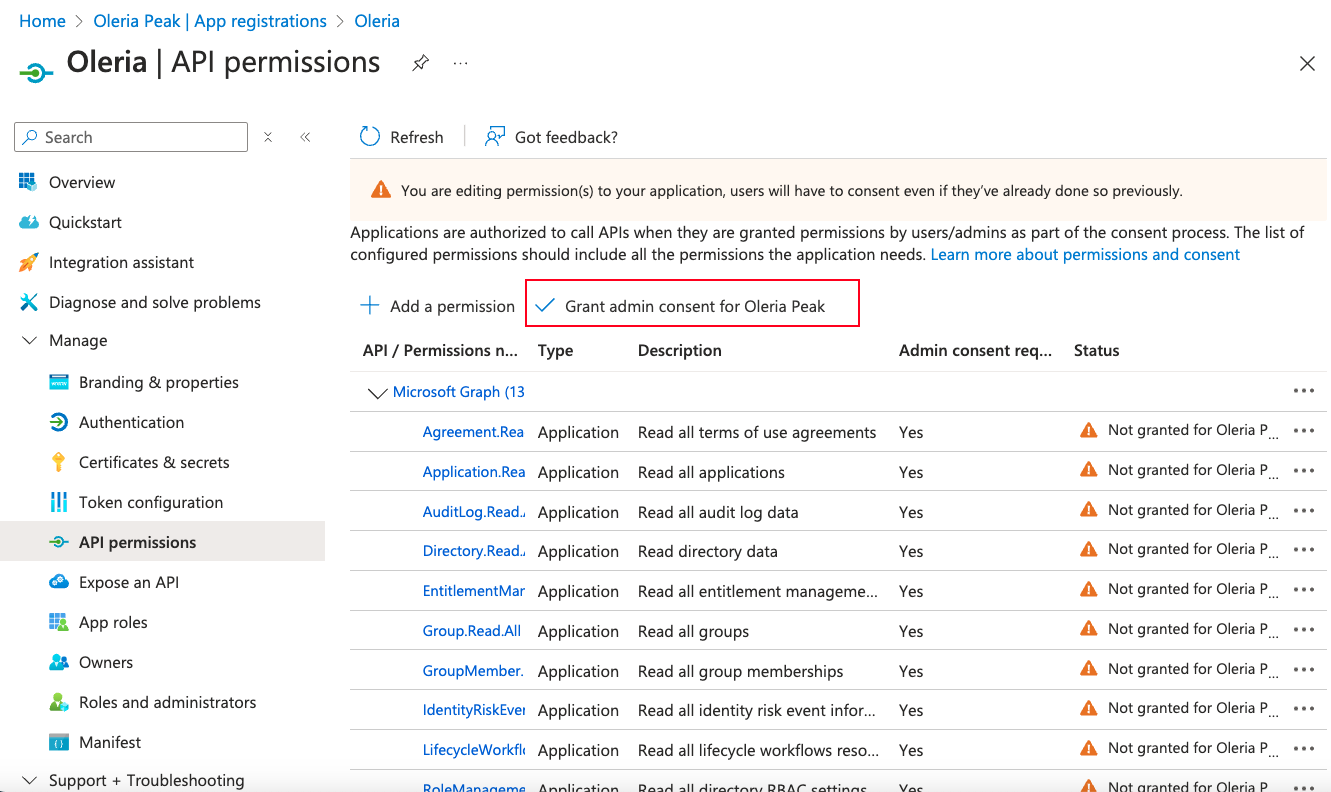
After adding all application permissions, select **Grant admin consent** to complete the consent.
1. Standard read-only permissions for Entra ID integration (without optional remediations)
| API / Permissions name | Type | Permission |
| --------------------------------- | ----------- | ----------------------------------------- |
| Microsoft Graph (15) | | |
| Agreement.Read.All | Application | Read all terms of use agreements |
| Application.Read.All | Application | Read all applications |
| AuditLog.Read.All | Application | Read all audit log data |
| Directory.Read.All | Application | Read directory data |
| EntitlementManagement.Read.All | Application | Read all entitlement management resources |
| Group.Read.All | Application | Read all groups |
| GroupMember.Read.All | Application | Read all group memberships |
| IdentityRiskEvent.Read.All | Application | Read all identity risk event information |
| LifecycleWorkflows.Read.All | Application | Read all lifecycle workflows resources |
| Policy.Read.All | Application | Read your organization's policies |
| profile | Delegated | View users' basic profile |
| RoleManagement.Read.Directory | Application | Read all directory RBAC settings |
| User.Read | Delegated | Sign in and read user profile |
| User.Read.All | Application | Read all users' full profiles |
| UserAuthenticationMethod.Read.All | Application | Read all users' authentication methods |
2. Standard read-only permissions for SharePoint and OneDrive integration (without optional remediation)
| API / Permissions name | Type | Permission |
| --------------------------------- | ----------- | ----------------------------------------- |
| Microsoft Graph (16) | | |
| Agreement.Read.All | Application | Read all terms of use agreements |
| Application.Read.All | Application | Read all applications |
| AuditLog.Read.All | Application | Read all audit log data |
| Directory.Read.All | Application | Read directory data |
| EntitlementManagement.Read.All | Application | Read all entitlement management resources |
| Group.Read.All | Application | Read all groups |
| GroupMember.Read.All | Application | Read all group memberships |
| IdentityRiskEvent.Read.All | Application | Read all identity risk event information |
| LifecycleWorkflows.Read.All | Application | Read all lifecycle workflows resources |
| Policy.Read.All | Application | Read your organization's policies |
| profile | Delegated | View users' basic profile |
| RoleManagement.Read.Directory | Application | Read all directory RBAC settings |
| Sites.Read.All | Application | Read items in all site collections |
| User.Read | Delegated | Sign in and read user profile |
| User.Read.All | Application | Read all users' full profiles |
| UserAuthenticationMethod.Read.All | Application | Read all users' authentication methods |
| Office 365 Management APIs (1) | | |
| ActivityFeed.Read | Application | Read activity data for your organization |
| SharePoint (2) | | |
| Sites.FullControl.All | Application | Have full control of all site collections |
| Sites.Read.All | Application | Read items in all site collections |
3. Permissions for Entra ID integration with optional remediation capabilities (includes some write permissions)
| API / Permissions name | Type | Permission |
| --------------------------------- | ----------- | ----------------------------------------- |
| Microsoft Graph (16) | | |
| Agreement.Read.All | Application | Read all terms of use agreements |
| Application.Read.All | Application | Read all applications |
| AuditLog.Read.All | Application | Read all audit log data |
| Directory.Read.All | Application | Read directory data |
| EntitlementManagement.Read.All | Application | Read all entitlement management resources |
| Group.Read.All | Application | Read all groups |
| GroupMember.Read.All | Application | Read all group memberships |
| IdentityRiskEvent.Read.All | Application | Read all identity risk event information |
| LifecycleWorkflows.Read.All | Application | Read all lifecycle workflows resources |
| Policy.Read.All | Application | Read your organization's policies |
| profile | Delegated | View users' basic profile |
| RoleManagement.Read.Directory | Application | Read all directory RBAC settings |
| User.EnableDisableAccount.All | Application | Enable and disable user accounts |
| User.Read | Delegated | Sign in and read user profile |
| User.Read.All | Application | Read all users' full profiles |
| UserAuthenticationMethod.Read.All | Application | Read all users' authentication methods |
4. Permissions for SharePoint and OneDrive integration with optional remediation capabilities (includes some write permissions)
| API / Permissions name | Type | Permission |
| --------------------------------- | ----------- | -------------------------------------------- |
| Microsoft Graph (20) | | |
| Agreement.Read.All | Application | Read all terms of use agreements |
| Application.Read.All | Application | Read all applications |
| AuditLog.Read.All | Application | Read all audit log data |
| Directory.Read.All | Application | Read directory data |
| EntitlementManagement.Read.All | Application | Read all entitlement management resources |
| Files.ReadWrite.All | Application | Read and write files in all site collections |
| Group.Read.All | Application | Read all groups |
| Group.ReadWrite.All | Application | Read and write all groups |
| GroupMember.Read.All | Application | Read all group memberships |
| GroupMember.ReadWrite.All | Application | Read and write all group memberships |
| IdentityRiskEvent.Read.All | Application | Read all identity risk event information |
| LifecycleWorkflows.Read.All | Application | Read all lifecycle workflows resources |
| Policy.Read.All | Application | Read your organization's policies |
| profile | Delegated | View users' basic profile |
| RoleManagement.Read.Directory | Application | Read all directory RBAC settings |
| Sites.Read.All | Application | Read items in all site collections |
| User.EnableDisableAccount.All | Application | Enable and disable user accounts |
| User.Read | Delegated | Sign in and read user profile |
| User.Read.All | Application | Read all users' full profiles |
| UserAuthenticationMethod.Read.All | Application | Read all users' authentication methods |
| Office 365 Management APIs (1) | | |
| ActivityFeed.Read | Application | Read activity data for your organization |
| SharePoint (2) | | |
| Sites.FullControl.All | Application | Have full control of all site collections |
| Sites.Read.All | Application | Read items in all site collections |
After adding all application permissions, select **Grant admin consent** to complete the consent.
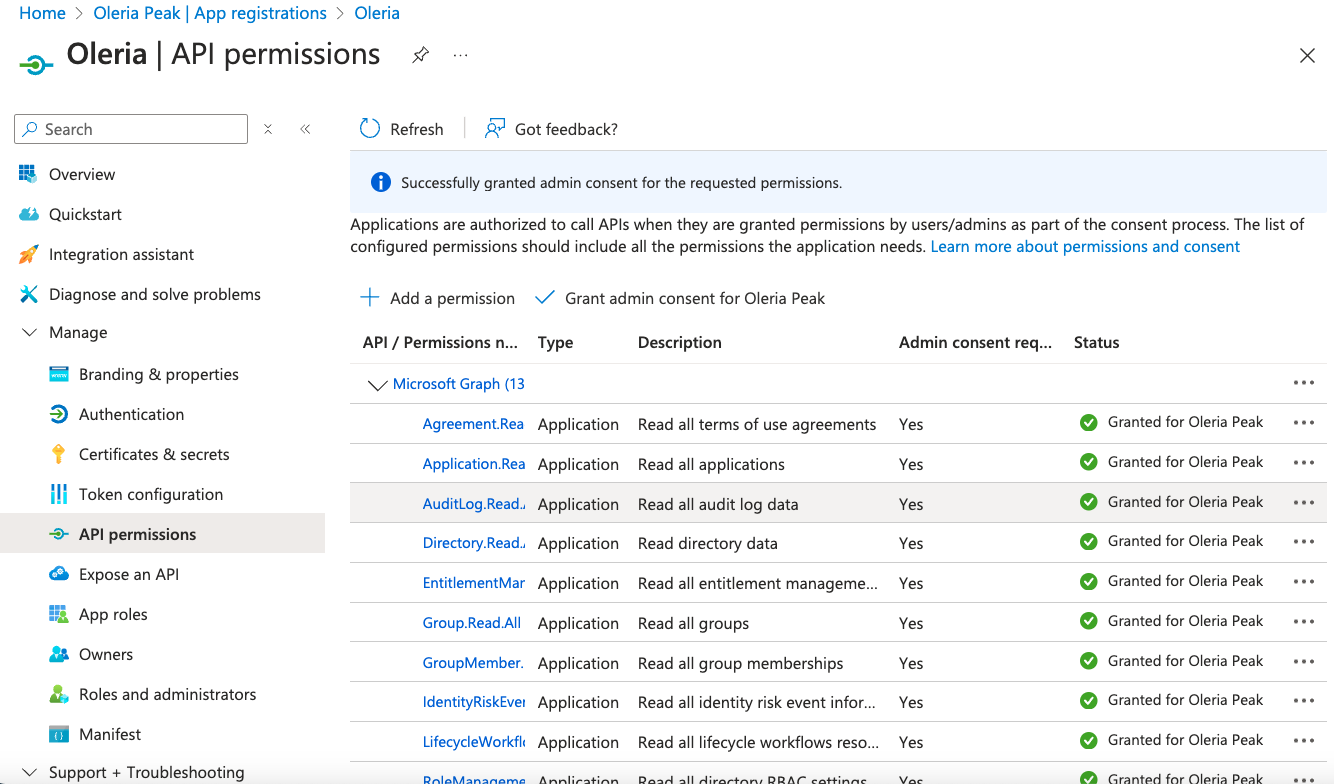
 Successful completion of admin grant consent should mark granted status green.
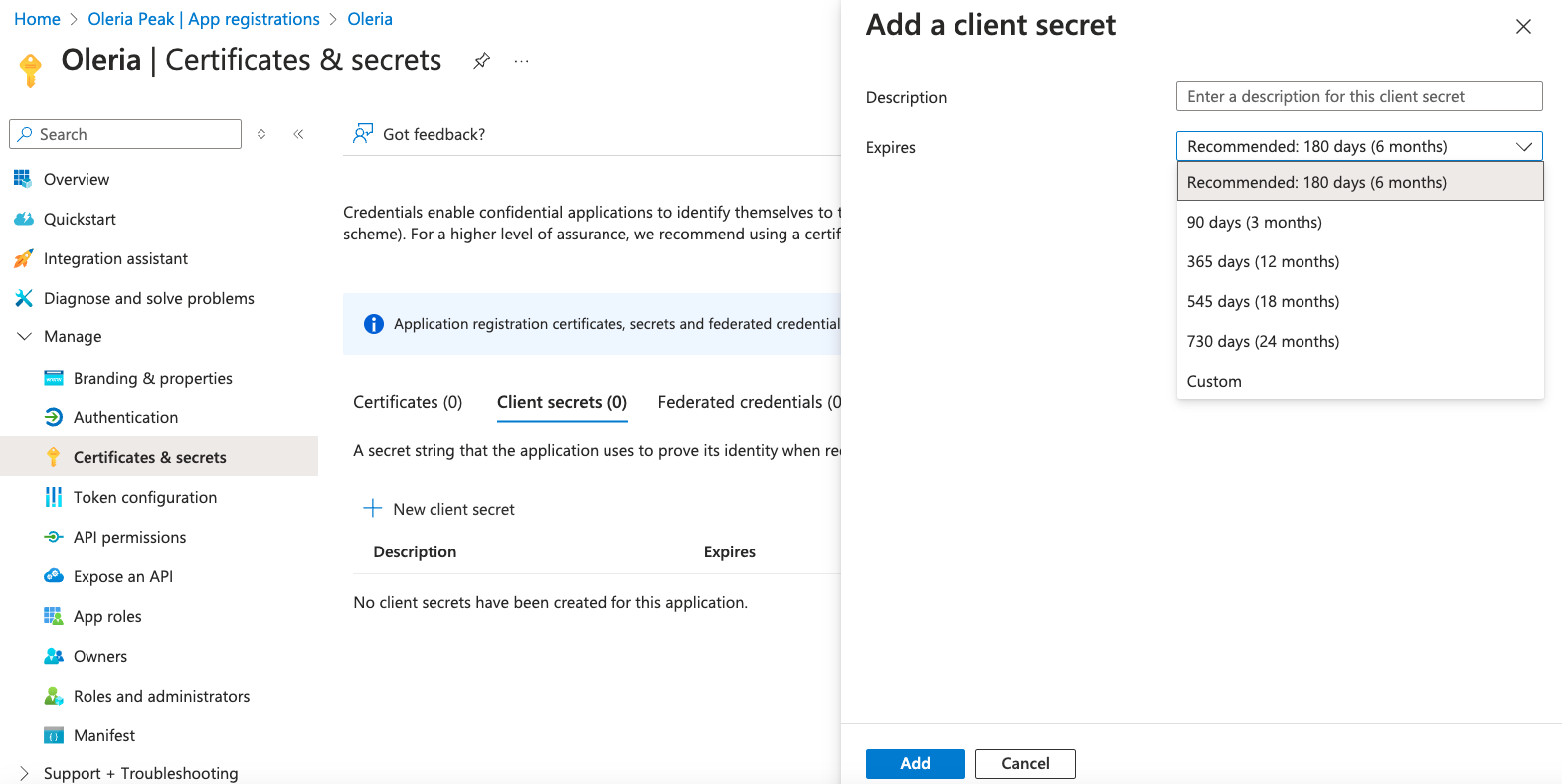
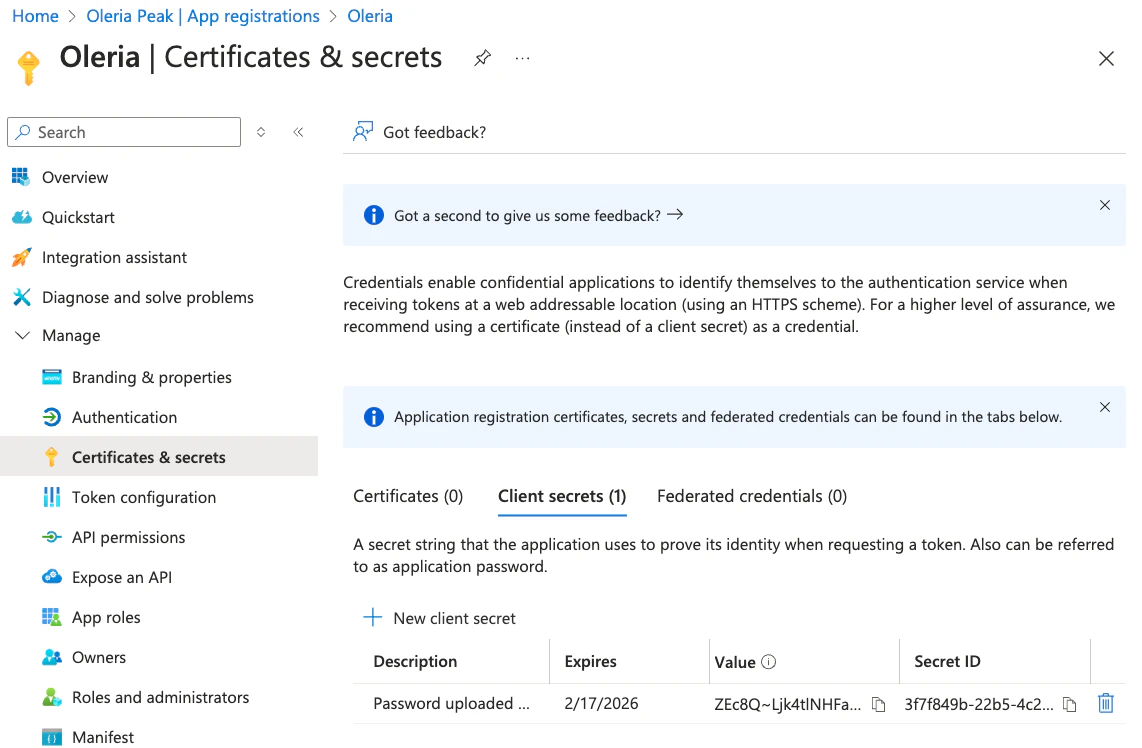
 Navigate to **Certificates & Secrets** and create a client secret.
 The generated client secret will be shown. Copy the **Client Secret Value**.
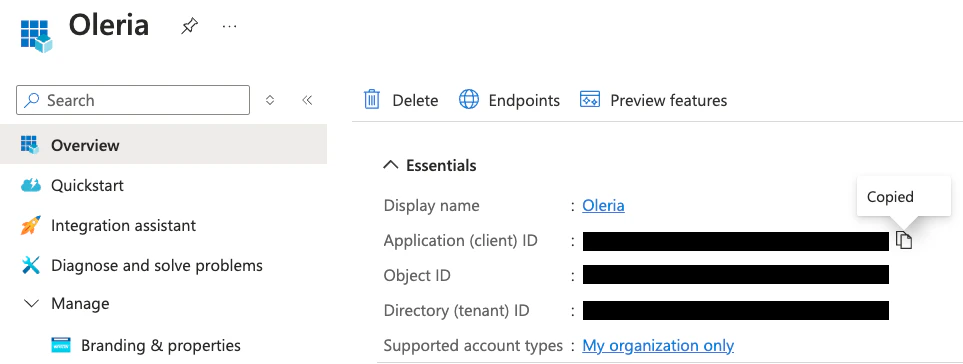
 Capture your **Client ID** and **Directory (tenant) ID**.
 Log in to Oleria workspace → select **Integrations** → select **Microsoft SharePoint and OneDrive**.
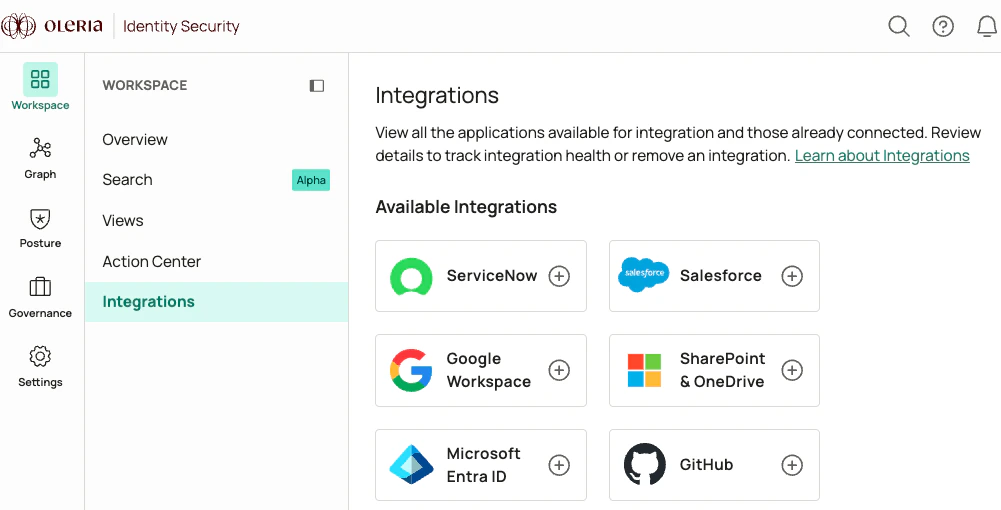 A side panel opens.
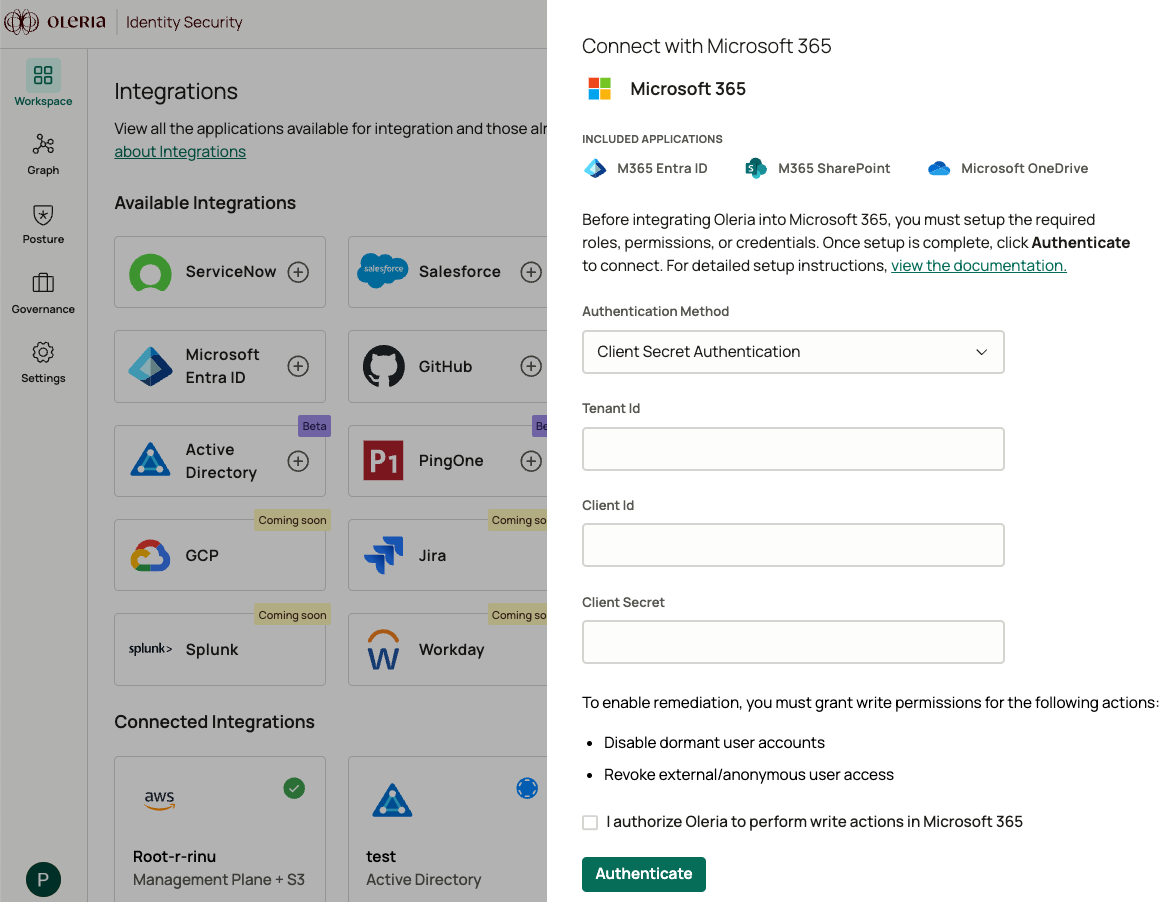
Select the **Authentication Method** dropdown and select **Client Secret Authentication**.
Provide the **Client Secret Value**, **Tenant ID**, and **Client ID** captured in the previous steps.
A side panel opens.
Select the **Authentication Method** dropdown and select **Client Secret Authentication**.
Provide the **Client Secret Value**, **Tenant ID**, and **Client ID** captured in the previous steps.
 Find the newly integrated Entra ID and M365 SharePoint instances in your Oleria workspace connected integrations.
 ## Client Certificate Authentication
Client certificate authentication uses a certificate uploaded to your Oleria app registration in Entra ID and a base64-encoded private key stored by Oleria. Use this method when your security policy requires certificate-based service principal authentication instead of a client secret.
This flow reuses the Oleria app registration and API permissions you create in the [Client Secret Authentication](#client-secret-authentication) section. Complete the steps from **Create an app registration in Entra ID** through **Confirm admin consent**, then return here. Skip the **Create a client secret** step.
Place the following files in a single working directory:
* `certificate.pem` - the public certificate in PEM format
* `private_key.txt` - the matching unencrypted private key in PEM format
* `certificate_chain.txt` - the intermediate certificate chain in PEM format
If your organization does not issue these files through an internal PKI, generate a self-signed certificate using the tooling of your choice (for example, AWS Certificate Manager Private CA or `New-SelfSignedCertificate` on Windows) and export it in the formats above.
The private key must be unencrypted. If `private_key.txt` is passphrase-protected, decrypt it first with `openssl rsa -in private_key.txt -out private_key.txt` (or the equivalent for your key type) before continuing.
Oleria expects a single base64 string that decodes to the certificate, chain, and unencrypted private key concatenated as PEM blocks. Run the commands for your operating system from the directory that holds the files prepared in the previous step.
```bash theme={null}
cat certificate.pem certificate_chain.txt private_key.txt > generated_cert.pem
base64 < generated_cert.pem | tr -d '\n' > base64_generate_cert.pem
```
```powershell theme={null}
Get-Content certificate.pem, certificate_chain.txt, private_key.txt |
Set-Content generated_cert.pem
[Convert]::ToBase64String([IO.File]::ReadAllBytes("generated_cert.pem")) |
Set-Content base64_generate_cert.pem -NoNewline
```
The contents of `base64_generate_cert.pem` is the value you will paste into Oleria in the final step.
Sign in to your Entra ID tenant and navigate to **Microsoft Entra ID** -> **Manage** -> **App registrations**. Open your Oleria app registration.
If the app is not visible under **Owned applications**, switch to **All applications** and search for it by name.
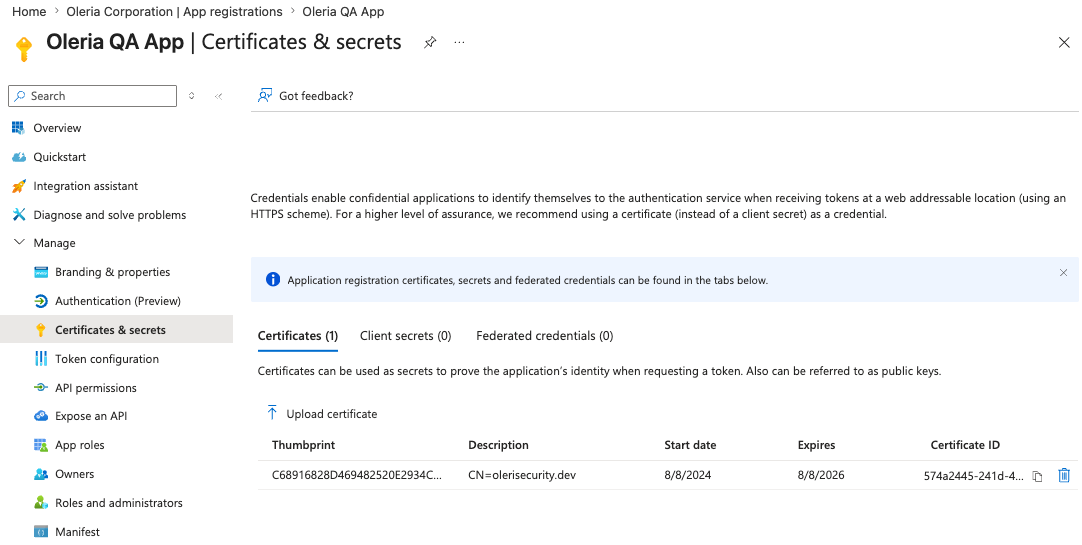
Select **Manage** -> **Certificates & secrets** -> **Certificates** and upload `certificate.pem`.
## Client Certificate Authentication
Client certificate authentication uses a certificate uploaded to your Oleria app registration in Entra ID and a base64-encoded private key stored by Oleria. Use this method when your security policy requires certificate-based service principal authentication instead of a client secret.
This flow reuses the Oleria app registration and API permissions you create in the [Client Secret Authentication](#client-secret-authentication) section. Complete the steps from **Create an app registration in Entra ID** through **Confirm admin consent**, then return here. Skip the **Create a client secret** step.
Place the following files in a single working directory:
* `certificate.pem` - the public certificate in PEM format
* `private_key.txt` - the matching unencrypted private key in PEM format
* `certificate_chain.txt` - the intermediate certificate chain in PEM format
If your organization does not issue these files through an internal PKI, generate a self-signed certificate using the tooling of your choice (for example, AWS Certificate Manager Private CA or `New-SelfSignedCertificate` on Windows) and export it in the formats above.
The private key must be unencrypted. If `private_key.txt` is passphrase-protected, decrypt it first with `openssl rsa -in private_key.txt -out private_key.txt` (or the equivalent for your key type) before continuing.
Oleria expects a single base64 string that decodes to the certificate, chain, and unencrypted private key concatenated as PEM blocks. Run the commands for your operating system from the directory that holds the files prepared in the previous step.
```bash theme={null}
cat certificate.pem certificate_chain.txt private_key.txt > generated_cert.pem
base64 < generated_cert.pem | tr -d '\n' > base64_generate_cert.pem
```
```powershell theme={null}
Get-Content certificate.pem, certificate_chain.txt, private_key.txt |
Set-Content generated_cert.pem
[Convert]::ToBase64String([IO.File]::ReadAllBytes("generated_cert.pem")) |
Set-Content base64_generate_cert.pem -NoNewline
```
The contents of `base64_generate_cert.pem` is the value you will paste into Oleria in the final step.
Sign in to your Entra ID tenant and navigate to **Microsoft Entra ID** -> **Manage** -> **App registrations**. Open your Oleria app registration.
If the app is not visible under **Owned applications**, switch to **All applications** and search for it by name.
Select **Manage** -> **Certificates & secrets** -> **Certificates** and upload `certificate.pem`.
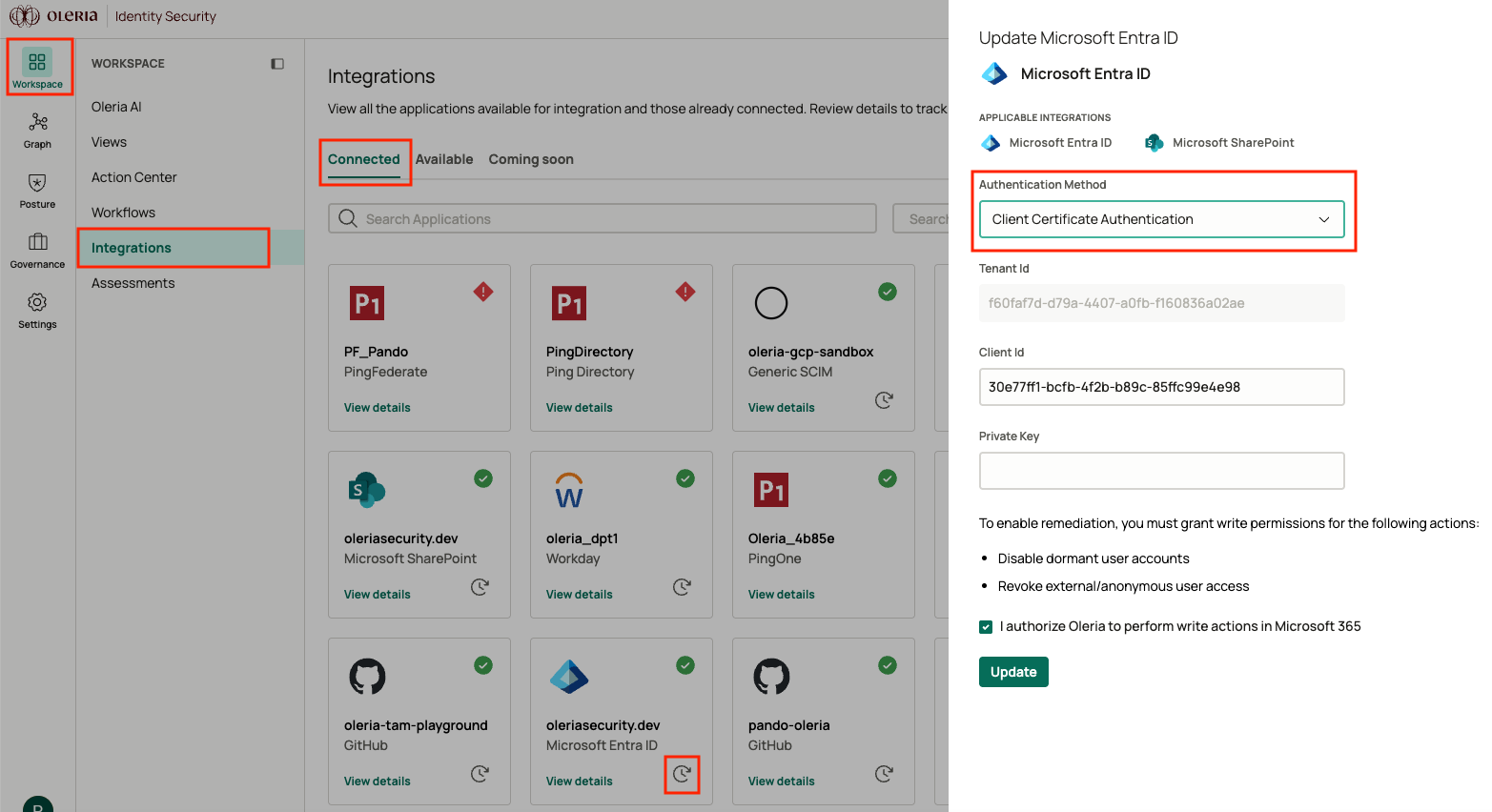
 Log in to your Oleria workspace and navigate to **Workspace** -> **Integrations**.
* For a new integration, select **Microsoft Entra ID** or **Microsoft SharePoint and OneDrive** to open the side panel.
* To migrate an existing integration from client secret to client certificate, select **Connected**, then select the edit icon on your Entra ID integration to open the side panel.
From the **Authentication Method** dropdown, select **Client Certificate Authentication**.
Provide the following:
| Field | Notes |
| :---------- | :------------------------------------------------------------------- |
| Tenant ID | Your **Directory (tenant) ID** from the app registration overview. |
| Client ID | Your **Application (client) ID** from the app registration overview. |
| Private Key | The contents of `base64_generate_cert.pem` from the previous step. |
Select **Update** to save the integration.
Log in to your Oleria workspace and navigate to **Workspace** -> **Integrations**.
* For a new integration, select **Microsoft Entra ID** or **Microsoft SharePoint and OneDrive** to open the side panel.
* To migrate an existing integration from client secret to client certificate, select **Connected**, then select the edit icon on your Entra ID integration to open the side panel.
From the **Authentication Method** dropdown, select **Client Certificate Authentication**.
Provide the following:
| Field | Notes |
| :---------- | :------------------------------------------------------------------- |
| Tenant ID | Your **Directory (tenant) ID** from the app registration overview. |
| Client ID | Your **Application (client) ID** from the app registration overview. |
| Private Key | The contents of `base64_generate_cert.pem` from the previous step. |
Select **Update** to save the integration.
 `generated_cert.pem` and `base64_generate_cert.pem` both contain the unencrypted private key inline. Delete them from the working directory now that the integration is connected. Your original `certificate.pem`, `certificate_chain.txt`, and `private_key.txt` files are unchanged and can stay in your existing key store.
```bash theme={null}
shred -u generated_cert.pem base64_generate_cert.pem 2>/dev/null || \
rm -P generated_cert.pem base64_generate_cert.pem
```
```powershell theme={null}
Remove-Item generated_cert.pem, base64_generate_cert.pem -Force
```
For a stronger overwrite guarantee on a spinning disk, run `cipher /w:` against the working directory from an elevated command prompt. On an SSD this is a no-op due to wear leveling.
If your shell records command history, clear it to remove references to the key file paths: `history -c` on Bash or Zsh, `Clear-History` on PowerShell.
### How Oleria handles the private key
The **Private Key** field in the integration form is masked to prevent shoulder-surfing during entry. The value is transmitted to Oleria over TLS and persisted in AWS Secrets Manager, which provides encryption at rest with KMS-managed keys and audit logging on every access. Access to the secret is scoped to the Oleria service that authenticates to Entra ID; no human operator and no other Oleria service can read it.
Oleria does not write the private key to application logs, databases, or temporary files. It is read from AWS Secrets Manager into process memory only when authenticating to Entra ID, and is held in memory only for the duration of that authentication.
## Check the Oleria App in Your Entra ID Instance
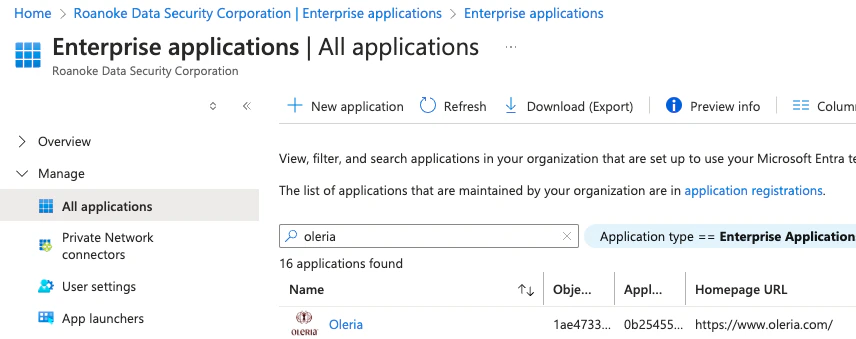
Log in to your Entra ID instance, navigate to **Enterprise applications** → select **All applications**.
You will find the Oleria application in the Enterprise applications list.
`generated_cert.pem` and `base64_generate_cert.pem` both contain the unencrypted private key inline. Delete them from the working directory now that the integration is connected. Your original `certificate.pem`, `certificate_chain.txt`, and `private_key.txt` files are unchanged and can stay in your existing key store.
```bash theme={null}
shred -u generated_cert.pem base64_generate_cert.pem 2>/dev/null || \
rm -P generated_cert.pem base64_generate_cert.pem
```
```powershell theme={null}
Remove-Item generated_cert.pem, base64_generate_cert.pem -Force
```
For a stronger overwrite guarantee on a spinning disk, run `cipher /w:` against the working directory from an elevated command prompt. On an SSD this is a no-op due to wear leveling.
If your shell records command history, clear it to remove references to the key file paths: `history -c` on Bash or Zsh, `Clear-History` on PowerShell.
### How Oleria handles the private key
The **Private Key** field in the integration form is masked to prevent shoulder-surfing during entry. The value is transmitted to Oleria over TLS and persisted in AWS Secrets Manager, which provides encryption at rest with KMS-managed keys and audit logging on every access. Access to the secret is scoped to the Oleria service that authenticates to Entra ID; no human operator and no other Oleria service can read it.
Oleria does not write the private key to application logs, databases, or temporary files. It is read from AWS Secrets Manager into process memory only when authenticating to Entra ID, and is held in memory only for the duration of that authentication.
## Check the Oleria App in Your Entra ID Instance
Log in to your Entra ID instance, navigate to **Enterprise applications** → select **All applications**.
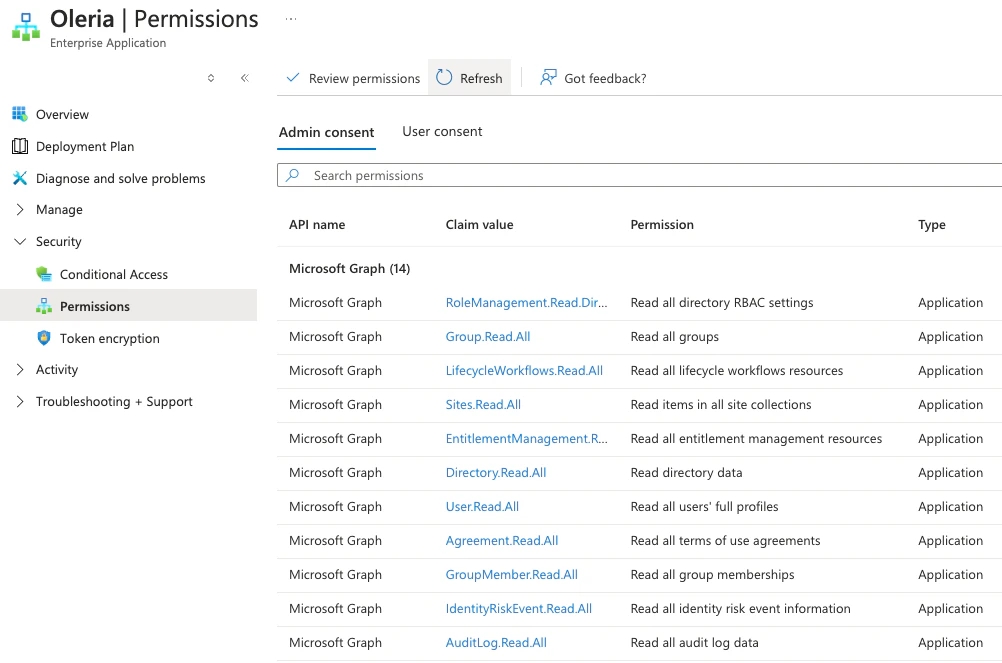
You will find the Oleria application in the Enterprise applications list.
 Select **Permissions** to view the read permissions granted to the Oleria application.
 ## Contact us
For questions about this integration, contact us at [support@oleria.com](mailto:support@oleria.com).
## Contact us
For questions about this integration, contact us at [support@oleria.com](mailto:support@oleria.com).