> ## Documentation Index
> Fetch the complete documentation index at: https://docs.oleria.com/llms.txt
> Use this file to discover all available pages before exploring further.
# LaunchDarkly
> Connect your LaunchDarkly account to Oleria to continuously discover and map who has access across your projects, environments, and feature flags.
Connect LaunchDarkly to Oleria to gain continuous visibility into who has access across your projects, environments, and feature flags. Oleria reads identity, access, and audit data from the LaunchDarkly REST API - mapping every member's team memberships and role-derived resource access in one place - so you can see where access is over-provisioned and take action directly from Oleria. This page provides step-by-step guidance for connecting LaunchDarkly to Oleria.
## What Oleria discovers
Once connected, Oleria continuously discovers and maps the following from your LaunchDarkly account:
* **Accounts** - every human member, plus every personal and service access token as its own non-human identity (NHI) account.
* **Teams** - all teams and their membership, including custom roles assigned directly to a team.
* **Roles** - the five built-in base roles (Reader, Writer, Admin, Owner, No access) and every custom role, including which projects, environments, and flags each role's policy grants access to.
* **Resources** - every project, environment, and feature flag.
* **Audit activity** - audit log events, attributed to the member, access token, or OAuth application that performed them.
## Prerequisites
* The user creating the access token must hold, at minimum, the **Admin** base role (or a custom role with equivalent permissions - see [Required permissions](#required-permissions) below)
Use a service account (and not an employee account) to generate the token, so the integration keeps working if the employee who created it leaves or changes roles.
### Required permissions
LaunchDarkly's [custom role actions](https://docs.launchdarkly.com/home/account/role-actions) only cover a subset of the data this integration reads. There is no policy action that gates read access to **members**, **custom roles**, **access tokens**, **webhooks**, or the **audit log** - LaunchDarkly only exposes those through a role's *base permission tier* (Reader/Writer/Admin/Owner), not through an explicit `view*` action. This means:
* **Simplest option: use the Admin base role.** It covers every object this integration reads (members, teams, roles, projects, environments, flags, tokens, webhooks, audit log) and, if you also want Oleria to perform governance actions, the writes those require.
* **Minimal custom role:** set `basePermissions` to **Reader** (required - a `no_access` base role cannot see members/roles/tokens/webhooks/audit log no matter what policy you attach), then add an explicit policy for the two object kinds LaunchDarkly *does* let you scope precisely:
```json theme={null}
[
{
"effect": "allow",
"resources": ["proj/*"],
"actions": ["viewProject"]
},
{
"effect": "allow",
"resources": ["team/*"],
"actions": ["viewTeam"]
}
]
```
`viewProject` cascades to every environment and flag inside that project, so no separate environment- or flag-level action is needed.
* **To also enable governance actions** (deprovisioning a member, team membership changes, role assignment/removal), add:
```json theme={null}
[
{
"effect": "allow",
"resources": ["member/*"],
"actions": ["createMember", "deleteMember", "updateCustomRole"]
},
{
"effect": "allow",
"resources": ["team/*"],
"actions": ["updateTeamMembers"]
},
{
"effect": "allow",
"resources": ["service-token/*", "member/*:token/*"],
"actions": ["deleteAccessToken"]
}
]
```
Whichever role you use, it must be able to read its own token record (`GET /api/v2/tokens`) - Oleria calls this to verify the connection. A role scoped too narrowly can fail this check even if every other permission above is granted correctly.
#### How to create the custom role
1. In LaunchDarkly, go to **Account settings** -> **Roles**, and select **Create role**.
2. Name it (for example, "Oleria integration") and set **Base permissions** to **Reader**.
3. Switch the policy editor to **Advanced editor** and paste in the JSON policy from above (merge both snippets into a single array if you want governance actions too).
4. Select **Save role**.
5. When creating the access token in the next section, select **Custom** as the role and choose the role you just created.
## Connect LaunchDarkly to Oleria
Log in to LaunchDarkly, go to **Account settings**, select the **Authorization** tab, and select **Create token**.
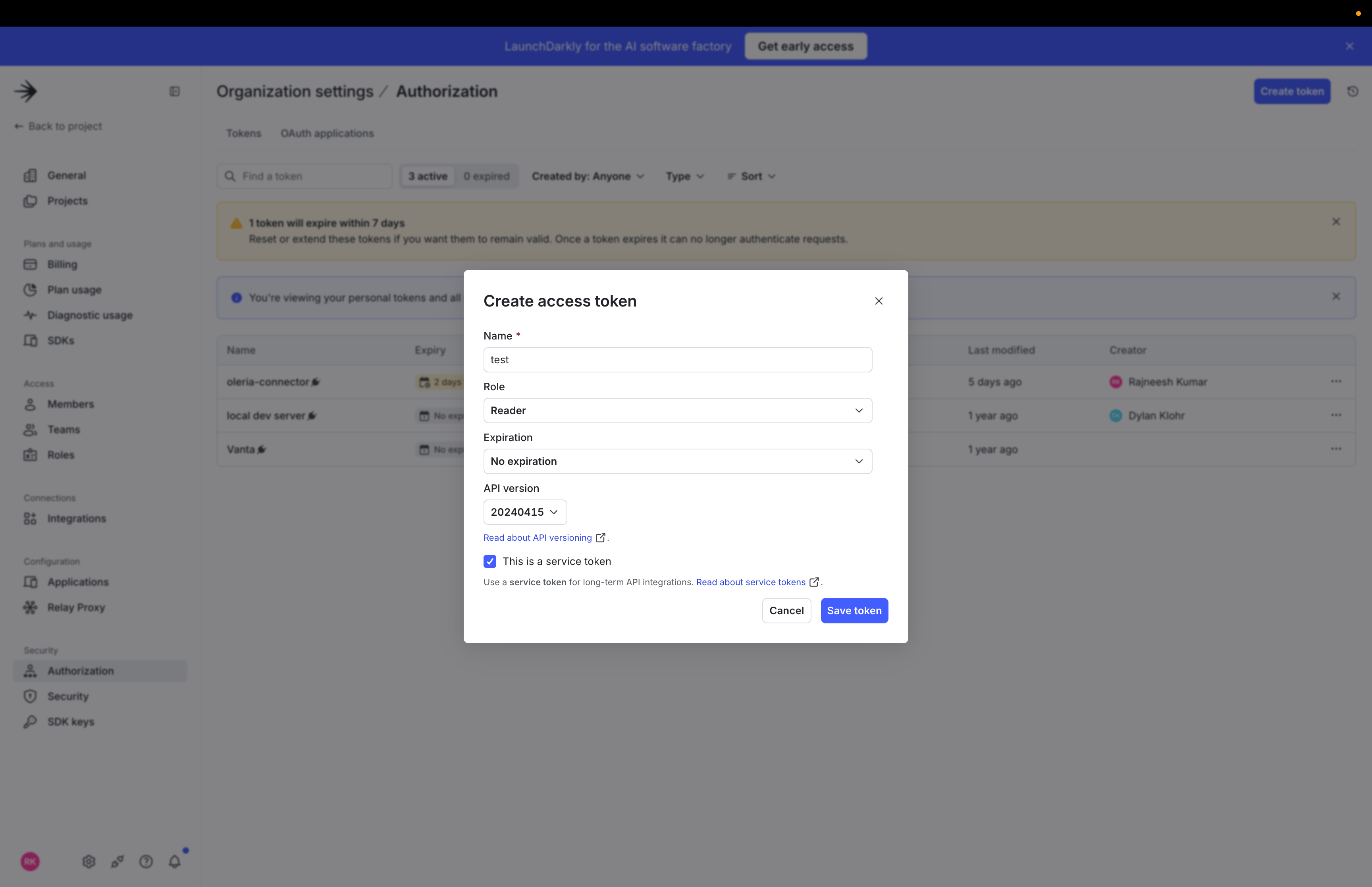
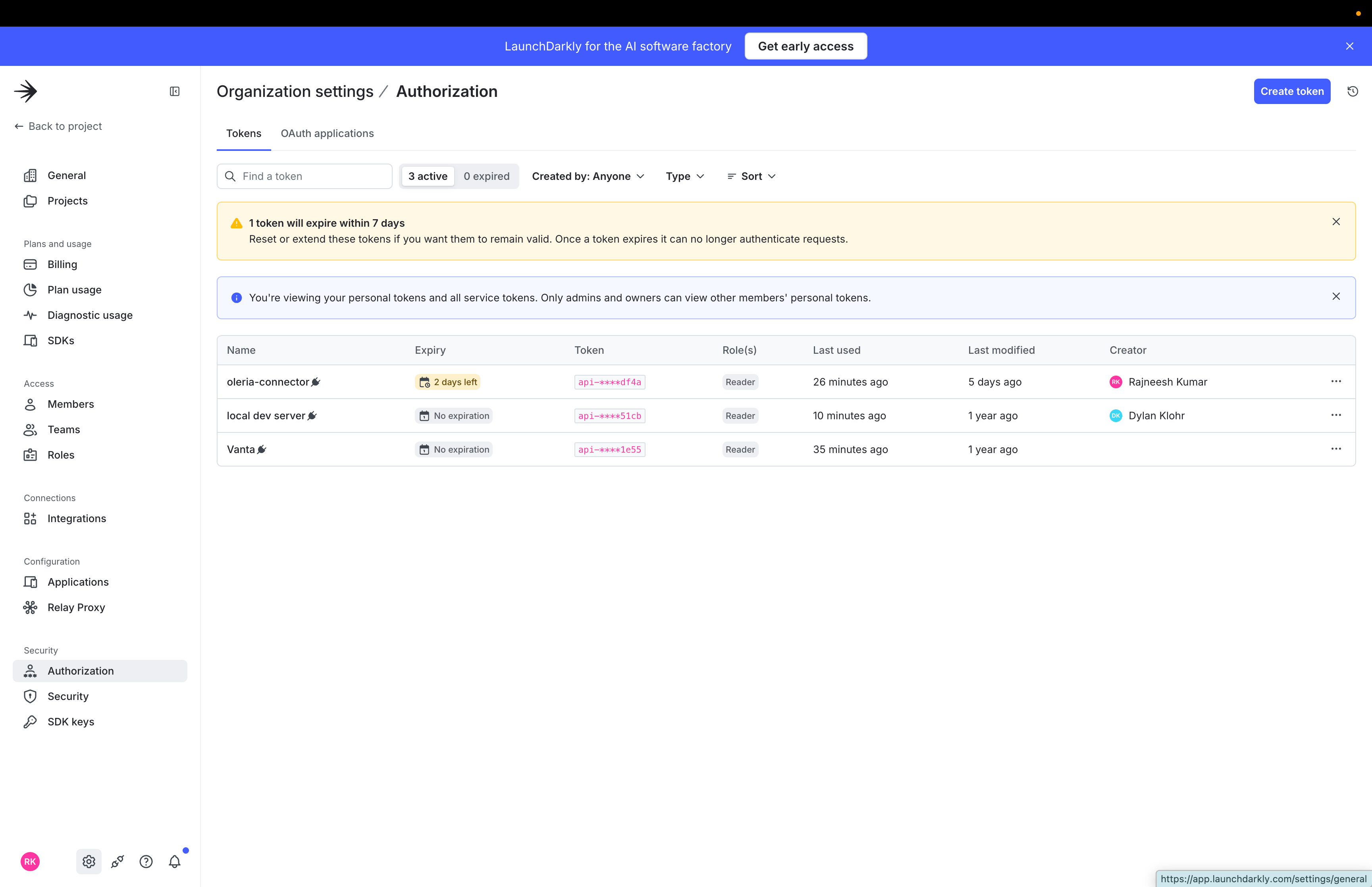 Give the token a name (for example, "Oleria"), and choose a role - **Admin** for the simplest setup, or the custom role you built per [Required permissions](#required-permissions) above if you want to scope it tightly.
Select **Save Token**.
Give the token a name (for example, "Oleria"), and choose a role - **Admin** for the simplest setup, or the custom role you built per [Required permissions](#required-permissions) above if you want to scope it tightly.
Select **Save Token**.
 Copy the token value immediately - LaunchDarkly only displays it once.
Store the token securely. LaunchDarkly shows it only at creation time and cannot retrieve it later. If you lose it, you must create a new token and update the integration in Oleria.
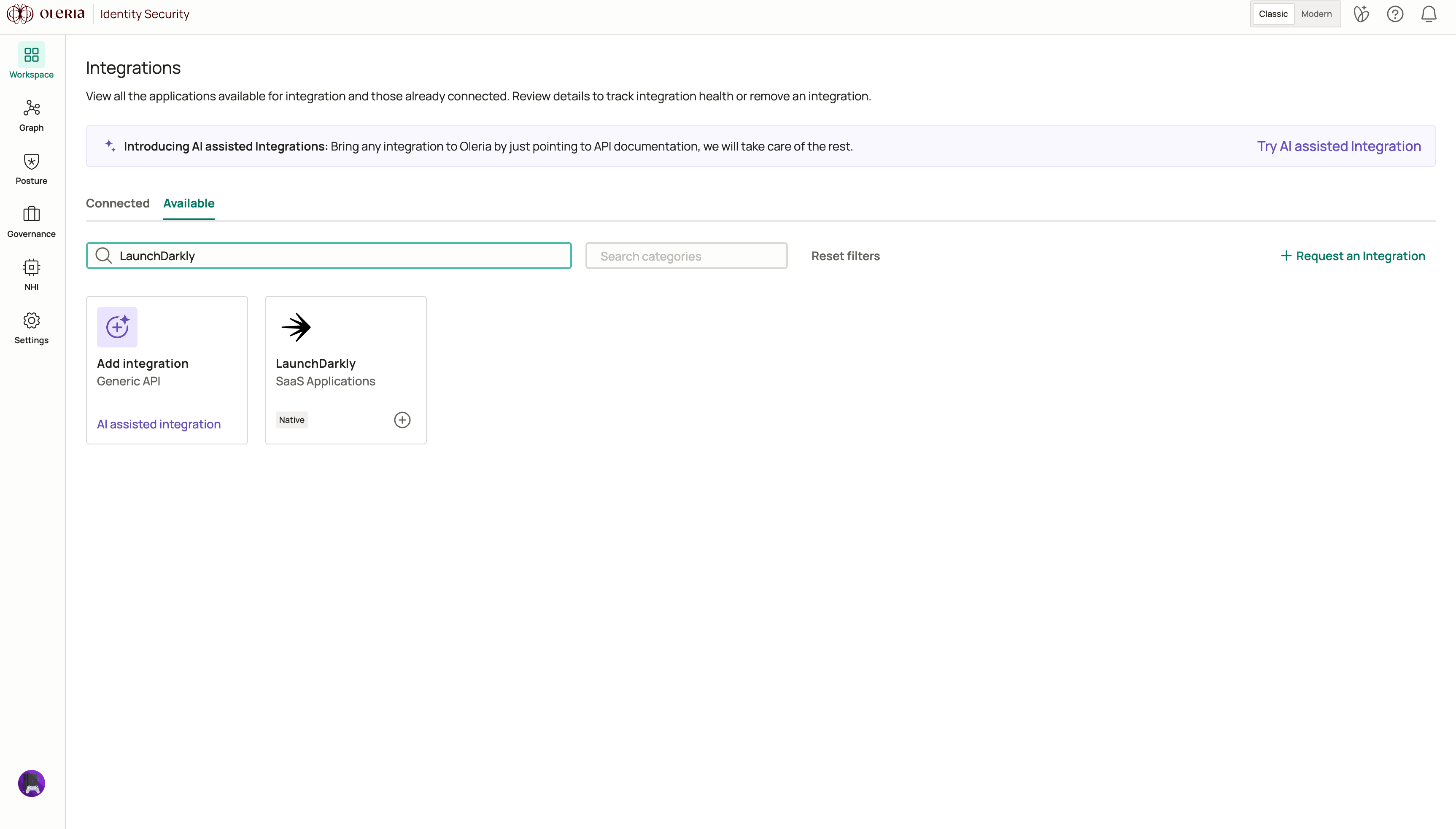
Go to your Oleria workspace, select **Integrations**, select the **Available** tab, and search for **LaunchDarkly**.
Copy the token value immediately - LaunchDarkly only displays it once.
Store the token securely. LaunchDarkly shows it only at creation time and cannot retrieve it later. If you lose it, you must create a new token and update the integration in Oleria.
Go to your Oleria workspace, select **Integrations**, select the **Available** tab, and search for **LaunchDarkly**.
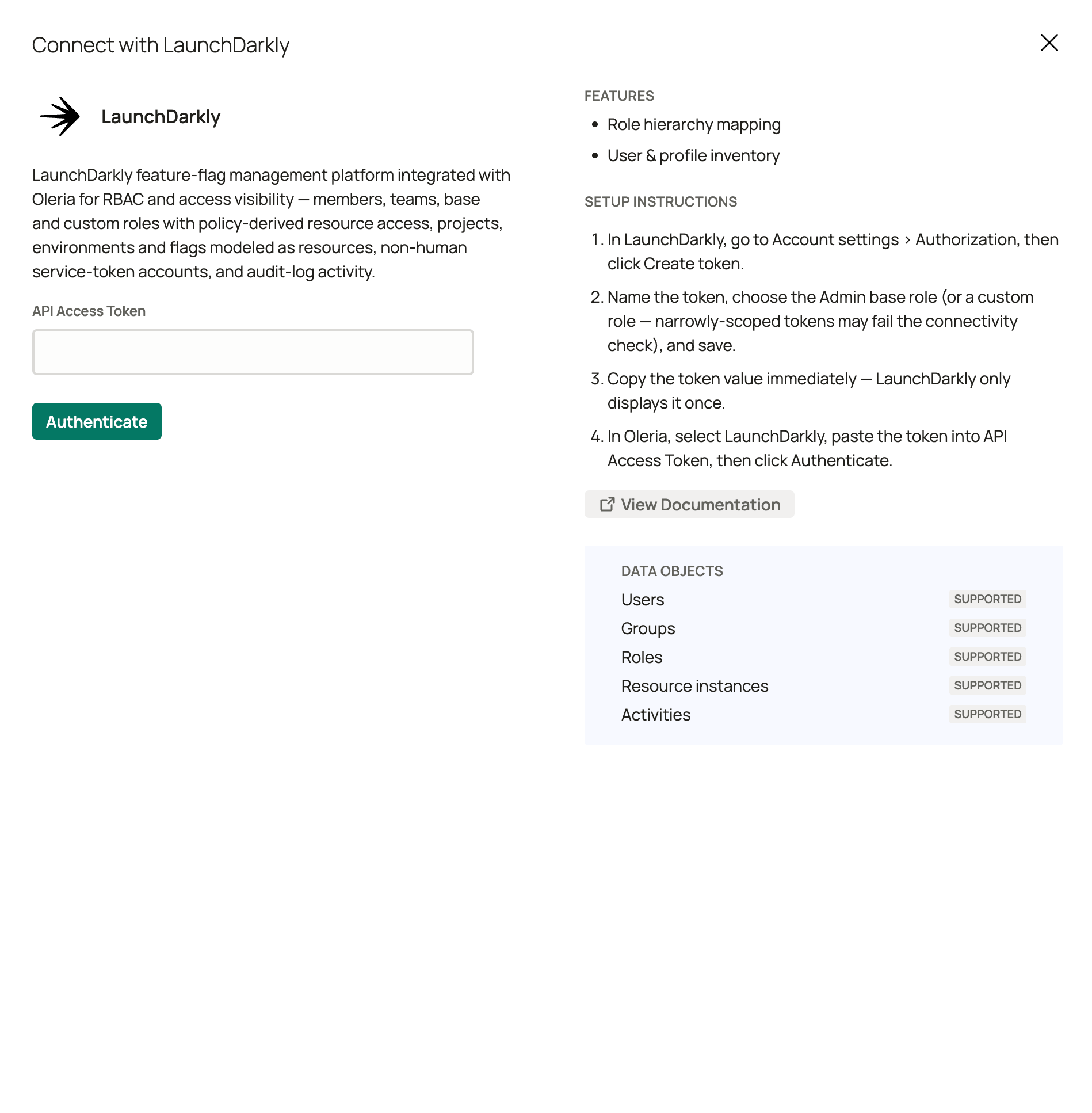
 Select the LaunchDarkly card, paste the token into **API Access Token**, then select **Authenticate**. Oleria checks the credentials against LaunchDarkly before saving.
 ## Verify the integration
Confirm the LaunchDarkly instance appears in your Oleria workspace connected integrations (**Integrations** -> **Connected** tab). After the first sync completes, you can review the discovered accounts, teams, roles, resources, and activity in your Oleria workspace.
If you rotate or regenerate the access token, update the credential in Oleria by editing the integration. A revoked or expired token will cause discovery to stop.
## Governance actions
Beyond discovery, Oleria can act on LaunchDarkly access to remediate risk. Governance actions require a token with write access to members, teams, and roles (see [Required permissions](#required-permissions) above).
Make sure the token you connect with includes write access before using governance actions. A read-only token will connect successfully, but any governance action will fail when it runs.
| Action | Reversible? |
| :-------------------- | :------------------------------------------------------------------------------------------------ |
| Delete user | No - `DELETE /members/{id}` is LaunchDarkly's only member-removal mechanism, and it is permanent. |
| Add user to team | Yes - reversed by removing the user from the team. |
| Remove user from team | Yes - reversed by re-adding the user to the team. |
| Assign custom role | Yes - reversed by removing the role. |
| Remove custom role | Yes - reversed by re-assigning the role. |
## Known limitations
* **`deny` policy statements are not modeled.** A custom role's `allow` grants are synced; a `deny` statement that narrows another role's `allow` for the same principal is not evaluated. A role relying on `deny` to restrict access may be over-reported by Oleria as granting more access than it does in practice.
* **Base-role (Reader/Writer/Admin/Owner) access is approximated, not live-queried.** LaunchDarkly exposes no API to query what a built-in base role actually grants - Oleria approximates it from LaunchDarkly's published role documentation. Custom-role access, by contrast, is read directly from each role's live policy.
* **No disable or suspend state.** LaunchDarkly has no concept of a disabled or suspended member. Deleting a member is the only deprovisioning path and is permanent.
* **SSO enforcement status is not available per member** via the LaunchDarkly API. Oleria reports this field as unavailable, not as a false negative.
* **Commercial instance only.** This integration connects to `app.launchdarkly.com`. LaunchDarkly's Federal (FedRAMP) and EU instances are not yet supported.
## Contact us
For questions about this integration, contact us at [support@oleria.com](mailto:support@oleria.com).
## Verify the integration
Confirm the LaunchDarkly instance appears in your Oleria workspace connected integrations (**Integrations** -> **Connected** tab). After the first sync completes, you can review the discovered accounts, teams, roles, resources, and activity in your Oleria workspace.
If you rotate or regenerate the access token, update the credential in Oleria by editing the integration. A revoked or expired token will cause discovery to stop.
## Governance actions
Beyond discovery, Oleria can act on LaunchDarkly access to remediate risk. Governance actions require a token with write access to members, teams, and roles (see [Required permissions](#required-permissions) above).
Make sure the token you connect with includes write access before using governance actions. A read-only token will connect successfully, but any governance action will fail when it runs.
| Action | Reversible? |
| :-------------------- | :------------------------------------------------------------------------------------------------ |
| Delete user | No - `DELETE /members/{id}` is LaunchDarkly's only member-removal mechanism, and it is permanent. |
| Add user to team | Yes - reversed by removing the user from the team. |
| Remove user from team | Yes - reversed by re-adding the user to the team. |
| Assign custom role | Yes - reversed by removing the role. |
| Remove custom role | Yes - reversed by re-assigning the role. |
## Known limitations
* **`deny` policy statements are not modeled.** A custom role's `allow` grants are synced; a `deny` statement that narrows another role's `allow` for the same principal is not evaluated. A role relying on `deny` to restrict access may be over-reported by Oleria as granting more access than it does in practice.
* **Base-role (Reader/Writer/Admin/Owner) access is approximated, not live-queried.** LaunchDarkly exposes no API to query what a built-in base role actually grants - Oleria approximates it from LaunchDarkly's published role documentation. Custom-role access, by contrast, is read directly from each role's live policy.
* **No disable or suspend state.** LaunchDarkly has no concept of a disabled or suspended member. Deleting a member is the only deprovisioning path and is permanent.
* **SSO enforcement status is not available per member** via the LaunchDarkly API. Oleria reports this field as unavailable, not as a false negative.
* **Commercial instance only.** This integration connects to `app.launchdarkly.com`. LaunchDarkly's Federal (FedRAMP) and EU instances are not yet supported.
## Contact us
For questions about this integration, contact us at [support@oleria.com](mailto:support@oleria.com).