> ## Documentation Index
> Fetch the complete documentation index at: https://docs.oleria.com/llms.txt
> Use this file to discover all available pages before exploring further.
# Google Admin and Drive Integration
Oleria provides adaptive and autonomous access security that sets your business free. As part of that promise, we provide deep integration of your Google Workspace into the Oleria platform. Google Workspace includes both Google Cloud Identity (Admin) and Google Drive. This document provides step-by-step guidance to integrate Google Workspace with your Oleria workspace.
## Prerequisites
* Google Super Admin privileges
* Grant domain-wide delegation to the Oleria app for the required scopes
Use a service account (and not an employee account) with super admin privileges for the integration to ensure continuity.
## Grant Domain-Wide Delegation
Use your Super Admin account to login to Google Workspace and select the **Admin console**.
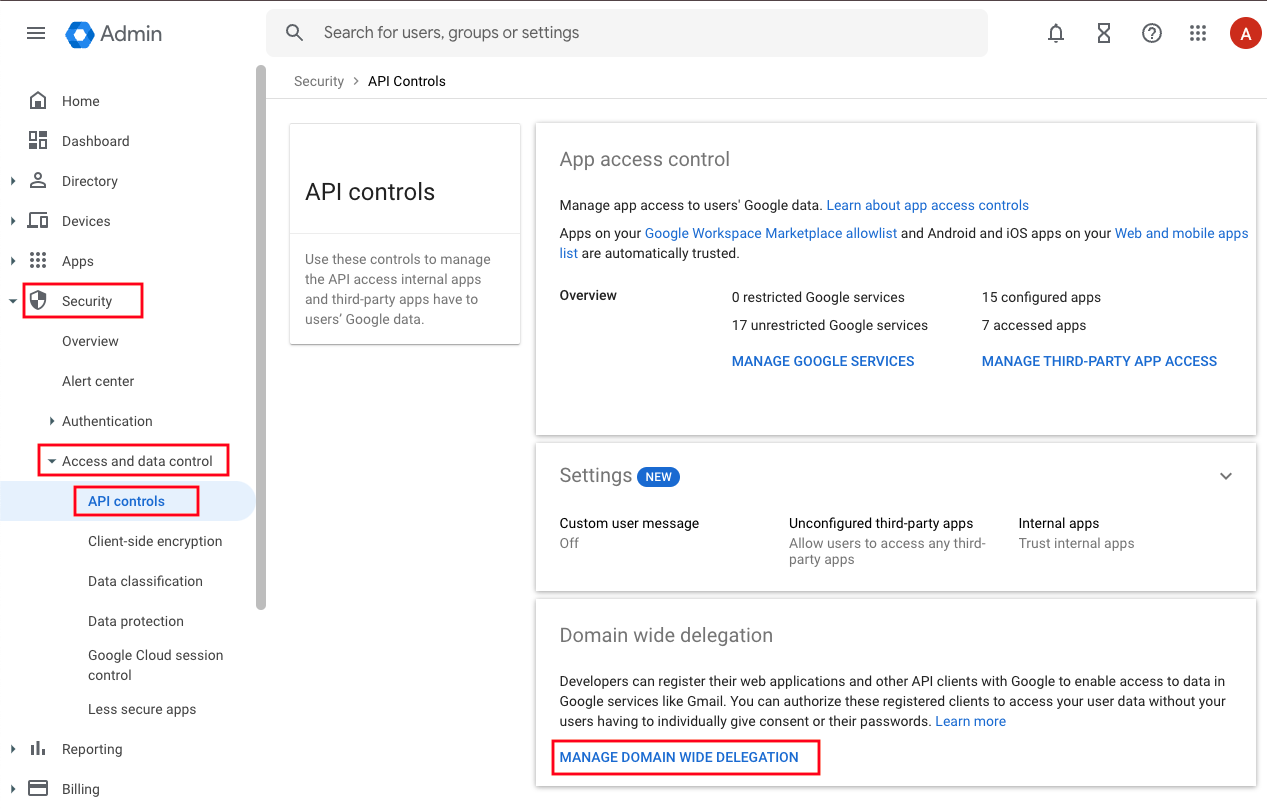
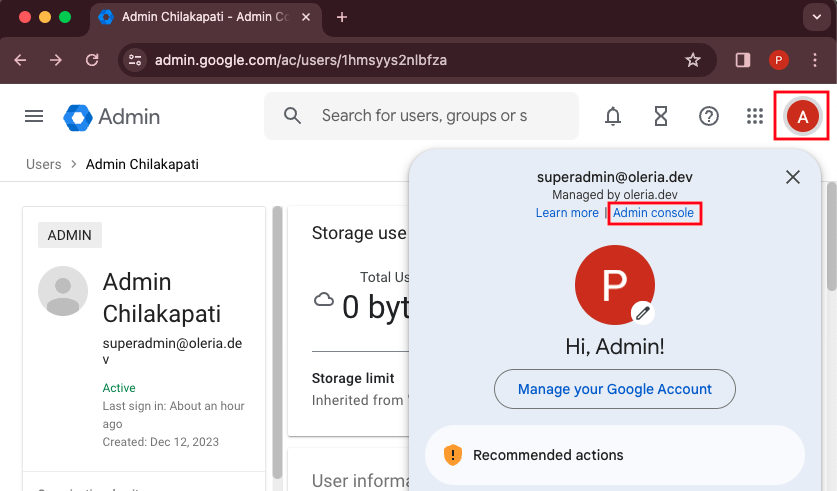 In the Admin console, go to [https://admin.google.com/ac/owl/domainwidedelegation](https://admin.google.com/ac/owl/domainwidedelegation) or navigate to **Menu** → **Security** → **Access and data control** → **API controls** → **Manage Domain Wide Delegation**.
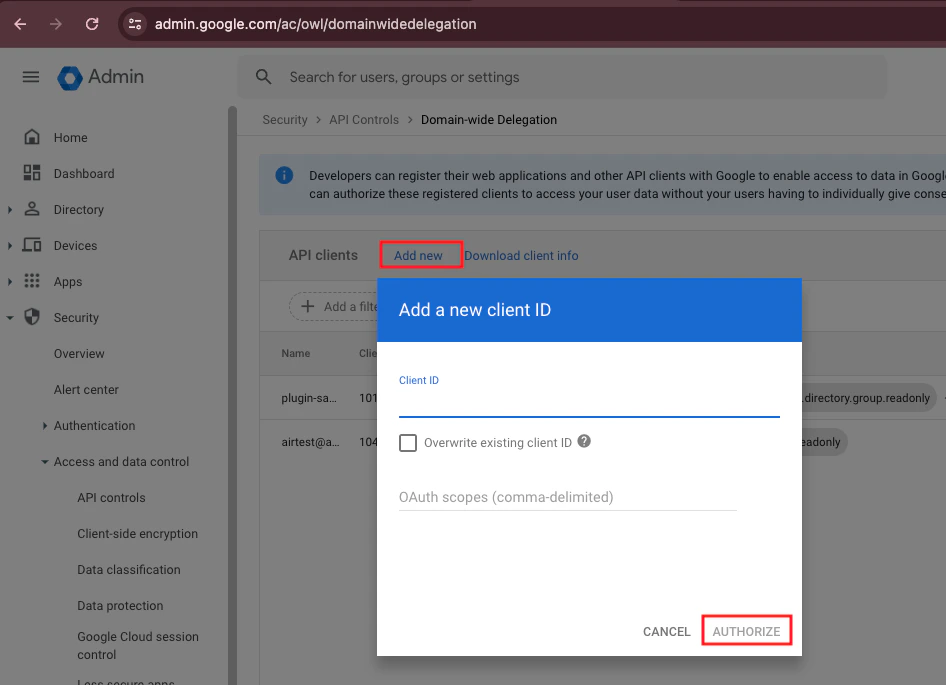
 Select **Add new**, enter the Client ID and scopes below, then select **Authorize**.
**Client ID:** `101716000692695758600`
**Google Admin - Directory**
```
https://www.googleapis.com/auth/admin.directory.user.readonly,
https://www.googleapis.com/auth/admin.directory.user.alias.readonly,
https://www.googleapis.com/auth/admin.directory.user.security,
https://www.googleapis.com/auth/admin.directory.group.readonly,
https://www.googleapis.com/auth/admin.directory.group.member.readonly,
https://www.googleapis.com/auth/admin.directory.orgunit.readonly,
https://www.googleapis.com/auth/admin.directory.rolemanagement.readonly,
https://www.googleapis.com/auth/admin.directory.userschema.readonly,
https://www.googleapis.com/auth/admin.directory.customer.readonly,
https://www.googleapis.com/auth/admin.directory.domain.readonly
```
**Google Admin - Reports**
```
https://www.googleapis.com/auth/admin.reports.audit.readonly
```
**Cloud Identity**
```
https://www.googleapis.com/auth/cloud-identity.groups.readonly
```
**Google Drive**
```
https://www.googleapis.com/auth/drive.metadata.readonly,
https://www.googleapis.com/auth/drive.activity.readonly,
https://www.googleapis.com/auth/drive.readonly
```
Select **Add new**, enter the Client ID and scopes below, then select **Authorize**.
**Client ID:** `101716000692695758600`
**Google Admin - Directory**
```
https://www.googleapis.com/auth/admin.directory.user.readonly,
https://www.googleapis.com/auth/admin.directory.user.alias.readonly,
https://www.googleapis.com/auth/admin.directory.user.security,
https://www.googleapis.com/auth/admin.directory.group.readonly,
https://www.googleapis.com/auth/admin.directory.group.member.readonly,
https://www.googleapis.com/auth/admin.directory.orgunit.readonly,
https://www.googleapis.com/auth/admin.directory.rolemanagement.readonly,
https://www.googleapis.com/auth/admin.directory.userschema.readonly,
https://www.googleapis.com/auth/admin.directory.customer.readonly,
https://www.googleapis.com/auth/admin.directory.domain.readonly
```
**Google Admin - Reports**
```
https://www.googleapis.com/auth/admin.reports.audit.readonly
```
**Cloud Identity**
```
https://www.googleapis.com/auth/cloud-identity.groups.readonly
```
**Google Drive**
```
https://www.googleapis.com/auth/drive.metadata.readonly,
https://www.googleapis.com/auth/drive.activity.readonly,
https://www.googleapis.com/auth/drive.readonly
```
 To perform remediations, grant domain-wide delegation for the following additional scopes:
To revoke external users' access:
```
https://www.googleapis.com/auth/drive
```
To disable dormant users:
```
https://www.googleapis.com/auth/admin.directory.user
```
To remove user accounts from groups:
```
https://www.googleapis.com/auth/admin.directory.group.member
```
To view and manage Drive labels, grant the following scopes:
```
https://www.googleapis.com/auth/drive.labels
https://www.googleapis.com/auth/drive.labels.readonly
https://www.googleapis.com/auth/drive.admin.labels
https://www.googleapis.com/auth/drive.admin.labels.readonly
```
## Connect Google Workspace to Oleria
Go to your Oleria workspace, select **Integrations** → select **Google Drive**.
Select **Connect** to complete the integration.
To perform remediations, grant domain-wide delegation for the following additional scopes:
To revoke external users' access:
```
https://www.googleapis.com/auth/drive
```
To disable dormant users:
```
https://www.googleapis.com/auth/admin.directory.user
```
To remove user accounts from groups:
```
https://www.googleapis.com/auth/admin.directory.group.member
```
To view and manage Drive labels, grant the following scopes:
```
https://www.googleapis.com/auth/drive.labels
https://www.googleapis.com/auth/drive.labels.readonly
https://www.googleapis.com/auth/drive.admin.labels
https://www.googleapis.com/auth/drive.admin.labels.readonly
```
## Connect Google Workspace to Oleria
Go to your Oleria workspace, select **Integrations** → select **Google Drive**.
Select **Connect** to complete the integration.
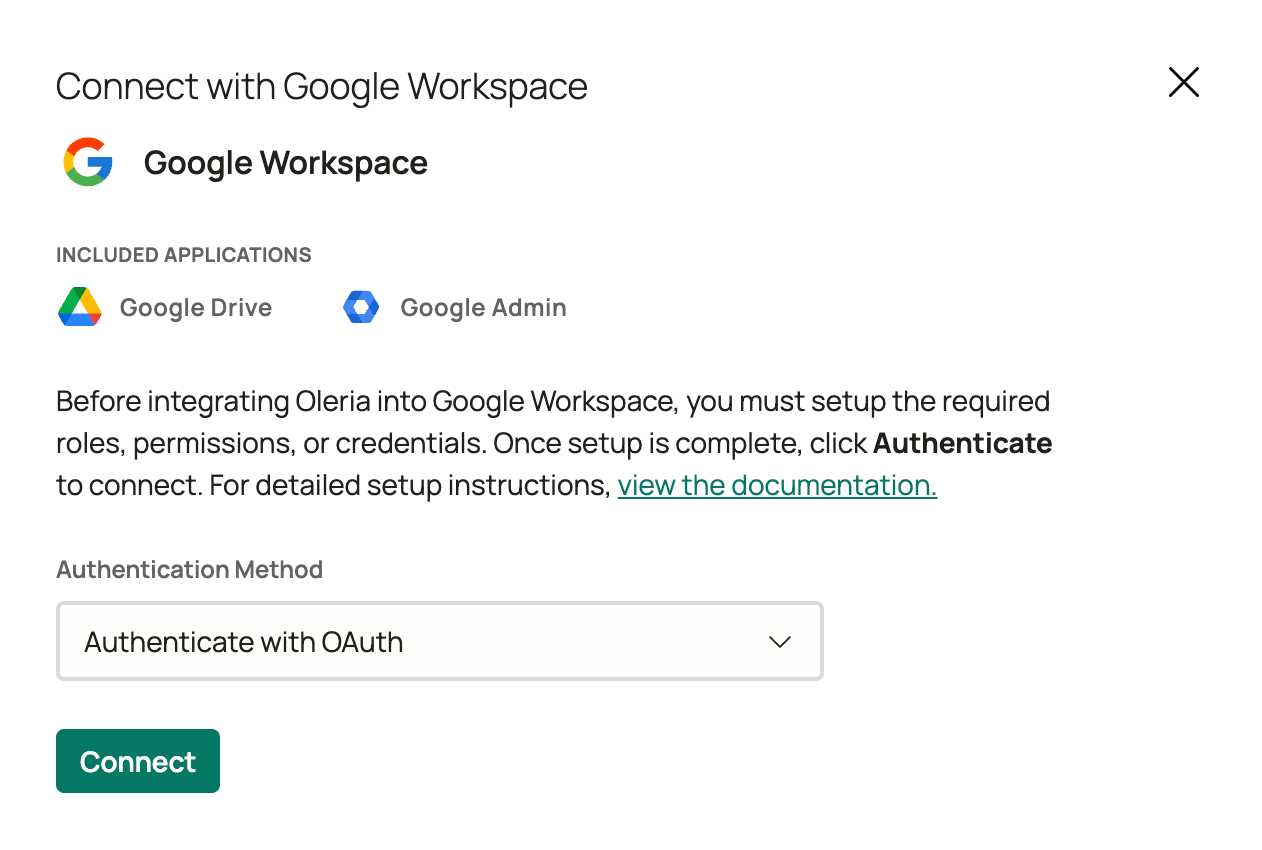 Provide your Super Admin credentials and complete the authentication process.
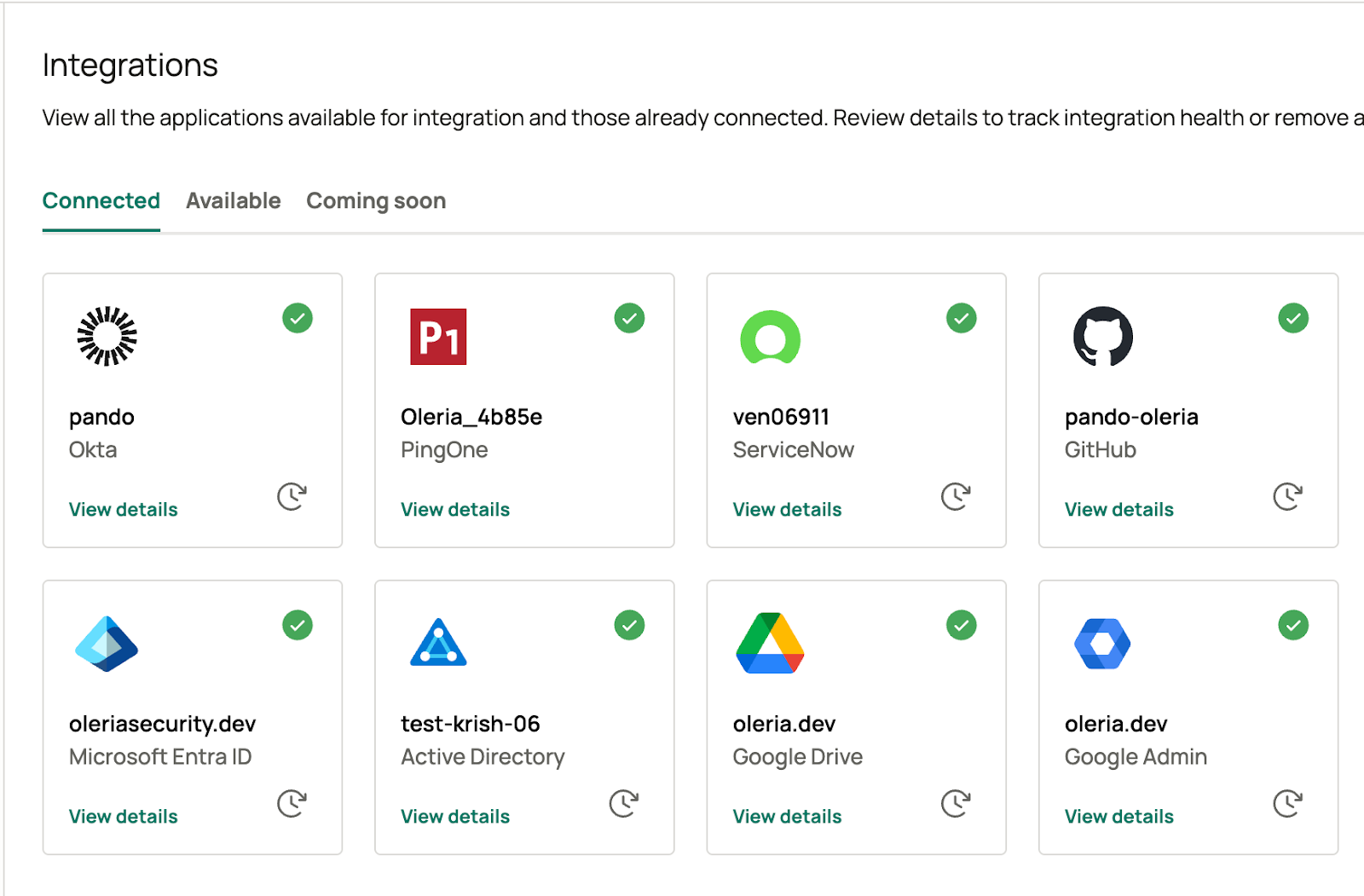
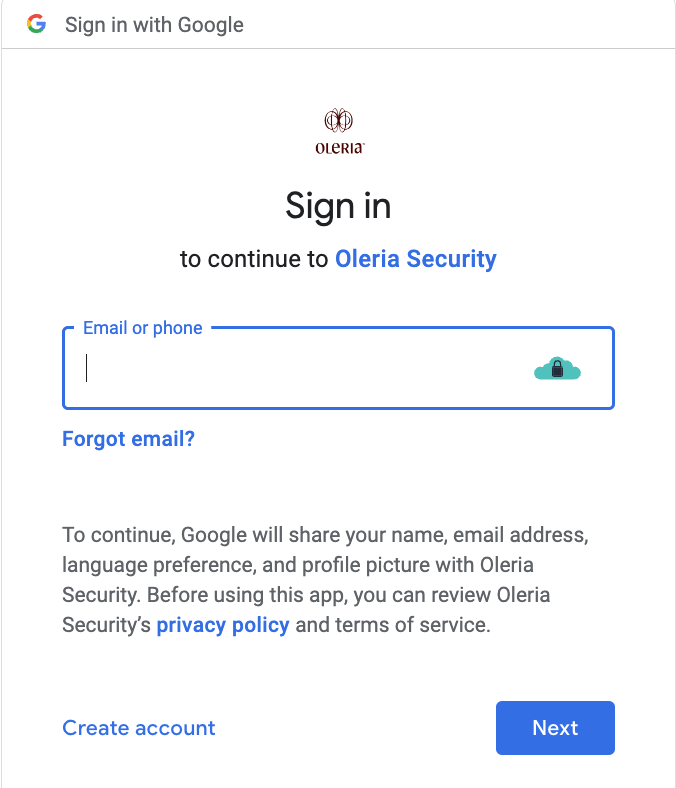 You can find the newly integrated Google Admin and Google Drive instance in your Oleria workspace connected integrations.
 ## Re-integrate Google Drive and Admin
Go to the connected integrations page and click the re-integration button to begin.
## Re-integrate Google Drive and Admin
Go to the connected integrations page and click the re-integration button to begin.
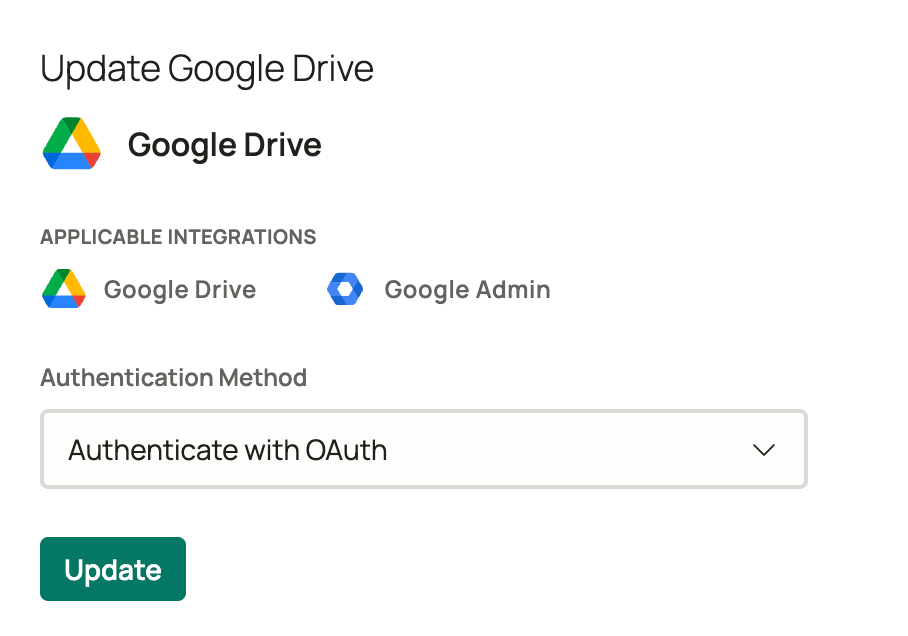
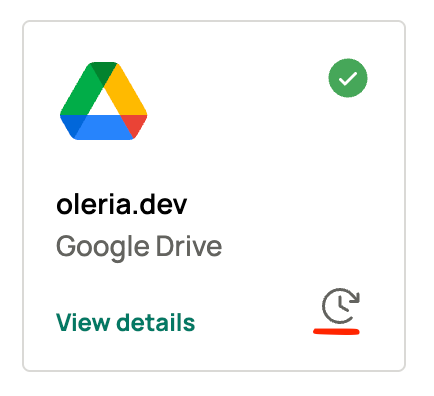 Select **Update** and use a service account with Super Admin privileges to complete the re-integration.
 ## Contact us
For questions about this integration, contact us at [support@oleria.com](mailto:support@oleria.com).
## Contact us
For questions about this integration, contact us at [support@oleria.com](mailto:support@oleria.com).