> ## Documentation Index
> Fetch the complete documentation index at: https://docs.oleria.com/llms.txt
> Use this file to discover all available pages before exploring further.

# GitHub

Oleria provides adaptive and autonomous access security that sets your business free. As part of that promise, we provide deep integration of your GitHub into the Oleria platform. This document provides step-by-step guidance to integrate your GitHub instance with your Oleria workspace.

## Prerequisites

* GitHub Admin role

<Note>Use a service account (and not an employee account) with the suggested privileges for the integration to ensure continuity.</Note>

## Install the Oleria GitHub Connector

<Steps>
  <Step title="Open the connector application">
    Open the [Oleria Connector application](https://github.com/apps/oleria-connector) and select **Install**.
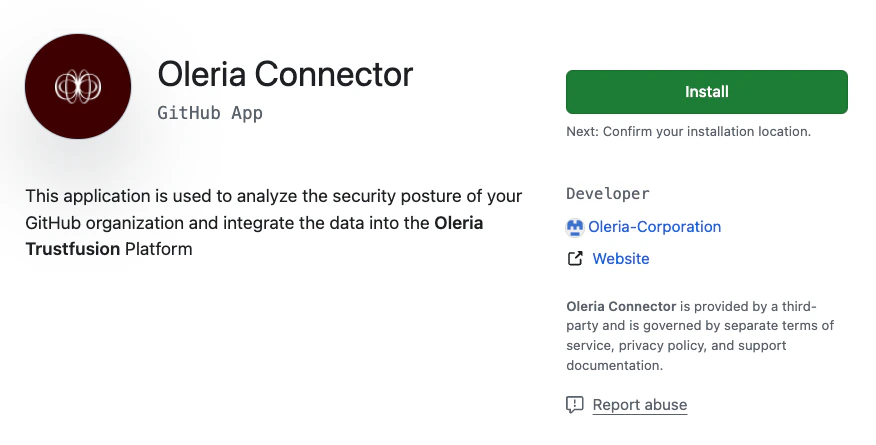
    <img src="https://mintcdn.com/oleria/JQNzbB9a7dBTORxV/images/integrations/github/step-1.png?fit=max&auto=format&n=JQNzbB9a7dBTORxV&q=85&s=42c832310f13ea24cf28be8bc71cfff8" alt="Open the link and install the Oleria Connector application" width="876" height="445" data-path="images/integrations/github/step-1.png" />
  </Step>

  <Step title="Select your GitHub organization">
    Select the GitHub organization to install the Oleria GitHub application.
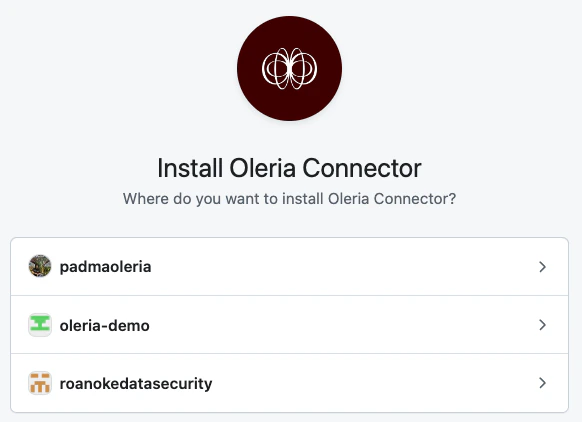
    <img src="https://mintcdn.com/oleria/JQNzbB9a7dBTORxV/images/integrations/github/step-2.png?fit=max&auto=format&n=JQNzbB9a7dBTORxV&q=85&s=b0c74c0526d79b835309357de2c57682" alt="Select the GitHub organization to install the Oleria Github application" width="582" height="422" data-path="images/integrations/github/step-2.png" />
  </Step>

  <Step title="Complete the installation">
    Click the **Install** button to complete the installation.
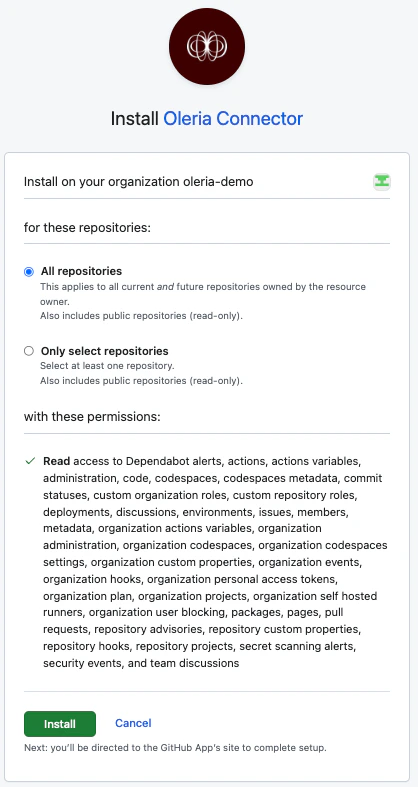
    <img src="https://mintcdn.com/oleria/JQNzbB9a7dBTORxV/images/integrations/github/step-3.png?fit=max&auto=format&n=JQNzbB9a7dBTORxV&q=85&s=cfc11d4daa8a04eafafc5e0fe6640648" alt="Click the Install button to complete the installation" width="418" height="787" data-path="images/integrations/github/step-3.png" />
  </Step>
</Steps>

## Verify the Oleria Application

<Steps>
  <Step title="Open GitHub Settings">
    Login to GitHub → select **Settings** → go to **Third-party Access** and select **GitHub Apps**.
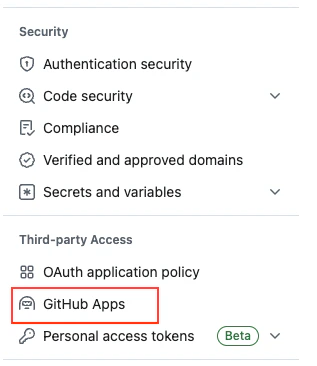
    <img src="https://mintcdn.com/oleria/JQNzbB9a7dBTORxV/images/integrations/github/step-4.png?fit=max&auto=format&n=JQNzbB9a7dBTORxV&q=85&s=abe900d595594baccedfe366de5c6cb7" alt="Login to GitHub, select Settings, go to Third-party Access and select GitHub Apps" width="317" height="366" data-path="images/integrations/github/step-4.png" />
  </Step>

  <Step title="Confirm installation">
    You will find Oleria Connector listed under the Installed GitHub Apps section.
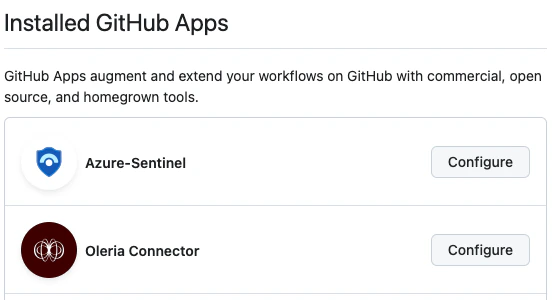
    <img src="https://mintcdn.com/oleria/JQNzbB9a7dBTORxV/images/integrations/github/step-5.png?fit=max&auto=format&n=JQNzbB9a7dBTORxV&q=85&s=bf2fa5f905b945bb3d4dcd8d682c528d" alt="You will find Oleria Connector under the Installed GitHub Apps section" width="555" height="300" data-path="images/integrations/github/step-5.png" />
  </Step>
</Steps>

## Connect GitHub to Oleria

<Steps>
  <Step title="Open the integration">
    Go to your Oleria workspace, select **Integrations** → select **GitHub**.

    <img src="https://mintcdn.com/oleria/JQNzbB9a7dBTORxV/images/integrations/github/step-6.png?fit=max&auto=format&n=JQNzbB9a7dBTORxV&q=85&s=cc36a83a33abc8c46e17fdc828125be0" alt="Goto your Oleria workspace, select Integrations, select GitHub" width="1451" height="287" data-path="images/integrations/github/step-6.png" />
  </Step>

  <Step title="Authenticate">
    Select **Continue**, provide your GitHub URL and select **Authenticate**.
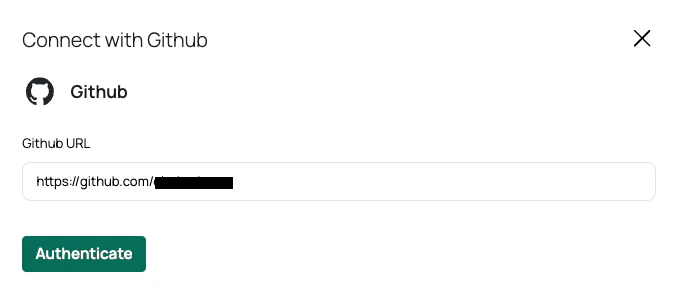
    <img src="https://mintcdn.com/oleria/JQNzbB9a7dBTORxV/images/integrations/github/step-7.png?fit=max&auto=format&n=JQNzbB9a7dBTORxV&q=85&s=b9200ad3528520d9132041e4a90703f5" alt="Select continue, provide your GitHub URL and click Authenticate" width="680" height="289" data-path="images/integrations/github/step-7.png" />

    You can find the newly integrated GitHub instance in your connected integrations.
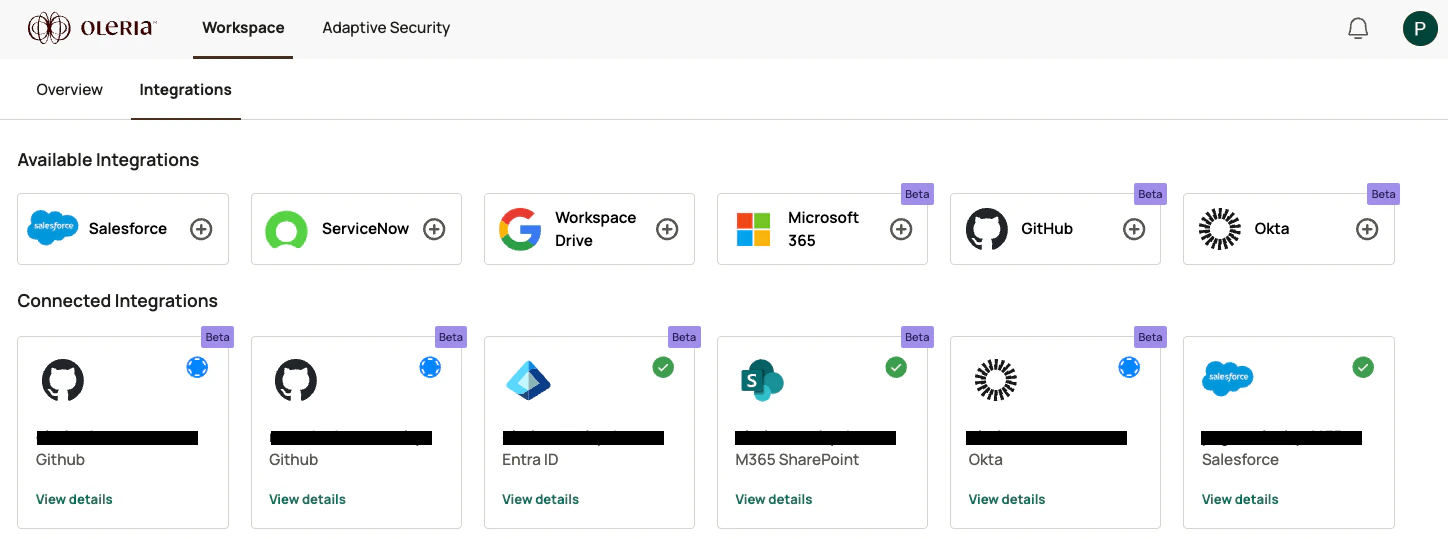
    <img src="https://mintcdn.com/oleria/JQNzbB9a7dBTORxV/images/integrations/github/step-8.png?fit=max&auto=format&n=JQNzbB9a7dBTORxV&q=85&s=cf0b144512b84473dc73024abbae5558" alt="You can find a newly integrated GitHub instance in the connected integrations." width="1448" height="539" data-path="images/integrations/github/step-8.png" />
  </Step>
</Steps>

## Contact us

For questions about this integration, contact us at [support@oleria.com](mailto:support@oleria.com).
