> ## Documentation Index
> Fetch the complete documentation index at: https://docs.oleria.com/llms.txt
> Use this file to discover all available pages before exploring further.
# Dropbox
> Connect your Dropbox team to Oleria to continuously discover members, roles, groups, shared and team folders and who can access them, linked apps, and activity.
Connect Dropbox to Oleria to see who has access across your Dropbox team: members, roles, groups, shared folders, team folders and who can access them, third-party apps linked to members (non-human identities, or NHIs), and team activity. Authentication is OAuth 2.0 only, through Oleria's Dropbox app or your own. You authorize Oleria on Dropbox's consent screen. Oleria never sees or stores a Dropbox password. This page walks through connecting a Dropbox team to your Oleria workspace.
One Oleria connection maps one Dropbox team. Connect additional teams as separate instances if you operate more than one.
This integration is for a Dropbox **team** (Standard, Advanced, Business Plus, or Enterprise). It does not apply to a personal Dropbox account. There is no API token or SCIM path. Authorize with a dedicated **Team admin**, not an employee's personal admin login. If that employee leaves and the account is disabled, the integration breaks.
## What Oleria discovers
Once connected, Oleria continuously discovers and maps the following from the Dropbox team:
* **Accounts** - every team member, including email, display name, join date, status (invited, enabled, suspended, or removed; invited members who have not joined yet count as enabled), roles, secondary emails, last activity from the member's linked devices and web sessions, and last password change. Two-step verification (multi-factor authentication, or MFA) combines the team-wide policy with each member's own two-step verification changes recorded in team activity. Single sign-on (SSO) reflects the team-wide policy.
* **Roles** - every role available on your team, plus **Member**. For example **Team admin**, **User management admin**, **Support admin**, and, where your plan offers them, **Billing admin**, **Content admin**, **Compliance admin**, **Reporting admin**, **Security admin**, and custom roles.
* **User groups** - team groups (company-managed and user-managed) and their membership.
* **Resources** - shared folders and team folders.
* **Access** - who can reach which shared or team folder: the members and groups on each folder, with their access level (for example Owner, Editor, or Viewer).
* **Non-human identities (NHIs)** - third-party apps linked to a member's Dropbox account, including app name and when the app was linked.
* **Activity** - team activity such as logins, member and admin-role changes, group membership changes, sharing and team-folder changes, password and MFA/SSO policy changes, app link and unlink, and device link and unlink. See [Plan coverage](#plan-coverage).
By default, Oleria only reads from Dropbox. Oleria runs a remediation action only when you start one in Oleria. See [Remediation actions](#remediation-actions) below.
### Plan coverage
If a Dropbox plan does not include a feature, Oleria skips it and continues syncing everything else, rather than failing the connection.
| Dropbox plan | What Oleria gets |
| :- | :- |
| Standard | Members, roles, groups, folders, linked apps, and identity and access Activity (logins, membership, roles, groups, sharing, sessions). No file operations in Activity. |
| Advanced, Business Plus, and Enterprise | Everything above, plus file operations in Activity (add, edit, move, and delete). |
Activity also requires the authorizing admin to be able to view team activity in the Dropbox admin console. **Support admin** cannot view activity logs. If the authorizing admin cannot view activity, Oleria still connects and syncs accounts, roles, groups, and folders. Activity is skipped rather than failing the connection, and so are MFA, SSO, and last password change for every account, because Oleria reads them from team activity.
## Prerequisites
* A Dropbox team you want Oleria to inventory (not a personal account).
* A **Team admin** (or an admin who can grant the permissions on the consent screen) to authorize the connection.
* Permission to view team activity in the Dropbox admin console, if you want Activity.
* For Option B only, access to the [Dropbox App Console](https://www.dropbox.com/developers/apps) to create and configure your own app, and the redirect URI provided by Oleria.
## Connect Dropbox to Oleria
Choose how Oleria authorizes to Dropbox. Both options use the same OAuth 2.0 consent screen and the same permissions. There is no team ID or base URL to paste. After you approve access, Oleria uses the authorized Dropbox team automatically.
Go to your Oleria workspace, select **Integrations** -> select **Dropbox**. Keep **Authentication Method** set to **Oleria Dropbox app (OAuth)**.
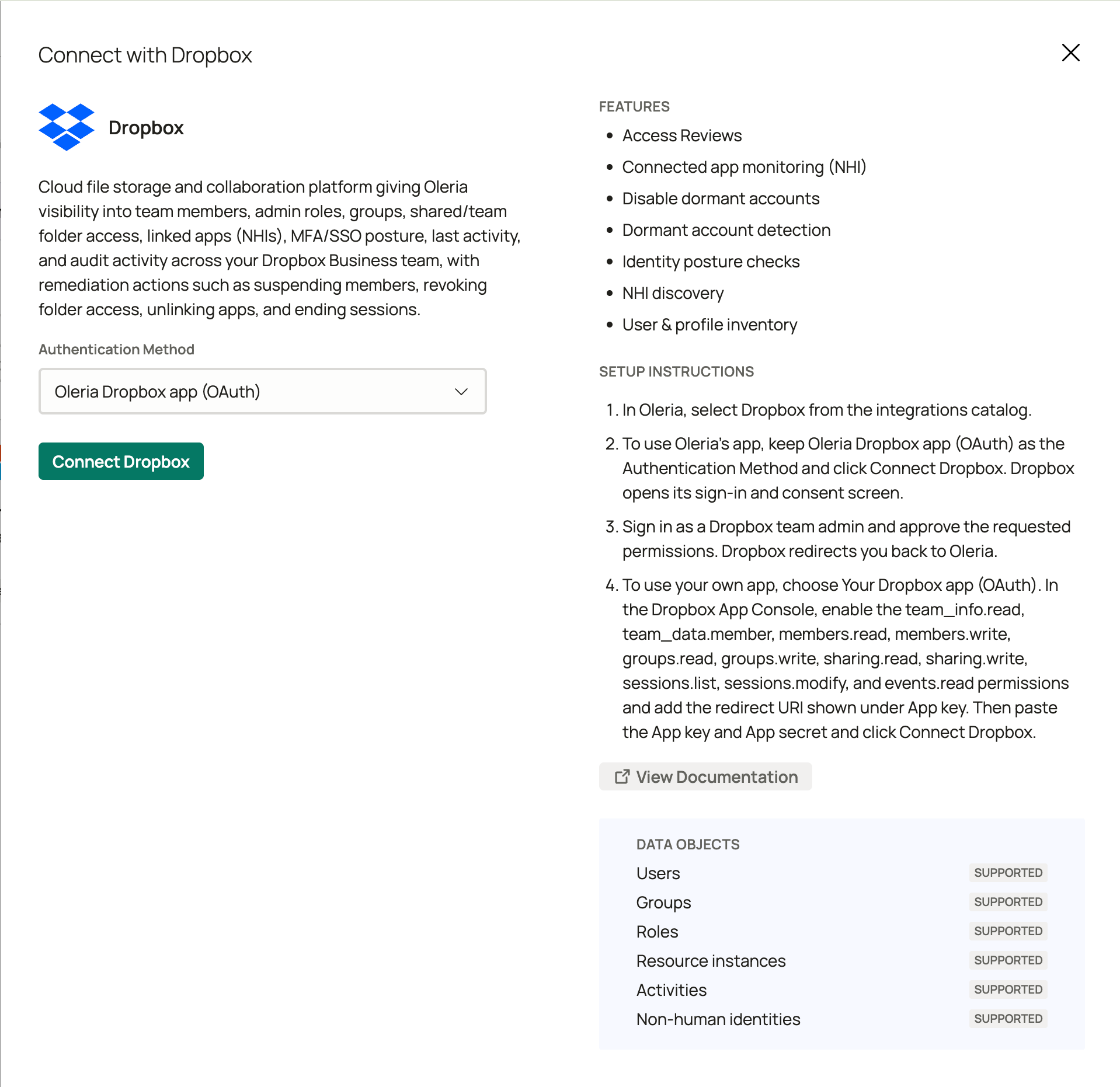 Select **Connect Dropbox**. Dropbox opens its sign-in and consent screen. Sign in as a **Team admin** and approve the permissions. Dropbox redirects you back to Oleria when the connection is active.
The consent screen includes both discovery and remediation permissions together. Dropbox has no read-only option for this app, so approving it grants Oleria write access to members, groups, sharing, and sessions from the moment you connect.
Treat the connection like a Team admin credential. Oleria uses the write permissions only for remediation actions you start in Oleria, but the permission itself is granted at connect time. Choose the authorizing Team admin accordingly.
Use this method when your security policy requires an internally owned Dropbox app instead of Oleria's. Your Dropbox administrator creates and maintains the app, and you paste its **App key** and **App secret** into Oleria.
**Additional prerequisites for this method:**
* The **redirect URI** for your Oleria environment: the URL you sign in to Oleria with, followed by `/workspace/integrations/dropbox/connect`. For example, if you sign in to Oleria at `https://acme.oleria.io`, use `https://acme.oleria.io/workspace/integrations/dropbox/connect`. Oleria also shows it in the **App key** help text when you select **Your Dropbox app (OAuth)**. Dropbox rejects the connection if the app's redirect URI does not match exactly.
In the [Dropbox App Console](https://www.dropbox.com/developers/apps), select **Create app**. Choose **Scoped access** and **Full Dropbox**, then name the app.
On the app's **Permissions** tab, enable all of these scopes, then select **Submit**:
`team_info.read`, `team_data.member`, `members.read`, `members.write`, `groups.read`, `groups.write`, `sharing.read`, `sharing.write`, `sessions.list`, `sessions.modify`, and `events.read`.
Oleria requests all of them when you connect. Dropbox rejects the connection if any of these is not enabled on the app.
See [Permissions Dropbox asks for](#permissions-dropbox-asks-for) for what each scope is used for.
Dropbox rejects the sign-in until every scope is enabled and submitted. If you add a scope later, select **Submit** in the App Console, then edit the Dropbox integration in Oleria and select **Update** to sign in again and grant it.
In the Dropbox App Console, open the app's **Settings** tab and add the redirect URI provided by Oleria under **OAuth 2** -> **Redirect URIs**. Then copy the **App key** and **App secret** from the same tab.
In Oleria, open **Integrations** -> **Dropbox** and set **Authentication Method** to **Your Dropbox app (OAuth)**. Paste the **App key** and **App secret**, then select **Connect Dropbox**. Sign in as a **Team admin** and approve the permissions. Dropbox redirects you back to Oleria when the connection is active.
Select **Connect Dropbox**. Dropbox opens its sign-in and consent screen. Sign in as a **Team admin** and approve the permissions. Dropbox redirects you back to Oleria when the connection is active.
The consent screen includes both discovery and remediation permissions together. Dropbox has no read-only option for this app, so approving it grants Oleria write access to members, groups, sharing, and sessions from the moment you connect.
Treat the connection like a Team admin credential. Oleria uses the write permissions only for remediation actions you start in Oleria, but the permission itself is granted at connect time. Choose the authorizing Team admin accordingly.
Use this method when your security policy requires an internally owned Dropbox app instead of Oleria's. Your Dropbox administrator creates and maintains the app, and you paste its **App key** and **App secret** into Oleria.
**Additional prerequisites for this method:**
* The **redirect URI** for your Oleria environment: the URL you sign in to Oleria with, followed by `/workspace/integrations/dropbox/connect`. For example, if you sign in to Oleria at `https://acme.oleria.io`, use `https://acme.oleria.io/workspace/integrations/dropbox/connect`. Oleria also shows it in the **App key** help text when you select **Your Dropbox app (OAuth)**. Dropbox rejects the connection if the app's redirect URI does not match exactly.
In the [Dropbox App Console](https://www.dropbox.com/developers/apps), select **Create app**. Choose **Scoped access** and **Full Dropbox**, then name the app.
On the app's **Permissions** tab, enable all of these scopes, then select **Submit**:
`team_info.read`, `team_data.member`, `members.read`, `members.write`, `groups.read`, `groups.write`, `sharing.read`, `sharing.write`, `sessions.list`, `sessions.modify`, and `events.read`.
Oleria requests all of them when you connect. Dropbox rejects the connection if any of these is not enabled on the app.
See [Permissions Dropbox asks for](#permissions-dropbox-asks-for) for what each scope is used for.
Dropbox rejects the sign-in until every scope is enabled and submitted. If you add a scope later, select **Submit** in the App Console, then edit the Dropbox integration in Oleria and select **Update** to sign in again and grant it.
In the Dropbox App Console, open the app's **Settings** tab and add the redirect URI provided by Oleria under **OAuth 2** -> **Redirect URIs**. Then copy the **App key** and **App secret** from the same tab.
In Oleria, open **Integrations** -> **Dropbox** and set **Authentication Method** to **Your Dropbox app (OAuth)**. Paste the **App key** and **App secret**, then select **Connect Dropbox**. Sign in as a **Team admin** and approve the permissions. Dropbox redirects you back to Oleria when the connection is active.
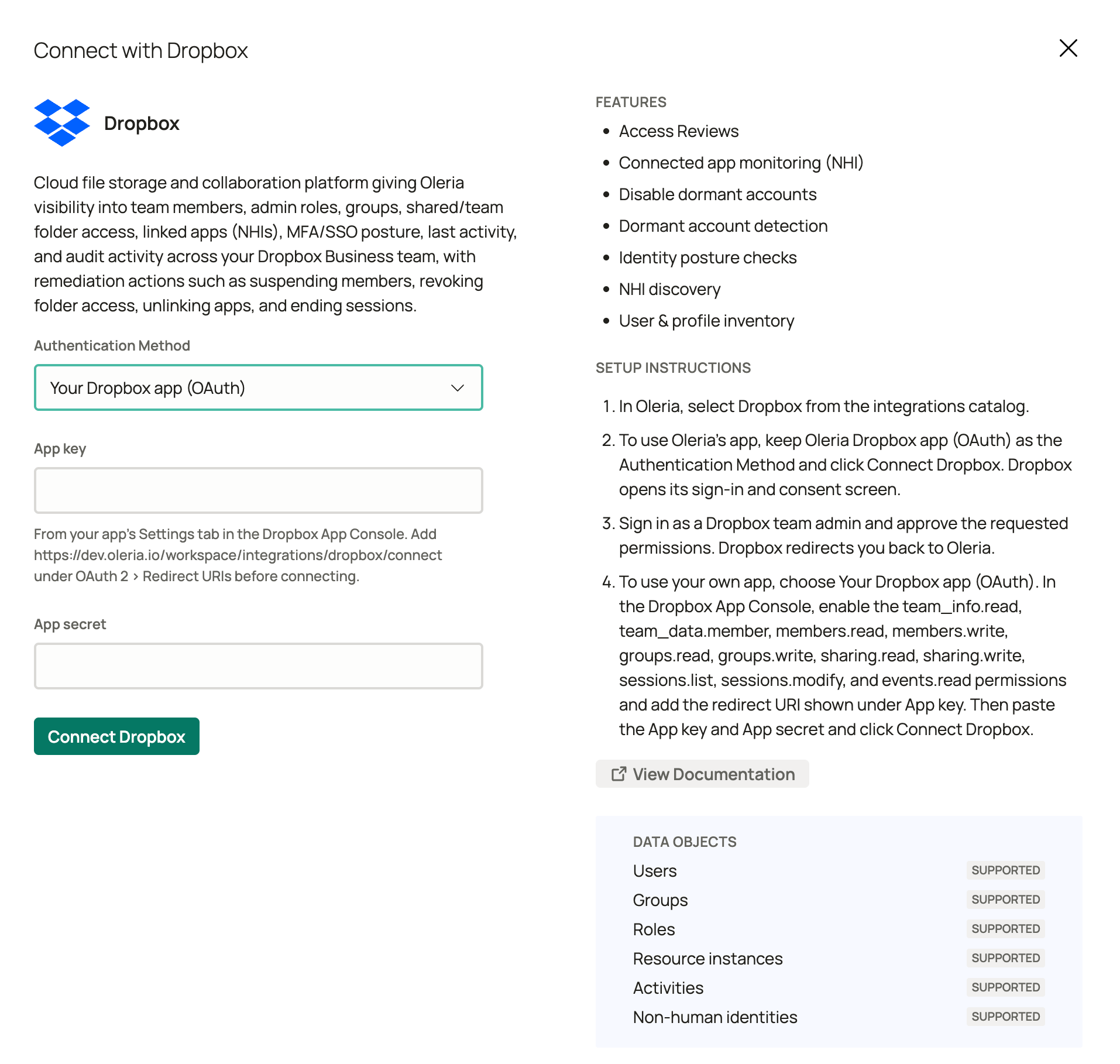 Approving the app grants write access to members, groups, sharing, and sessions at connect time, the same as Option A. Store the App secret securely.
### Permissions Dropbox asks for
Dropbox's consent screen requests the permissions this integration needs. With Option A you do not set scopes anywhere. With Option B, enable these scopes on your app's **Permissions** tab first.
| Scope | Used for |
| :- | :- |
| `team_info.read` | Team name |
| `members.read` | Team member profiles |
| `groups.read` | Groups and membership |
| `team_data.member` | Shared folders and team folders |
| `sharing.read` | Members and groups on each shared and team folder |
| `sessions.list` | Third-party apps linked to members, and last activity from devices and web sessions |
| `events.read` | Team activity, team-wide two-step verification and SSO policy, per-member two-step verification, and last password change |
| `members.write` | Invite, suspend, unsuspend, and change roles |
| `groups.write` | Add or remove group members |
| `sharing.write` | Revoke shared-folder access |
| `sessions.modify` | Unlink third-party apps and end member sessions |
If a connection was authorized before `sharing.read` and `sessions.modify` were requested, Oleria keeps syncing everything else and skips folder access, unlinking apps, and ending sessions, and reverting a shared-folder revocation restores Viewer. Edit the Dropbox integration in Oleria and select **Update** to sign in again and grant them.
## Verify the integration
Confirm the Dropbox instance appears on the **Connected** tab of your Oleria **Integrations** page with a status of **Healthy**. Oleria names the instance after the Dropbox team ID, which starts with `dbtid:`. After the first sync completes, you can review the discovered accounts, roles, groups, folders, folder access, and linked apps in **Access Inventory**. Activity backfills afterward if the authorizing admin can view team activity.
If Dropbox revokes the app, or the authorizing admin account is disabled, edit the Dropbox integration in Oleria and select **Update** to sign in again. Sign in as an admin of the same Dropbox team. Oleria rejects an update that authorizes a different team. To connect another team, add a new Dropbox integration. With Option A there is no secret to rotate. With Option B, if you regenerate the App secret, edit the integration in Oleria, paste the new secret, and select **Update**.
Recent Activity can take a few minutes longer to appear than other data. Dropbox indexes team activity with a short delay.
## Remediation actions
If you enable remediation for Dropbox, Oleria uses the same OAuth connection. You start each action in Oleria.
| Action | What it does | Revert |
| :- | :- | :- |
| Invite New Team Member | Invites a member to the Dropbox team by email. | Not supported - inviting is one-way. Suspend or remove access separately. |
| Suspend Team Member | Suspends a member's account. | Supported - reactivates the member. |
| Reactivate (Unsuspend) Team Member | Reactivates a suspended member. | Supported - suspends them again. |
| Grant Role | Gives the member a new role, for example Team admin or a custom role. Dropbox allows one role per member, so this replaces the member's current role. Granting **Member** removes all admin roles. | Supported - restores the member's previous role. |
| Remove Role | Removes the member's role, leaving them as **Member**. | Supported - restores the member's previous role. |
| Add Member to Group | Adds a member to a Dropbox group. If they are already in the group, nothing changes. | Supported - removes them. |
| Remove Member from Group | Removes a member from a Dropbox group. | Supported - re-adds them at their previous standing (member or group owner). |
| Revoke Shared Folder Access | Removes a member from a shared folder. The member does not keep a copy of the folder's files. Dropbox does not allow removing the folder's owner or revoking access on a team folder. | Supported - re-adds the member at their previous access level. If the connection lacks `sharing.read`, the member comes back as Viewer. Granting shared-folder access is not a standalone action. |
| Unlink App | Unlinks a third-party app (NHI) from the member's Dropbox account. | Not supported - the member must link the app again. |
| End Member Sessions | Ends the member's web sessions and signs out their desktop and mobile devices. Files on their devices are kept. | Not supported - the member signs in again to start new sessions. |
**Grant Role** replaces the member's current role. **Grant Role** or **Remove Role** on the admin who authorized this connection can remove their Team admin role and break the integration.
**Unlink App** and **End Member Sessions** cannot be undone through Oleria. Confirm the change with the member or app owner before running them.
## Known limitations
* **Per-member SSO** - Oleria reads the team-wide SSO policy only.
* **MFA and SSO policy history** - Oleria infers the team-wide policy from the latest policy change in team activity. If the policy has not changed within the activity Dropbox retains, SSO shows as Unavailable, and MFA shows as Unavailable unless the member changed their own two-step verification in the last 365 days. Per-member two-step verification and password changes look back 365 days.
* **Member devices and sessions** - not listed as their own objects. They set each member's last activity, and device link and unlink still appear in Activity.
* **Shared links** - links to individual files and folders are not listed as access.
* **Selective sync, legal holds, file requests, Dropbox Paper, and Showcase** - not covered.
* **Dropbox Sign, Dash, and other add-on products** - not covered.
## Contact us
For questions about this integration, contact us at [support@oleria.com](mailto:support@oleria.com).
This documentation is built and hosted on [Mintlify](https://mintlify.com), a developer documentation platform.
Approving the app grants write access to members, groups, sharing, and sessions at connect time, the same as Option A. Store the App secret securely.
### Permissions Dropbox asks for
Dropbox's consent screen requests the permissions this integration needs. With Option A you do not set scopes anywhere. With Option B, enable these scopes on your app's **Permissions** tab first.
| Scope | Used for |
| :- | :- |
| `team_info.read` | Team name |
| `members.read` | Team member profiles |
| `groups.read` | Groups and membership |
| `team_data.member` | Shared folders and team folders |
| `sharing.read` | Members and groups on each shared and team folder |
| `sessions.list` | Third-party apps linked to members, and last activity from devices and web sessions |
| `events.read` | Team activity, team-wide two-step verification and SSO policy, per-member two-step verification, and last password change |
| `members.write` | Invite, suspend, unsuspend, and change roles |
| `groups.write` | Add or remove group members |
| `sharing.write` | Revoke shared-folder access |
| `sessions.modify` | Unlink third-party apps and end member sessions |
If a connection was authorized before `sharing.read` and `sessions.modify` were requested, Oleria keeps syncing everything else and skips folder access, unlinking apps, and ending sessions, and reverting a shared-folder revocation restores Viewer. Edit the Dropbox integration in Oleria and select **Update** to sign in again and grant them.
## Verify the integration
Confirm the Dropbox instance appears on the **Connected** tab of your Oleria **Integrations** page with a status of **Healthy**. Oleria names the instance after the Dropbox team ID, which starts with `dbtid:`. After the first sync completes, you can review the discovered accounts, roles, groups, folders, folder access, and linked apps in **Access Inventory**. Activity backfills afterward if the authorizing admin can view team activity.
If Dropbox revokes the app, or the authorizing admin account is disabled, edit the Dropbox integration in Oleria and select **Update** to sign in again. Sign in as an admin of the same Dropbox team. Oleria rejects an update that authorizes a different team. To connect another team, add a new Dropbox integration. With Option A there is no secret to rotate. With Option B, if you regenerate the App secret, edit the integration in Oleria, paste the new secret, and select **Update**.
Recent Activity can take a few minutes longer to appear than other data. Dropbox indexes team activity with a short delay.
## Remediation actions
If you enable remediation for Dropbox, Oleria uses the same OAuth connection. You start each action in Oleria.
| Action | What it does | Revert |
| :- | :- | :- |
| Invite New Team Member | Invites a member to the Dropbox team by email. | Not supported - inviting is one-way. Suspend or remove access separately. |
| Suspend Team Member | Suspends a member's account. | Supported - reactivates the member. |
| Reactivate (Unsuspend) Team Member | Reactivates a suspended member. | Supported - suspends them again. |
| Grant Role | Gives the member a new role, for example Team admin or a custom role. Dropbox allows one role per member, so this replaces the member's current role. Granting **Member** removes all admin roles. | Supported - restores the member's previous role. |
| Remove Role | Removes the member's role, leaving them as **Member**. | Supported - restores the member's previous role. |
| Add Member to Group | Adds a member to a Dropbox group. If they are already in the group, nothing changes. | Supported - removes them. |
| Remove Member from Group | Removes a member from a Dropbox group. | Supported - re-adds them at their previous standing (member or group owner). |
| Revoke Shared Folder Access | Removes a member from a shared folder. The member does not keep a copy of the folder's files. Dropbox does not allow removing the folder's owner or revoking access on a team folder. | Supported - re-adds the member at their previous access level. If the connection lacks `sharing.read`, the member comes back as Viewer. Granting shared-folder access is not a standalone action. |
| Unlink App | Unlinks a third-party app (NHI) from the member's Dropbox account. | Not supported - the member must link the app again. |
| End Member Sessions | Ends the member's web sessions and signs out their desktop and mobile devices. Files on their devices are kept. | Not supported - the member signs in again to start new sessions. |
**Grant Role** replaces the member's current role. **Grant Role** or **Remove Role** on the admin who authorized this connection can remove their Team admin role and break the integration.
**Unlink App** and **End Member Sessions** cannot be undone through Oleria. Confirm the change with the member or app owner before running them.
## Known limitations
* **Per-member SSO** - Oleria reads the team-wide SSO policy only.
* **MFA and SSO policy history** - Oleria infers the team-wide policy from the latest policy change in team activity. If the policy has not changed within the activity Dropbox retains, SSO shows as Unavailable, and MFA shows as Unavailable unless the member changed their own two-step verification in the last 365 days. Per-member two-step verification and password changes look back 365 days.
* **Member devices and sessions** - not listed as their own objects. They set each member's last activity, and device link and unlink still appear in Activity.
* **Shared links** - links to individual files and folders are not listed as access.
* **Selective sync, legal holds, file requests, Dropbox Paper, and Showcase** - not covered.
* **Dropbox Sign, Dash, and other add-on products** - not covered.
## Contact us
For questions about this integration, contact us at [support@oleria.com](mailto:support@oleria.com).
This documentation is built and hosted on [Mintlify](https://mintlify.com), a developer documentation platform.