> ## Documentation Index
> Fetch the complete documentation index at: https://docs.oleria.com/llms.txt
> Use this file to discover all available pages before exploring further.
# File-Based Integration
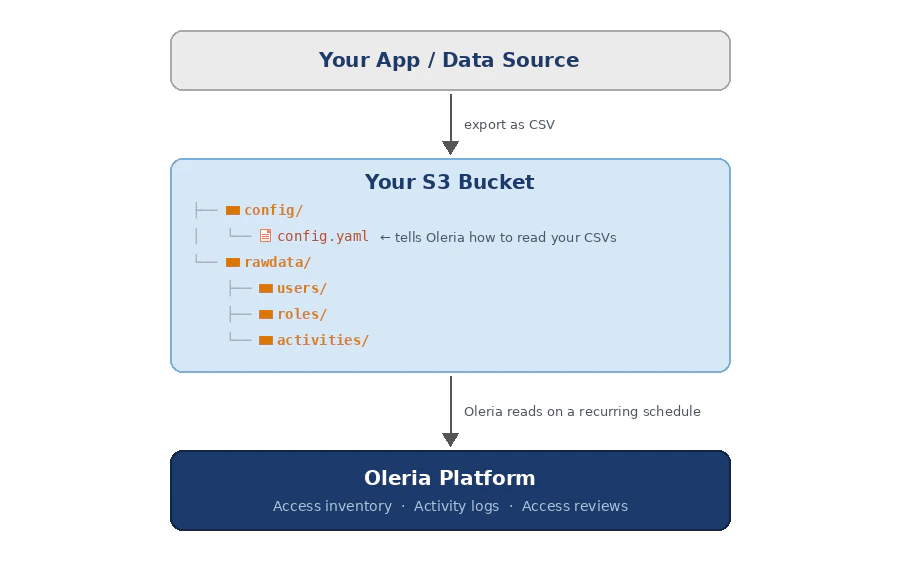
Oleria's Custom Application integration lets you connect any custom data source - an internal app, an HR system, a database - to Oleria without a native integration. You export your data as CSV files, upload them to an S3 bucket you control, and Oleria automatically reads, maps, and syncs the data on a recurring schedule.
## How it works
 ## Prerequisites
* An Amazon S3 bucket in your AWS account where you will upload your data.
* AWS IAM admin access to add a bucket policy to that S3 bucket.
* Your application's data exported as CSV files (comma-separated values with a header row).
Use a dedicated S3 bucket or a scoped prefix within your bucket for Oleria data to limit access to only what is needed.
## Set Up Your S3 Bucket
Create or identify the S3 bucket you will use to share data with Oleria.
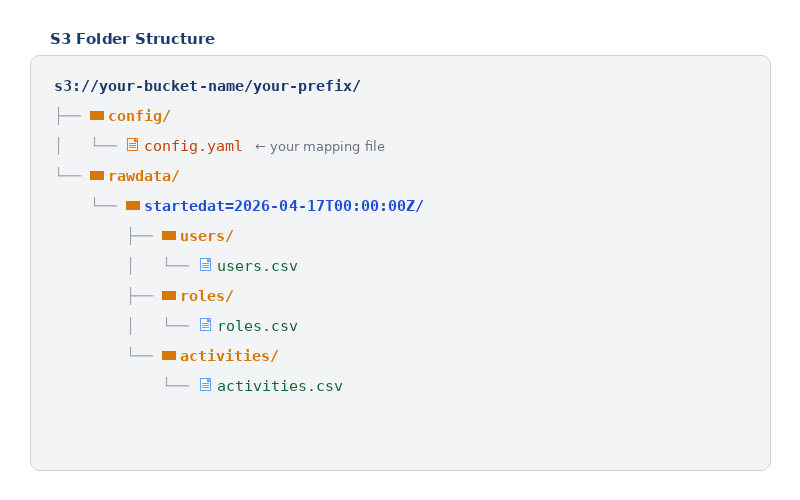
Organize your files inside the bucket using the following folder structure:
## Prerequisites
* An Amazon S3 bucket in your AWS account where you will upload your data.
* AWS IAM admin access to add a bucket policy to that S3 bucket.
* Your application's data exported as CSV files (comma-separated values with a header row).
Use a dedicated S3 bucket or a scoped prefix within your bucket for Oleria data to limit access to only what is needed.
## Set Up Your S3 Bucket
Create or identify the S3 bucket you will use to share data with Oleria.
Organize your files inside the bucket using the following folder structure:
 The
The config/ folder must contain exactly one .yaml file - Oleria discovers it automatically. The date-stamped folder under rawdata/ (e.g. startedat=2026-04-17T00:00:00Z) tells Oleria which data is new. Each time you export fresh data, create a new folder with the current timestamp. Oleria always picks the most recent one. If your data does not change frequently, you can place your CSV subfolders directly inside rawdata/ without a date-stamped folder.
## Prepare Your CSV Files
Your CSV files must have a header row. The column names in the header are what you reference in the `config.yaml` file. Column names can be anything - you map them to Oleria's fields in the config.
**Example `users.csv`:**
| email | full\_name | username | status | created\_at | department | title |
| --------------------------------------------- | ---------- | -------- | ------ | ----------- | ----------- | ----------------- |
| [alice@example.com](mailto:alice@example.com) | Alice Chen | achen | active | 2023-01-15 | Engineering | Software Engineer |
| [bob@example.com](mailto:bob@example.com) | Bob Smith | bsmith | active | 2022-06-01 | Sales | Account Executive |
**Example `roles.csv`:**
| role\_id | role\_name | description |
| -------- | ------------- | ------------------ |
| admin | Administrator | Full system access |
| viewer | Read Only | View-only access |
**Example `user_roles.csv`** (membership - which user has which role):
| user\_email | role\_id |
| --------------------------------------------- | -------- |
| [alice@example.com](mailto:alice@example.com) | admin |
| [bob@example.com](mailto:bob@example.com) | viewer |
## Create Your config.yaml
The `config/config.yaml` file maps your CSV columns to Oleria's data model. Your Oleria Customer Success team can provide a starting config based on your data, or you can write it yourself using the format below.
Oleria will soon provide an automated way to analyze your CSV data and generate the config.yaml for you - no manual authoring required. Coming soon.
#### What object types can I map to?
**Entity objects** - use these for things like users, roles, and groups:
| Object type | Use when your CSV contains... |
| ---------------------- | ----------------------------------------------------------------- |
| `applicationaccount` | Application users, login accounts, or service accounts |
| `identity` | Users from an Identity Provider (Okta, PingOne, Active Directory) |
| `role` | Roles, profiles, or permission sets |
| `usergroup` | Groups, teams, or security groups |
| `person` | Person records from an HR system (the human behind the accounts) |
| `employee` | Employee HR data - job title, manager, department, start date |
| `department` | Department or org unit records |
| `activity_analysis` | Audit log events - one row per event |
| `application_instance` | Applications managed by an IdP (e.g. apps in your Okta catalog) |
**Relationship objects** - connect two entities together. Always use the `links` shorthand for these:
| Use this value for `obs_object_name` | What it connects |
| -------------------------------------------------- | ------------------------------------ |
| `applicationaccount_memberof_role` | Application user → Role |
| `applicationaccount_memberof_usergroup` | Application user → Group |
| `identity_memberof_role` | IdP user → Role |
| `identity_memberof_usergroup` | IdP user → Group |
| `identity_assigned_accessto_application_instance` | IdP user → Application |
| `usergroup_assigned_accessto_application_instance` | Group → Application |
| `usergroup_memberof_role` | Group → Role |
| `person_is_employee` | Person → Employee record |
| `employee_manages_employee` | Manager → Employee |
| `employee_serving_in_department` | Employee → Department |
| `department_contains_department` | Parent department → Child department |
#### `source.s3` fields
These fields go inside `source.s3` in your `config.yaml`. They tell Oleria where your S3 data lives and how frequently to sync access data and activity logs.
| Field | Required | Default | Description |
| ------------------------------ | -------- | ------- | --------------------------------------------------------------------------------------------------------------------------------------- |
| `partition_prefix` | Yes | - | Prefix for time-stamped folders under `rawdata/` (e.g. `"startedat="`). Use `""` if CSVs are placed directly inside `rawdata/`. |
| `rbac_sync_interval_hours` | No | `3` | How often (in hours) you drop new access data (users, roles, groups) into S3. Oleria schedules the RBAC sync pipeline at this interval. |
| `activity_sync_interval_hours` | No | `1` | How often (in hours) you drop new activity/audit-log data into S3. Oleria schedules the activity sync pipeline independently from RBAC. |
#### `field_mappings` vs `links`
| Key | When to use |
| ---------------- | -------------------------------------------------------------------------------------------------- |
| `field_mappings` | Use for **entity objects** - maps CSV columns to Oleria fields (`Name`, `Email`, `Title`, etc.) |
| `links` | Use for **relationship objects** - connects two entities by referencing the ID column of each side |
**applicationaccount** and **identity** - Application & IdP users
| Field | Description | Notes |
| ----------------------------- | ------------------------------ | --------------------------------------------------------------------------------------------------------------------------------------- |
| Name | Display name | |
| Email | Email address | |
| Alias | Username or login handle | |
| Enabled | Active status | Map to true / false |
| CreatedDate | Account creation date | Date auto-detected |
| LastActivityDate | Date of last recorded activity | Date auto-detected |
| Title | Job title | |
| Department | Department or team name | |
| CompanyName | Company or organization name | |
| IsAdmin | Admin privileges | Map to true / false |
| SubType | Account sub-type | Default: StandardUser. Options: StandardUser, Application, Machine |
| Type\_ | Account type | Default: User. Options: User, Machine |
| MfaRequirements | MFA requirement status | Default: Unavailable. Options: Unavailable, Required, NotApplicable |
| SsoRequirements | SSO requirement status | Default: Unavailable. Options: Unavailable, Required, NotApplicable |
| LicenseLevel | License tier | Default: Unavailable. Options: Unavailable, Free, Standard, Enterprise |
| LicenseStatus | License status | Default: NotApplicable. Options: NotApplicable, Active, Expired |
| SourceTag | Label for this data source | e.g. postgres-users |
***
**role** - Roles & permission sets
| Field | Description | Notes |
| ------------------------ | ------------------------------ | ----------------------------------------------------------------------------------- |
| Name | Display name of the role | |
| Description | What the role grants or allows | |
| Type\_ | Role type | Default: Standard. Options: Standard, Custom |
| IsCustom | Custom-defined role | Map to true / false |
| CreatedDate | Date the role was created | Date auto-detected |
| SourceTag | Label for this data source | |
***
**usergroup** - Groups & teams
| Field | Description | Notes |
| ------------------------ | -------------------------- | ---------------------------------------------------------------------------------------------------- |
| Name | Display name of the group | |
| Description | What the group is used for | |
| Type\_ | Group type | Default: Custom. Options: Custom, Built-in, Sync |
| CreatedDate | Date the group was created | Date auto-detected |
| SourceTag | Label for this data source | |
***
**person** - HR person records
| Field | Description | Notes |
| --------------------------------- | --------------------------- | ------------------ |
| Name | Full name of the person | |
| PrimaryPersonalEmail | Personal email address | |
| CreatedDate | Date the record was created | Date auto-detected |
***
**employee** - HR employee records
| Field | Description | Notes |
| ----------------------------- | ------------------------------- | --------------------------- |
| WorkName | Full name as used at work | |
| PrimaryWorkEmail | Work email address | |
| EmployeeNumber | Employee ID from your HR system | |
| StartDate | Employment start date | Date auto-detected |
| EndDate | Employment end date | Leave blank if still active |
| Title | Job title | |
| JobFunction | Job function or category | |
| CreatedDate | Date the HR record was created | Date auto-detected |
| SourceTag | Label for this data source | |
***
**department** - Departments & org units
| Field | Description | Notes |
| ---------------------- | --------------------------- | ----- |
| Name | Department or org unit name | |
| SourceTag | Label for this data source | |
***
**activity\_analysis** - Audit logs & events
| Field | Description | Notes |
| ------------------------------------ | --------------------------------- | -------------------------------------------------------- |
| ActivityType | OBS activity category | Use map\_value to convert raw event names |
| Timestamp | When the event occurred | Date auto-detected |
| ActorAccountId | Account that performed the action | Use prefixed\_id transform |
| IpAddress | IP address the action came from | |
| Activity | Human-readable description | |
| ApplicationActivityType | Raw event name from your system | |
| AffectedObjectType | Type of object affected | e.g. Account, ResourceInstance |
| AffectedObjectId | ID of the affected object | |
| ErrorCode | Error code if the action failed | |
| SourceTag | Label for this data source | |
***
**application\_instance** - IdP-managed applications
| Field | Description | Notes |
| ----------------------- | ------------------------------- | ----- |
| Name | Display name of the application | |
| VendorName | Name of the vendor or provider | |
| SourceTag | Label for this data source | |
#### Minimum viable example
The simplest possible config - application users and roles, with a membership relationship:
```yaml theme={null}
source:
s3:
# Use "startedat=" if your rawdata/ has date-stamped subfolders.
# Use "" (empty string) if your CSV folders are directly inside rawdata/.
partition_prefix: "startedat="
# rbac_sync_interval_hours: 3 # optional, default: 3 hours
# activity_sync_interval_hours: 1 # optional, default: 1 hour
data_files:
users:
subfolder: "users/"
roles:
subfolder: "roles/"
user_roles:
subfolder: "user_roles/"
objects:
# Entity: Application user
- obs_object_name: "applicationaccount"
data_file: "users"
id:
type: "prefixed"
prefix: "user"
source_column: "email" # CSV column used as the unique identifier
field_mappings:
- field: "Name"
column: "full_name"
- field: "Email"
column: "email"
- field: "Alias"
column: "username"
- field: "Enabled"
column: "status"
transform: "map_value" # convert status text to true/false
value_map:
active: "true"
inactive: "false"
default_value: "false"
- field: "CreatedDate"
column: "created_at" # date format is auto-detected
# Entity: Role
- obs_object_name: "role"
data_file: "roles"
id:
type: "prefixed"
prefix: "role"
source_column: "role_id"
field_mappings:
- field: "Name"
column: "role_name"
- field: "Description"
column: "description"
# Relationship: User → Role membership
- obs_object_name: "applicationaccount_memberof_role"
data_file: "user_roles"
links:
- field: "ApplicationAccountId"
prefix: "user" # must match the prefix used in applicationaccount above
column: "user_email"
- field: "RoleId"
prefix: "role" # must match the prefix used in role above
column: "role_id"
```
#### Full example (HR system)
This example models an HR export with employees, departments, and org hierarchy:
```yaml theme={null}
source:
s3:
partition_prefix: "startedat="
# Optional: override the default sync schedules
rbac_sync_interval_hours: 3
activity_sync_interval_hours: 1
data_files:
employees:
subfolder: "employees/"
department_hierarchy:
subfolder: "department_hierarchy/"
objects:
# Maps each employee row to a Person in Oleria
- obs_object_name: "person"
data_file: "employees"
id:
type: "prefixed"
prefix: "person"
source_column: "Email"
field_mappings:
- field: "Name"
column: "Name"
- field: "PrimaryPersonalEmail"
column: "Email"
- field: "CreatedDate"
column: "Creation date"
# Maps each employee row to an Employee record
- obs_object_name: "employee"
data_file: "employees"
filters:
- column: "Employee ID"
op: "not_empty" # skip rows where Employee ID is blank
id:
type: "prefixed"
prefix: "emp"
source_column: "Email"
field_mappings:
- field: "WorkName"
column: "Preferred full name"
- field: "PrimaryWorkEmail"
column: "Email"
- field: "EmployeeNumber"
column: "Employee ID"
- field: "StartDate"
column: "Start date"
- field: "Title"
column: "Title"
# Maps each employee row to a Department
- obs_object_name: "department"
data_file: "employees"
id:
type: "prefixed"
prefix: "dept"
source_column: "Department"
field_mappings:
- field: "Name"
column: "Department"
# Relationship: Person → Employee
- obs_object_name: "person_is_employee"
data_file: "employees"
links:
- field: "PersonId"
prefix: "person"
column: "Email"
- field: "EmployeeId"
prefix: "emp"
column: "Email"
# Relationship: Manager → Employee
- obs_object_name: "employee_manages_employee"
data_file: "employees"
links:
- field: "ManagerEmployeeId"
prefix: "emp"
column: "Manager Email"
- field: "EmployeeId"
prefix: "emp"
column: "Email"
# Relationship: Employee → Department
- obs_object_name: "employee_serving_in_department"
data_file: "employees"
links:
- field: "EmployeeId"
prefix: "emp"
column: "Email"
- field: "DepartmentId"
prefix: "dept"
column: "Department"
# Relationship: Department hierarchy (parent → child)
- obs_object_name: "department_contains_department"
data_file: "department_hierarchy"
links:
- field: "ParentDepartmentId"
prefix: "dept"
column: "ParentDepartment"
- field: "ChildDepartmentId"
prefix: "dept"
column: "ChildDepartment"
```
**Complete sample data** - each includes a ready-to-use `config.yaml` and matching CSV files:
* [HR System Sample](https://github.com/roanokedatasecurity/oleria-docs/tree/main/public/samples/custom-application/sample-hr-mapping)
* [PostgreSQL Sample](https://github.com/roanokedatasecurity/oleria-docs/tree/main/public/samples/custom-application/sample-postgres-mapping)
## Grant Oleria Access to Your S3 Bucket
Oleria reads your data using a dedicated AWS IAM role. You need to add a bucket policy that allows this role to read your files.
Do not make your S3 bucket public. Oleria accesses your bucket securely using a private IAM role - no public access is required or recommended. Oleria only needs read-only access and will never write to, modify, or delete any files in your bucket. If this policy is not in place, your integration will appear connected in the UI but no data will be synced.
Your Oleria Customer Success team will provide you with the exact IAM role ARN for your environment. The role follows this format:
```
arn:aws:iam:::role/-api-ecs-task-execution-role
```
Go to your S3 bucket in the **AWS Console** → **Permissions** tab → **Bucket policy** → **Edit**, and paste the following policy. Replace the placeholders with your values and select **Save changes**.
```json theme={null}
{
"Version": "2012-10-17",
"Statement": [
{
"Sid": "AllowOleriaReadAccess",
"Effect": "Allow",
"Principal": {
"AWS": "arn:aws:iam::
:role/-api-ecs-task-execution-role"
},
"Action": [
"s3:GetObject",
"s3:ListBucket"
],
"Resource": [
"arn:aws:s3:::your-bucket-name",
"arn:aws:s3:::your-bucket-name/your-folder-prefix/*"
]
}
]
}
```
```json theme={null}
{
"Sid": "AllowOleriaDecrypt",
"Effect": "Allow",
"Principal": {
"AWS": "arn:aws:iam::
:role/-api-ecs-task-execution-role"
},
"Action": [
"kms:Decrypt",
"kms:DescribeKey"
],
"Resource": "*"
}
```
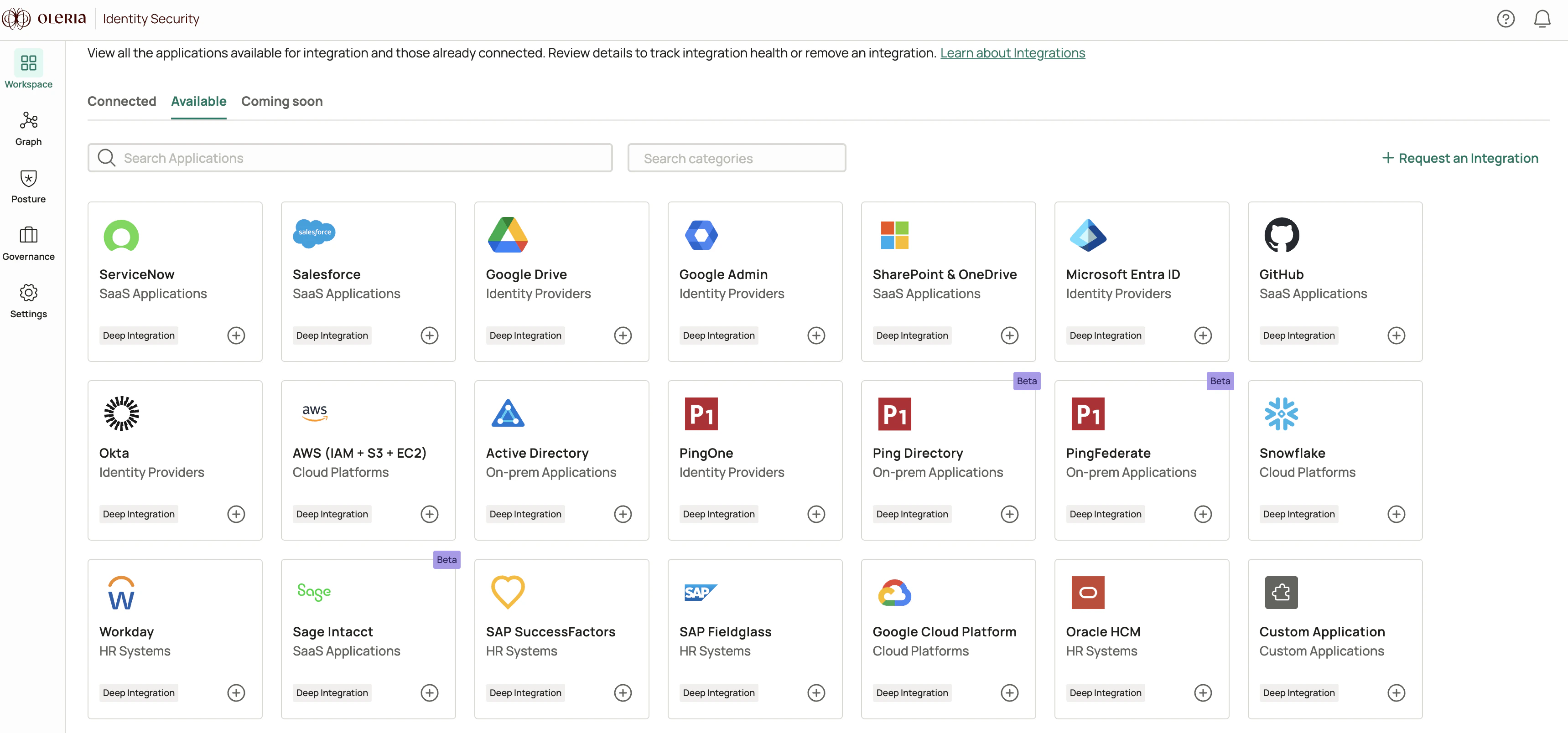 Fill in the connection form that appears:
* **Application Name** - a label for this integration in Oleria. Use a name that describes your data source (for example: `Lattice HR`, `Databricks Prod`, `Internal App`).
* **S3 Data Path** - the full S3 URL to the root folder of your data. This is the folder that contains your `config/` and `rawdata/` subfolders. Example: `s3://your-bucket-name/your-prefix/`
Fill in the connection form that appears:
* **Application Name** - a label for this integration in Oleria. Use a name that describes your data source (for example: `Lattice HR`, `Databricks Prod`, `Internal App`).
* **S3 Data Path** - the full S3 URL to the root folder of your data. This is the folder that contains your `config/` and `rawdata/` subfolders. Example: `s3://your-bucket-name/your-prefix/`
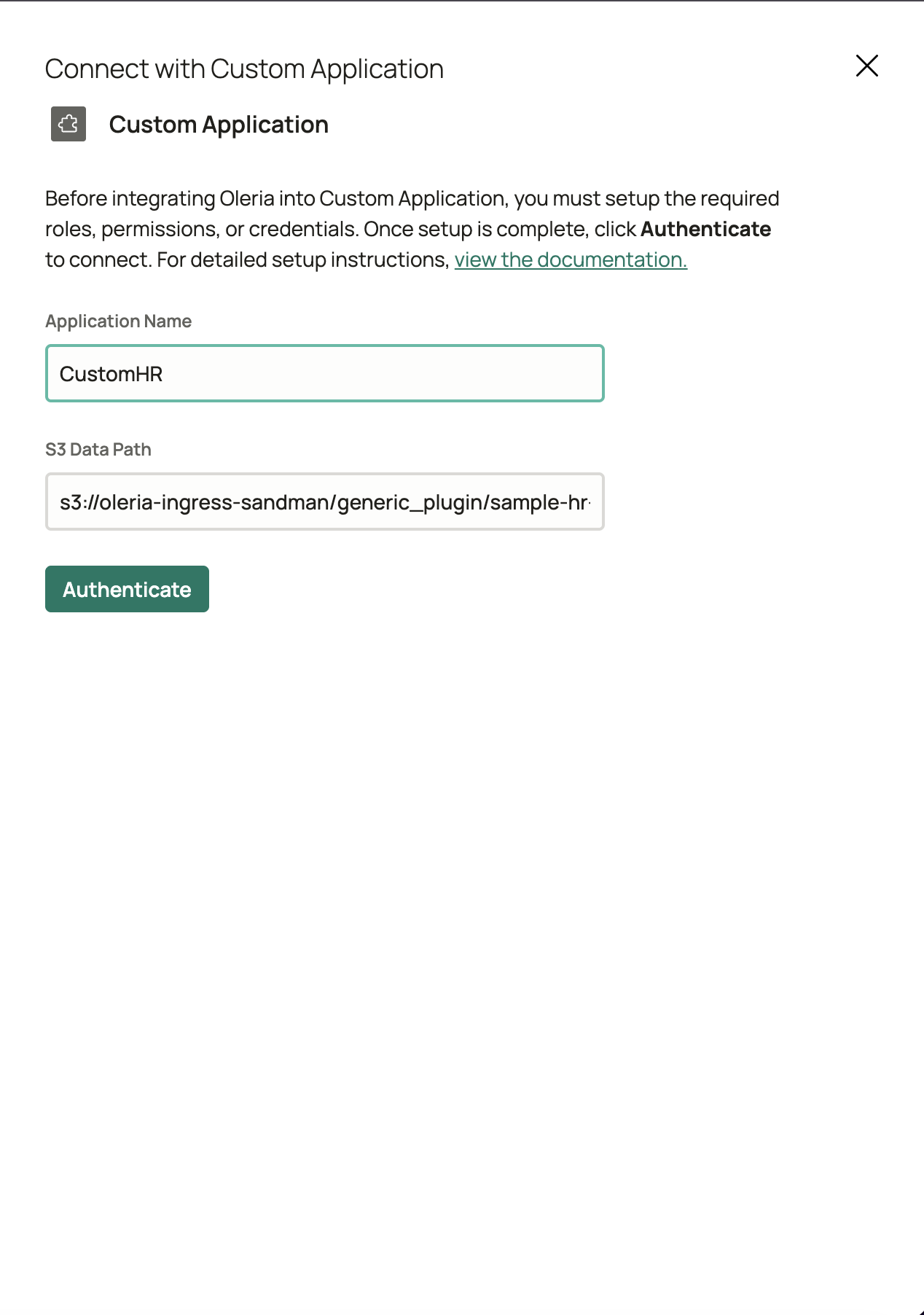 Select **Authenticate**. Oleria will verify it can reach your S3 bucket and read your configuration file.
Once connected, find your integration in the **Connected Integrations** section of the Integrations page. Oleria will sync based on the intervals defined in your `config.yaml` - by default, access data every **3 hours** and activity logs every **1 hour**. You can override these using `rbac_sync_interval_hours` and `activity_sync_interval_hours` in your config. Oleria will only process data when new files are available.
Select **Authenticate**. Oleria will verify it can reach your S3 bucket and read your configuration file.
Once connected, find your integration in the **Connected Integrations** section of the Integrations page. Oleria will sync based on the intervals defined in your `config.yaml` - by default, access data every **3 hours** and activity logs every **1 hour**. You can override these using `rbac_sync_interval_hours` and `activity_sync_interval_hours` in your config. Oleria will only process data when new files are available.
 ## Contact us
For questions about this integration, contact us at [support@oleria.com](mailto:support@oleria.com).
## Contact us
For questions about this integration, contact us at [support@oleria.com](mailto:support@oleria.com).