> ## Documentation Index
> Fetch the complete documentation index at: https://docs.oleria.com/llms.txt
> Use this file to discover all available pages before exploring further.
# AWS IAM and S3
Connect your AWS organization or a single AWS account to Oleria so it can build a continuously updated map of IAM users, roles, policies, EC2 instances, S3 bucket access, and CloudTrail activity. This page covers both integration approaches; the organization-level approach is recommended for production.
## Prerequisites
* AWS Admin role
Use a service account (and not an employee account) with the suggested privileges for the integration to ensure continuity.
## Integration Approaches
Oleria currently supports two approaches. Follow the one that is most appropriate for your organization.
* [Integrate AWS Organization](#integrate-aws-organization) (recommended)
* [Integrate AWS Account](#integrate-aws-account)
## Integrate AWS Organization
Log in as an admin user to the AWS Management Account (also known as the master account) that will be connected to Oleria.
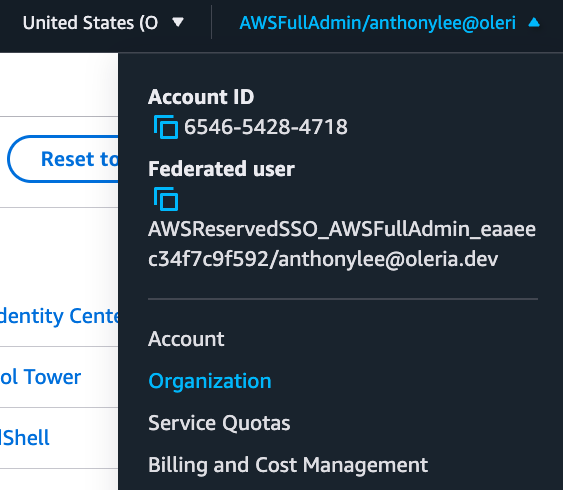
Select the user in the top right corner, and select **Organization**.
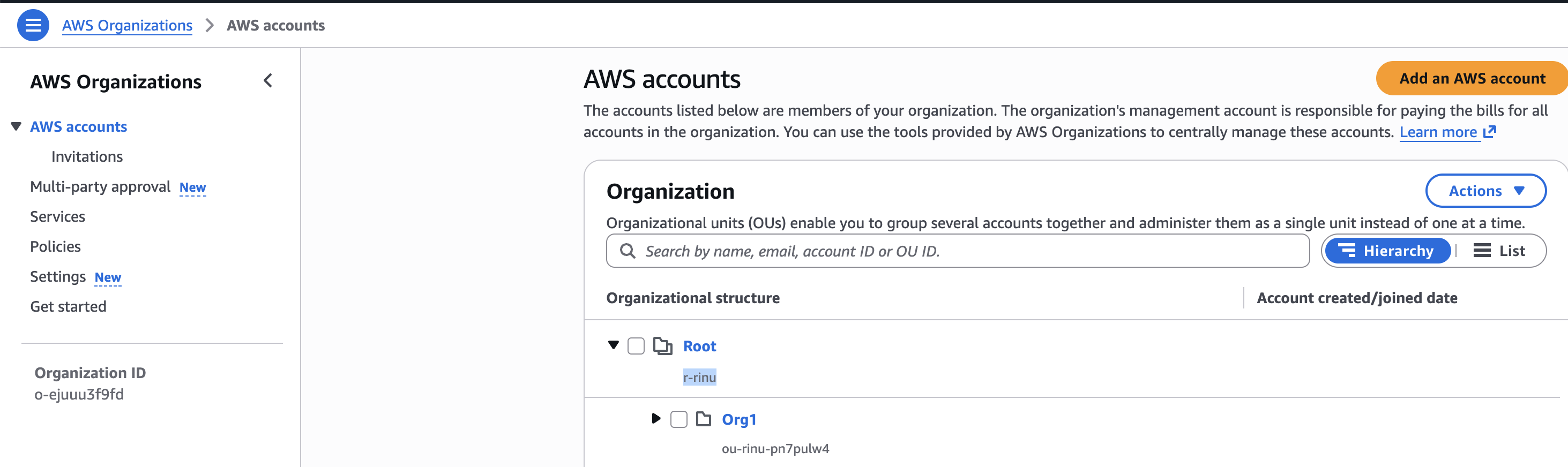
 Copy the **Root** ID for your organization from the AWS Organizations console.
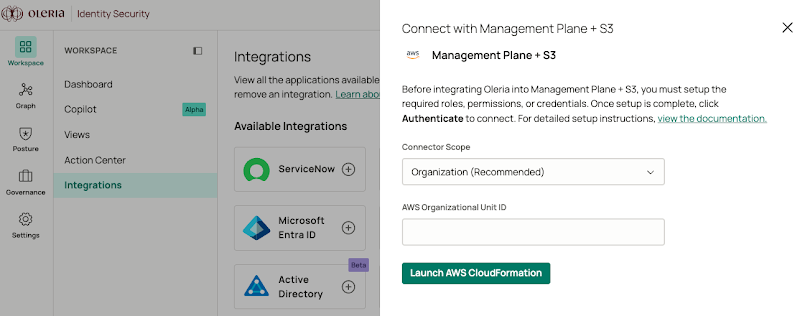
 Log in to your Oleria workspace. Select **Integrations** → select **AWS IAM and S3**. A side page opens - select **Organization (Recommended)**, paste the Root ID where the integration asks for the organization unit ID, and select **Launch AWS CloudFormation**.
 You will be redirected to your AWS instance. The stack name **Oleria-Plugin-SaaS-Connector** is preselected. Acknowledge and select **Create Stack**.
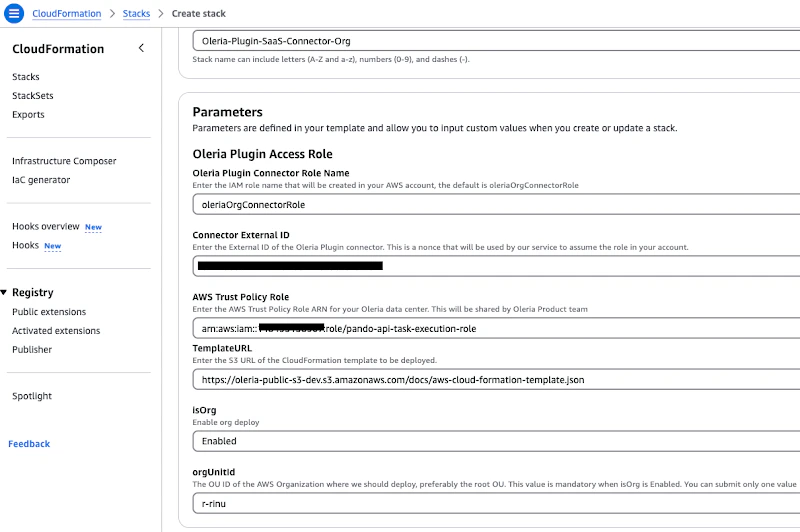 The Cloud Stack creation will complete in approximately 1 minute.
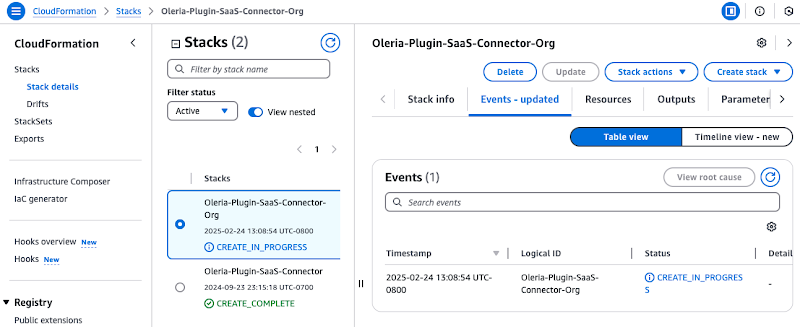 The account used for Oleria integration must have the following privileges:
* cloudformation:CreateStack
* cloudformation:CreateUploadBucket
* cloudformation:DescribeStacks
* cloudformation:DescribeStackEvents
* cloudformation:GetStackPolicy
* cloudformation:GetTemplateSummary
* cloudformation:ListStacks
* cloudformation:ListStackResources
* iam:AttachRolePolicy
* iam:CreatePolicy
* iam:CreateRole
* iam:ListRoles
* iam:GetRole
* iam:DeleteRolePolicy
* iam:PutRolePolicy
* s3:GetObject
* s3:CreateBucket
* s3:PutObject
* sns:ListTopics
To enable remediations for removing users from groups and reversing decisions, also grant:
* iam:AddUserToGroup
* iam:RemoveUserFromGroup
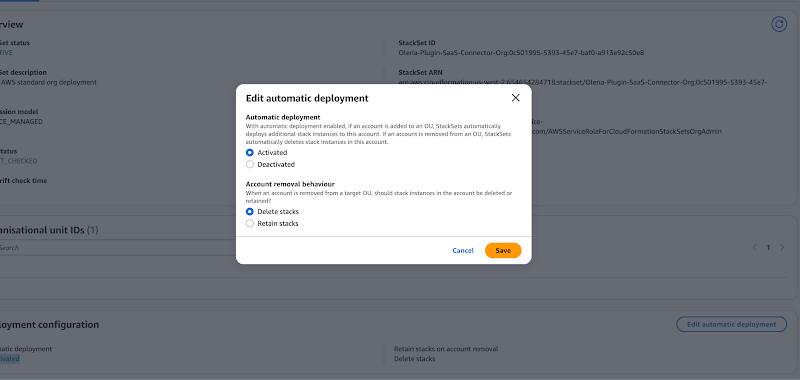
Before adding stacks, verify the StackSet's configuration. For the integration to automatically apply to new AWS accounts added to your organization in the future, ensure auto-deployment is active.
In the CloudFormation console, open **StackSets** from the left menu. Select the **Oleria-Plugin-SaaS-Connector-Org** StackSet. Under **Deployment configuration**, select **Edit automatic deployment** and set **Automatic deployment** to **Activated**.
The account used for Oleria integration must have the following privileges:
* cloudformation:CreateStack
* cloudformation:CreateUploadBucket
* cloudformation:DescribeStacks
* cloudformation:DescribeStackEvents
* cloudformation:GetStackPolicy
* cloudformation:GetTemplateSummary
* cloudformation:ListStacks
* cloudformation:ListStackResources
* iam:AttachRolePolicy
* iam:CreatePolicy
* iam:CreateRole
* iam:ListRoles
* iam:GetRole
* iam:DeleteRolePolicy
* iam:PutRolePolicy
* s3:GetObject
* s3:CreateBucket
* s3:PutObject
* sns:ListTopics
To enable remediations for removing users from groups and reversing decisions, also grant:
* iam:AddUserToGroup
* iam:RemoveUserFromGroup
Before adding stacks, verify the StackSet's configuration. For the integration to automatically apply to new AWS accounts added to your organization in the future, ensure auto-deployment is active.
In the CloudFormation console, open **StackSets** from the left menu. Select the **Oleria-Plugin-SaaS-Connector-Org** StackSet. Under **Deployment configuration**, select **Edit automatic deployment** and set **Automatic deployment** to **Activated**.
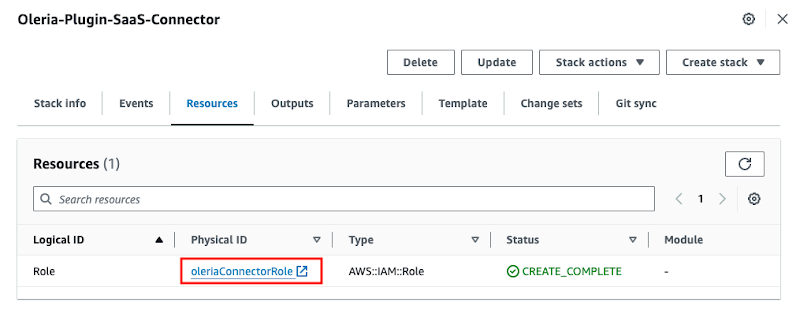
 Select the **Resources** tab and navigate to the **oleriaConnectorRole**.
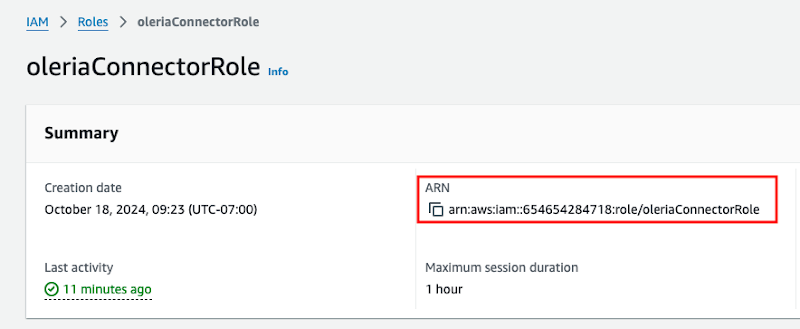
 Copy the **oleriaConnectorRole** ARN.
 This step is required only if the S3 bucket is encrypted with a KMS key. Update the KMS key policy to allow access to the Oleria connector role. Repeat these CloudTrail and KMS key policy steps for each AWS account that uses an encrypted trail.
Search **CloudTrail** → select **Management Events**.
This step is required only if the S3 bucket is encrypted with a KMS key. Update the KMS key policy to allow access to the Oleria connector role. Repeat these CloudTrail and KMS key policy steps for each AWS account that uses an encrypted trail.
Search **CloudTrail** → select **Management Events**.
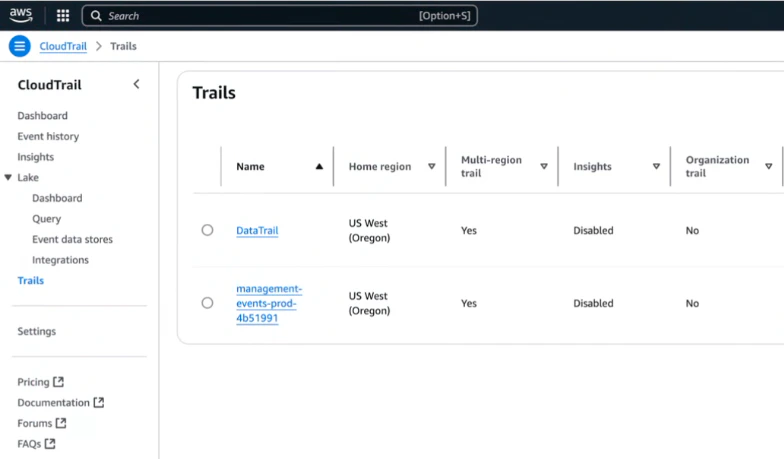 If you have multiple trails, select the first trail and check for an encrypted KMS key. If S3 is encrypted, you will see a KMS key link.
Select the **AWS KMS key** link.
If you have multiple trails, select the first trail and check for an encrypted KMS key. If S3 is encrypted, you will see a KMS key link.
Select the **AWS KMS key** link.
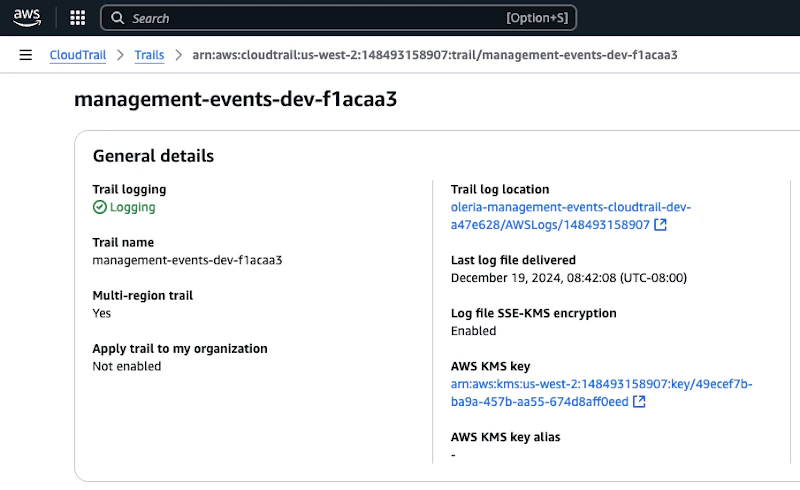 Update the KMS key policy as shown below. Replace **accountID** with your **AWS account ID**.
```json theme={null}
{
"Version": "2012-10-17",
"Statement": [
{
"Sid": "AllowOleriaConnectorAccess",
"Effect": "Allow",
"Principal": {
"AWS": "arn:aws:iam:::role/oleriaConnectorRole"
},
"Action": [
"kms:Decrypt",
"kms:DescribeKey"
],
"Resource": "*"
}
]
}
```
Update the KMS key policy as shown below. Replace **accountID** with your **AWS account ID**.
```json theme={null}
{
"Version": "2012-10-17",
"Statement": [
{
"Sid": "AllowOleriaConnectorAccess",
"Effect": "Allow",
"Principal": {
"AWS": "arn:aws:iam:::role/oleriaConnectorRole"
},
"Action": [
"kms:Decrypt",
"kms:DescribeKey"
],
"Resource": "*"
}
]
}
```
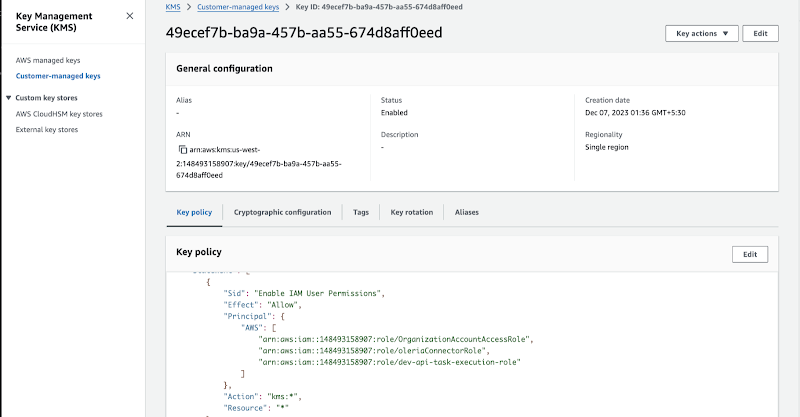 This policy allows the Oleria connector role to use `kms:Decrypt` and `kms:DescribeKey` for KMS-encrypted S3 access.
Return to your Oleria workspace. Provide the **Role ARN** copied above. Select the checkbox and select **Authenticate**.
This policy allows the Oleria connector role to use `kms:Decrypt` and `kms:DescribeKey` for KMS-encrypted S3 access.
Return to your Oleria workspace. Provide the **Role ARN** copied above. Select the checkbox and select **Authenticate**.
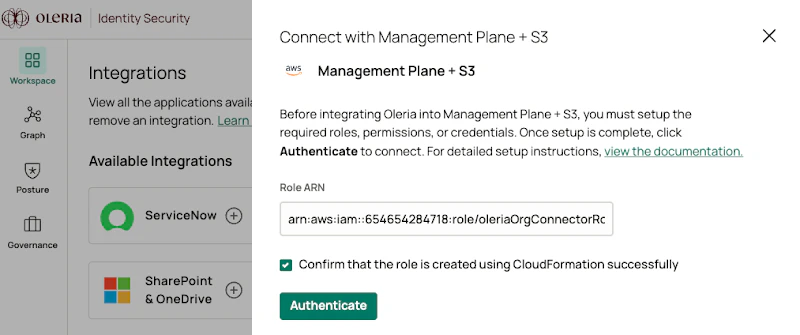 In your Oleria workspace, select the AWS region where you launched the CloudFormation stack. Select the checkbox and select **Authenticate**.
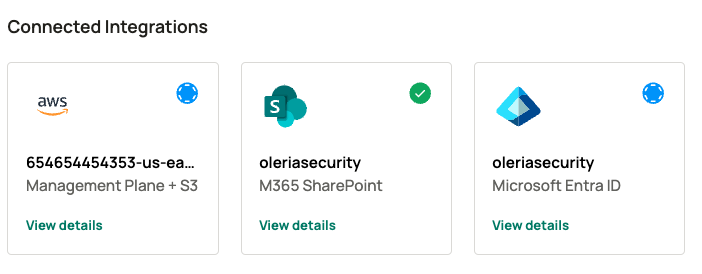
Find the newly integrated AWS IAM and S3 in your Oleria workspace connected integrations.
In your Oleria workspace, select the AWS region where you launched the CloudFormation stack. Select the checkbox and select **Authenticate**.
Find the newly integrated AWS IAM and S3 in your Oleria workspace connected integrations.
 ## Integrate AWS Account
This approach connects a single AWS account and is intended for POC use only. You will not get the full value of Oleria with this method. For production deployments and complete visibility across your AWS environment, Oleria recommends the **Integrate AWS Organization** approach above.
Log in as an admin user to the AWS Management Account (also known as the master account) that will be connected to Oleria.
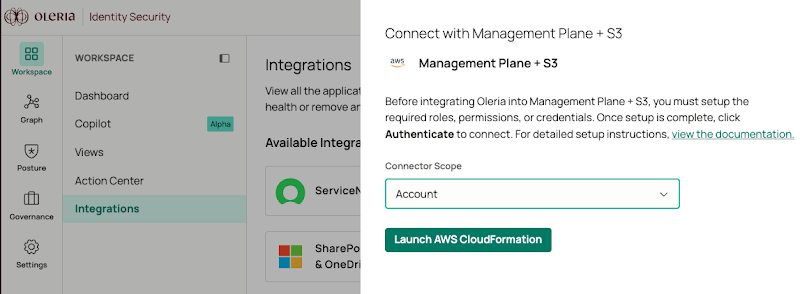
In the same browser, open a new tab and log in to your Oleria workspace. Select **Integrations** → select **AWS IAM and S3**. A side page opens - select **Account** from the Connector scope dropdown and select **Launch AWS CloudFormation**.
## Integrate AWS Account
This approach connects a single AWS account and is intended for POC use only. You will not get the full value of Oleria with this method. For production deployments and complete visibility across your AWS environment, Oleria recommends the **Integrate AWS Organization** approach above.
Log in as an admin user to the AWS Management Account (also known as the master account) that will be connected to Oleria.
In the same browser, open a new tab and log in to your Oleria workspace. Select **Integrations** → select **AWS IAM and S3**. A side page opens - select **Account** from the Connector scope dropdown and select **Launch AWS CloudFormation**.
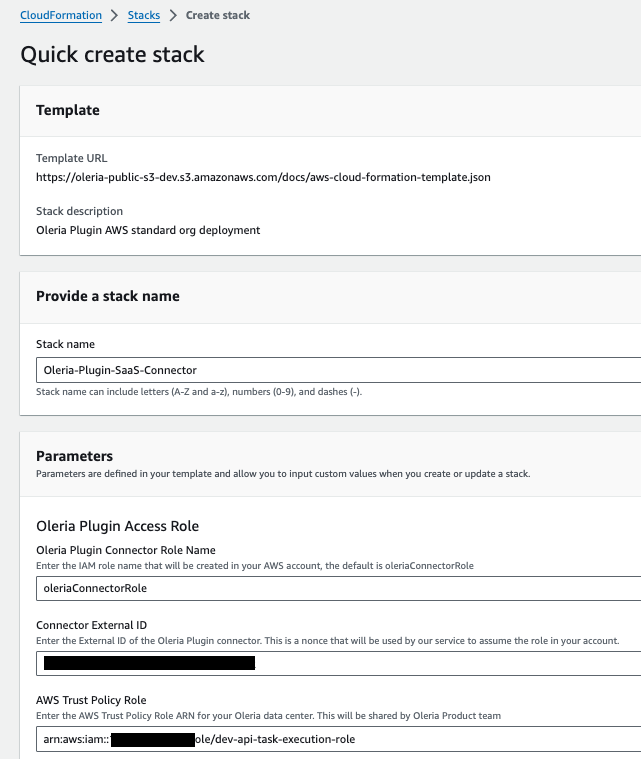
 You will be redirected to your AWS instance. The stack name **Oleria-Plugin-SaaS-Connector** is preselected. Acknowledge and select **Create Stack**.
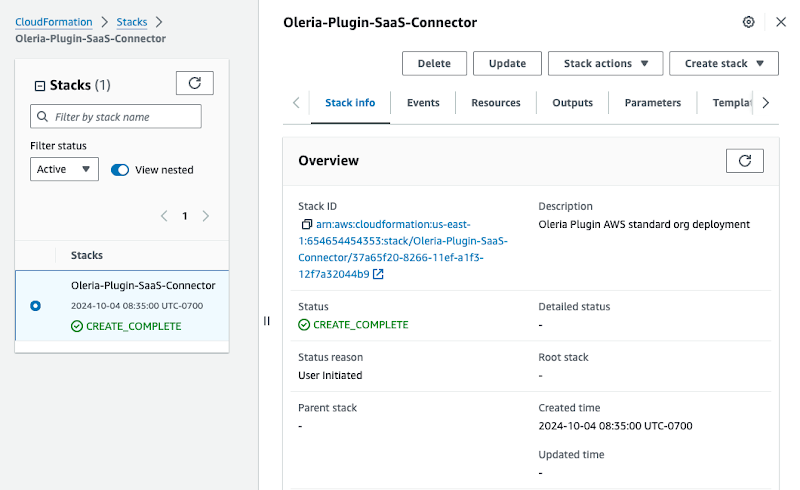
 The Cloud Stack creation will complete shortly.
 The account used for Oleria integration must have the following privileges:
* cloudformation:CreateStack
* cloudformation:CreateUploadBucket
* cloudformation:DescribeStacks
* cloudformation:DescribeStackEvents
* cloudformation:GetStackPolicy
* cloudformation:GetTemplateSummary
* cloudformation:ListStacks
* cloudformation:ListStackResources
* iam:AttachRolePolicy
* iam:CreatePolicy
* iam:CreateRole
* iam:ListRoles
* iam:GetRole
* iam:DeleteRolePolicy
* iam:PutRolePolicy
* s3:GetObject
* s3:CreateBucket
* s3:PutObject
* sns:ListTopics
To enable remediations for removing users from groups and reversing decisions, also grant:
* iam:AddUserToGroup
* iam:RemoveUserFromGroup
Select the **Resources** tab and navigate to the **oleriaConnectorRole**.
Copy the **oleriaConnectorRole** ARN.
This step is required only if the S3 bucket is encrypted with a KMS key. Update the KMS key policy to allow access to the Oleria connector role.
Search **CloudTrail** → select **Management Events**.
If you have multiple trails, select the first trail and check for an encrypted KMS key. If S3 is encrypted, you will see a KMS key link.
Select the **AWS KMS key** link.
Update the KMS key policy as shown below. Replace **accountID** with your **AWS account ID**.
```json theme={null}
{
"Version": "2012-10-17",
"Statement": [
{
"Sid": "AllowOleriaConnectorAccess",
"Effect": "Allow",
"Principal": {
"AWS": "arn:aws:iam:::role/oleriaConnectorRole"
},
"Action": [
"kms:Decrypt",
"kms:DescribeKey"
],
"Resource": "*"
}
]
}
```
This policy allows the Oleria connector role to use `kms:Decrypt` and `kms:DescribeKey` for KMS-encrypted S3 access.
Return to your Oleria workspace. Provide the **Role ARN** copied above. Select the checkbox and select **Authenticate**.
Find the newly integrated AWS IAM and S3 in your Oleria workspace connected integrations.
## Contact us
For questions about this integration, contact us at [support@oleria.com](mailto:support@oleria.com).
The account used for Oleria integration must have the following privileges:
* cloudformation:CreateStack
* cloudformation:CreateUploadBucket
* cloudformation:DescribeStacks
* cloudformation:DescribeStackEvents
* cloudformation:GetStackPolicy
* cloudformation:GetTemplateSummary
* cloudformation:ListStacks
* cloudformation:ListStackResources
* iam:AttachRolePolicy
* iam:CreatePolicy
* iam:CreateRole
* iam:ListRoles
* iam:GetRole
* iam:DeleteRolePolicy
* iam:PutRolePolicy
* s3:GetObject
* s3:CreateBucket
* s3:PutObject
* sns:ListTopics
To enable remediations for removing users from groups and reversing decisions, also grant:
* iam:AddUserToGroup
* iam:RemoveUserFromGroup
Select the **Resources** tab and navigate to the **oleriaConnectorRole**.
Copy the **oleriaConnectorRole** ARN.
This step is required only if the S3 bucket is encrypted with a KMS key. Update the KMS key policy to allow access to the Oleria connector role.
Search **CloudTrail** → select **Management Events**.
If you have multiple trails, select the first trail and check for an encrypted KMS key. If S3 is encrypted, you will see a KMS key link.
Select the **AWS KMS key** link.
Update the KMS key policy as shown below. Replace **accountID** with your **AWS account ID**.
```json theme={null}
{
"Version": "2012-10-17",
"Statement": [
{
"Sid": "AllowOleriaConnectorAccess",
"Effect": "Allow",
"Principal": {
"AWS": "arn:aws:iam:::role/oleriaConnectorRole"
},
"Action": [
"kms:Decrypt",
"kms:DescribeKey"
],
"Resource": "*"
}
]
}
```
This policy allows the Oleria connector role to use `kms:Decrypt` and `kms:DescribeKey` for KMS-encrypted S3 access.
Return to your Oleria workspace. Provide the **Role ARN** copied above. Select the checkbox and select **Authenticate**.
Find the newly integrated AWS IAM and S3 in your Oleria workspace connected integrations.
## Contact us
For questions about this integration, contact us at [support@oleria.com](mailto:support@oleria.com).