> ## Documentation Index
> Fetch the complete documentation index at: https://docs.oleria.com/llms.txt
> Use this file to discover all available pages before exploring further.
# 1Password
> Connect your 1Password account to Oleria to continuously discover non-human identities, vault access, and activity across your secrets manager.
Connect 1Password to Oleria to inventory the credential-bearing items your team stores in vaults — API keys, passwords, SSH keys, and database credentials — and the activity they generate. Oleria reads this data through 1Password's Service Accounts and Events Reporting APIs, mapping non-human identities (NHIs) to the vaults they reside in and to sign-in and item-usage activity. This page walks through generating both credentials in 1Password and connecting them to your Oleria workspace.
## What Oleria discovers
Once connected, Oleria continuously discovers and maps the following from your 1Password account:
* **Non-human identities (NHIs)** - credential-bearing items in your vaults — API keys, passwords, SSH keys, and database credentials stored in 1Password.
* **Resource instances** - the vaults in your 1Password account, the items they contain, and the access grants tied to each vault.
* **Activities** - audit events, sign-in attempts, and item usage reported through 1Password's Events Reporting API.
Oleria authenticates to 1Password using a Service Account (created in the steps below), but the NHIs it discovers are credential-bearing vault items — not the Service Account itself. 1Password's Events Reporting API is scoped to account-wide activity, not individual user profiles.
## Prerequisites
* 1Password administrator access, to create a Service Account and an Events Reporting API token.
* Your 1Password Events Reporting region (United States, Europe, or Canada) - you'll need this when connecting in Oleria.
## Create a Service Account in 1Password
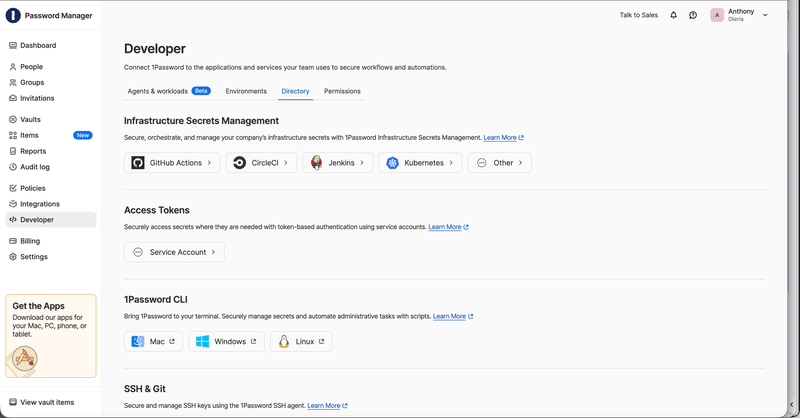
Sign in to 1Password as an administrator, select **Developer** in the sidebar, then open the **Directory** tab. Under **Access Tokens**, select **Service Account**.
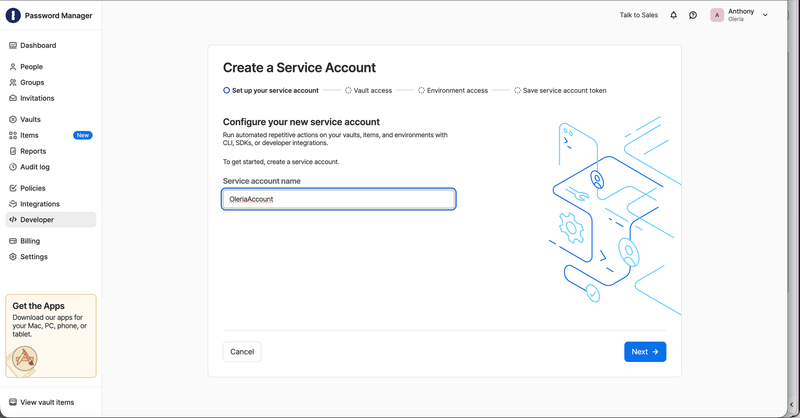
 Enter a descriptive name, for example `OleriaAccount`, then select **Next**.
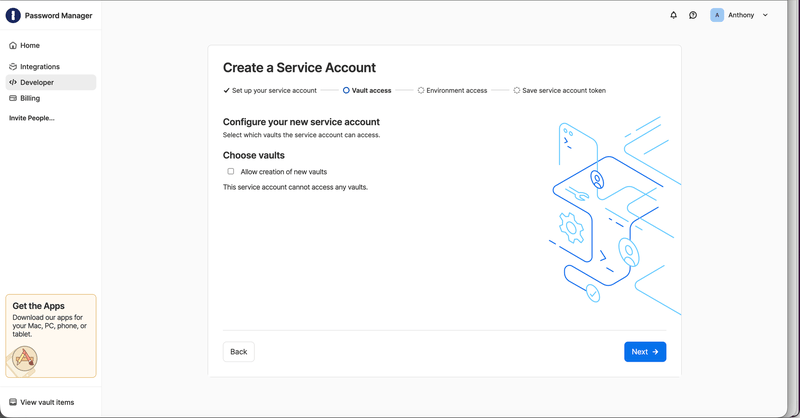
 Select all the vaults you want Oleria to inventory and set **Read** access for each, then select **Next**.
Leave **Allow creation of new vaults** unchecked - Oleria only needs read access to inventory existing vaults.
Select all the vaults you want Oleria to inventory and set **Read** access for each, then select **Next**.
Leave **Allow creation of new vaults** unchecked - Oleria only needs read access to inventory existing vaults.
 If the wizard shows an **Environment access** step, you can leave it unselected and select **Next** — Oleria doesn't use Environments.
Select **Create Account**, then copy the generated authorization token immediately, or select **Save in 1Password** to store it in a vault.
1Password shows the Service Account token only once. Store it securely - if you lose it, you must create a new Service Account and update the integration in Oleria.
## Create an Events Reporting API token in 1Password
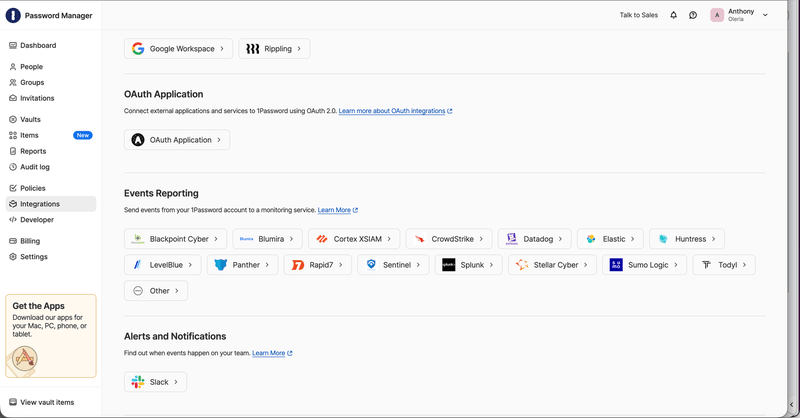
Select **Integrations** in the sidebar. In the **Events Reporting** section, select **Other**, since Oleria isn't a listed SIEM platform.
If your account already has integrations configured, selecting **Integrations** may open directly to a **Directory** view instead.
If the wizard shows an **Environment access** step, you can leave it unselected and select **Next** — Oleria doesn't use Environments.
Select **Create Account**, then copy the generated authorization token immediately, or select **Save in 1Password** to store it in a vault.
1Password shows the Service Account token only once. Store it securely - if you lose it, you must create a new Service Account and update the integration in Oleria.
## Create an Events Reporting API token in 1Password
Select **Integrations** in the sidebar. In the **Events Reporting** section, select **Other**, since Oleria isn't a listed SIEM platform.
If your account already has integrations configured, selecting **Integrations** may open directly to a **Directory** view instead.
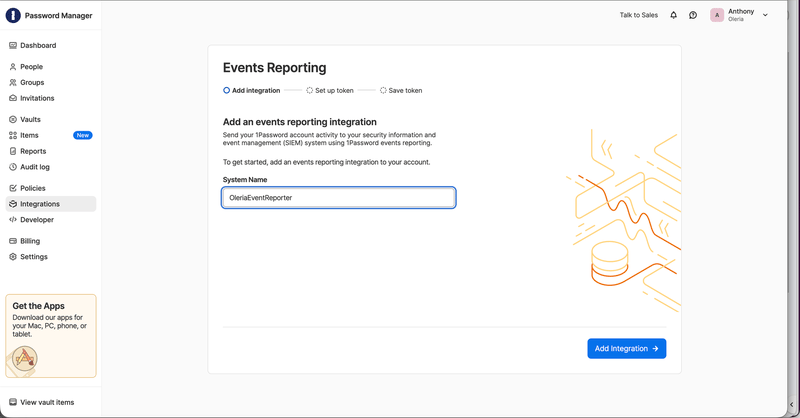
 Enter a descriptive name, for example `OleriaEventReporter`, then select **Add Integration**.
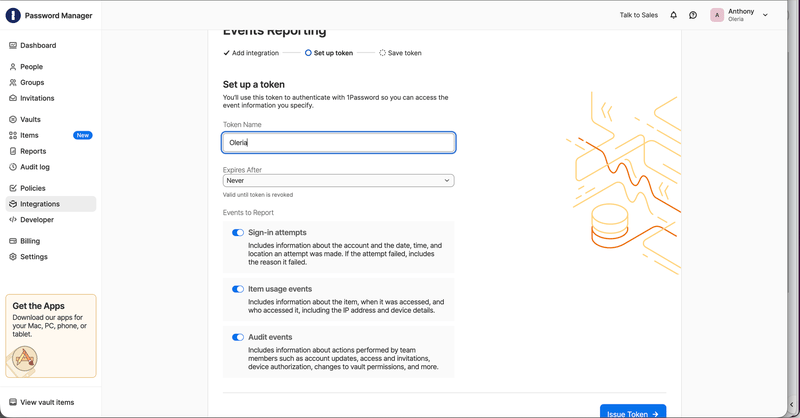
 Enter a **Token Name**, set **Expires After** (30, 90, 180 days, or **Never**), then turn on all three **Events to Report** toggles - **Sign-in attempts**, **Item usage events**, and **Audit events**. Select **Issue Token**.
 Copy the generated token immediately, or select **Save in 1Password** to store it securely.
1Password shows the Events API token only once. Store it securely - if you lose it, you must create a new token and update the integration in Oleria.
Confirm which region your 1Password account reports events from - United States, Europe, or Canada. You'll select this region when connecting in Oleria.
## Connect 1Password to Oleria
Go to your Oleria workspace, select **Integrations** -> select **1Password**.
Select **Continue** and fill in the connection form:
| Field | Notes |
| :-------------------- | :-------------------------------------------------------------------------------------------------- |
| Service Account Token | Required. The Service Account token you generated in 1Password. |
| Events API Token | Required. The Events Reporting API token you generated in 1Password. |
| Events Region | Required. Your 1Password Events Reporting region - United States (us), Europe (eu), or Canada (ca). |
Copy the generated token immediately, or select **Save in 1Password** to store it securely.
1Password shows the Events API token only once. Store it securely - if you lose it, you must create a new token and update the integration in Oleria.
Confirm which region your 1Password account reports events from - United States, Europe, or Canada. You'll select this region when connecting in Oleria.
## Connect 1Password to Oleria
Go to your Oleria workspace, select **Integrations** -> select **1Password**.
Select **Continue** and fill in the connection form:
| Field | Notes |
| :-------------------- | :-------------------------------------------------------------------------------------------------- |
| Service Account Token | Required. The Service Account token you generated in 1Password. |
| Events API Token | Required. The Events Reporting API token you generated in 1Password. |
| Events Region | Required. Your 1Password Events Reporting region - United States (us), Europe (eu), or Canada (ca). |
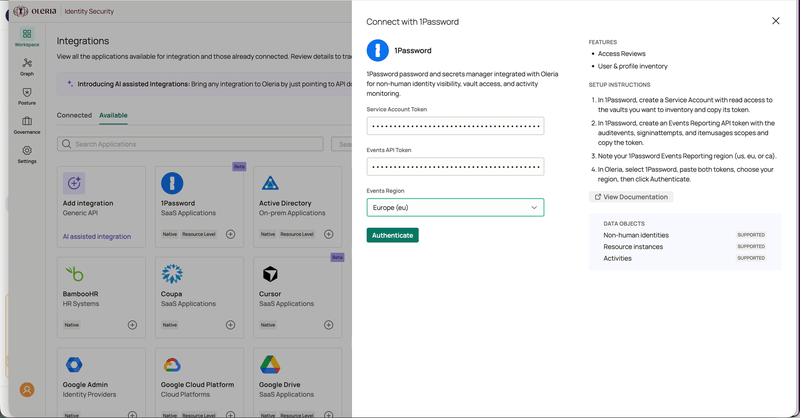 Select **Authenticate** to validate and save the integration. Oleria checks both tokens against 1Password before saving.
## Verify the integration
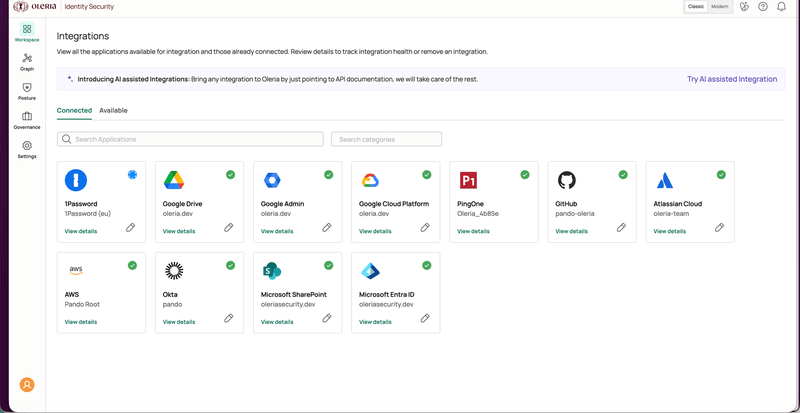
Confirm the 1Password instance appears in your Oleria workspace's connected integrations. After the first sync completes, you can review the discovered credential items, vault access, and activity in your Oleria workspace.
Select **Authenticate** to validate and save the integration. Oleria checks both tokens against 1Password before saving.
## Verify the integration
Confirm the 1Password instance appears in your Oleria workspace's connected integrations. After the first sync completes, you can review the discovered credential items, vault access, and activity in your Oleria workspace.
 If you rotate either credential, edit the integration in Oleria, paste the new token, and select **Update**. The next sync runs with the new credentials.
## Contact us
For questions about this integration, contact us at [support@oleria.com](mailto:support@oleria.com).
If you rotate either credential, edit the integration in Oleria, paste the new token, and select **Update**. The next sync runs with the new credentials.
## Contact us
For questions about this integration, contact us at [support@oleria.com](mailto:support@oleria.com).