> ## Documentation Index
> Fetch the complete documentation index at: https://docs.oleria.com/llms.txt
> Use this file to discover all available pages before exploring further.
# SSO Applications
> Make the applications your identity provider federates requestable, so approved requests grant access through your existing single sign-on groups.
Make an application that your identity provider (IdP) federates requestable in Oleria. When a request is approved, Oleria adds the requester to the IdP group you mapped, so access is granted through your existing single sign-on (SSO) setup.
Go to **Governance** -> **Access Requests** -> **SSO applications**. Each tile shows the application, its ID, the identity provider it federates from, and whether it is already requestable. Select the application you want to configure.
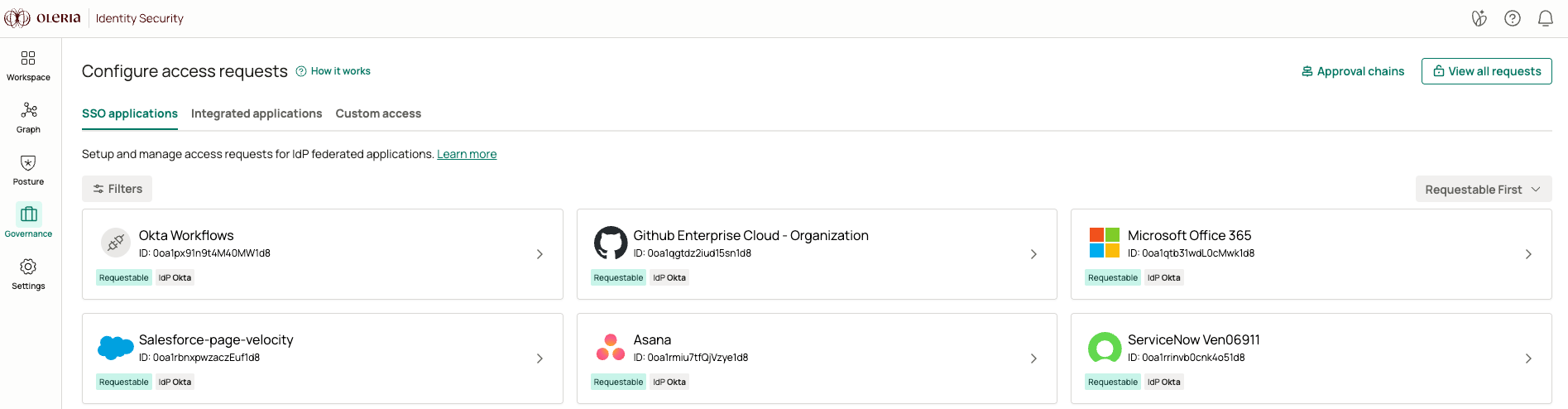 Select **Allow users to request access in the Governance App**. The application is tagged **Requestable** and appears in the Governance App catalog once you finish the configuration below.
Under **Access configuration scope**, add a row for each level of access employees can request. For every row, set:
* **Display name** - the label employees see in the request form, for example `Read Only`.
* **Group** - the IdP group Oleria adds the requester to once the request is approved.
* **Max Duration** - the longest access can be granted for at this level.
* **Approval from** - the [approval chain](/governance/approval-chains) that governs requests for this level.
Select **Add** to define another level.
Select **Allow users to request access in the Governance App**. The application is tagged **Requestable** and appears in the Governance App catalog once you finish the configuration below.
Under **Access configuration scope**, add a row for each level of access employees can request. For every row, set:
* **Display name** - the label employees see in the request form, for example `Read Only`.
* **Group** - the IdP group Oleria adds the requester to once the request is approved.
* **Max Duration** - the longest access can be granted for at this level.
* **Approval from** - the [approval chain](/governance/approval-chains) that governs requests for this level.
Select **Add** to define another level.
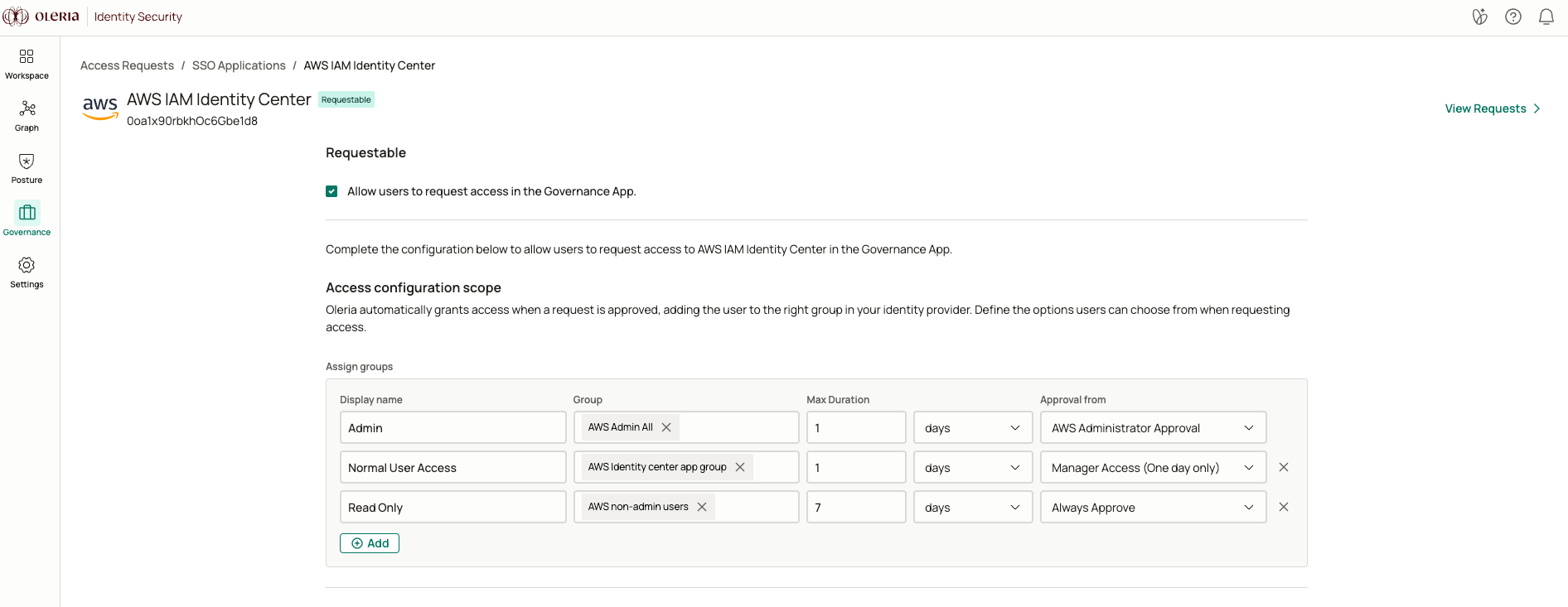 Each level of access carries its own approval chain, so a read-only level can route through a lighter chain than an admin level on the same application.
## Requesting SSO applications
Employees submit and track access requests from the Oleria governance portal at `youroleriainstancename-governance.oleria.io`.
From the Governance App, go to **Requests** and select an SSO application from the catalog.
If the application has more than one configured group, select the level of access needed. Oleria shows what percentage of the requester's peer group already holds each level, based on the past 30 days of activity and current access.
Each level of access carries its own approval chain, so a read-only level can route through a lighter chain than an admin level on the same application.
## Requesting SSO applications
Employees submit and track access requests from the Oleria governance portal at `youroleriainstancename-governance.oleria.io`.
From the Governance App, go to **Requests** and select an SSO application from the catalog.
If the application has more than one configured group, select the level of access needed. Oleria shows what percentage of the requester's peer group already holds each level, based on the past 30 days of activity and current access.
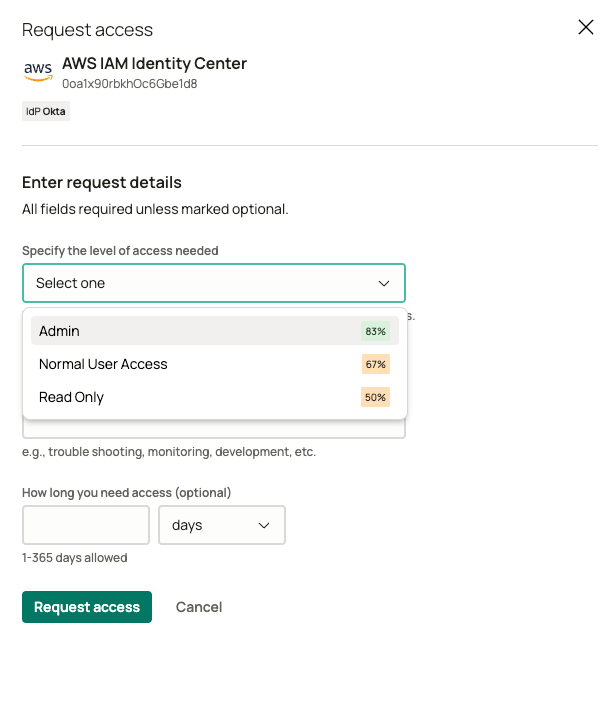 Explain how the application will be used. Administrators can require this field.
Specify how long the access is needed, if the request source allows a custom duration. If access is configured as permanent, this step is skipped.
Select **Request access**. The request moves into the assigned approval chain, and the employee can track its status under **My requests**.
If an employee already has active access to a group and submits a new request for it, the new request extends the existing access instead of granting a separate grant. The original grant is marked superseded once the extension is approved.
## Contact us
For questions, contact us at [support@oleria.com](mailto:support@oleria.com).
Explain how the application will be used. Administrators can require this field.
Specify how long the access is needed, if the request source allows a custom duration. If access is configured as permanent, this step is skipped.
Select **Request access**. The request moves into the assigned approval chain, and the employee can track its status under **My requests**.
If an employee already has active access to a group and submits a new request for it, the new request extends the existing access instead of granting a separate grant. The original grant is marked superseded once the extension is approved.
## Contact us
For questions, contact us at [support@oleria.com](mailto:support@oleria.com).