> ## Documentation Index
> Fetch the complete documentation index at: https://docs.oleria.com/llms.txt
> Use this file to discover all available pages before exploring further.
# Group Hygiene
> Identify inactive group members and unused groups across your connected applications to reduce your attack surface and access management overhead.
Group Hygiene shows you how access is actually being used through group membership. By analyzing the activity of group members, you can identify inactive users within groups, spot groups that are no longer needed, and take targeted action to reduce risk and maintain compliance.
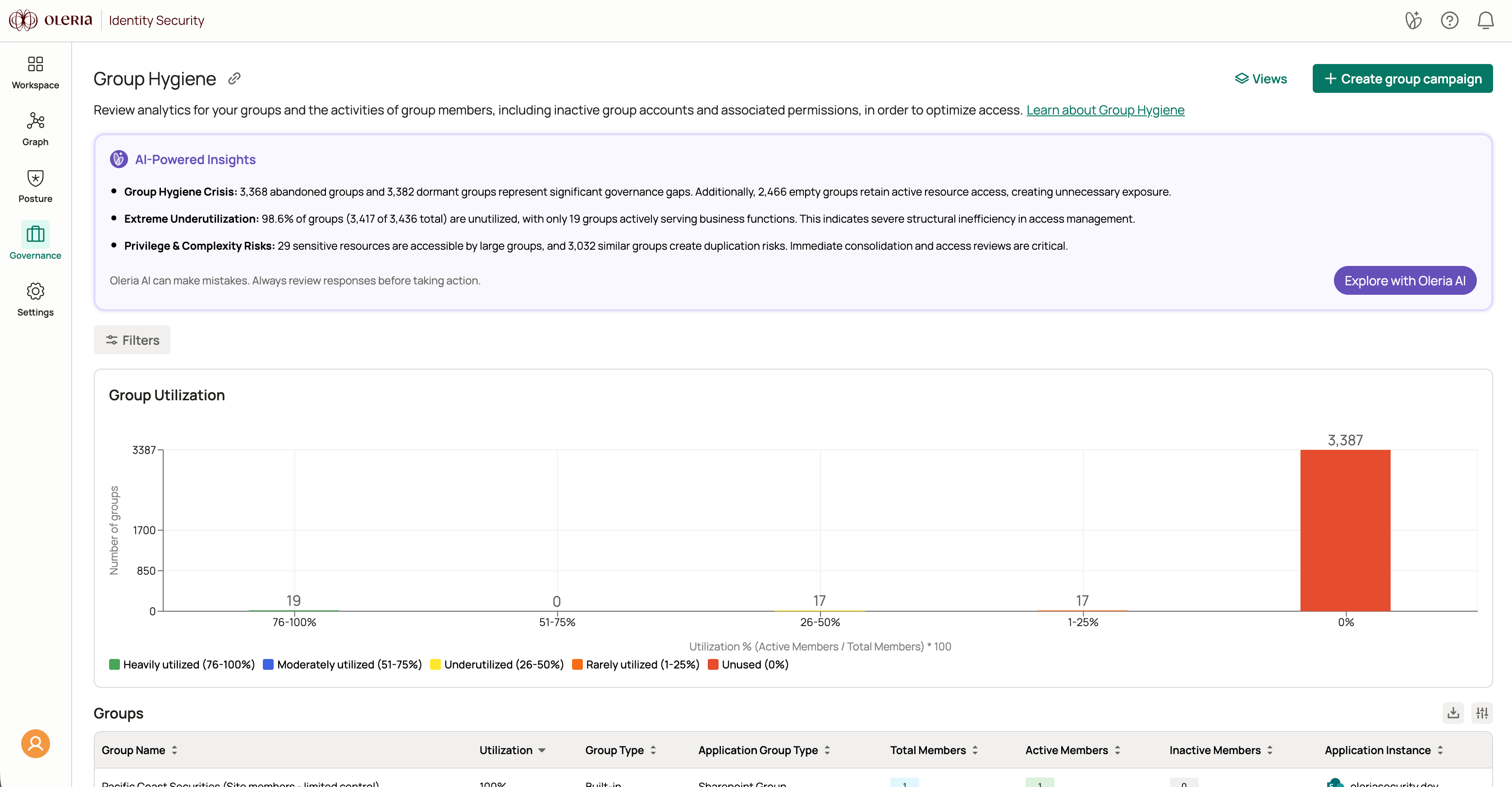 ## What you can do with Group Hygiene
* **Eliminate underutilized groups** - identify and act on groups that are no longer needed, reducing your attack surface and simplifying access management.
* **Manage inactive group members** - identify and adjust access for accounts that have not used their group membership in more than 30 days.
* **Review administrator groups** - identify groups used for privileged tasks and tighten permissions where continual admin access is no longer justified.
* **Remove unnecessary permissions** - surface and clean up permissions accumulated through group membership over time.
## Use cases
### Inactive group account management
Organizations grant access to resources through groups. Over time, some users become inactive due to job changes, project completion, or disengagement - but their group memberships and associated permissions remain. These inactive accounts go largely undetected and create security risk if compromised.
Oleria identifies all inactive group accounts based on access activity. Accounts that have been inactive for more than 30 days fall into the inactive category. Removing access to inactive members improves security and supports compliance.
### Compliance assurance for privileged groups
In regulated environments, organizations grant privileged access through group memberships. When employees change teams or leave, access removal from these groups is often overlooked - creating gaps in audit trails and compliance posture.
Oleria monitors access activities of privileged account groups to detect and respond to suspicious or unauthorized access, safeguarding application security and audit integrity.
### Eliminating unused groups
Organizations accumulate groups over time as teams, projects, and structures change. Many become obsolete but remain in the access management system, creating clutter and security risk.
Oleria analyzes group activity and utilization percentages to identify groups without active member accounts. This helps you safely eliminate unused groups, streamline access management, and reduce the potential attack surface.
### Optimizing groups used for privileged activities
When employees switch teams or leave, their privileged group memberships often go unreviewed. Over time, this leads to more people retaining admin-level access than necessary.
Oleria helps identify privileged accounts and their access patterns, so you can assess whether continual privileged access is still justified and act to minimize risk.
## Utilization chart
The utilization chart shows the percentage of active accounts within each group. An account that has been inactive for more than 30 days is considered inactive.
```
Utilization % = (active accounts / total accounts) × 100
```
## What you can do with Group Hygiene
* **Eliminate underutilized groups** - identify and act on groups that are no longer needed, reducing your attack surface and simplifying access management.
* **Manage inactive group members** - identify and adjust access for accounts that have not used their group membership in more than 30 days.
* **Review administrator groups** - identify groups used for privileged tasks and tighten permissions where continual admin access is no longer justified.
* **Remove unnecessary permissions** - surface and clean up permissions accumulated through group membership over time.
## Use cases
### Inactive group account management
Organizations grant access to resources through groups. Over time, some users become inactive due to job changes, project completion, or disengagement - but their group memberships and associated permissions remain. These inactive accounts go largely undetected and create security risk if compromised.
Oleria identifies all inactive group accounts based on access activity. Accounts that have been inactive for more than 30 days fall into the inactive category. Removing access to inactive members improves security and supports compliance.
### Compliance assurance for privileged groups
In regulated environments, organizations grant privileged access through group memberships. When employees change teams or leave, access removal from these groups is often overlooked - creating gaps in audit trails and compliance posture.
Oleria monitors access activities of privileged account groups to detect and respond to suspicious or unauthorized access, safeguarding application security and audit integrity.
### Eliminating unused groups
Organizations accumulate groups over time as teams, projects, and structures change. Many become obsolete but remain in the access management system, creating clutter and security risk.
Oleria analyzes group activity and utilization percentages to identify groups without active member accounts. This helps you safely eliminate unused groups, streamline access management, and reduce the potential attack surface.
### Optimizing groups used for privileged activities
When employees switch teams or leave, their privileged group memberships often go unreviewed. Over time, this leads to more people retaining admin-level access than necessary.
Oleria helps identify privileged accounts and their access patterns, so you can assess whether continual privileged access is still justified and act to minimize risk.
## Utilization chart
The utilization chart shows the percentage of active accounts within each group. An account that has been inactive for more than 30 days is considered inactive.
```
Utilization % = (active accounts / total accounts) × 100
```
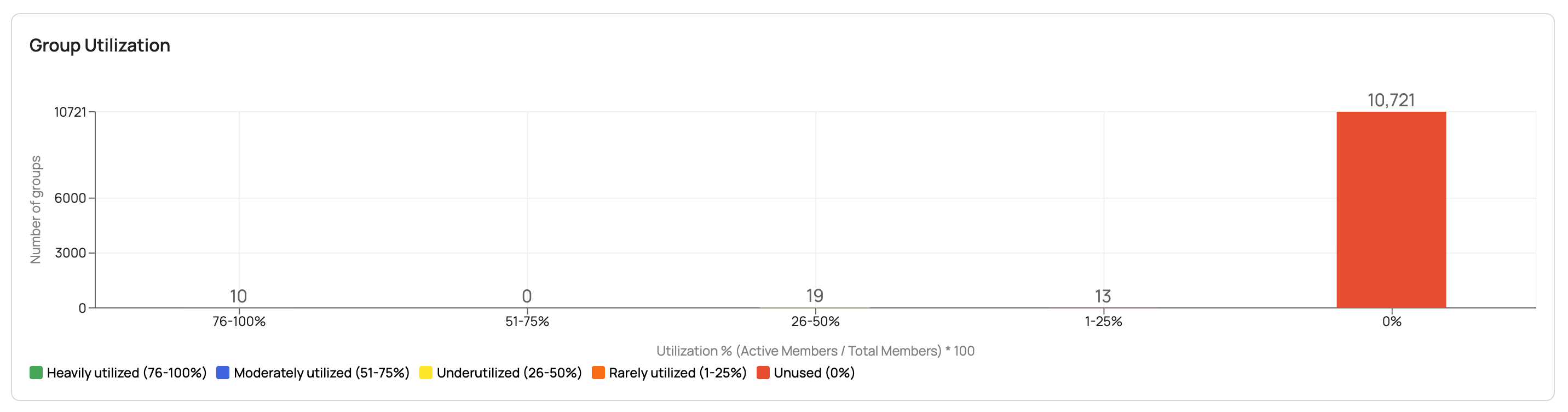 Groups are color-coded by utilization to signal risk:
| Range | Label | Color |
| :------ | :------------------ | :----- |
| 76-100% | Heavily utilized | Green |
| 51-75% | Moderately utilized | Indigo |
| 26-50% | Underutilized | Yellow |
| 1-25% | Rarely utilized | Orange |
| 0% | Unused | Tomato |
Removing access to inactive accounts within a group improves security and supports compliance.
## Group table
The group table lists all groups matching your current filters.
Groups are color-coded by utilization to signal risk:
| Range | Label | Color |
| :------ | :------------------ | :----- |
| 76-100% | Heavily utilized | Green |
| 51-75% | Moderately utilized | Indigo |
| 26-50% | Underutilized | Yellow |
| 1-25% | Rarely utilized | Orange |
| 0% | Unused | Tomato |
Removing access to inactive accounts within a group improves security and supports compliance.
## Group table
The group table lists all groups matching your current filters.
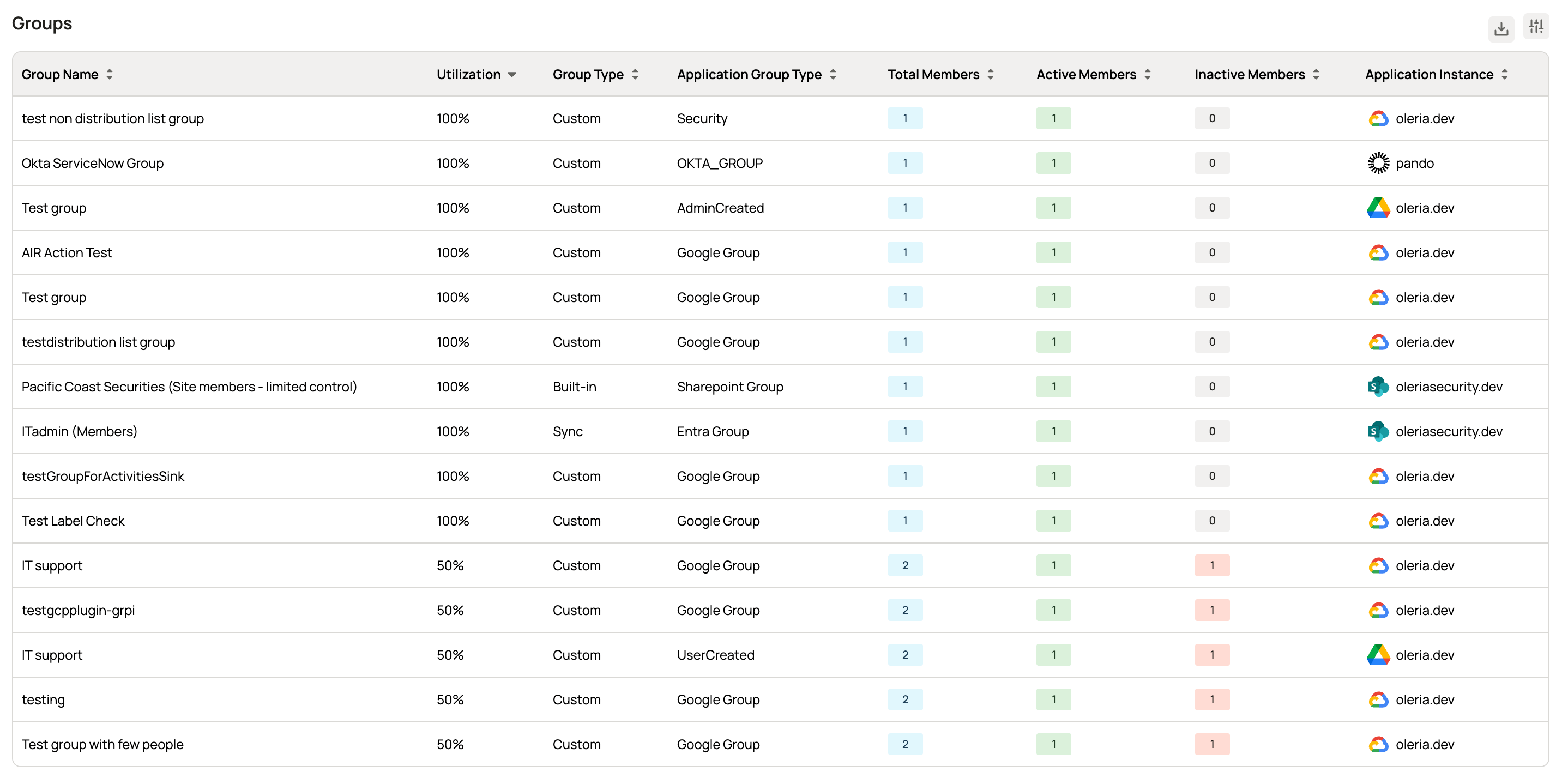 | Column | Description |
| :--------------------- | :------------------------------------------------------------------------------------ |
| Group Name | The name of the group. |
| Utilization | Group utilization percentage - `(active accounts / total accounts) × 100`. |
| Group Type | The type of group based on its purpose, function, or characteristics. |
| Application Group Type | The type of group as classified by the application. |
| Total Accounts | Total number of accounts within the group. |
| Active Accounts | Accounts actively accessing resources via group membership. |
| Inactive Accounts | Accounts that have not accessed resources via group membership for more than 30 days. |
| Application Instance | The application instance - for example, `salesforce.prod`. |
You can export the group table as a CSV file. When a group is exported, its members are also included in the export.
## Group details page
Selecting a group opens the group details page.
| Column | Description |
| :--------------------- | :------------------------------------------------------------------------------------ |
| Group Name | The name of the group. |
| Utilization | Group utilization percentage - `(active accounts / total accounts) × 100`. |
| Group Type | The type of group based on its purpose, function, or characteristics. |
| Application Group Type | The type of group as classified by the application. |
| Total Accounts | Total number of accounts within the group. |
| Active Accounts | Accounts actively accessing resources via group membership. |
| Inactive Accounts | Accounts that have not accessed resources via group membership for more than 30 days. |
| Application Instance | The application instance - for example, `salesforce.prod`. |
You can export the group table as a CSV file. When a group is exported, its members are also included in the export.
## Group details page
Selecting a group opens the group details page.
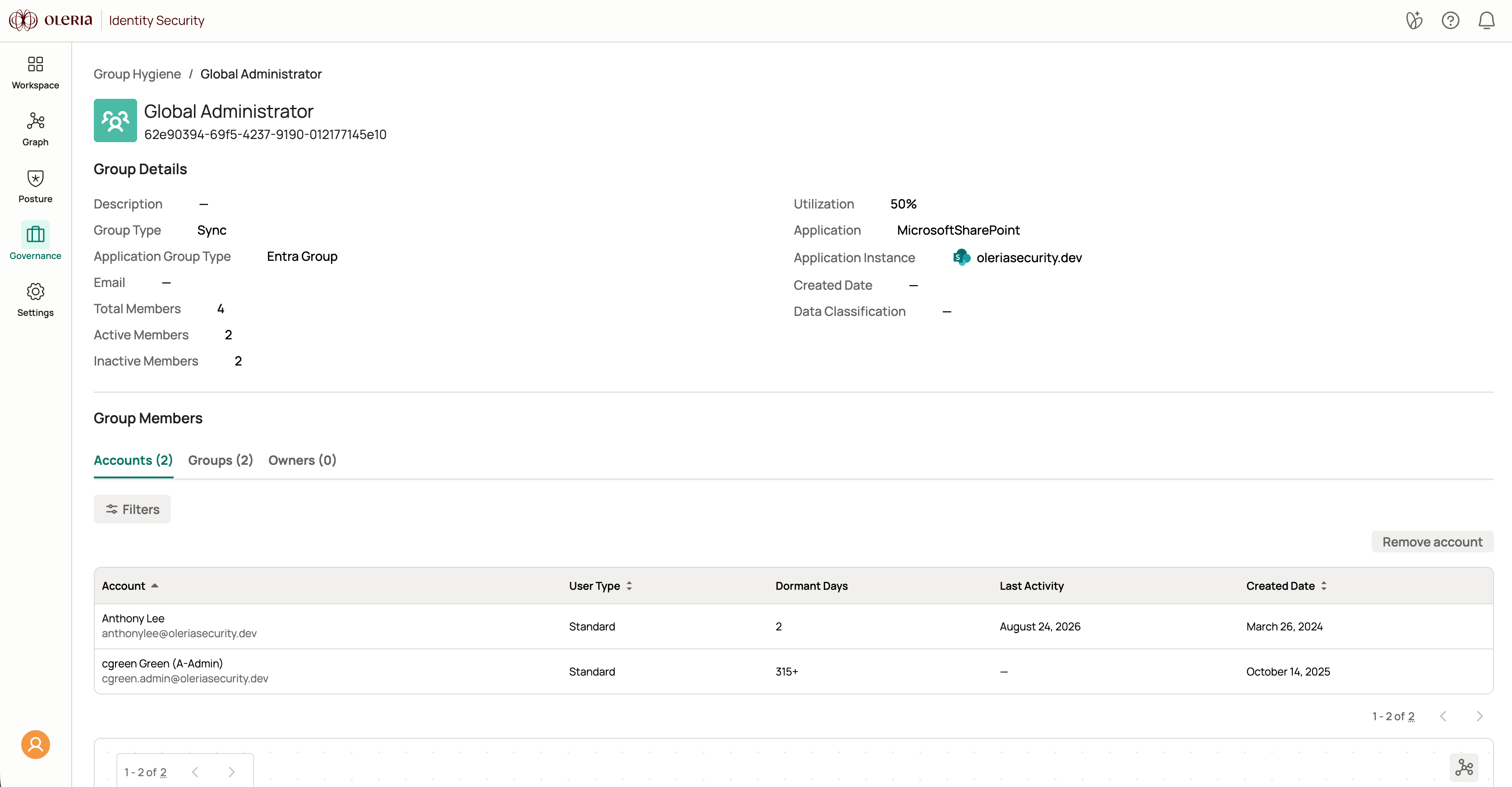 The **Group details** section shows:
| Field | Description |
| :------------------- | :----------------------------------------------------------------------------------- |
| Description | A description of the group. |
| Group Type | The type of group based on its purpose, function, or characteristics. |
| Email | The email assigned to the group. |
| Total Members | Total number of members within the group. |
| Active Members | Members actively accessing resources via group membership. |
| Inactive Members | Members that have not accessed resources via group membership for more than 30 days. |
| Utilization | Group utilization percentage - `(active members / total members) × 100`. |
| Application | The application associated with the group. |
| Application Instance | The application instance - for example, `salesforce.prod`. |
| Created Date | The date the group was created. |
| Data Classification | Data sensitivity labels associated with the group. |
### Accounts
The **Group details** section shows:
| Field | Description |
| :------------------- | :----------------------------------------------------------------------------------- |
| Description | A description of the group. |
| Group Type | The type of group based on its purpose, function, or characteristics. |
| Email | The email assigned to the group. |
| Total Members | Total number of members within the group. |
| Active Members | Members actively accessing resources via group membership. |
| Inactive Members | Members that have not accessed resources via group membership for more than 30 days. |
| Utilization | Group utilization percentage - `(active members / total members) × 100`. |
| Application | The application associated with the group. |
| Application Instance | The application instance - for example, `salesforce.prod`. |
| Created Date | The date the group was created. |
| Data Classification | Data sensitivity labels associated with the group. |
### Accounts
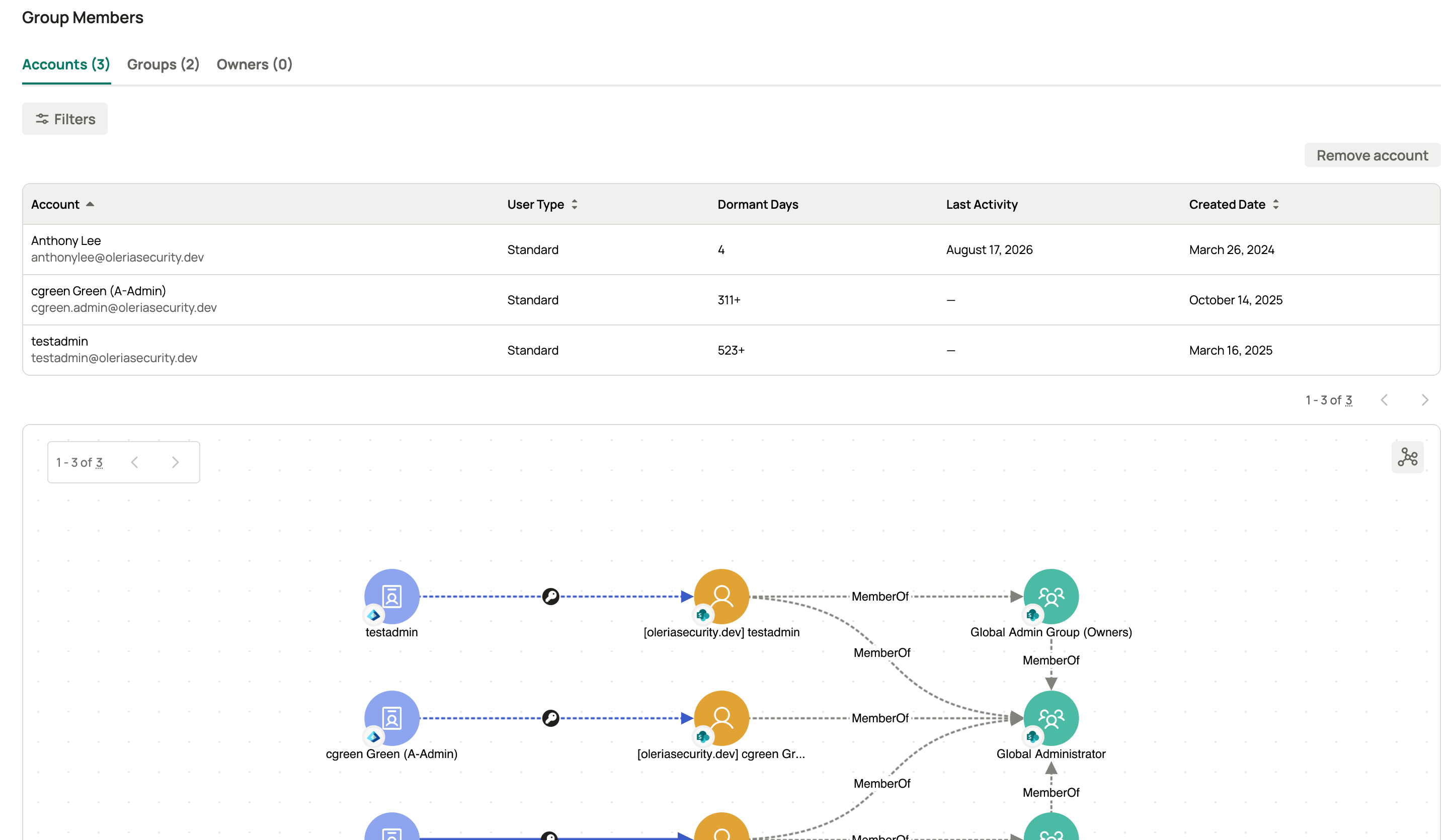 | Column | Description |
| :------------ | :---------------------------------------------------------------------- |
| Account | The name and email of the account. |
| User Type | The type of user account. |
| Dormant Days | Number of days the account has been inactive via this group membership. |
| Last Activity | Timestamp of the account's last activity. |
| Created Date | The date the account was created. |
### Groups
| Column | Description |
| :------------ | :---------------------------------------------------------------------- |
| Account | The name and email of the account. |
| User Type | The type of user account. |
| Dormant Days | Number of days the account has been inactive via this group membership. |
| Last Activity | Timestamp of the account's last activity. |
| Created Date | The date the account was created. |
### Groups
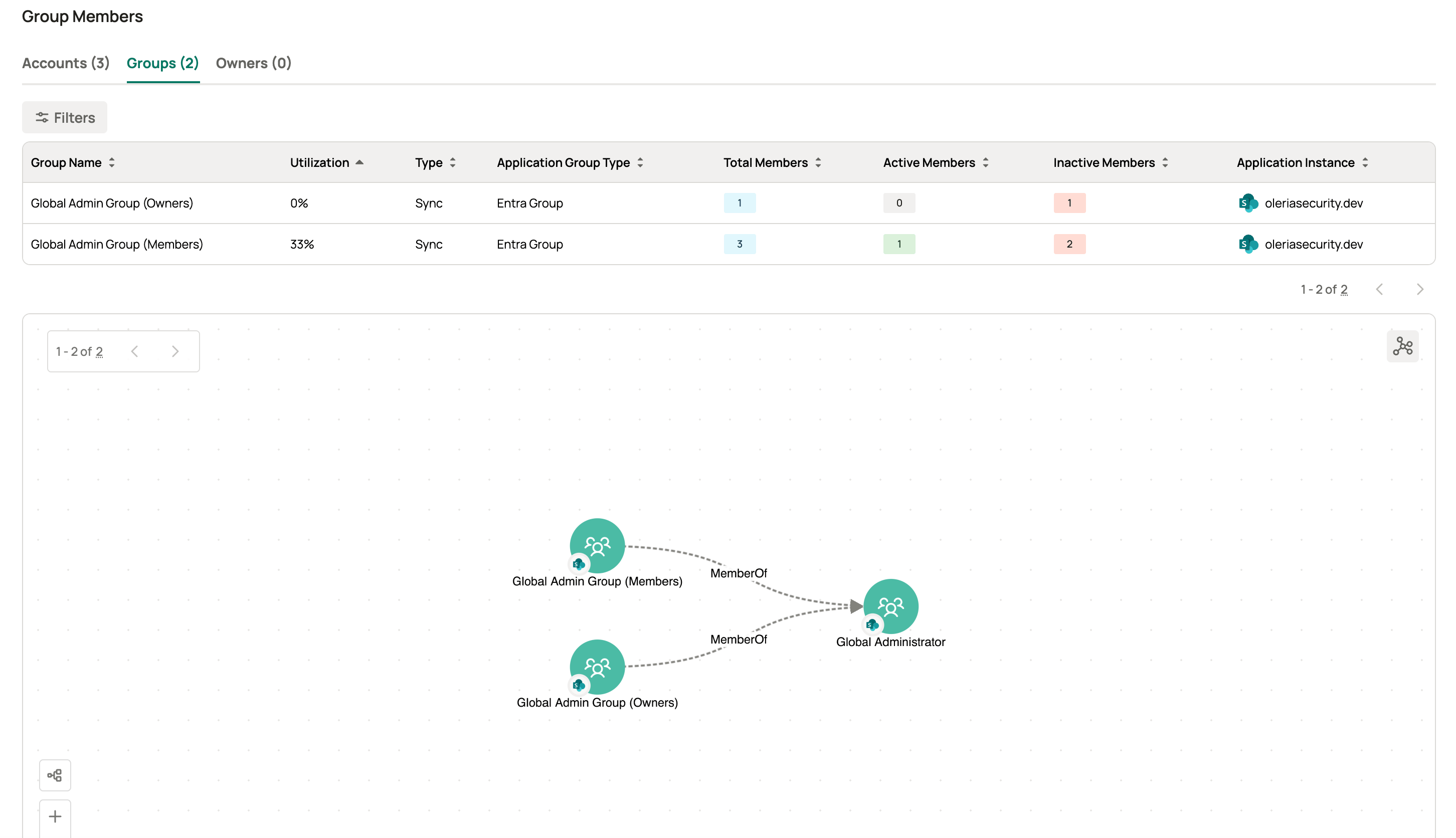 | Column | Description |
| :------------------- | :---------------------------------------------------------- |
| Group Name | The name of the member group. |
| Utilization | Member group utilization percentage. |
| Type | The type of the member group. |
| Total Members | Total number of accounts within the member group. |
| Active Members | Accounts actively accessing resources via group membership. |
| Inactive Members | Accounts inactive for more than 30 days. |
| Application Instance | The application instance - for example, `salesforce.prod`. |
### Owners
| Column | Description |
| :------------------- | :---------------------------------------------------------- |
| Group Name | The name of the member group. |
| Utilization | Member group utilization percentage. |
| Type | The type of the member group. |
| Total Members | Total number of accounts within the member group. |
| Active Members | Accounts actively accessing resources via group membership. |
| Inactive Members | Accounts inactive for more than 30 days. |
| Application Instance | The application instance - for example, `salesforce.prod`. |
### Owners
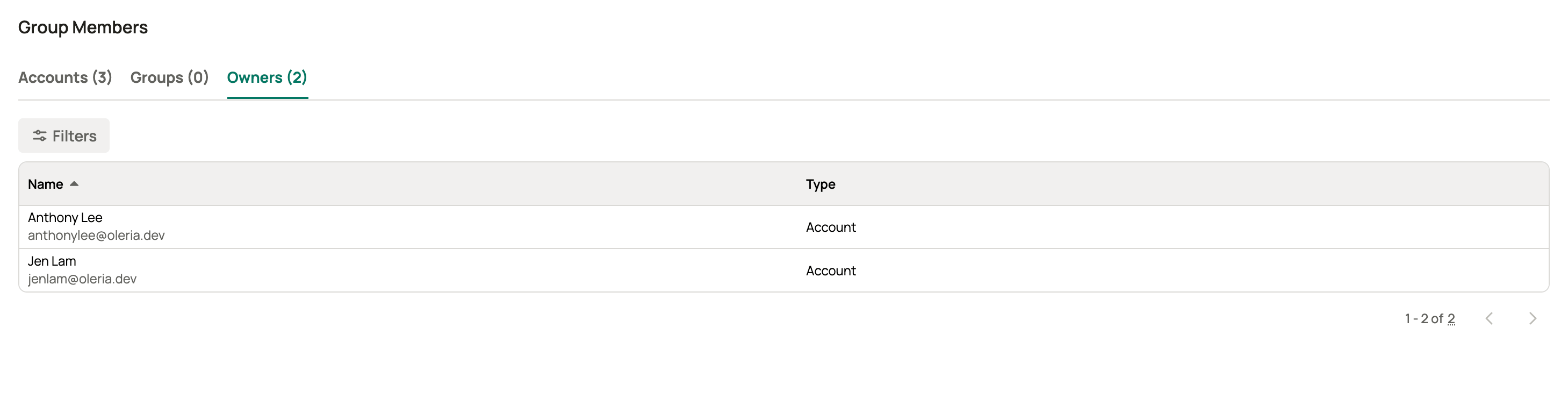 | Column | Description |
| :----- | :---------------------------------------------- |
| Name | The name and email of the owner. |
| Type | Whether the owner is an `Account` or a `Group`. |
## Contact us
For questions, contact us at [support@oleria.com](mailto:support@oleria.com).
| Column | Description |
| :----- | :---------------------------------------------- |
| Name | The name and email of the owner. |
| Type | Whether the owner is an `Account` or a `Group`. |
## Contact us
For questions, contact us at [support@oleria.com](mailto:support@oleria.com).