> ## Documentation Index
> Fetch the complete documentation index at: https://docs.oleria.com/llms.txt
> Use this file to discover all available pages before exploring further.
# Employee Lifecycle - Mover
> Automate access changes when employees change roles - grant new-role access and revoke previous-role access using Access Bundles, automatically or on demand.
Grant new-role access and revoke previous-role access when employees change teams, departments, or roles - so movers get what they need on day one without carrying over access from their previous position.
Oleria provides two mover lifecycle types:
* **Mover: HR-Triggered** - Oleria periodically polls your connected HR system and processes employees whose department, job title, or manager changed. Best suited for planned moves detected from HR data.
* **Mover: Manual Entry** - An admin enters employees individually or uploads a CSV file to start a move on demand. Best suited for moves you need to run without waiting for an HR system sync.
Access changes for movers are driven by **[Access Bundles](/governance/access-bundles-and-adaptive-recommendations)** matched to the employee's updated attributes.
## Prerequisites
* Admin, Governance Operator, or Identity Lifecycle Operator role on the Oleria platform
* A connected HR platform (required for HR-Triggered lifecycles) - see [Integrations](/integrations/overview)
* [Access Bundles](/governance/access-bundles-and-adaptive-recommendations) defined for the roles, departments, or job functions movers should receive
* Connected applications for provisioning and deprovisioning
Before you publish a mover lifecycle, confirm that Access Bundles exist for the attribute combinations you expect after a move.
## Creating a mover lifecycle
Navigate to **Employee Lifecycle** -> **Lifecycles** and select **Create lifecycle** to open the template picker. Choose **Mover: HR-Triggered** or **Mover: Manual Entry** to begin the setup wizard.
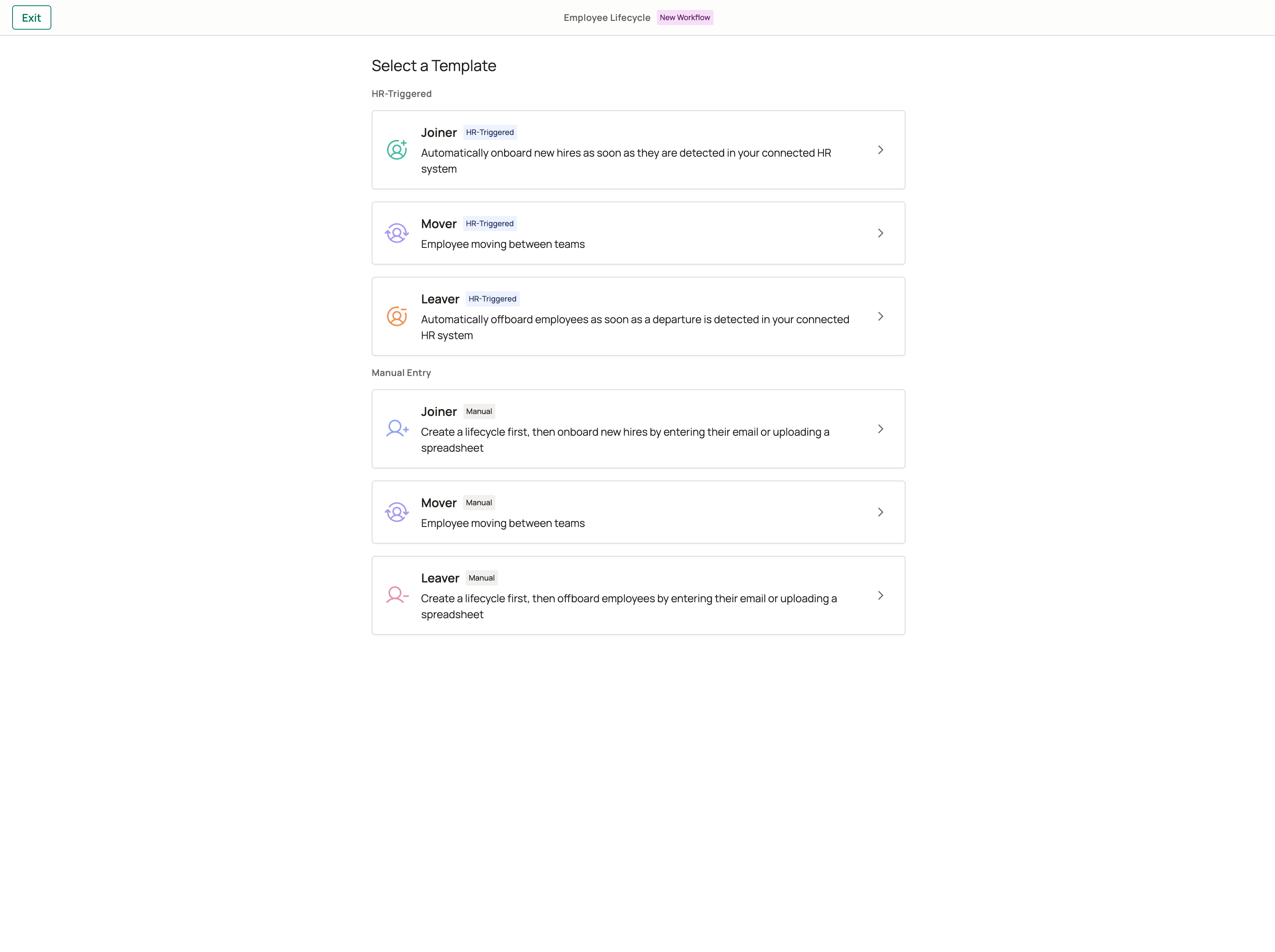 The HR-Triggered lifecycle monitors your connected HR system and processes role changes automatically. After you publish the lifecycle, Oleria periodically checks your HR data and enrolls employees whose department, job title, or manager has changed.
The schedule is pre-configured. Oleria periodically checks your connected HR system to detect employees with attribute changes. Changes to department, job title, and manager are monitored - these three attributes are fixed and cannot be modified.
Set a **Correlation window** (1-72 hours, default 24 hours) so that multiple attribute changes for the same employee within that window are combined into a single mover event. This prevents duplicate events when HR updates department, job title, and manager in close succession.
Configure your HR system connection under **Settings** before creating an HR-Triggered lifecycle.
Configure how Oleria grants new-role access and revokes previous-role access. Access changes are driven by Access Bundles assigned and removed based on each employee's attribute changes.
The HR-Triggered lifecycle monitors your connected HR system and processes role changes automatically. After you publish the lifecycle, Oleria periodically checks your HR data and enrolls employees whose department, job title, or manager has changed.
The schedule is pre-configured. Oleria periodically checks your connected HR system to detect employees with attribute changes. Changes to department, job title, and manager are monitored - these three attributes are fixed and cannot be modified.
Set a **Correlation window** (1-72 hours, default 24 hours) so that multiple attribute changes for the same employee within that window are combined into a single mover event. This prevents duplicate events when HR updates department, job title, and manager in close succession.
Configure your HR system connection under **Settings** before creating an HR-Triggered lifecycle.
Configure how Oleria grants new-role access and revokes previous-role access. Access changes are driven by Access Bundles assigned and removed based on each employee's attribute changes.
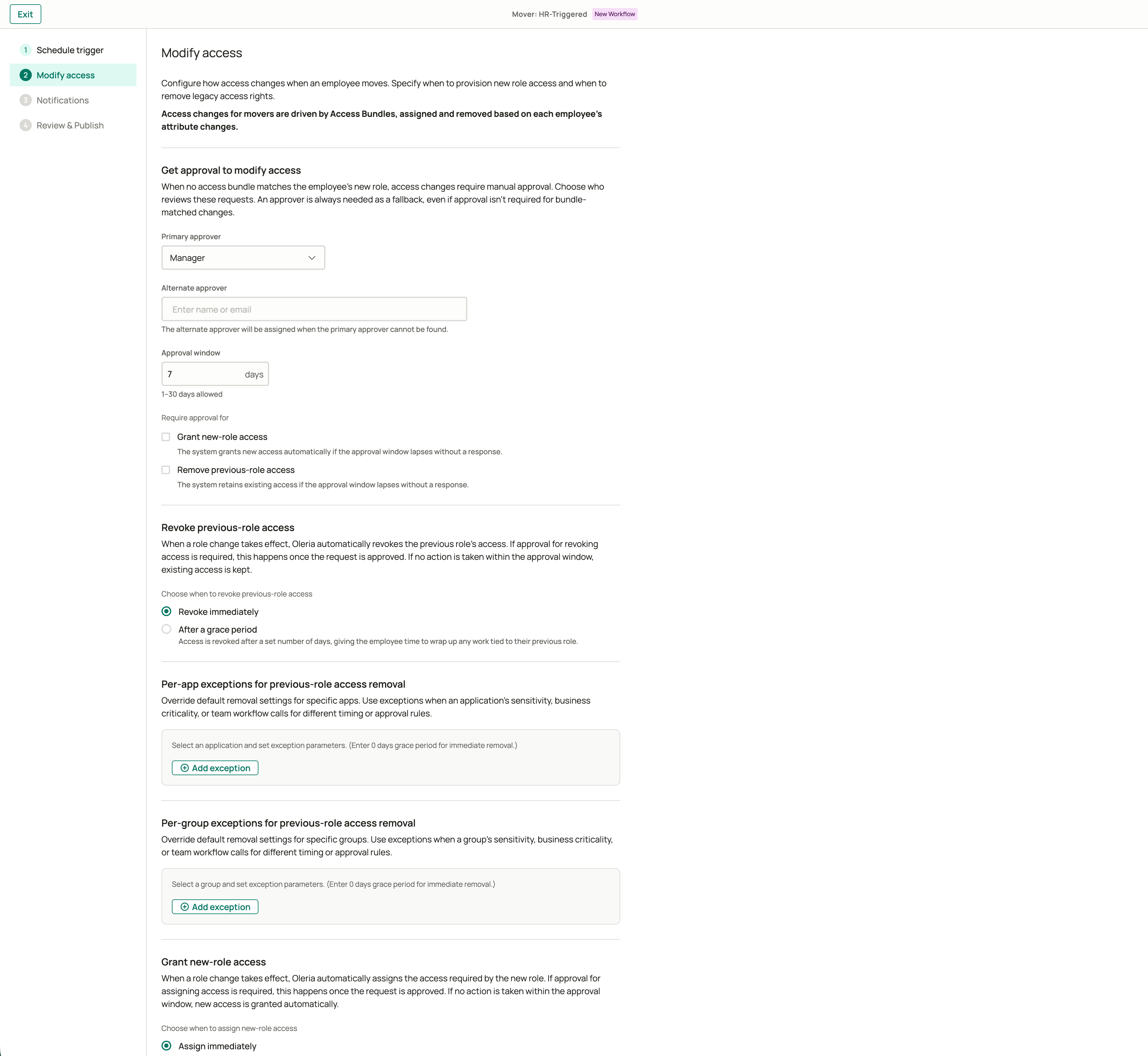 **Get approval to modify access**
| Setting | What it controls |
| :----------------------- | :--------------------------------------------------------------------------------------------------- |
| **Require approval for** | Whether approval is required to grant new-role access, remove previous-role access, both, or neither |
| **Primary approver** | Who reviews the request - typically the employee's **Manager**, or a **Specific person** |
| **Alternate approver** | Who is assigned when the primary approver cannot be found. Must differ from the primary approver |
| **Approval window** | How long the approver has to act before fallback behavior applies (1-30 days, default 7 days) |
Even when approval is not required for bundle-matched changes, you still configure an approver. Approvers are needed as a fallback - for example, when no Access Bundle matches the employee's new role ([cold start](#cold-start)).
Fallback when the approval window expires without a response:
* **Remove previous-role access** - existing access is kept (revocation is not performed)
* **Grant new-role access** - new access is granted automatically
**Revoke previous-role access**
Choose when previous-role access is removed after the move takes effect:
* **Revoke immediately** - removal starts as soon as approval completes (or immediately if approval is not required)
* **After a grace period** - removal waits the number of days you set, so the employee can finish work tied to their previous role
You can also define exceptions that override the default removal timing or approval rules for specific applications or groups.
**Per-app exceptions**
| Field | What it controls |
| :----------------------- | :------------------------------------------------------------------------------------- |
| **IdP** | The identity provider to filter by. Select this first to populate the application list |
| **Application instance** | The application the exception applies to, filtered by the selected IdP |
| **Approval** | Whether approval is required for this application, overriding the default |
| **Grace period** | Days before removal for this application (0–30 days; enter 0 for immediate removal) |
**Per-group exceptions**
| Field | What it controls |
| :--------------- | :---------------------------------------------------------------------------- |
| **Group** | The group the exception applies to |
| **Approval** | Whether approval is required for this group, overriding the default |
| **Grace period** | Days before removal for this group (0–30 days; enter 0 for immediate removal) |
**Grant new-role access**
Choose when new-role access is assigned:
* **Assign immediately** - grants start as soon as approval completes (or immediately if approval is not required)
* **After a grace period** - grants wait the number of days you set
Optionally send email and Slack or Teams messages during the mover process. Choose recipients and which events trigger a notification.
| Event | When it fires |
| :------------------------------------------ | :----------------------------------------------------------- |
| **Mover detected** | Oleria identifies a role change in the HR system |
| **Approval complete, provisioning started** | An approval request is resolved and access changes begin |
| **Provisioning completed** | All access changes have been applied |
| **Approval timed out** | The approval window expired without a response |
| **Manual access definition needed** | No matching Access Bundle exists ([cold start](#cold-start)) |
For email, choose whether to notify the employee's manager or a specific user. You can also configure Slack or Teams messages if you have a messaging system connected - choose a direct message recipient or a channel.
When a mover event enters the **Awaiting Approval** phase, Oleria automatically notifies the assigned approver via email and Slack or Teams (if connected) with a summary of review details and a link to the Governance app.
On the summary page, review your full configuration. Enter a lifecycle name (required, 3-60 characters) and an optional description.
Enable **Dry-run mode** to preview what access changes Oleria would make without applying them. Disable dry-run when you are ready for the lifecycle to take effect on future runs. Previous simulated runs are not retroactively applied.
Select **Publish** to activate the lifecycle. Once published, Oleria runs on schedule and enrolls employees automatically.
Lifecycles cannot be deleted - if you need to stop a lifecycle, disable it from the lifecycle details page.
The Manual Entry lifecycle gives admins direct control over which employees are processed as movers. After you publish the lifecycle, you run it on demand by adding employees from the lifecycle details page.
This step explains how the lifecycle works after publishing. To process movers, navigate to the lifecycle details page and select **Add employees**. Each run supports up to 10 employees when entering them manually, or up to 500 rows when uploading a CSV file.
Unlike HR-Triggered, Manual Entry does not run on a schedule. You initiate each run from the lifecycle details page after publishing.
Configure approval, revoke timing, grant timing, and per-app or per-group exceptions the same way as HR-Triggered. Access changes are still driven by Access Bundles matched to the employee's updated attributes.
Optionally send email notifications and, if you have a messaging system connected, Slack or Teams messages. Choose recipients and which events trigger a notification.
The **Mover added to lifecycle** event replaces **Mover detected** for Manual Entry lifecycles. All other notification events are the same as HR-Triggered.
When a mover event enters the **Awaiting Approval** phase, Oleria automatically notifies the assigned approver via email and Slack or Teams (if connected) with a summary of review details and a link to the Governance app.
On the summary page, review your full configuration. Enter a lifecycle name (required, 3-60 characters) and an optional description.
Enable **Dry-run mode** to preview what access changes Oleria would make without applying them.
Select **Publish** to activate the lifecycle.
## Running a Manual Entry lifecycle
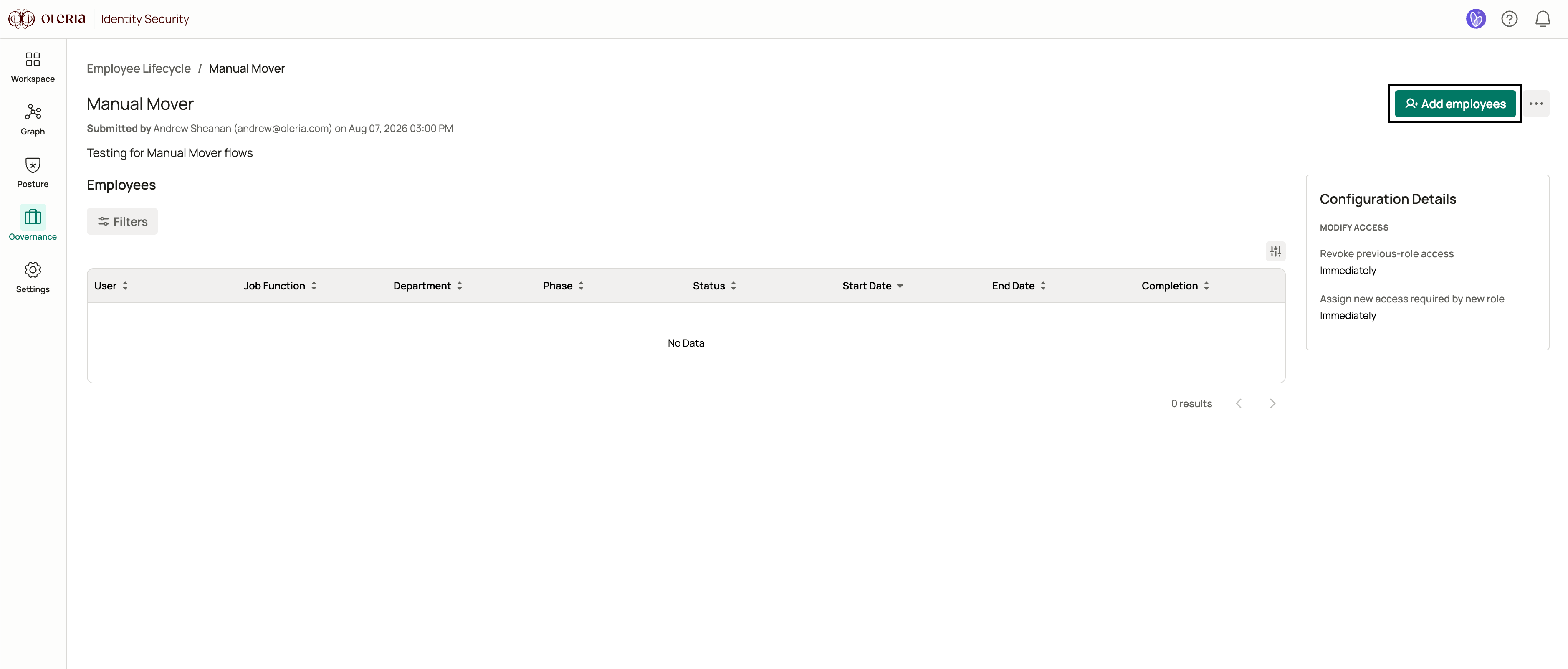
After publishing a Manual Entry lifecycle, process movers by navigating to the lifecycle details page and selecting **Add employees**.
**Get approval to modify access**
| Setting | What it controls |
| :----------------------- | :--------------------------------------------------------------------------------------------------- |
| **Require approval for** | Whether approval is required to grant new-role access, remove previous-role access, both, or neither |
| **Primary approver** | Who reviews the request - typically the employee's **Manager**, or a **Specific person** |
| **Alternate approver** | Who is assigned when the primary approver cannot be found. Must differ from the primary approver |
| **Approval window** | How long the approver has to act before fallback behavior applies (1-30 days, default 7 days) |
Even when approval is not required for bundle-matched changes, you still configure an approver. Approvers are needed as a fallback - for example, when no Access Bundle matches the employee's new role ([cold start](#cold-start)).
Fallback when the approval window expires without a response:
* **Remove previous-role access** - existing access is kept (revocation is not performed)
* **Grant new-role access** - new access is granted automatically
**Revoke previous-role access**
Choose when previous-role access is removed after the move takes effect:
* **Revoke immediately** - removal starts as soon as approval completes (or immediately if approval is not required)
* **After a grace period** - removal waits the number of days you set, so the employee can finish work tied to their previous role
You can also define exceptions that override the default removal timing or approval rules for specific applications or groups.
**Per-app exceptions**
| Field | What it controls |
| :----------------------- | :------------------------------------------------------------------------------------- |
| **IdP** | The identity provider to filter by. Select this first to populate the application list |
| **Application instance** | The application the exception applies to, filtered by the selected IdP |
| **Approval** | Whether approval is required for this application, overriding the default |
| **Grace period** | Days before removal for this application (0–30 days; enter 0 for immediate removal) |
**Per-group exceptions**
| Field | What it controls |
| :--------------- | :---------------------------------------------------------------------------- |
| **Group** | The group the exception applies to |
| **Approval** | Whether approval is required for this group, overriding the default |
| **Grace period** | Days before removal for this group (0–30 days; enter 0 for immediate removal) |
**Grant new-role access**
Choose when new-role access is assigned:
* **Assign immediately** - grants start as soon as approval completes (or immediately if approval is not required)
* **After a grace period** - grants wait the number of days you set
Optionally send email and Slack or Teams messages during the mover process. Choose recipients and which events trigger a notification.
| Event | When it fires |
| :------------------------------------------ | :----------------------------------------------------------- |
| **Mover detected** | Oleria identifies a role change in the HR system |
| **Approval complete, provisioning started** | An approval request is resolved and access changes begin |
| **Provisioning completed** | All access changes have been applied |
| **Approval timed out** | The approval window expired without a response |
| **Manual access definition needed** | No matching Access Bundle exists ([cold start](#cold-start)) |
For email, choose whether to notify the employee's manager or a specific user. You can also configure Slack or Teams messages if you have a messaging system connected - choose a direct message recipient or a channel.
When a mover event enters the **Awaiting Approval** phase, Oleria automatically notifies the assigned approver via email and Slack or Teams (if connected) with a summary of review details and a link to the Governance app.
On the summary page, review your full configuration. Enter a lifecycle name (required, 3-60 characters) and an optional description.
Enable **Dry-run mode** to preview what access changes Oleria would make without applying them. Disable dry-run when you are ready for the lifecycle to take effect on future runs. Previous simulated runs are not retroactively applied.
Select **Publish** to activate the lifecycle. Once published, Oleria runs on schedule and enrolls employees automatically.
Lifecycles cannot be deleted - if you need to stop a lifecycle, disable it from the lifecycle details page.
The Manual Entry lifecycle gives admins direct control over which employees are processed as movers. After you publish the lifecycle, you run it on demand by adding employees from the lifecycle details page.
This step explains how the lifecycle works after publishing. To process movers, navigate to the lifecycle details page and select **Add employees**. Each run supports up to 10 employees when entering them manually, or up to 500 rows when uploading a CSV file.
Unlike HR-Triggered, Manual Entry does not run on a schedule. You initiate each run from the lifecycle details page after publishing.
Configure approval, revoke timing, grant timing, and per-app or per-group exceptions the same way as HR-Triggered. Access changes are still driven by Access Bundles matched to the employee's updated attributes.
Optionally send email notifications and, if you have a messaging system connected, Slack or Teams messages. Choose recipients and which events trigger a notification.
The **Mover added to lifecycle** event replaces **Mover detected** for Manual Entry lifecycles. All other notification events are the same as HR-Triggered.
When a mover event enters the **Awaiting Approval** phase, Oleria automatically notifies the assigned approver via email and Slack or Teams (if connected) with a summary of review details and a link to the Governance app.
On the summary page, review your full configuration. Enter a lifecycle name (required, 3-60 characters) and an optional description.
Enable **Dry-run mode** to preview what access changes Oleria would make without applying them.
Select **Publish** to activate the lifecycle.
## Running a Manual Entry lifecycle
After publishing a Manual Entry lifecycle, process movers by navigating to the lifecycle details page and selecting **Add employees**.
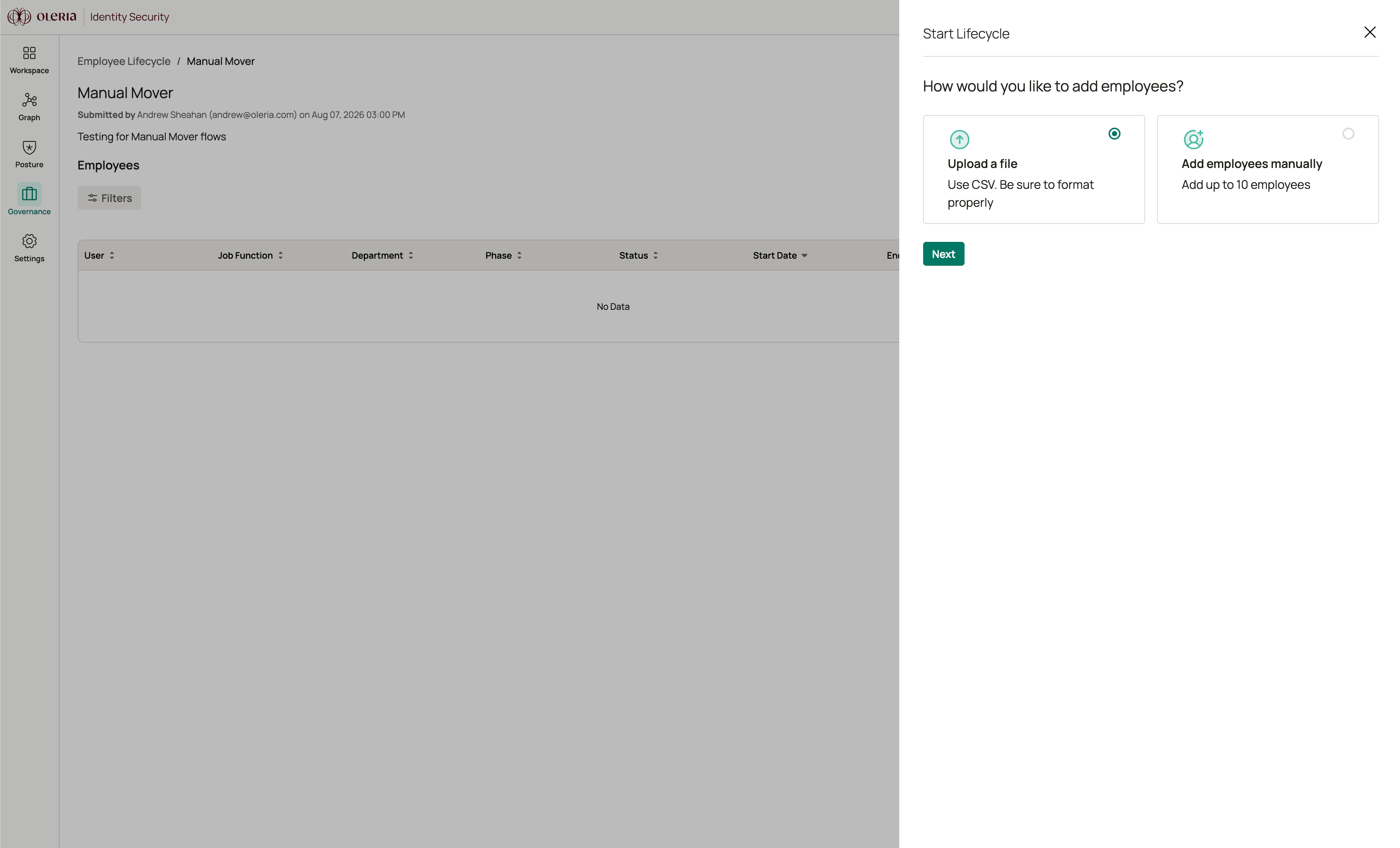
 Select one of two methods:
* **Add employees manually** - enter up to 10 employees and provide their new role attributes
* **Upload a file** - upload a CSV file with up to 500 employees
Select one of two methods:
* **Add employees manually** - enter up to 10 employees and provide their new role attributes
* **Upload a file** - upload a CSV file with up to 500 employees
 **If adding manually:** Search for each employee by name or email address. Employees are sourced from your connected HR system, so only employees Oleria already knows will appear. For each employee, provide the new job title, manager, and department that reflect the move. Leave an attribute blank if it is unchanged. At least one attribute must be set per employee. You can add up to 10 employees per run.
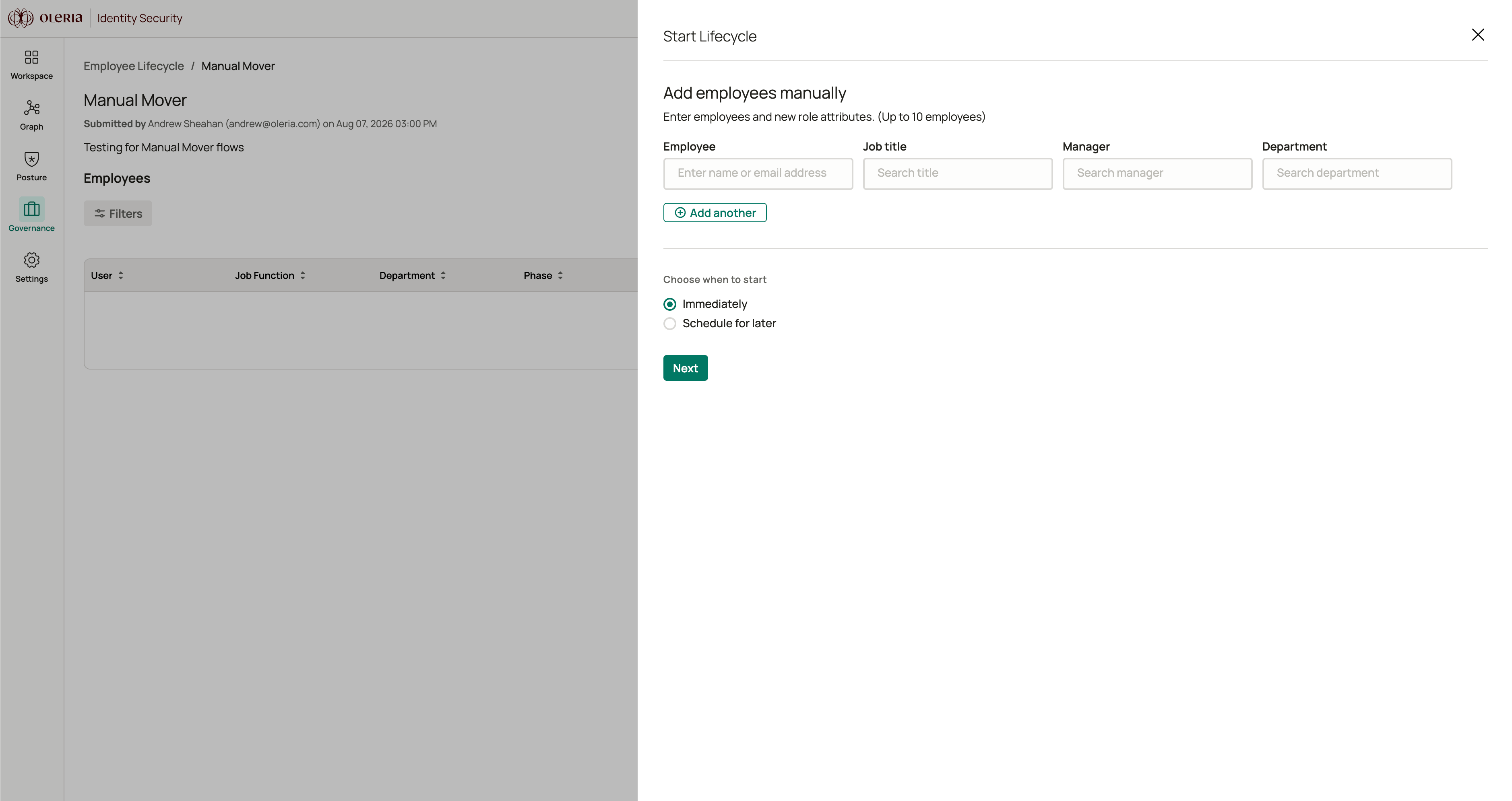 **If uploading a CSV file:** Prepare a spreadsheet with these columns (header names are case-insensitive):
| Column | Purpose |
| :-------------- | :----------------------------------------------------------------------------------------------------------------------- |
| `Email` | Employee to move (must match an identity Oleria already knows) |
| `Job Title` | New job function after the move |
| `Manager Email` | New manager's email address after the move |
| `Department` | New department after the move. Use the department name, or the department ID if multiple departments share the same name |
All four columns are required. Export the file as `.csv` (maximum 1 MB, 500 rows). Drag and drop it onto the upload area or select it using the file picker.
Then choose when access modification starts:
* **Immediately** - the mover event begins as soon as you submit
* **Schedule for later** - pick a date, time, and timezone up to 90 days in the future
The review step shows how many employees matched records in Oleria and when access modification is set to begin. Any email addresses, manager emails, or departments with no match are listed so you can verify them before proceeding.
If a department name matches multiple entries, the review step lists the candidate department IDs. Correct the file to use a department ID before re-uploading.
Select **Submit** to start the lifecycle run. Employees may take up to a minute to appear in the lifecycle details page.
## Mover event details
Each employee processed by a mover lifecycle appears as an individual event. Select an employee's name from the lifecycle details page to open their event details page.
**If uploading a CSV file:** Prepare a spreadsheet with these columns (header names are case-insensitive):
| Column | Purpose |
| :-------------- | :----------------------------------------------------------------------------------------------------------------------- |
| `Email` | Employee to move (must match an identity Oleria already knows) |
| `Job Title` | New job function after the move |
| `Manager Email` | New manager's email address after the move |
| `Department` | New department after the move. Use the department name, or the department ID if multiple departments share the same name |
All four columns are required. Export the file as `.csv` (maximum 1 MB, 500 rows). Drag and drop it onto the upload area or select it using the file picker.
Then choose when access modification starts:
* **Immediately** - the mover event begins as soon as you submit
* **Schedule for later** - pick a date, time, and timezone up to 90 days in the future
The review step shows how many employees matched records in Oleria and when access modification is set to begin. Any email addresses, manager emails, or departments with no match are listed so you can verify them before proceeding.
If a department name matches multiple entries, the review step lists the candidate department IDs. Correct the file to use a department ID before re-uploading.
Select **Submit** to start the lifecycle run. Employees may take up to a minute to appear in the lifecycle details page.
## Mover event details
Each employee processed by a mover lifecycle appears as an individual event. Select an employee's name from the lifecycle details page to open their event details page.
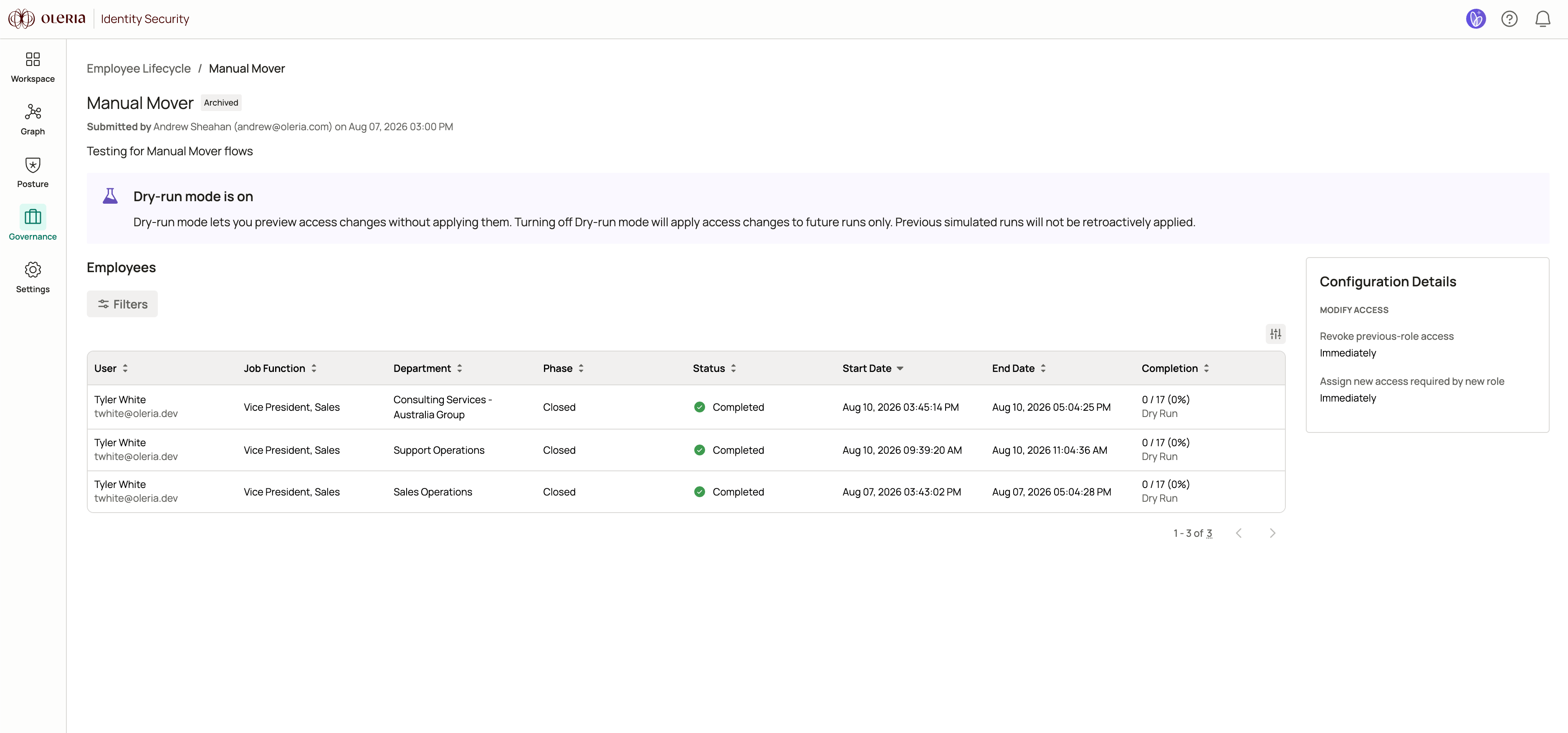 The page shows:
* **User details** - name, email, User ID, Employee No., employee start date, department, manager, job title, and company code
* **Attribute changes** - the previous and new values for department, job title, and manager, shown side by side as previous role and new role
* **Current phase** - the employee's position in the lifecycle: Resolving Bundles, Awaiting Approval, Provisioning, and others
* **Access removed / Access granted** - the count of access entries removed or granted out of the total identified, shown as a percentage
The page shows:
* **User details** - name, email, User ID, Employee No., employee start date, department, manager, job title, and company code
* **Attribute changes** - the previous and new values for department, job title, and manager, shown side by side as previous role and new role
* **Current phase** - the employee's position in the lifecycle: Resolving Bundles, Awaiting Approval, Provisioning, and others
* **Access removed / Access granted** - the count of access entries removed or granted out of the total identified, shown as a percentage
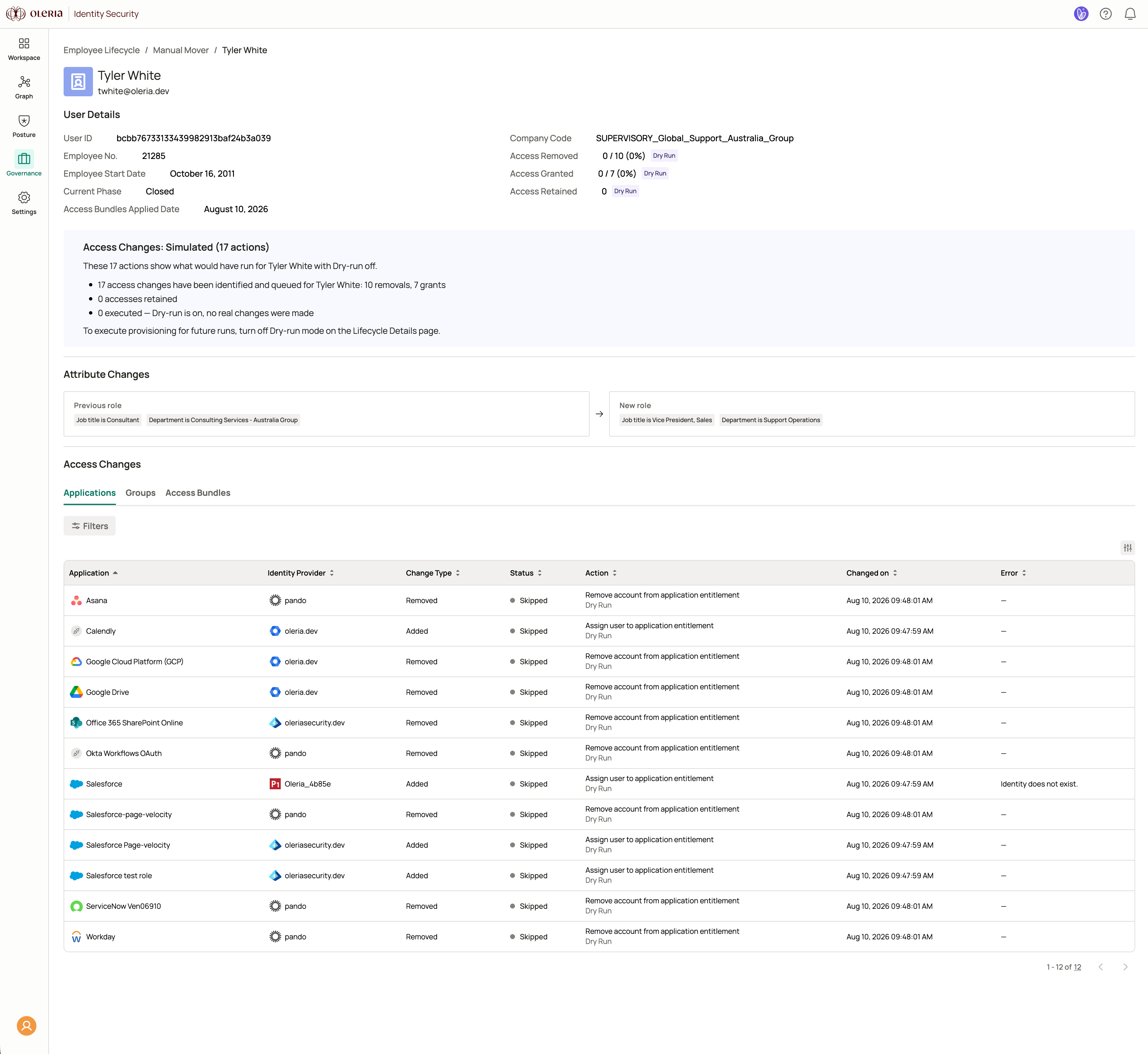 Use the three tabs to review access for the move:
* **Applications** - application access being granted or removed, with identity provider, change type, status, action, completion time, and any errors
* **Groups** - group memberships being granted or removed, with the same columns
* **Access Bundles** - bundles matched to the employee's new attributes, with counts of identity providers, assigned applications, and groups
Each tab supports filtering by status, change type, and other fields, and includes a CSV export.
## Lifecycle phase
Each mover event moves through phases that reflect where it is in the access-change process. The current phase appears on the event details page and in the lifecycle details table.
| Phase | What it means |
| :------------------------ | :----------------------------------------------------------------------------------------------------------------------------------------------- |
| **Awaiting Correlation** | Oleria is consolidating nearby attribute changes for the same employee into one mover event. This phase only applies to HR-Triggered lifecycles. |
| **Resolving Bundles** | Oleria is matching the employee's new attributes to Access Bundles and preparing the grant and remove plan. |
| **Awaiting Verification** | No usable Access Bundle match was found ([cold start](#cold-start)). A human action is required before the event can continue. |
| **Awaiting Approval** | Access changes are waiting on the configured approver or alternate approver. |
| **Provisioning** | Approved grants and revocations are being applied to connected applications and groups. |
| **Closed** | The event is complete and no further actions will run. |
## Event status
Each mover event also has a status that reflects the state of its actions. The status appears alongside the phase in the lifecycle details table and on the event details page.
| Status | What it means |
| :-------------- | :----------------------------------------------------------------------------------------------------------------------------------------------- |
| **Scheduled** | The event is waiting for its configured start time. |
| **In progress** | Mover actions are currently running. |
| **Completed** | All configured actions have run. Open the **Applications** or **Groups** tab on the event details page to see the outcome of individual actions. |
| **Cancelled** | An admin cancelled the scheduled move. The employee's access is unchanged by this event. |
| **Superseded** | A newer lifecycle run for this employee replaced this event. |
If a lifecycle is running in **Dry-run mode**, the event details page shows a **Dry Run** label alongside access progress. Actions appear to complete normally, but no access changes are applied.
## Approver flow
When approval is required - or when [cold start](#cold-start) forces a manual path - Oleria creates review items for the configured approver. Approvers need access to the Oleria Governance app to act on requests. Ensure the users you select can sign in before you publish.
1. The primary approver is notified according to your notification settings.
2. If the primary approver cannot be resolved, the **alternate approver** is assigned.
3. The approver reviews the planned grants and removals and approves or rejects them.
4. If no decision is made within the **approval window**, fallback applies: revocations are skipped (access retained) and grants are auto-approved.
5. Approved changes move into **Provisioning** on the timing you set (immediate or after a grace period).
## Reviewing access changes in the Governance app
Approvers review and act on mover access requests in the Oleria Governance app. Navigate to **Employee Access** in the left sidebar to see requests assigned to you.
Use the three tabs to review access for the move:
* **Applications** - application access being granted or removed, with identity provider, change type, status, action, completion time, and any errors
* **Groups** - group memberships being granted or removed, with the same columns
* **Access Bundles** - bundles matched to the employee's new attributes, with counts of identity providers, assigned applications, and groups
Each tab supports filtering by status, change type, and other fields, and includes a CSV export.
## Lifecycle phase
Each mover event moves through phases that reflect where it is in the access-change process. The current phase appears on the event details page and in the lifecycle details table.
| Phase | What it means |
| :------------------------ | :----------------------------------------------------------------------------------------------------------------------------------------------- |
| **Awaiting Correlation** | Oleria is consolidating nearby attribute changes for the same employee into one mover event. This phase only applies to HR-Triggered lifecycles. |
| **Resolving Bundles** | Oleria is matching the employee's new attributes to Access Bundles and preparing the grant and remove plan. |
| **Awaiting Verification** | No usable Access Bundle match was found ([cold start](#cold-start)). A human action is required before the event can continue. |
| **Awaiting Approval** | Access changes are waiting on the configured approver or alternate approver. |
| **Provisioning** | Approved grants and revocations are being applied to connected applications and groups. |
| **Closed** | The event is complete and no further actions will run. |
## Event status
Each mover event also has a status that reflects the state of its actions. The status appears alongside the phase in the lifecycle details table and on the event details page.
| Status | What it means |
| :-------------- | :----------------------------------------------------------------------------------------------------------------------------------------------- |
| **Scheduled** | The event is waiting for its configured start time. |
| **In progress** | Mover actions are currently running. |
| **Completed** | All configured actions have run. Open the **Applications** or **Groups** tab on the event details page to see the outcome of individual actions. |
| **Cancelled** | An admin cancelled the scheduled move. The employee's access is unchanged by this event. |
| **Superseded** | A newer lifecycle run for this employee replaced this event. |
If a lifecycle is running in **Dry-run mode**, the event details page shows a **Dry Run** label alongside access progress. Actions appear to complete normally, but no access changes are applied.
## Approver flow
When approval is required - or when [cold start](#cold-start) forces a manual path - Oleria creates review items for the configured approver. Approvers need access to the Oleria Governance app to act on requests. Ensure the users you select can sign in before you publish.
1. The primary approver is notified according to your notification settings.
2. If the primary approver cannot be resolved, the **alternate approver** is assigned.
3. The approver reviews the planned grants and removals and approves or rejects them.
4. If no decision is made within the **approval window**, fallback applies: revocations are skipped (access retained) and grants are auto-approved.
5. Approved changes move into **Provisioning** on the timing you set (immediate or after a grace period).
## Reviewing access changes in the Governance app
Approvers review and act on mover access requests in the Oleria Governance app. Navigate to **Employee Access** in the left sidebar to see requests assigned to you.
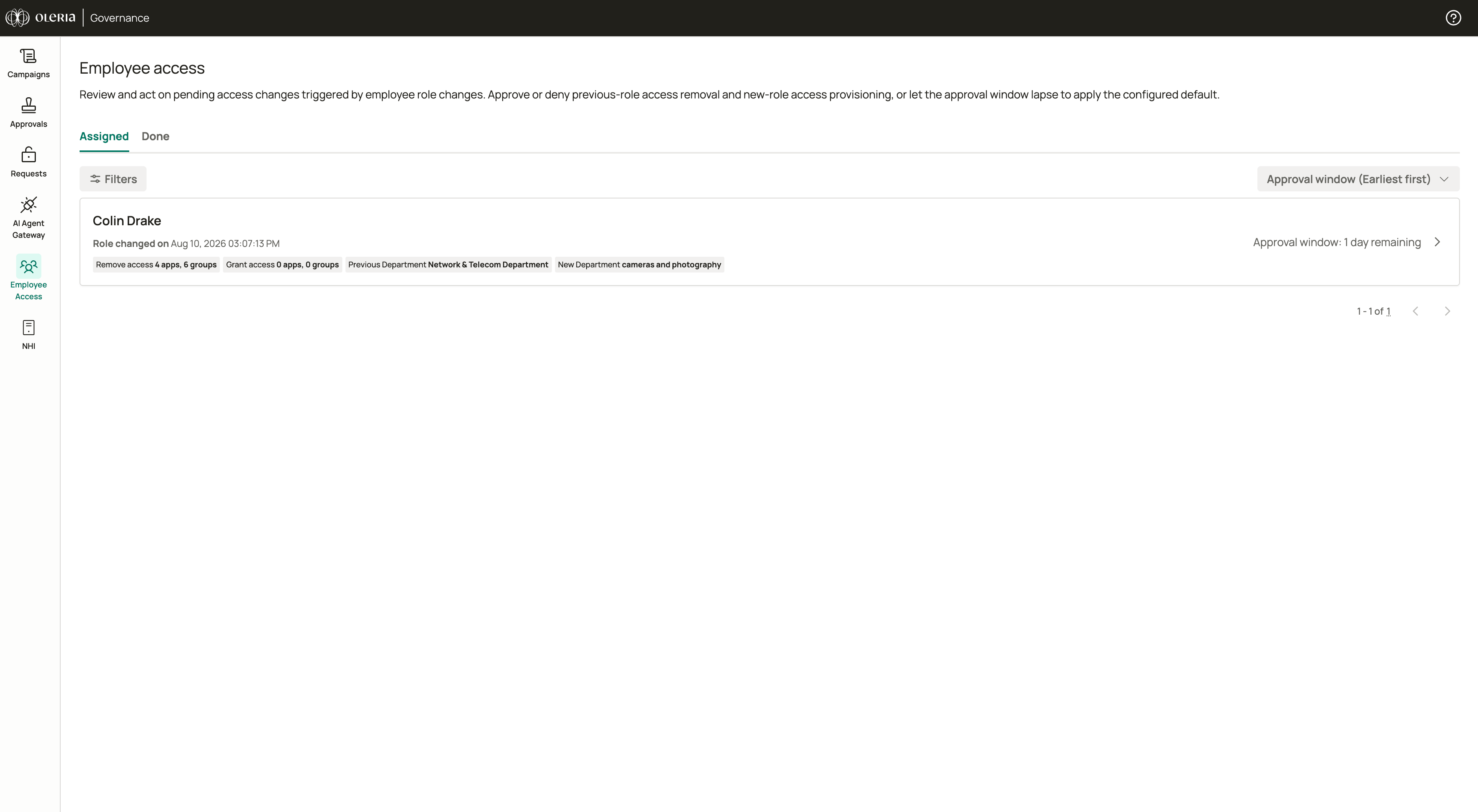 The page has two tabs:
* **Assigned** - pending reviews waiting for your decision, sorted by approval window deadline by default
* **Done** - reviews where all items have been decided or the approval window has lapsed
Each entry shows the employee name, the date their role changed, a summary of access to be granted and removed (for example, "2 apps, 1 group"), and the changed attributes displayed as previous and new role values side by side. On the **Assigned** tab, a countdown shows how many days remain in the approval window.
Select an entry to open the review detail page.
### Review detail page
The detail page shows the employee's user details and a side-by-side **Attribute Changes** panel with the previous and new values for each changed attribute.
The page has two tabs:
* **Assigned** - pending reviews waiting for your decision, sorted by approval window deadline by default
* **Done** - reviews where all items have been decided or the approval window has lapsed
Each entry shows the employee name, the date their role changed, a summary of access to be granted and removed (for example, "2 apps, 1 group"), and the changed attributes displayed as previous and new role values side by side. On the **Assigned** tab, a countdown shows how many days remain in the approval window.
Select an entry to open the review detail page.
### Review detail page
The detail page shows the employee's user details and a side-by-side **Attribute Changes** panel with the previous and new values for each changed attribute.
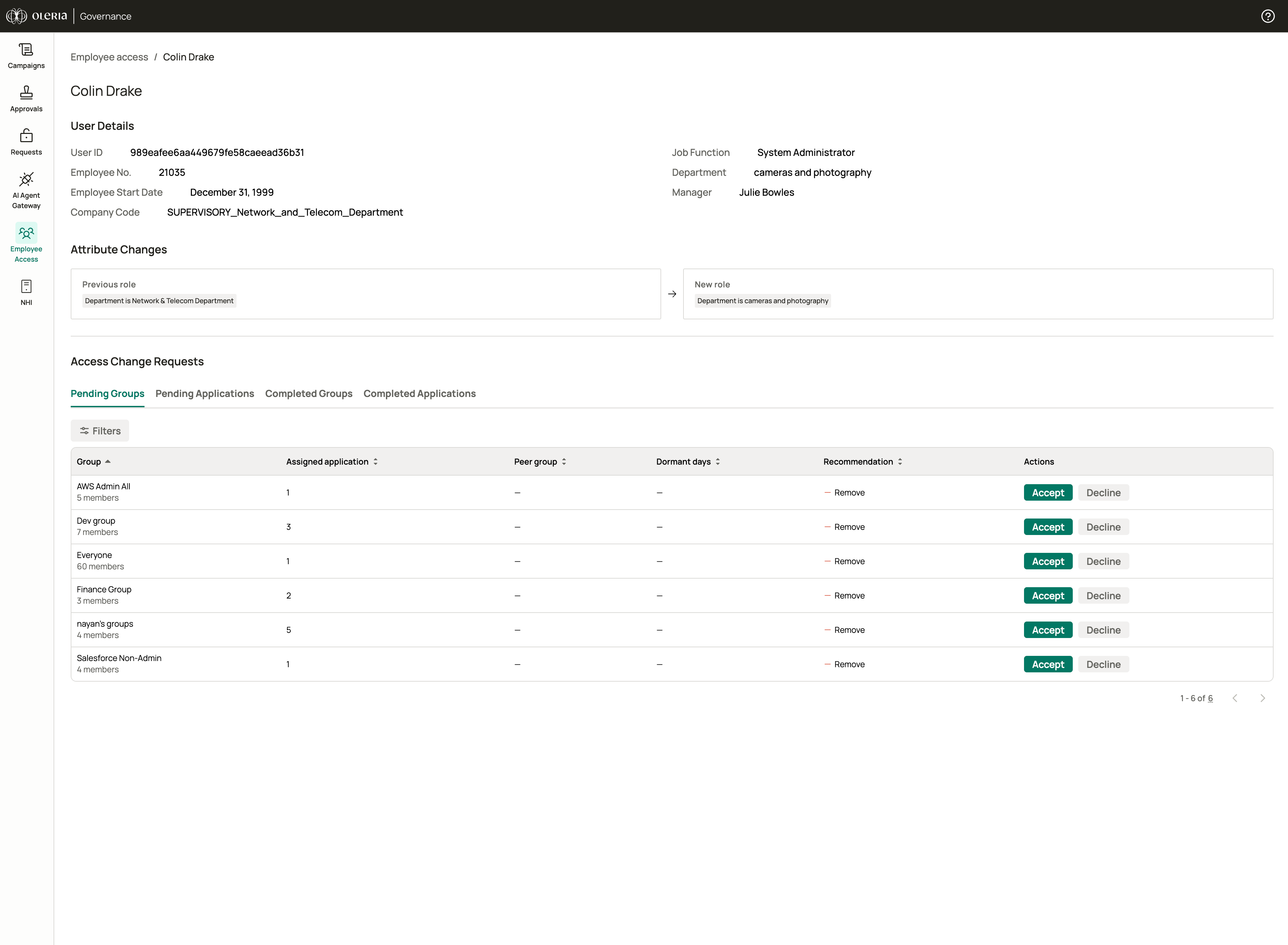 Below that, the **Access Change Requests** section has four tabs:
| Tab | What it shows |
| :------------------------- | :--------------------------------------------------- |
| **Pending Groups** | Group membership changes waiting for your decision |
| **Pending Applications** | Application access changes waiting for your decision |
| **Completed Groups** | Group changes you have already decided on |
| **Completed Applications** | Application changes you have already decided on |
The Pending tabs disappear once all items are decided or the approval window closes.
Each row in the Pending tabs includes context to help you decide:
| Column | What it shows |
| :----------------- | :--------------------------------------------------------------------- |
| **Peer group** | Percentage of peers in the same role who have this access |
| **Dormant days** | Days since the access was last used |
| **Recommendation** | Whether Oleria recommends granting, removing, or retaining this access |
### Accepting and declining items
Each row has two buttons: **Accept** and **Decline**. Select one to record your decision immediately - there is no confirmation step. Items move to the Completed tab as you decide them.
Once all items are decided - or the approval window lapses - the review moves to **Done** and the Pending tabs are no longer shown. The Completed tabs display the outcome for every item:
| Decision | What it means |
| :----------- | :---------------------------------------------------- |
| **Accepted** | You approved this access change |
| **Declined** | You declined this access change |
| **Expired** | The approval window closed before a decision was made |
## Cold start
Cold start happens when Oleria cannot build a grant and remove plan from Access Bundles - most often because the employee's new attributes don't match any existing bundle, or because matched bundles contain no applications, groups, or identities to provision.
When that happens, the employee event shows a banner on the employee event page. Once a matching bundle is created and found, the event continues through the normal approval process.
| Situation | What you see | What to do |
| :----------------------------- | :--------------------------------------------------------------------- | :------------------------------------------------------------------------------------------------------------------------------------------------------------------------------------------------------------------------------------------------------------ |
| **No matching access bundles** | Banner explaining that the employee does not match any existing bundle | Select **Create a new bundle** to open Access Bundle creation with the employee's attributes prefilled. After the bundle exists, return to the event and select **Check and apply access bundle** (available while the event is in **Awaiting Verification**) |
## Contact us
For questions, contact us at [support@oleria.com](mailto:support@oleria.com).
Below that, the **Access Change Requests** section has four tabs:
| Tab | What it shows |
| :------------------------- | :--------------------------------------------------- |
| **Pending Groups** | Group membership changes waiting for your decision |
| **Pending Applications** | Application access changes waiting for your decision |
| **Completed Groups** | Group changes you have already decided on |
| **Completed Applications** | Application changes you have already decided on |
The Pending tabs disappear once all items are decided or the approval window closes.
Each row in the Pending tabs includes context to help you decide:
| Column | What it shows |
| :----------------- | :--------------------------------------------------------------------- |
| **Peer group** | Percentage of peers in the same role who have this access |
| **Dormant days** | Days since the access was last used |
| **Recommendation** | Whether Oleria recommends granting, removing, or retaining this access |
### Accepting and declining items
Each row has two buttons: **Accept** and **Decline**. Select one to record your decision immediately - there is no confirmation step. Items move to the Completed tab as you decide them.
Once all items are decided - or the approval window lapses - the review moves to **Done** and the Pending tabs are no longer shown. The Completed tabs display the outcome for every item:
| Decision | What it means |
| :----------- | :---------------------------------------------------- |
| **Accepted** | You approved this access change |
| **Declined** | You declined this access change |
| **Expired** | The approval window closed before a decision was made |
## Cold start
Cold start happens when Oleria cannot build a grant and remove plan from Access Bundles - most often because the employee's new attributes don't match any existing bundle, or because matched bundles contain no applications, groups, or identities to provision.
When that happens, the employee event shows a banner on the employee event page. Once a matching bundle is created and found, the event continues through the normal approval process.
| Situation | What you see | What to do |
| :----------------------------- | :--------------------------------------------------------------------- | :------------------------------------------------------------------------------------------------------------------------------------------------------------------------------------------------------------------------------------------------------------ |
| **No matching access bundles** | Banner explaining that the employee does not match any existing bundle | Select **Create a new bundle** to open Access Bundle creation with the employee's attributes prefilled. After the bundle exists, return to the event and select **Check and apply access bundle** (available while the event is in **Awaiting Verification**) |
## Contact us
For questions, contact us at [support@oleria.com](mailto:support@oleria.com).