> ## Documentation Index
> Fetch the complete documentation index at: https://docs.oleria.com/llms.txt
> Use this file to discover all available pages before exploring further.
# Employee Lifecycle - Leaver
> Automate employee offboarding by revoking access when a departure is detected in your HR system, or by manually entering employees to offboard on demand.
Revoke access for departing employees - automatically or on demand - to close offboarding gaps and reduce the risk of unauthorized access after someone leaves your organization.
Oleria provides two leaver lifecycle types:
* **Leaver: HR-Triggered** - Oleria polls your connected HR system every two hours and processes employees whose departure date is detected. Best suited for planned departures such as resignations and retirements.
* **Leaver: Manual Entry** - An admin enters employees individually or uploads a CSV file to start offboarding immediately. Best suited for terminations where you cannot wait for an HR system sync.
## Prerequisites
* Admin, Governance Operator, or Identity Lifecycle Operator role on the Oleria platform
* A connected HR platform (required for both lifecycle types) - see [Integrations](/integrations/overview)
* Connected applications for account deprovisioning
## Creating a leaver lifecycle
Navigate to **Employee Lifecycle** -> **Lifecycles** and select **Create lifecycle** to open the template picker. Choose **Leaver: HR-Triggered** or **Leaver: Manual Entry** to begin the setup wizard.
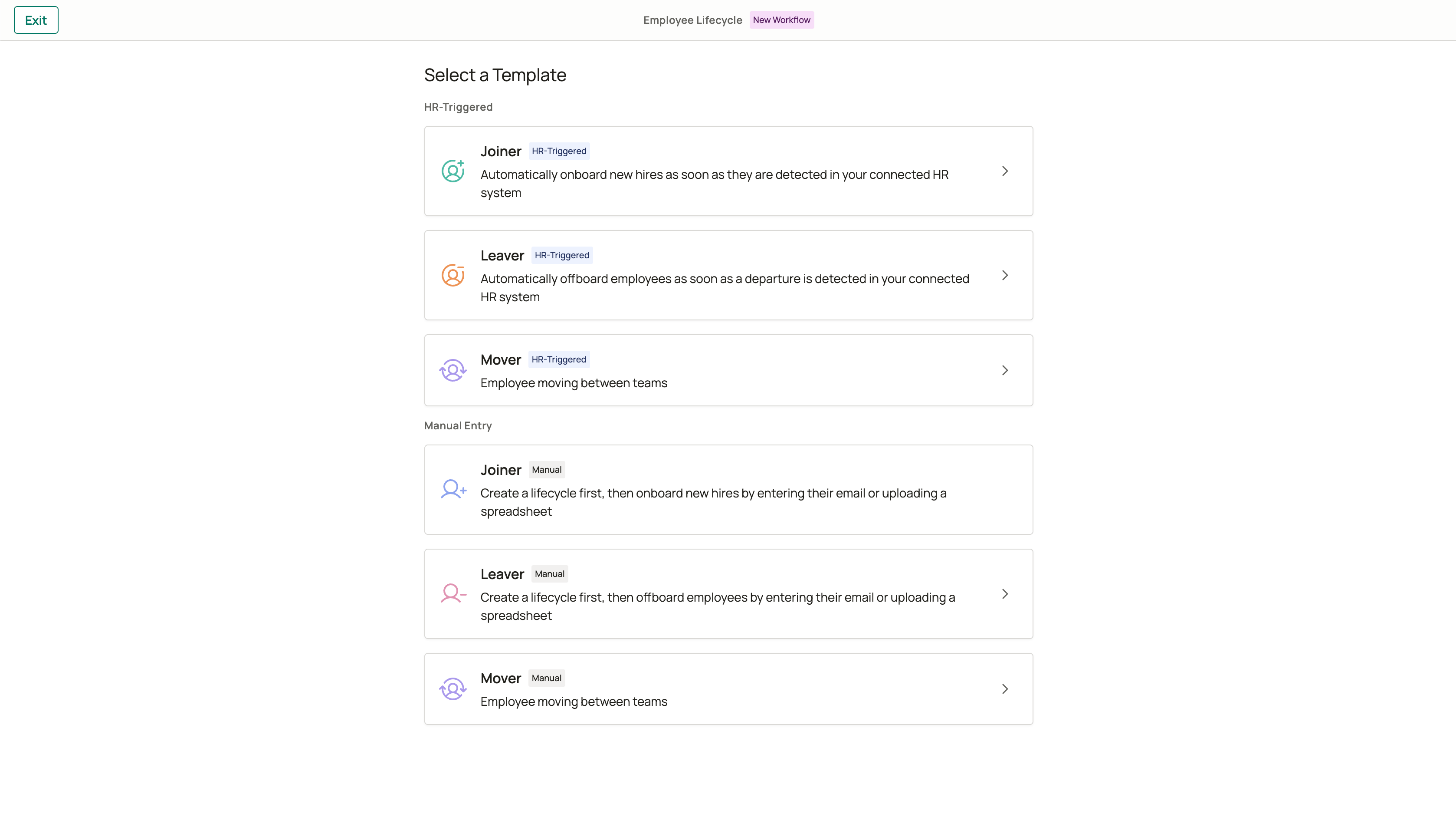 The HR-Triggered lifecycle monitors your connected HR system and processes departures automatically. After you publish the lifecycle, Oleria checks your HR data every two hours and enrolls employees whose departure date is detected.
The schedule trigger is pre-configured. Oleria checks your connected HR system every two hours to detect employees with departure dates. Each employee's leaver actions begin at the time you set in the Day of Departure step.
Configure your HR system connection under **Settings** before creating an HR-Triggered lifecycle.
Optionally send notifications before an employee's departure date. Set the number of days in advance and choose who receives the notification - the employee's manager or a specific user.
You can configure email notifications here, and Slack or Teams messages if you have a messaging system connected. If Oleria detects an employee whose departure date is already within the configured window, the notification goes out immediately rather than waiting.
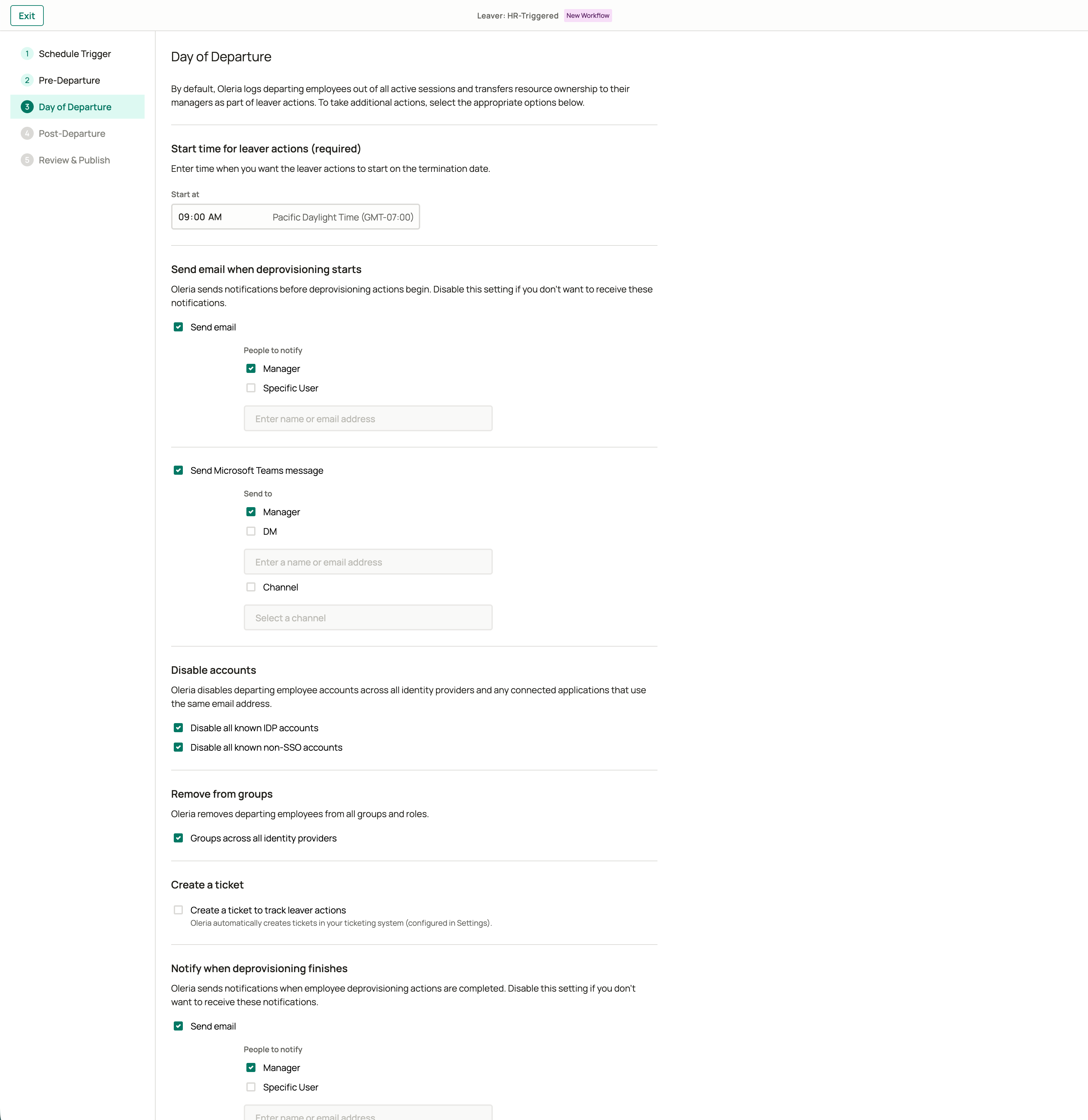
Set the **Start time** for leaver actions - the time on the departure date when Oleria begins deprovisioning. This field is required.
By default, Oleria logs the departing employee out of all active sessions and transfers resource ownership to their manager. Additional actions you can enable:
| Action | What Oleria does |
| :------------------------------------------ | :--------------------------------------------------------------------------------- |
| **Disable accounts** | Disables all known IDP accounts and non-SSO accounts |
| **Remove from groups** | Removes the employee from groups and roles across all connected identity providers |
| **Create ticket** | Creates a ticket in your configured ticketing system |
| **Send email at departure start** | Notifies the manager or a specific user when leaver actions begin |
| **Send email when deprovisioning finishes** | Notifies the manager or a specific user when all actions complete |
Email and Slack or Teams message options are available for both notification points.
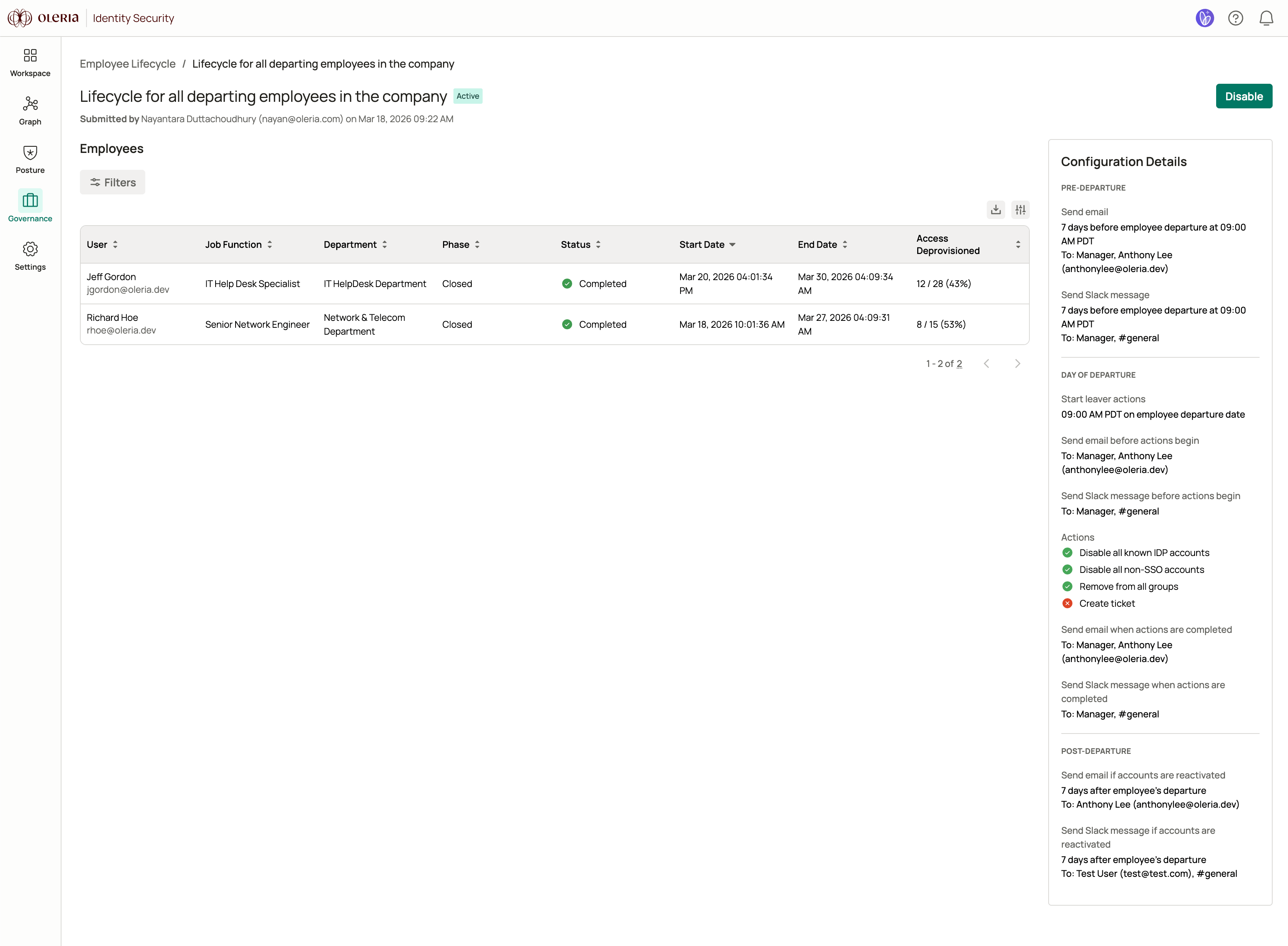
The HR-Triggered lifecycle monitors your connected HR system and processes departures automatically. After you publish the lifecycle, Oleria checks your HR data every two hours and enrolls employees whose departure date is detected.
The schedule trigger is pre-configured. Oleria checks your connected HR system every two hours to detect employees with departure dates. Each employee's leaver actions begin at the time you set in the Day of Departure step.
Configure your HR system connection under **Settings** before creating an HR-Triggered lifecycle.
Optionally send notifications before an employee's departure date. Set the number of days in advance and choose who receives the notification - the employee's manager or a specific user.
You can configure email notifications here, and Slack or Teams messages if you have a messaging system connected. If Oleria detects an employee whose departure date is already within the configured window, the notification goes out immediately rather than waiting.
Set the **Start time** for leaver actions - the time on the departure date when Oleria begins deprovisioning. This field is required.
By default, Oleria logs the departing employee out of all active sessions and transfers resource ownership to their manager. Additional actions you can enable:
| Action | What Oleria does |
| :------------------------------------------ | :--------------------------------------------------------------------------------- |
| **Disable accounts** | Disables all known IDP accounts and non-SSO accounts |
| **Remove from groups** | Removes the employee from groups and roles across all connected identity providers |
| **Create ticket** | Creates a ticket in your configured ticketing system |
| **Send email at departure start** | Notifies the manager or a specific user when leaver actions begin |
| **Send email when deprovisioning finishes** | Notifies the manager or a specific user when all actions complete |
Email and Slack or Teams message options are available for both notification points.
 Optionally enable alerts if any disabled accounts are reactivated after the employee leaves. Set the number of days to monitor and select who receives the notification.
This step protects against scenarios where a disabled account is inadvertently re-enabled after offboarding.
On the summary page, review your full configuration. Enter a lifecycle name (required) and an optional description.
Enable **Dry-run mode** to preview what access changes Oleria would make without applying them. Disable dry-run when you are ready for the lifecycle to take effect on future runs. Previous simulated runs are not retroactively applied.
Select **Publish** to activate the lifecycle. Once published, Oleria runs on schedule and enrolls employees automatically.
Only one lifecycle of each type can be active at a time. Lifecycles cannot be deleted - if you need to stop a lifecycle, disable it from the lifecycle details page.
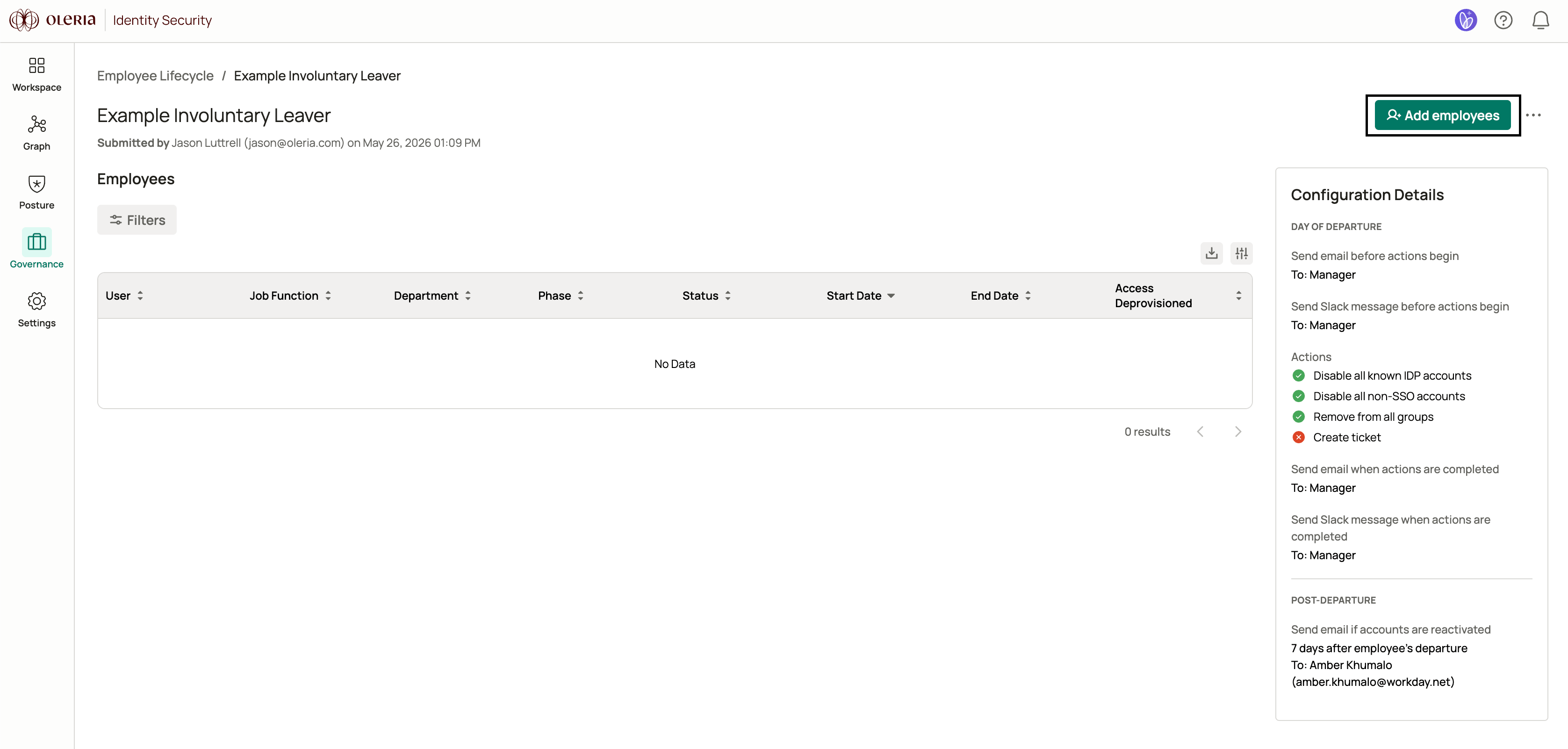
The Manual Entry lifecycle gives admins direct control over which employees are offboarded. After you publish the lifecycle, you run it on demand by adding employees from the lifecycle details page.
This step explains how the lifecycle works after publishing. To offboard employees, navigate to the lifecycle details page and select **Add employees**. Each run supports up to 10 employees when entering addresses manually, or up to 500 emails when uploading a CSV file.
Unlike HR-Triggered, Manual Entry does not run on a schedule. You initiate each run from the lifecycle details page after publishing.
Select the actions Oleria takes when you run the lifecycle. By default, Oleria logs the employee out of all active sessions and transfers resource ownership to their manager.
Additional actions you can enable:
| Action | What Oleria does |
| :------------------------------------------ | :--------------------------------------------------------------------------------- |
| **Disable accounts** | Disables all known IDP accounts and non-SSO accounts |
| **Remove from groups** | Removes the employee from groups and roles across all connected identity providers |
| **Create ticket** | Creates a ticket in your configured ticketing system |
| **Send email at departure start** | Notifies the manager or a specific user when leaver actions begin |
| **Send email when deprovisioning finishes** | Notifies the manager or a specific user when all actions complete |
Optionally enable alerts if any disabled accounts are reactivated after the employee leaves. Set the number of days to monitor and select who receives the notification.
On the summary page, review your full configuration. Enter a lifecycle name (required) and an optional description.
Enable **Dry-run mode** to preview what access changes Oleria would make without applying them.
Select **Publish** to activate the lifecycle.
## Running a Manual Entry lifecycle
After publishing a Manual Entry lifecycle, offboard employees by navigating to the lifecycle details page and selecting **Add employees**.
Optionally enable alerts if any disabled accounts are reactivated after the employee leaves. Set the number of days to monitor and select who receives the notification.
This step protects against scenarios where a disabled account is inadvertently re-enabled after offboarding.
On the summary page, review your full configuration. Enter a lifecycle name (required) and an optional description.
Enable **Dry-run mode** to preview what access changes Oleria would make without applying them. Disable dry-run when you are ready for the lifecycle to take effect on future runs. Previous simulated runs are not retroactively applied.
Select **Publish** to activate the lifecycle. Once published, Oleria runs on schedule and enrolls employees automatically.
Only one lifecycle of each type can be active at a time. Lifecycles cannot be deleted - if you need to stop a lifecycle, disable it from the lifecycle details page.
The Manual Entry lifecycle gives admins direct control over which employees are offboarded. After you publish the lifecycle, you run it on demand by adding employees from the lifecycle details page.
This step explains how the lifecycle works after publishing. To offboard employees, navigate to the lifecycle details page and select **Add employees**. Each run supports up to 10 employees when entering addresses manually, or up to 500 emails when uploading a CSV file.
Unlike HR-Triggered, Manual Entry does not run on a schedule. You initiate each run from the lifecycle details page after publishing.
Select the actions Oleria takes when you run the lifecycle. By default, Oleria logs the employee out of all active sessions and transfers resource ownership to their manager.
Additional actions you can enable:
| Action | What Oleria does |
| :------------------------------------------ | :--------------------------------------------------------------------------------- |
| **Disable accounts** | Disables all known IDP accounts and non-SSO accounts |
| **Remove from groups** | Removes the employee from groups and roles across all connected identity providers |
| **Create ticket** | Creates a ticket in your configured ticketing system |
| **Send email at departure start** | Notifies the manager or a specific user when leaver actions begin |
| **Send email when deprovisioning finishes** | Notifies the manager or a specific user when all actions complete |
Optionally enable alerts if any disabled accounts are reactivated after the employee leaves. Set the number of days to monitor and select who receives the notification.
On the summary page, review your full configuration. Enter a lifecycle name (required) and an optional description.
Enable **Dry-run mode** to preview what access changes Oleria would make without applying them.
Select **Publish** to activate the lifecycle.
## Running a Manual Entry lifecycle
After publishing a Manual Entry lifecycle, offboard employees by navigating to the lifecycle details page and selecting **Add employees**.
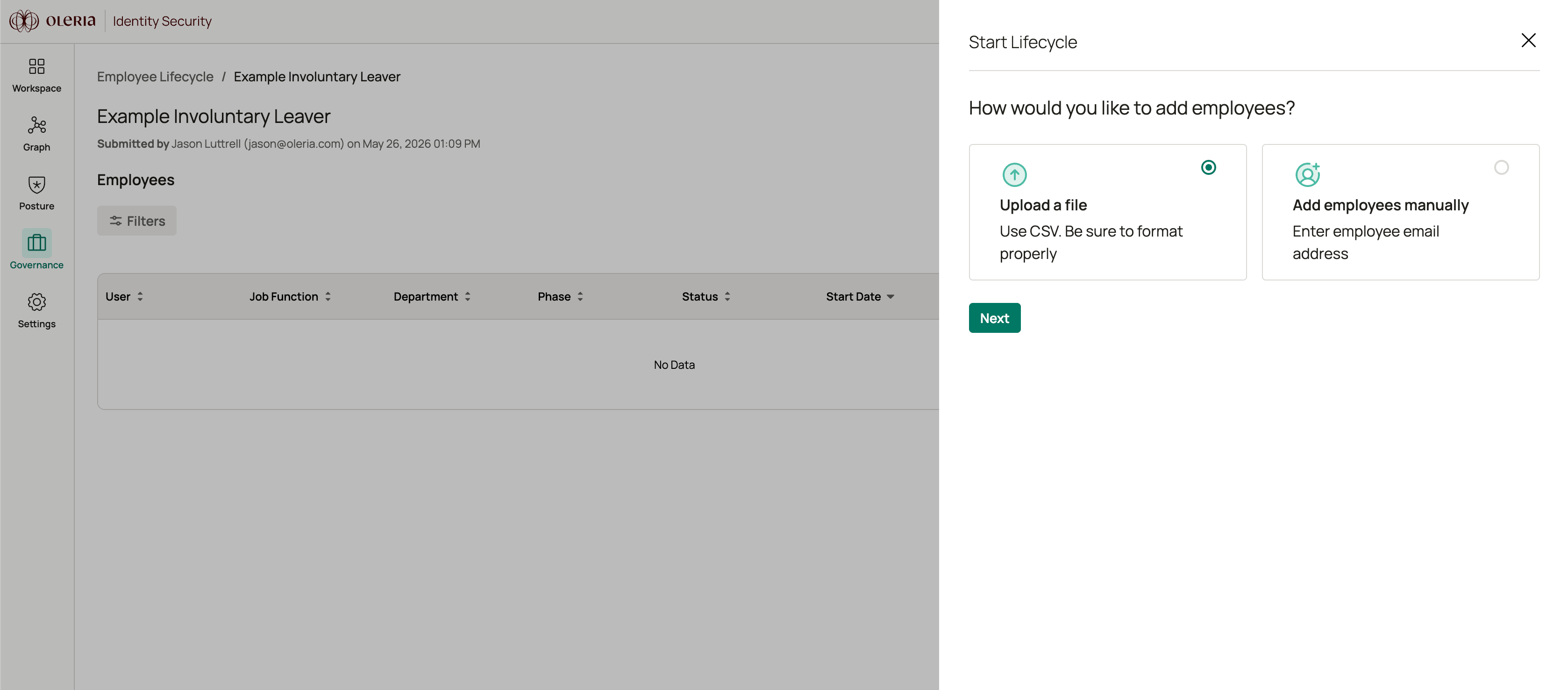
 Select one of two methods:
* **Add employees manually** - enter up to 10 email addresses using the employee search field
* **Upload a file** - upload a CSV file with up to 500 email addresses
Select one of two methods:
* **Add employees manually** - enter up to 10 email addresses using the employee search field
* **Upload a file** - upload a CSV file with up to 500 email addresses
 **If adding manually:** Use the search field to find and select each employee by name or email address. You can add up to 10 employees per run.
**If uploading a CSV file:** Prepare a spreadsheet with a single column labeled **Email** containing each employee's email address. Export it as a `.csv` file (maximum 1 MB and 500 rows). Drag and drop the file onto the upload area or select it using the file picker.
Then choose when to start offboarding:
* **Immediately** - actions begin as soon as you submit
* **Schedule for later** - pick a date, time, and timezone up to 90 days in the future
Scheduled offboarding may begin within two hours of the selected time rather than exactly at it.
The review step shows how many employees matched records in Oleria and when offboarding is set to begin. Any email addresses with no matching employee record are listed so you can verify them before proceeding.
Select **Submit** to start the lifecycle run. Employees may take up to a minute to appear in the lifecycle details page.
## Leaver event details
Each employee processed by a leaver lifecycle appears as an individual event. Select an employee's name from the lifecycle details page to open their event details page.
**If adding manually:** Use the search field to find and select each employee by name or email address. You can add up to 10 employees per run.
**If uploading a CSV file:** Prepare a spreadsheet with a single column labeled **Email** containing each employee's email address. Export it as a `.csv` file (maximum 1 MB and 500 rows). Drag and drop the file onto the upload area or select it using the file picker.
Then choose when to start offboarding:
* **Immediately** - actions begin as soon as you submit
* **Schedule for later** - pick a date, time, and timezone up to 90 days in the future
Scheduled offboarding may begin within two hours of the selected time rather than exactly at it.
The review step shows how many employees matched records in Oleria and when offboarding is set to begin. Any email addresses with no matching employee record are listed so you can verify them before proceeding.
Select **Submit** to start the lifecycle run. Employees may take up to a minute to appear in the lifecycle details page.
## Leaver event details
Each employee processed by a leaver lifecycle appears as an individual event. Select an employee's name from the lifecycle details page to open their event details page.
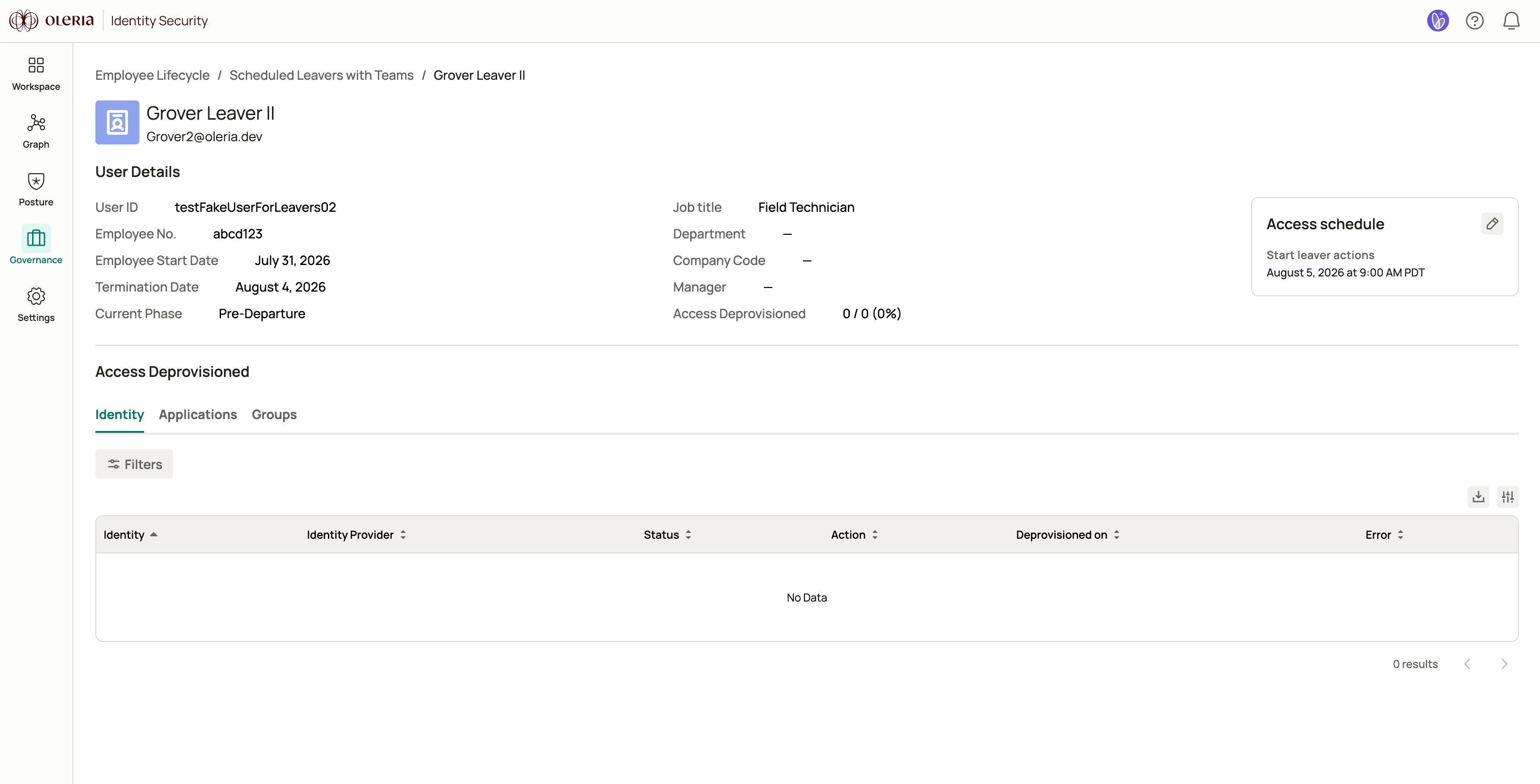
 The page shows:
* **User details** - name, User ID, Employee No., department, manager, job title, and company code
* **Termination date** - the departure date sourced from your HR system (HR-Triggered lifecycles only)
* **Current phase** - the employee's position in the lifecycle: Pre-Departure, Day of Departure, or Post-Departure
* **Access deprovisioned** - the count of access entries removed out of the total identified, shown as a percentage
* **Access schedule card** - when leaver actions are scheduled to run or have already run, with options to edit or cancel (HR-Triggered lifecycles only)
* **Ticket** - a link to the associated ticket if ticketing is configured
The page shows:
* **User details** - name, User ID, Employee No., department, manager, job title, and company code
* **Termination date** - the departure date sourced from your HR system (HR-Triggered lifecycles only)
* **Current phase** - the employee's position in the lifecycle: Pre-Departure, Day of Departure, or Post-Departure
* **Access deprovisioned** - the count of access entries removed out of the total identified, shown as a percentage
* **Access schedule card** - when leaver actions are scheduled to run or have already run, with options to edit or cancel (HR-Triggered lifecycles only)
* **Ticket** - a link to the associated ticket if ticketing is configured
 Use the three tabs to review the employee's access during offboarding:
* **Identity** - accounts across connected identity providers, with status, action type, completion time, and any errors
* **Application accounts** - application accounts with the same columns
* **Groups** - group memberships removed with the same columns
Each tab supports filtering by status and action type, and includes a CSV export.
## Lifecycle phase
Each leaver event moves through phases that reflect where it is in the offboarding process. The current phase appears on the event details page and in the lifecycle details table.
| Phase | What it means |
| :------------------- | :------------------------------------------------------------------------------------------------------------------------------------------------------------------------------------------------------------------------------------------------------- |
| **Pre-Departure** | Oleria has detected the employee's upcoming departure and is waiting for the departure date. Pre-departure notifications fire during this phase, and the access schedule can be edited or cancelled. This phase only applies to HR-Triggered lifecycles. |
| **Day of Departure** | Leaver actions are executing on the departure date: active sessions are revoked, accounts are disabled, group memberships are removed, and resource ownership is transferred. Manual Entry lifecycle events begin here immediately when triggered. |
| **Post-Departure** | Departure actions are complete. Oleria monitors disabled accounts for reactivation and sends alerts if any come back online, based on your post-departure configuration. |
| **Closed** | The event is complete and no further actions will run. |
## Event status
Each leaver event also has a status that reflects the state of its actions. The status appears alongside the phase in the lifecycle details table and on the event details page.
| Status | What it means |
| :-------------- | :-------------------------------------------------------------------------------------------------------------------------------------------------------------------------- |
| **Scheduled** | The event is waiting for its configured start time. You can edit or cancel the access schedule while an event has this status. |
| **In progress** | Leaver actions are currently running. |
| **Completed** | All configured actions finished successfully. |
| **Failed** | One or more actions encountered an error. Open the **Identity**, **Application accounts**, or **Groups** tab on the event details page to see which actions failed and why. |
| **Cancelled** | An admin cancelled the scheduled access removal. The employee's access remains active. |
| **Superseded** | A newer lifecycle run for this employee replaced this event. |
If a lifecycle is running in **Dry-run mode**, the event details page shows a **Dry Run** label alongside the access deprovisioned count. Actions appear to complete normally, but no access changes are applied.
## Adjusting the access schedule
For HR-Triggered lifecycle events still in the Pre-Departure phase, you can change when leaver actions will begin on the departure date.
Navigate to **Employee Lifecycle** -> select the leaver lifecycle -> select the employee's name.
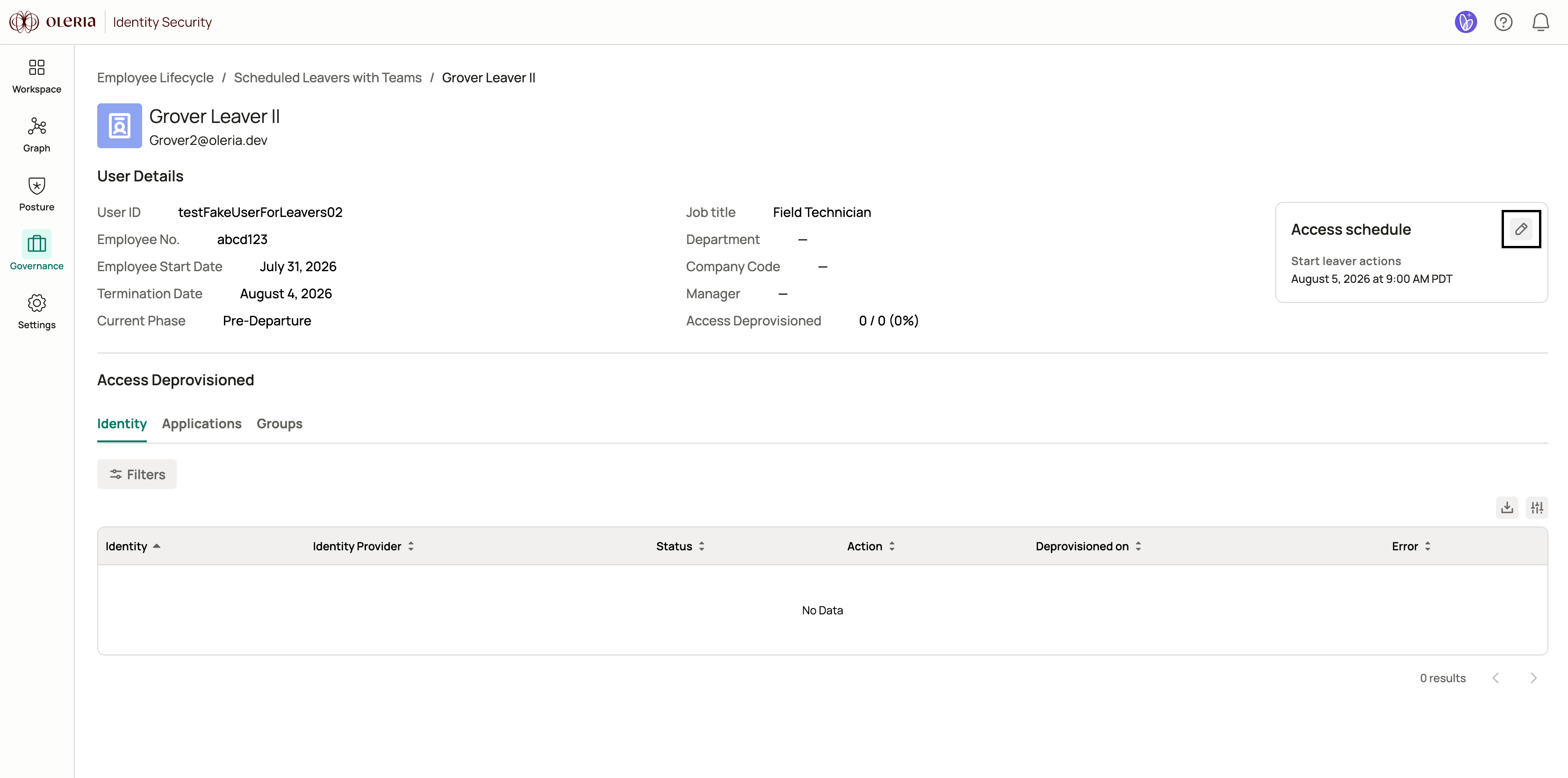
Select the pencil icon in the **Access schedule** card to open the schedule editor.
Use the three tabs to review the employee's access during offboarding:
* **Identity** - accounts across connected identity providers, with status, action type, completion time, and any errors
* **Application accounts** - application accounts with the same columns
* **Groups** - group memberships removed with the same columns
Each tab supports filtering by status and action type, and includes a CSV export.
## Lifecycle phase
Each leaver event moves through phases that reflect where it is in the offboarding process. The current phase appears on the event details page and in the lifecycle details table.
| Phase | What it means |
| :------------------- | :------------------------------------------------------------------------------------------------------------------------------------------------------------------------------------------------------------------------------------------------------- |
| **Pre-Departure** | Oleria has detected the employee's upcoming departure and is waiting for the departure date. Pre-departure notifications fire during this phase, and the access schedule can be edited or cancelled. This phase only applies to HR-Triggered lifecycles. |
| **Day of Departure** | Leaver actions are executing on the departure date: active sessions are revoked, accounts are disabled, group memberships are removed, and resource ownership is transferred. Manual Entry lifecycle events begin here immediately when triggered. |
| **Post-Departure** | Departure actions are complete. Oleria monitors disabled accounts for reactivation and sends alerts if any come back online, based on your post-departure configuration. |
| **Closed** | The event is complete and no further actions will run. |
## Event status
Each leaver event also has a status that reflects the state of its actions. The status appears alongside the phase in the lifecycle details table and on the event details page.
| Status | What it means |
| :-------------- | :-------------------------------------------------------------------------------------------------------------------------------------------------------------------------- |
| **Scheduled** | The event is waiting for its configured start time. You can edit or cancel the access schedule while an event has this status. |
| **In progress** | Leaver actions are currently running. |
| **Completed** | All configured actions finished successfully. |
| **Failed** | One or more actions encountered an error. Open the **Identity**, **Application accounts**, or **Groups** tab on the event details page to see which actions failed and why. |
| **Cancelled** | An admin cancelled the scheduled access removal. The employee's access remains active. |
| **Superseded** | A newer lifecycle run for this employee replaced this event. |
If a lifecycle is running in **Dry-run mode**, the event details page shows a **Dry Run** label alongside the access deprovisioned count. Actions appear to complete normally, but no access changes are applied.
## Adjusting the access schedule
For HR-Triggered lifecycle events still in the Pre-Departure phase, you can change when leaver actions will begin on the departure date.
Navigate to **Employee Lifecycle** -> select the leaver lifecycle -> select the employee's name.
Select the pencil icon in the **Access schedule** card to open the schedule editor.
 Choose a new start time and timezone. The time must be in the future and no later than one day after the employee's termination date.
Select **Save** to apply the change.
Choose a new start time and timezone. The time must be in the future and no later than one day after the employee's termination date.
Select **Save** to apply the change.
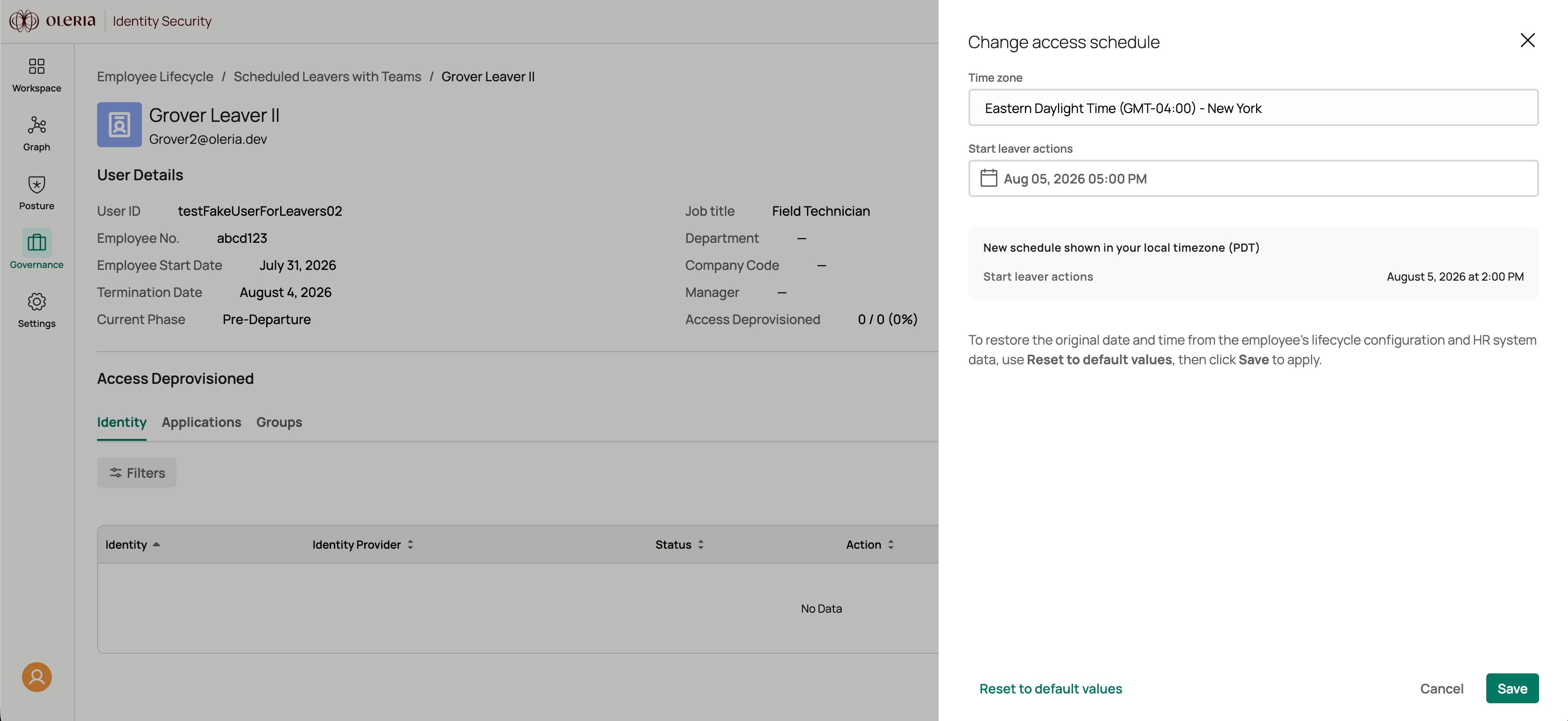 The edit option is available only while the event is in the Pre-Departure phase. Once leaver actions have started, the schedule can no longer be changed.
## Cancelling a scheduled offboarding
If an employee's departure is cancelled or postponed, you can cancel their scheduled access removal before leaver actions begin.
Navigate to **Employee Lifecycle** -> select the leaver lifecycle -> select the employee's name.
Select **Cancel schedule** in the **Access schedule** card and confirm in the dialog.
Oleria takes no further action for this event. The employee's access remains active until you remove it manually or run another leaver lifecycle for them.
Cancelling a scheduled offboarding does not remove the employee's access. If the employee eventually departs, you are responsible for revoking access through another method.
## Contact us
For questions, contact us at [support@oleria.com](mailto:support@oleria.com).
The edit option is available only while the event is in the Pre-Departure phase. Once leaver actions have started, the schedule can no longer be changed.
## Cancelling a scheduled offboarding
If an employee's departure is cancelled or postponed, you can cancel their scheduled access removal before leaver actions begin.
Navigate to **Employee Lifecycle** -> select the leaver lifecycle -> select the employee's name.
Select **Cancel schedule** in the **Access schedule** card and confirm in the dialog.
Oleria takes no further action for this event. The employee's access remains active until you remove it manually or run another leaver lifecycle for them.
Cancelling a scheduled offboarding does not remove the employee's access. If the employee eventually departs, you are responsible for revoking access through another method.
## Contact us
For questions, contact us at [support@oleria.com](mailto:support@oleria.com).