> ## Documentation Index
> Fetch the complete documentation index at: https://docs.oleria.com/llms.txt
> Use this file to discover all available pages before exploring further.
# Custom Access
> Make anything requestable - an internal tool, an unintegrated application, or any action a webhook can trigger - with the same approvals and audit trail.
Custom Access lets you make anything requestable, not just directly connected applications - an internal tool, an application not integrated with Oleria, or any action you can trigger with a webhook call. Custom Access items use the same justification, duration, and approval chain options as applications. The difference is how access gets provisioned once a request is approved.
Go to **Governance** -> **Access Requests** -> **Custom Access**, and select **New custom access**.
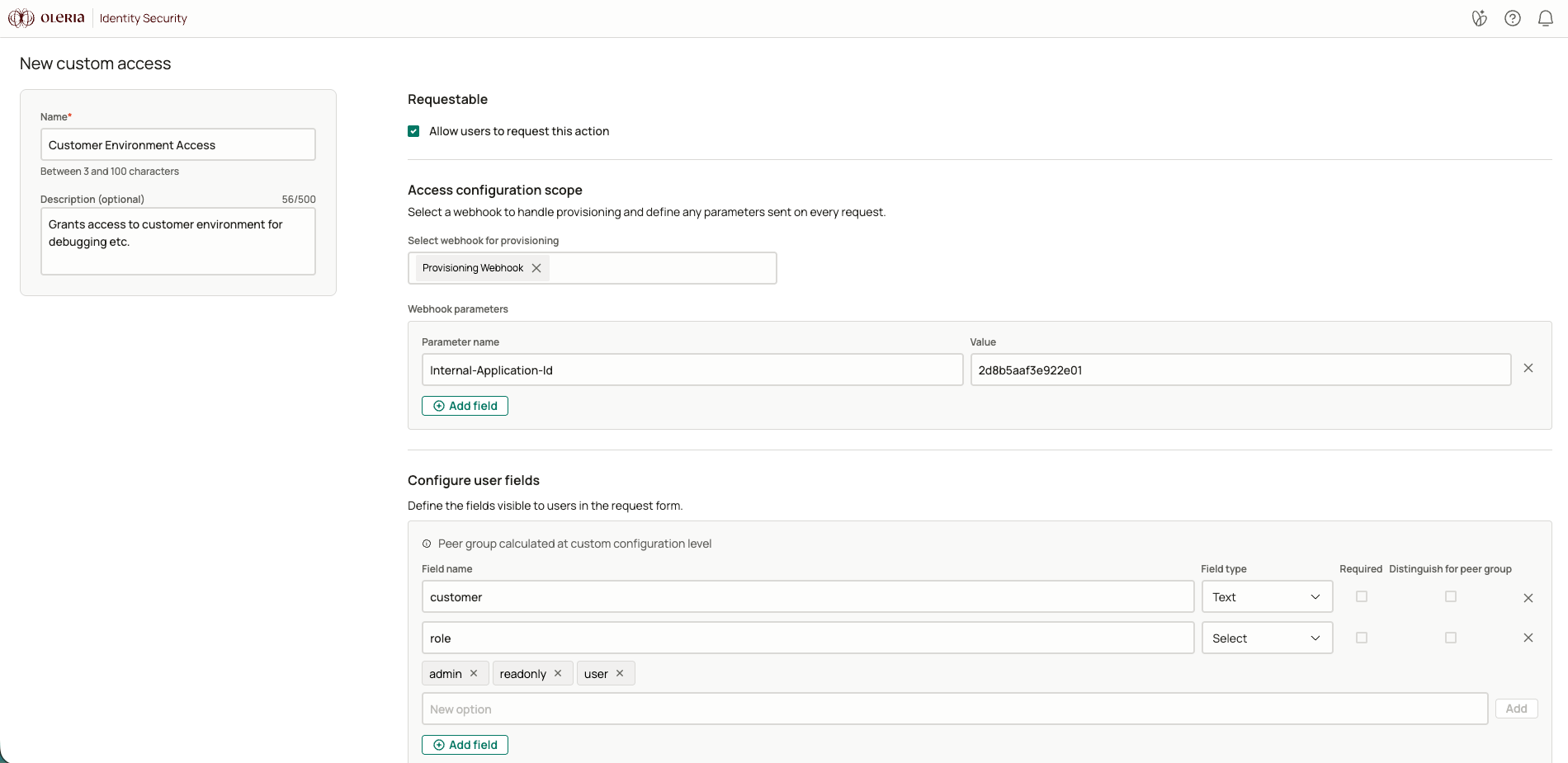
Give the item a name and description. Employees see these in the request catalog.
Select the [webhook](/administration/webhooks) that provisions this access, and add any parameters that should be sent on every request.
Define the fields employees fill in when they request this access. Fields can be required or optional.
 Choose whether access is permanent or time-limited, how long a pending request can stay open before it expires, and whether a business justification is required.
Select the approval chain that should govern requests for this item, and choose whether to notify approvers by email or Slack.
Custom Access is provisioned and revoked through the webhook you configure. If the webhook doesn't return a successful response, the request or revocation fails without affecting other pending requests.
## Requesting Custom Access
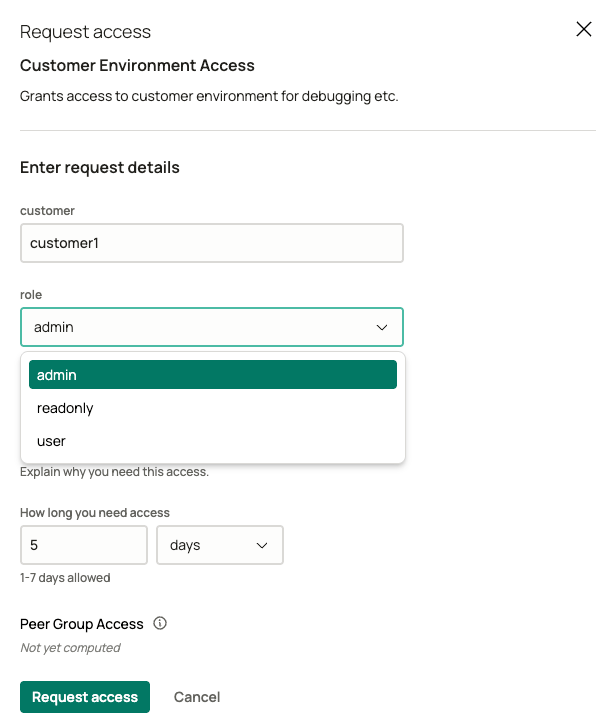
Employees request Custom Access the same way they request application access, from the **Custom Access** tab in the Governance App catalog. The request form shows whatever fields you've configured instead of an application and role, and submissions are tracked separately under **My Custom Access Requests**.
Choose whether access is permanent or time-limited, how long a pending request can stay open before it expires, and whether a business justification is required.
Select the approval chain that should govern requests for this item, and choose whether to notify approvers by email or Slack.
Custom Access is provisioned and revoked through the webhook you configure. If the webhook doesn't return a successful response, the request or revocation fails without affecting other pending requests.
## Requesting Custom Access
Employees request Custom Access the same way they request application access, from the **Custom Access** tab in the Governance App catalog. The request form shows whatever fields you've configured instead of an application and role, and submissions are tracked separately under **My Custom Access Requests**.
 ## Contact us
For questions, contact us at [support@oleria.com](mailto:support@oleria.com).
## Contact us
For questions, contact us at [support@oleria.com](mailto:support@oleria.com).