> ## Documentation Index
> Fetch the complete documentation index at: https://docs.oleria.com/llms.txt
> Use this file to discover all available pages before exploring further.
# Account Hygiene
> Identify dormant, over-privileged, and misconfigured accounts across your connected applications to reduce your attack surface and maintain compliance.
Account Hygiene shows you which user and machine accounts are active, dormant, over-privileged, or misconfigured across your connected applications. A comprehensive analysis of account activity uncovers insights into identities, configurations, and permissions - including dormant accounts and unnecessary access. Use Account Hygiene to optimize access, strengthen security, and meet compliance requirements.
 ## What you can do with Account Hygiene
* **Manage inactive accounts** - identify and adjust access for user accounts that have been inactive for more than 30 days, reducing your attack surface and ensuring compliance.
* **Review administrator access** - identify administrators and adjust permissions where continual admin-level access is no longer justified.
* **Identify dormant SaaS usage** - surface underutilized SaaS application subscriptions to optimize access, reduce license costs, and shrink the attack surface.
* **Clean up unnecessary permissions** - identify and remove permissions that are no longer needed across human and machine accounts.
## Use cases
### Inactive user management
Organizations have user and machine accounts with permissions that accumulate over time. As users change roles, complete projects, or disengage from platforms, their accounts remain active and retain their permissions - creating risk if compromised.
Oleria identifies all inactive accounts - accounts that have not been active for more than 30 days. Removing access to inactive accounts improves security, reduces active license costs, and supports compliance.
### Informed access decisions and suspicious access detection
Granting the right permissions for the right job is critical. Too little access reduces productivity; too much creates risk. Organizations need a way to make well-informed decisions about access levels for both employees and partners.
Oleria analyzes the access and activity levels of human and machine accounts, providing the insights you need to make informed access decisions and quickly identify suspicious or unauthorized access attempts.
### Compliance assurance in regulated environments
Regulated organizations must understand whether access is legitimate based on each employee's job function - for example, whether it is compliant for a help desk employee to access sensitive customer data.
Oleria simplifies this assessment by analyzing user activity and evaluating access patterns against job function, making it easier to determine whether access is appropriate and document your reasoning.
### Administrator-level access review
Over time, organizations grant administrator-level access to many employees across multiple departments. Excessive admin access increases security risk and complicates access management.
Oleria identifies administrators and their access patterns, so you can assess whether continual admin-level access is necessary and minimize potential risk where it is not.
### Privileged account monitoring
Organizations handling sensitive data and critical transactions need visibility into privileged account activity to protect resources and maintain operational resilience.
Oleria monitors privileged account activity to detect and respond promptly to suspicious or unauthorized access, ensuring application security and performance.
### Dormant SaaS application identification
Organizations accumulate SaaS subscriptions over time, some of which become underutilized or dormant. Identifying and acting on dormant usage reduces costs and shrinks the attack surface.
Oleria provides insights into dormant SaaS application usage across your organization, enabling you to optimize access, reduce unnecessary permissions, and cut spending on underused licenses.
### Access and activity insights across SaaS applications
Organizations need visibility into access and activity across their SaaS portfolio to optimize usage, improve security, and meet compliance requirements.
Oleria surfaces access and activity levels for human and machine accounts across specific or multiple SaaS applications, enabling targeted action to minimize your attack surface.
### Unnecessary permission identification
As applications and teams evolve, user accounts and roles accumulate permissions that are no longer needed. This permission sprawl increases the organization's attack surface and vulnerability exposure.
Oleria analyzes access and activity for both human and machine accounts, giving you the insights to identify and act on permissions that are no longer needed and reduce your attack surface.
## Dormancy chart
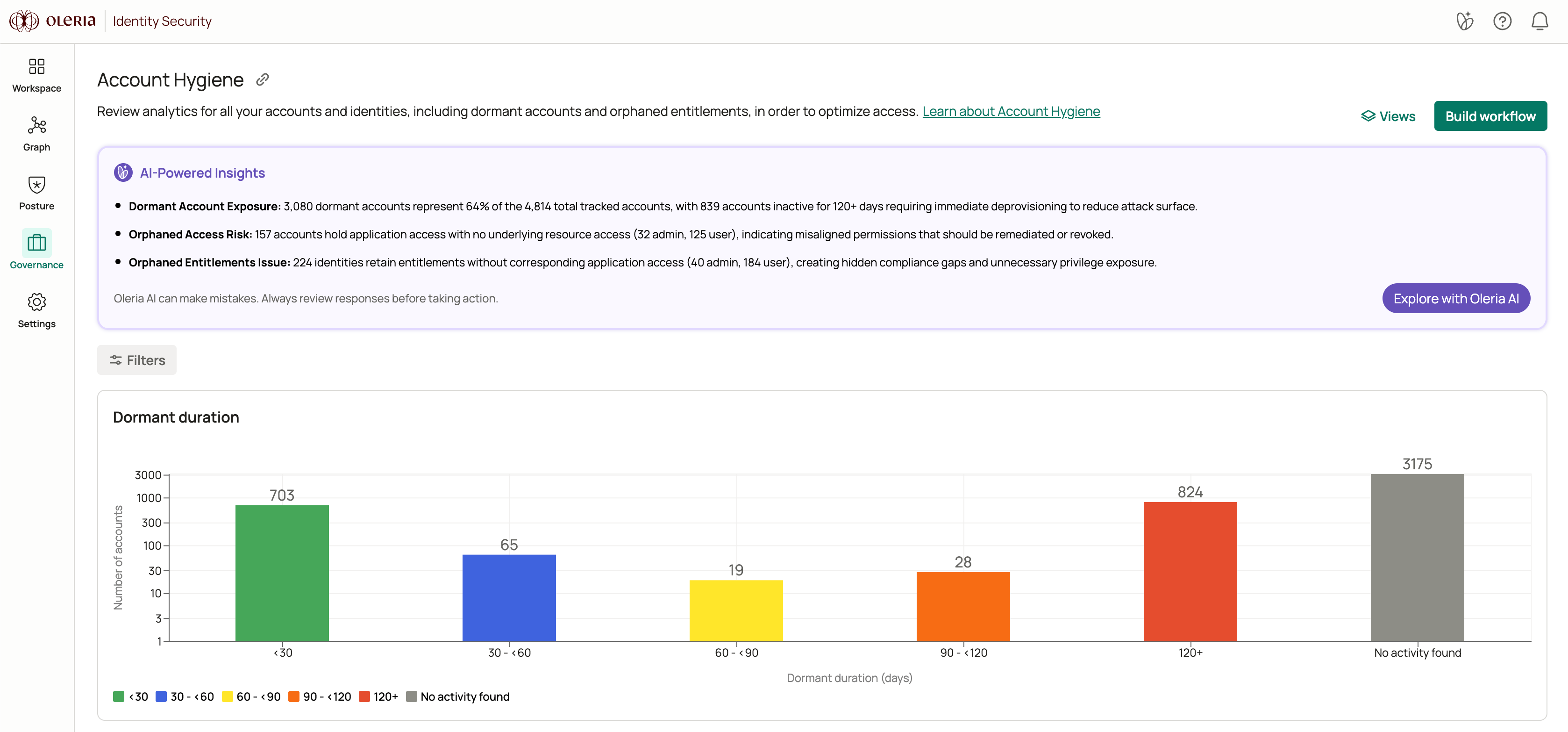
The dormancy chart shows the distribution of account inactivity across your environment. Any account inactive for more than 30 days is considered dormant.
Accounts are grouped into five ranges, each color-coded to signal urgency:
| Range | Color | What it means |
| :------------ | :----- | :--------------------------------------- |
| \<30 days | Green | Active - no action needed |
| 30-\<60 days | Blue | Recently dormant - monitor |
| 60-\<90 days | Yellow | Dormant - review for remediation |
| 90-\<120 days | Orange | Highly dormant - disable or remove |
| 120+ days | Red | Critical - disable or remove immediately |
| N/A | Gray | No activity found |
To act on dormant accounts, see [Disable dormant accounts](/governance/disable-dormant-accounts).
## Accounts table
The accounts table lists all accounts matching your current filters.
## What you can do with Account Hygiene
* **Manage inactive accounts** - identify and adjust access for user accounts that have been inactive for more than 30 days, reducing your attack surface and ensuring compliance.
* **Review administrator access** - identify administrators and adjust permissions where continual admin-level access is no longer justified.
* **Identify dormant SaaS usage** - surface underutilized SaaS application subscriptions to optimize access, reduce license costs, and shrink the attack surface.
* **Clean up unnecessary permissions** - identify and remove permissions that are no longer needed across human and machine accounts.
## Use cases
### Inactive user management
Organizations have user and machine accounts with permissions that accumulate over time. As users change roles, complete projects, or disengage from platforms, their accounts remain active and retain their permissions - creating risk if compromised.
Oleria identifies all inactive accounts - accounts that have not been active for more than 30 days. Removing access to inactive accounts improves security, reduces active license costs, and supports compliance.
### Informed access decisions and suspicious access detection
Granting the right permissions for the right job is critical. Too little access reduces productivity; too much creates risk. Organizations need a way to make well-informed decisions about access levels for both employees and partners.
Oleria analyzes the access and activity levels of human and machine accounts, providing the insights you need to make informed access decisions and quickly identify suspicious or unauthorized access attempts.
### Compliance assurance in regulated environments
Regulated organizations must understand whether access is legitimate based on each employee's job function - for example, whether it is compliant for a help desk employee to access sensitive customer data.
Oleria simplifies this assessment by analyzing user activity and evaluating access patterns against job function, making it easier to determine whether access is appropriate and document your reasoning.
### Administrator-level access review
Over time, organizations grant administrator-level access to many employees across multiple departments. Excessive admin access increases security risk and complicates access management.
Oleria identifies administrators and their access patterns, so you can assess whether continual admin-level access is necessary and minimize potential risk where it is not.
### Privileged account monitoring
Organizations handling sensitive data and critical transactions need visibility into privileged account activity to protect resources and maintain operational resilience.
Oleria monitors privileged account activity to detect and respond promptly to suspicious or unauthorized access, ensuring application security and performance.
### Dormant SaaS application identification
Organizations accumulate SaaS subscriptions over time, some of which become underutilized or dormant. Identifying and acting on dormant usage reduces costs and shrinks the attack surface.
Oleria provides insights into dormant SaaS application usage across your organization, enabling you to optimize access, reduce unnecessary permissions, and cut spending on underused licenses.
### Access and activity insights across SaaS applications
Organizations need visibility into access and activity across their SaaS portfolio to optimize usage, improve security, and meet compliance requirements.
Oleria surfaces access and activity levels for human and machine accounts across specific or multiple SaaS applications, enabling targeted action to minimize your attack surface.
### Unnecessary permission identification
As applications and teams evolve, user accounts and roles accumulate permissions that are no longer needed. This permission sprawl increases the organization's attack surface and vulnerability exposure.
Oleria analyzes access and activity for both human and machine accounts, giving you the insights to identify and act on permissions that are no longer needed and reduce your attack surface.
## Dormancy chart
The dormancy chart shows the distribution of account inactivity across your environment. Any account inactive for more than 30 days is considered dormant.
Accounts are grouped into five ranges, each color-coded to signal urgency:
| Range | Color | What it means |
| :------------ | :----- | :--------------------------------------- |
| \<30 days | Green | Active - no action needed |
| 30-\<60 days | Blue | Recently dormant - monitor |
| 60-\<90 days | Yellow | Dormant - review for remediation |
| 90-\<120 days | Orange | Highly dormant - disable or remove |
| 120+ days | Red | Critical - disable or remove immediately |
| N/A | Gray | No activity found |
To act on dormant accounts, see [Disable dormant accounts](/governance/disable-dormant-accounts).
## Accounts table
The accounts table lists all accounts matching your current filters.
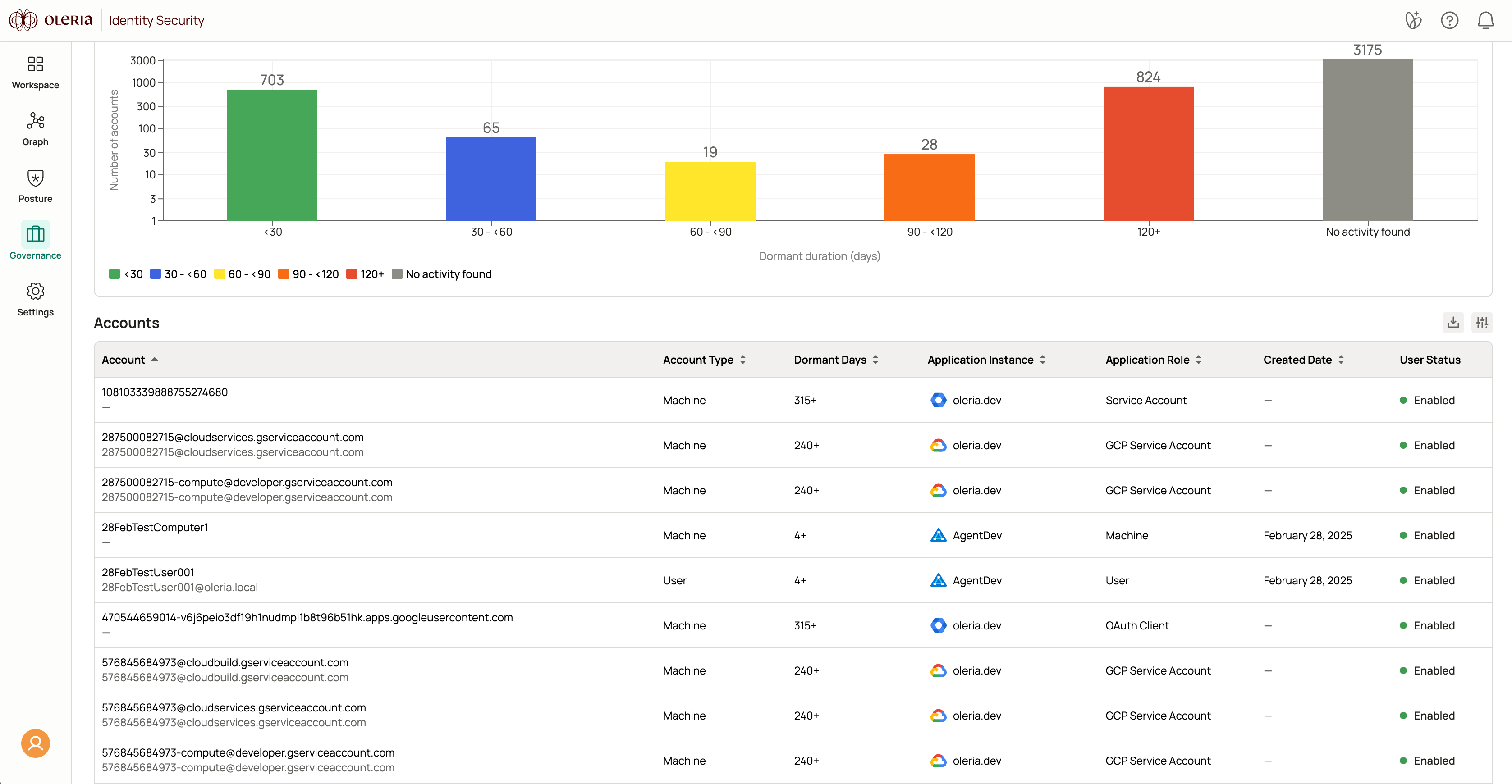 | Column | Description |
| :--------------- | :----------------------------------------------------------------------------- |
| Account | The name and email address of the account holder - for example, Chris Green. |
| Account Type | Whether the account is a `user` or `machine`. |
| Dormant Days | The number of days the account has been inactive. |
| Application Name | The application to which the account has access - for example, Salesforce. |
| Application Role | The account's role within the application - for example, System Administrator. |
| MFA Enabled | Whether multi-factor authentication (MFA) is enabled for the account. |
## Details panel
Selecting a row opens a details panel. The fields shown depend on the account type.
### Application accounts
| Column | Description |
| :--------------- | :----------------------------------------------------------------------------- |
| Account | The name and email address of the account holder - for example, Chris Green. |
| Account Type | Whether the account is a `user` or `machine`. |
| Dormant Days | The number of days the account has been inactive. |
| Application Name | The application to which the account has access - for example, Salesforce. |
| Application Role | The account's role within the application - for example, System Administrator. |
| MFA Enabled | Whether multi-factor authentication (MFA) is enabled for the account. |
## Details panel
Selecting a row opens a details panel. The fields shown depend on the account type.
### Application accounts
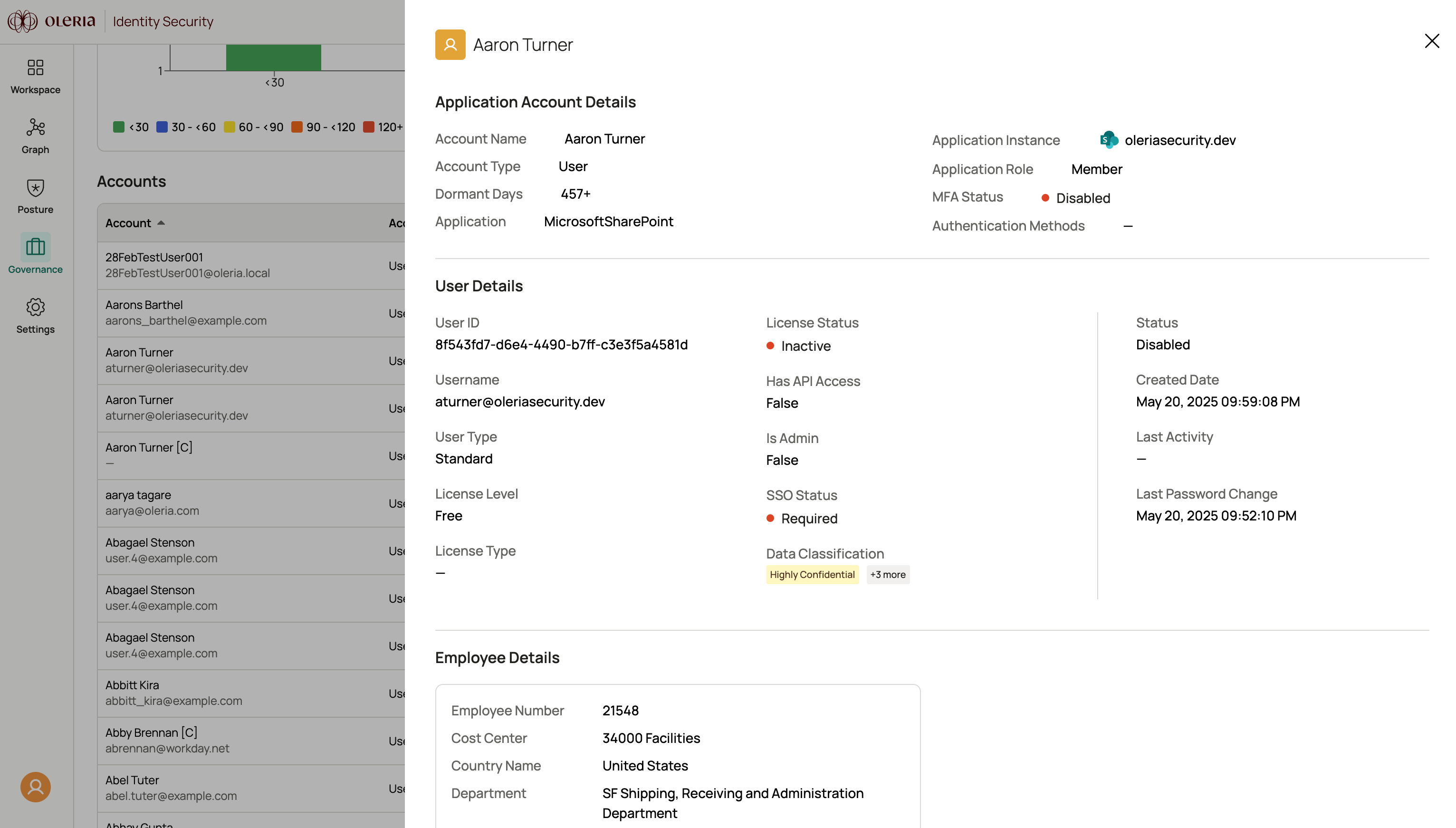 **Application account details**
| Field | Description |
| :--------------------- | :--------------------------------------------------------- |
| Account Name | The name of the account holder. |
| Account Type | Whether the account is a `user` or `machine`. |
| Dormant Days | The number of days the account has been inactive. |
| Application | The application associated with the account. |
| Application Instance | The application instance - for example, `salesforce.prod`. |
| Application Role | The account's role within the application. |
| MFA Status | Whether multi-factor authentication (MFA) is enabled. |
| Authentication Methods | Authentication methods configured for the account. |
**User details**
| Field | Description |
| :------------------- | :--------------------------------------------------- |
| User ID | The unique ID for the user. |
| Username | The unique identifier for the user. |
| User Type | The type of user account. |
| License Level | The license level assigned to the user. |
| License Type | The type of license assigned to the user. |
| License Status | The status of the license assigned to the user. |
| Has API Access | Whether the account has API access permissions. |
| Is Admin | Whether the user has administrator privileges. |
| SSO Status | The SSO status of the account. |
| Data Classification | Data sensitivity labels associated with the account. |
| Status | Whether the account is enabled or disabled. |
| Created Date | The date the account was created. |
| Last Activity | The last action performed by the account. |
| Last Password Change | The date the account's password was last changed. |
### Identities
**Application account details**
| Field | Description |
| :--------------------- | :--------------------------------------------------------- |
| Account Name | The name of the account holder. |
| Account Type | Whether the account is a `user` or `machine`. |
| Dormant Days | The number of days the account has been inactive. |
| Application | The application associated with the account. |
| Application Instance | The application instance - for example, `salesforce.prod`. |
| Application Role | The account's role within the application. |
| MFA Status | Whether multi-factor authentication (MFA) is enabled. |
| Authentication Methods | Authentication methods configured for the account. |
**User details**
| Field | Description |
| :------------------- | :--------------------------------------------------- |
| User ID | The unique ID for the user. |
| Username | The unique identifier for the user. |
| User Type | The type of user account. |
| License Level | The license level assigned to the user. |
| License Type | The type of license assigned to the user. |
| License Status | The status of the license assigned to the user. |
| Has API Access | Whether the account has API access permissions. |
| Is Admin | Whether the user has administrator privileges. |
| SSO Status | The SSO status of the account. |
| Data Classification | Data sensitivity labels associated with the account. |
| Status | Whether the account is enabled or disabled. |
| Created Date | The date the account was created. |
| Last Activity | The last action performed by the account. |
| Last Password Change | The date the account's password was last changed. |
### Identities
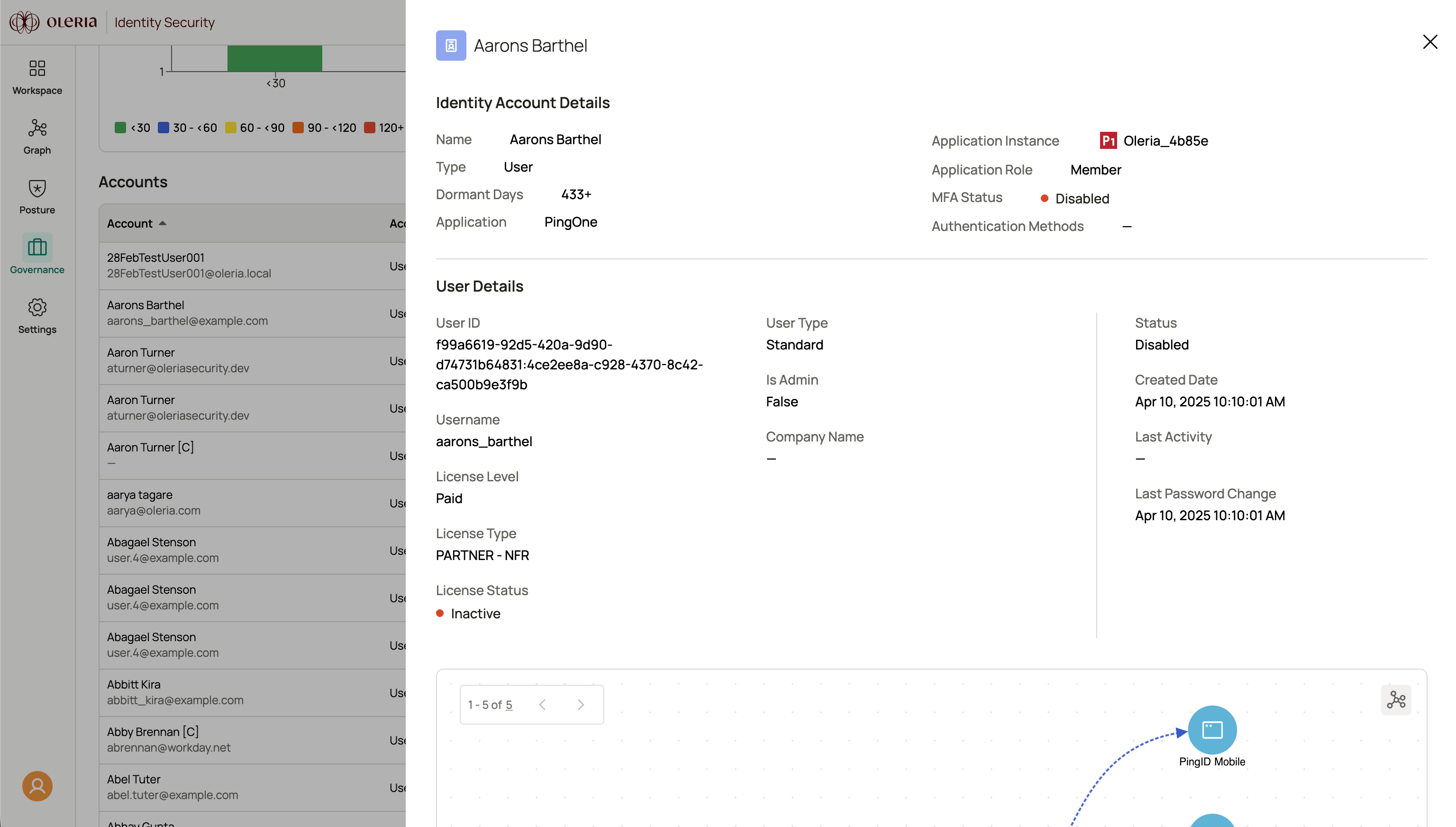 **Identity account details**
| Field | Description |
| :--------------------- | :--------------------------------------------------------- |
| Name | The name of the identity. |
| Type | The identity type. |
| Dormant Days | The number of days the identity has been inactive. |
| Application | The application associated with the identity. |
| Application Instance | The application instance - for example, `salesforce.prod`. |
| Application Role | The identity's role within the application. |
| MFA Status | Whether MFA is enabled. |
| Authentication Methods | Authentication methods configured for the identity. |
**User details**
| Field | Description |
| :------------------- | :------------------------------------------------- |
| User ID | The unique ID for the identity. |
| Username | The unique identifier for the identity. |
| License Level | The license level assigned. |
| License Type | The type of license assigned. |
| License Status | The status of the license assigned. |
| User Type | The type of user account. |
| Is Admin | Whether the identity has administrator privileges. |
| Company Name | The company associated with the identity. |
| Status | Whether the identity is enabled or disabled. |
| Created Date | The date the identity was created. |
| Last Activity | The last action performed. |
| Last Password Change | The date the password was last changed. |
### Directory entries
**Identity account details**
| Field | Description |
| :--------------------- | :--------------------------------------------------------- |
| Name | The name of the identity. |
| Type | The identity type. |
| Dormant Days | The number of days the identity has been inactive. |
| Application | The application associated with the identity. |
| Application Instance | The application instance - for example, `salesforce.prod`. |
| Application Role | The identity's role within the application. |
| MFA Status | Whether MFA is enabled. |
| Authentication Methods | Authentication methods configured for the identity. |
**User details**
| Field | Description |
| :------------------- | :------------------------------------------------- |
| User ID | The unique ID for the identity. |
| Username | The unique identifier for the identity. |
| License Level | The license level assigned. |
| License Type | The type of license assigned. |
| License Status | The status of the license assigned. |
| User Type | The type of user account. |
| Is Admin | Whether the identity has administrator privileges. |
| Company Name | The company associated with the identity. |
| Status | Whether the identity is enabled or disabled. |
| Created Date | The date the identity was created. |
| Last Activity | The last action performed. |
| Last Password Change | The date the password was last changed. |
### Directory entries
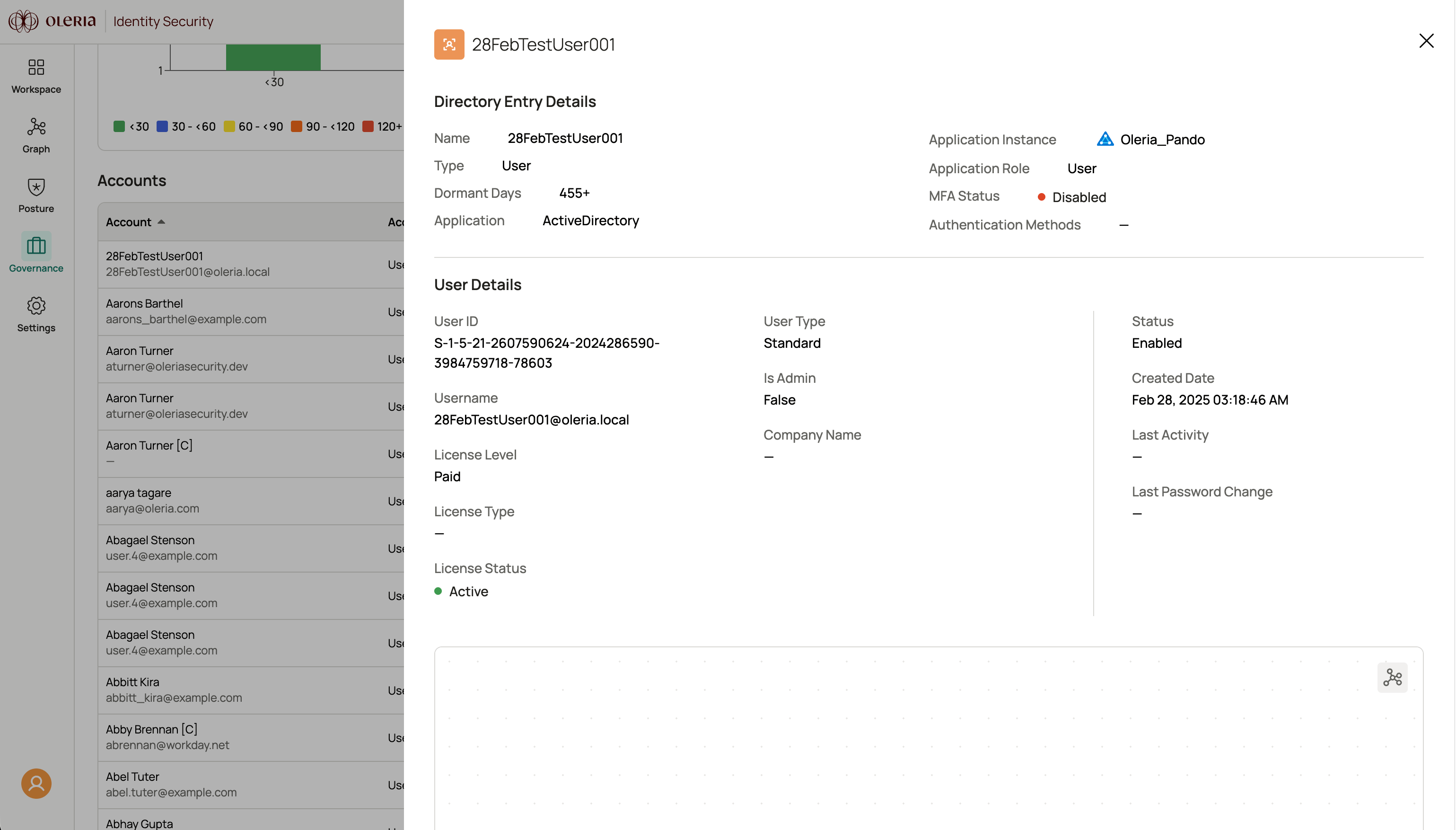 **Directory entry details**
| Field | Description |
| :--------------------- | :--------------------------------------------------------- |
| Name | The name of the directory entry. |
| Type | The directory entry type. |
| Dormant Days | The number of days the entry has been inactive. |
| Application | The application associated with the directory entry. |
| Application Instance | The application instance - for example, `salesforce.prod`. |
| Application Role | The entry's role within the application. |
| MFA Status | Whether MFA is enabled. |
| Authentication Methods | Authentication methods configured for the entry. |
**User details**
| Field | Description |
| :------------------- | :-------------------------------------------------- |
| User ID | The unique ID for the directory entry. |
| Username | The unique identifier for the directory entry. |
| License Level | The license level assigned. |
| License Type | The type of license assigned. |
| License Status | The status of the license assigned. |
| User Type | The type of user account. |
| Is Admin | Whether the entry has administrator privileges. |
| Company Name | The company associated with the directory entry. |
| Status | Whether the directory entry is enabled or disabled. |
| Created Date | The date the entry was created. |
| Last Activity | The last action performed. |
| Last Password Change | The date the password was last changed. |
## Contact us
For questions, contact us at [support@oleria.com](mailto:support@oleria.com).
**Directory entry details**
| Field | Description |
| :--------------------- | :--------------------------------------------------------- |
| Name | The name of the directory entry. |
| Type | The directory entry type. |
| Dormant Days | The number of days the entry has been inactive. |
| Application | The application associated with the directory entry. |
| Application Instance | The application instance - for example, `salesforce.prod`. |
| Application Role | The entry's role within the application. |
| MFA Status | Whether MFA is enabled. |
| Authentication Methods | Authentication methods configured for the entry. |
**User details**
| Field | Description |
| :------------------- | :-------------------------------------------------- |
| User ID | The unique ID for the directory entry. |
| Username | The unique identifier for the directory entry. |
| License Level | The license level assigned. |
| License Type | The type of license assigned. |
| License Status | The status of the license assigned. |
| User Type | The type of user account. |
| Is Admin | Whether the entry has administrator privileges. |
| Company Name | The company associated with the directory entry. |
| Status | Whether the directory entry is enabled or disabled. |
| Created Date | The date the entry was created. |
| Last Activity | The last action performed. |
| Last Password Change | The date the password was last changed. |
## Contact us
For questions, contact us at [support@oleria.com](mailto:support@oleria.com).