> ## Documentation Index
> Fetch the complete documentation index at: https://docs.oleria.com/llms.txt
> Use this file to discover all available pages before exploring further.
# Access bundles and adaptive recommendations
> Define the access each employee population should have, and let Oleria keep it current based on what peers actually hold and use.
An Access Bundle groups employees with the applications and groups they should have. Membership is defined by employee attributes (such as department or job title), so people flow in and out automatically as their attributes change. When a joiner or mover matches a bundle, lifecycle workflows provision the access it contains.
Bundles drift. Access chosen when a bundle is created goes stale as teams change tools, new applications roll out, and old ones fall out of use. **Adaptive recommendations** keep the definition current: Oleria studies what the bundle's own population actually holds and actually logs into, then proposes access to add and access to remove. You review each recommendation before anything changes.
Requires the Admin, Governance Operator, or Identity Lifecycle Operator role. Employee Lifecycle must be enabled for your workspace - contact [support@oleria.com](mailto:support@oleria.com) if you do not see it in your navigation.
## How a bundle is defined
A bundle pairs two things.
The **employee filter** is an expression over your employee directory - department, job title, cost center, manager, employment type, country, or any other attribute in the employee profile. Every employee who matches is a member. Leaving the filter empty matches all employees.
The **access** is a list of direct application entitlements and identity provider groups. Lifecycle workflows provision exactly what the bundle contains.
The filter does double duty: it decides who belongs to the bundle, and it defines the peer group adaptive recommendations study. Nothing separate has to be configured - describe the population and Oleria works from that population's real access and login activity.
The employee filter is set at creation and cannot be changed afterward. To target a different population, create a new bundle.
### Bundle states
| State | What it means |
| :------------- | :------------------------------------------------------------------------------------------------------------- |
| **Active** | The bundle is live. Lifecycle workflows provision from it and recommendations run against it. |
| **Inactive** | The bundle is excluded from provisioning and from recommendations. |
| **Processing** | Oleria is building the bundle's first set of recommendations. The bundle cannot be edited until this finishes. |
## Creating a bundle
There are two ways to create a bundle. The manual wizard lets you configure every detail yourself - filter, access, and recommendation settings - good for a one-off bundle, or when you already know the access. The presets flow generates bundles in bulk from your directory data and lets recommendations propose the access, good for covering many populations at once.
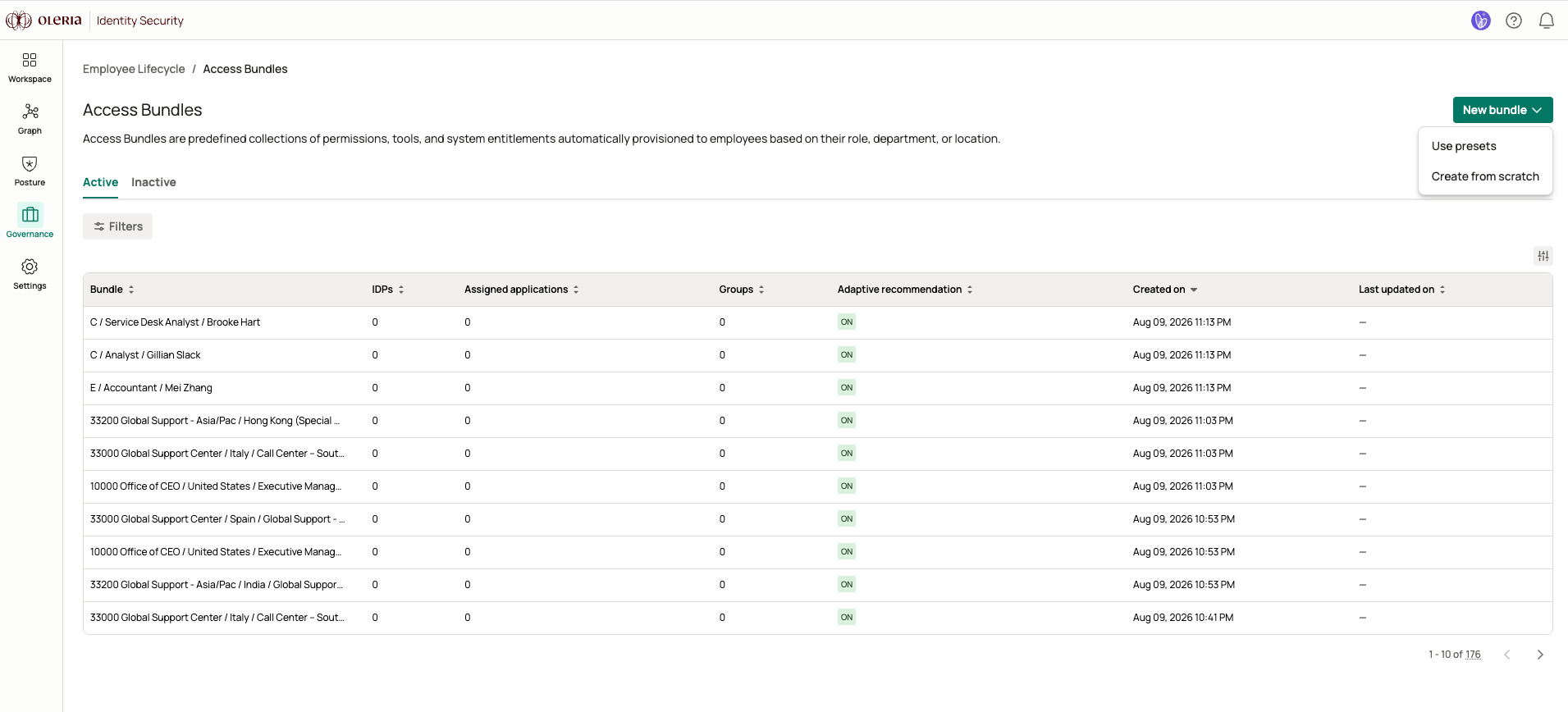
Navigate to **Employee Lifecycle** -> **Access Bundles** and select **New bundle**, then choose how to proceed.
 ### Manual wizard
Select **Create from scratch**. The wizard walks you through four steps and sets the bundle to active immediately with the access you assigned.
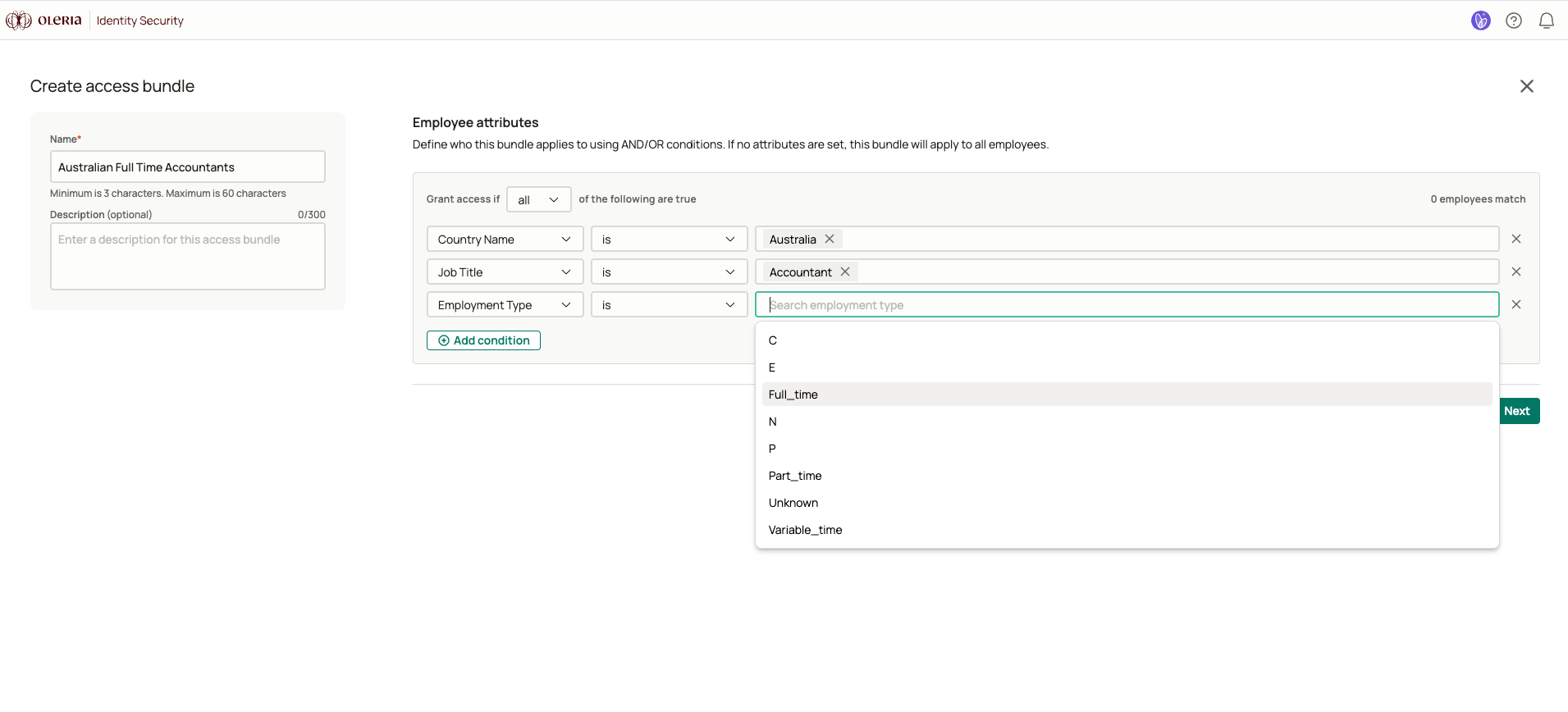
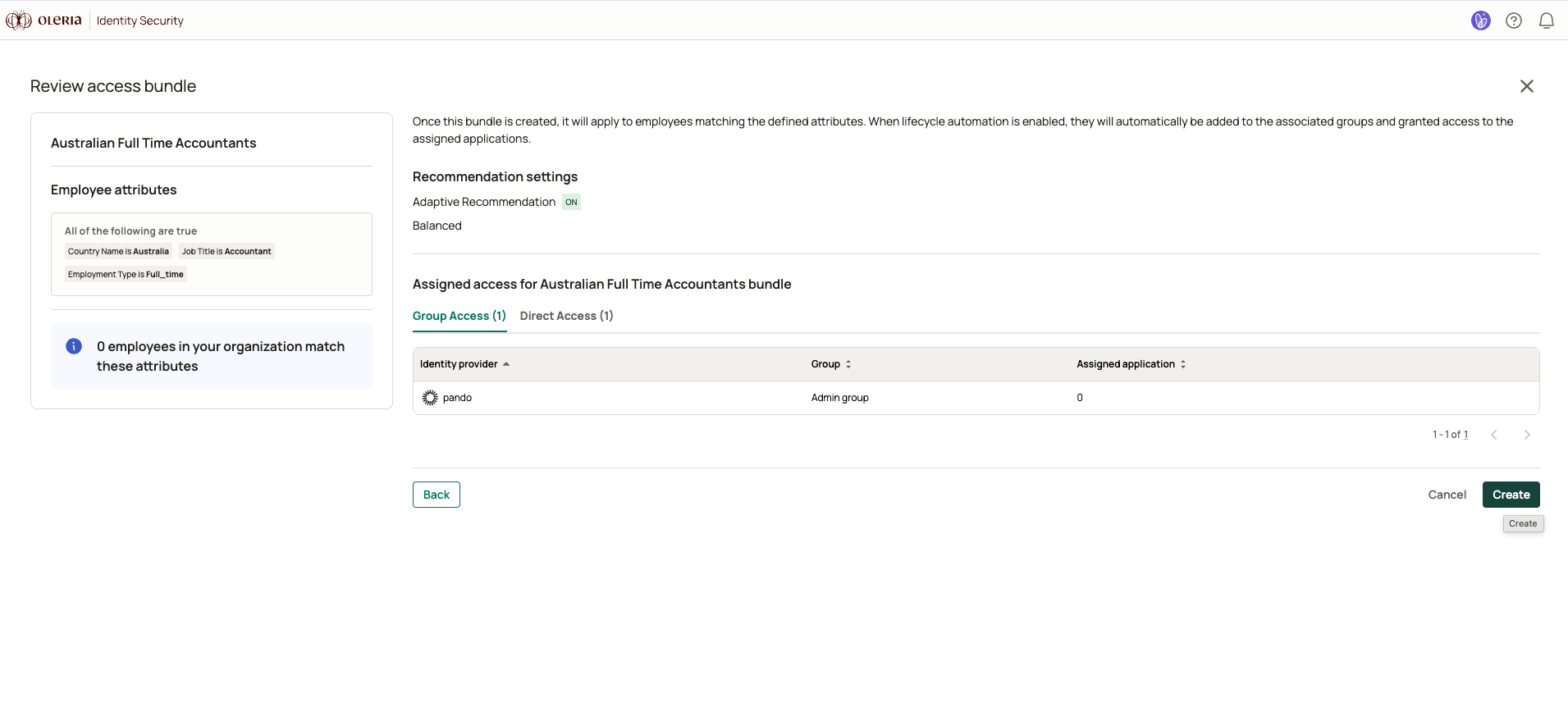
Enter a name and optional description, then build the **employee attributes filter** - the expression that determines which employees belong to this bundle and form its peer group.
The filter is open over your full employee profile and supports AND/OR conditions. Leaving it empty matches all employees.
### Manual wizard
Select **Create from scratch**. The wizard walks you through four steps and sets the bundle to active immediately with the access you assigned.
Enter a name and optional description, then build the **employee attributes filter** - the expression that determines which employees belong to this bundle and form its peer group.
The filter is open over your full employee profile and supports AND/OR conditions. Leaving it empty matches all employees.
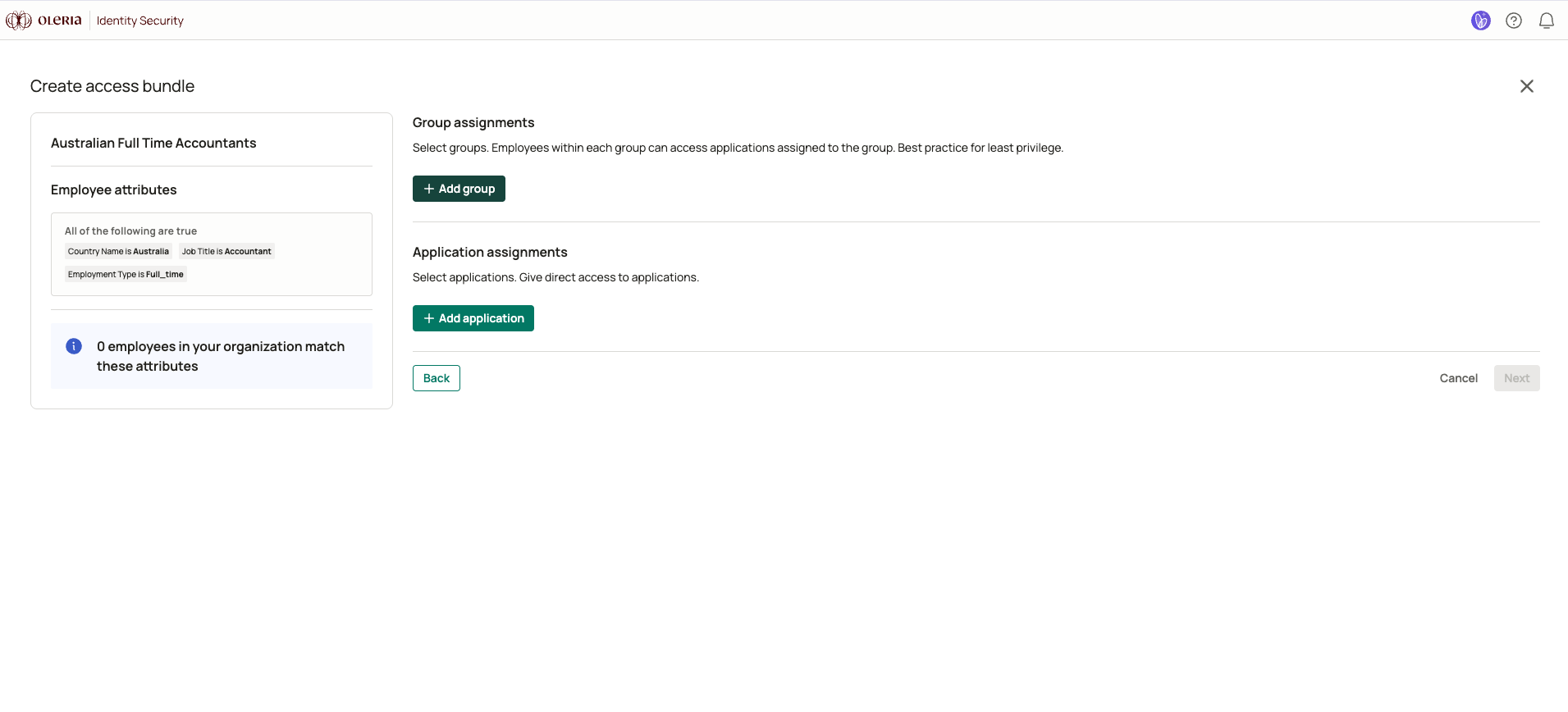
 Select the identity provider groups and application entitlements to include. Oleria shows you the access each group and entitlement confers, so you can see what a group actually grants before you add it.
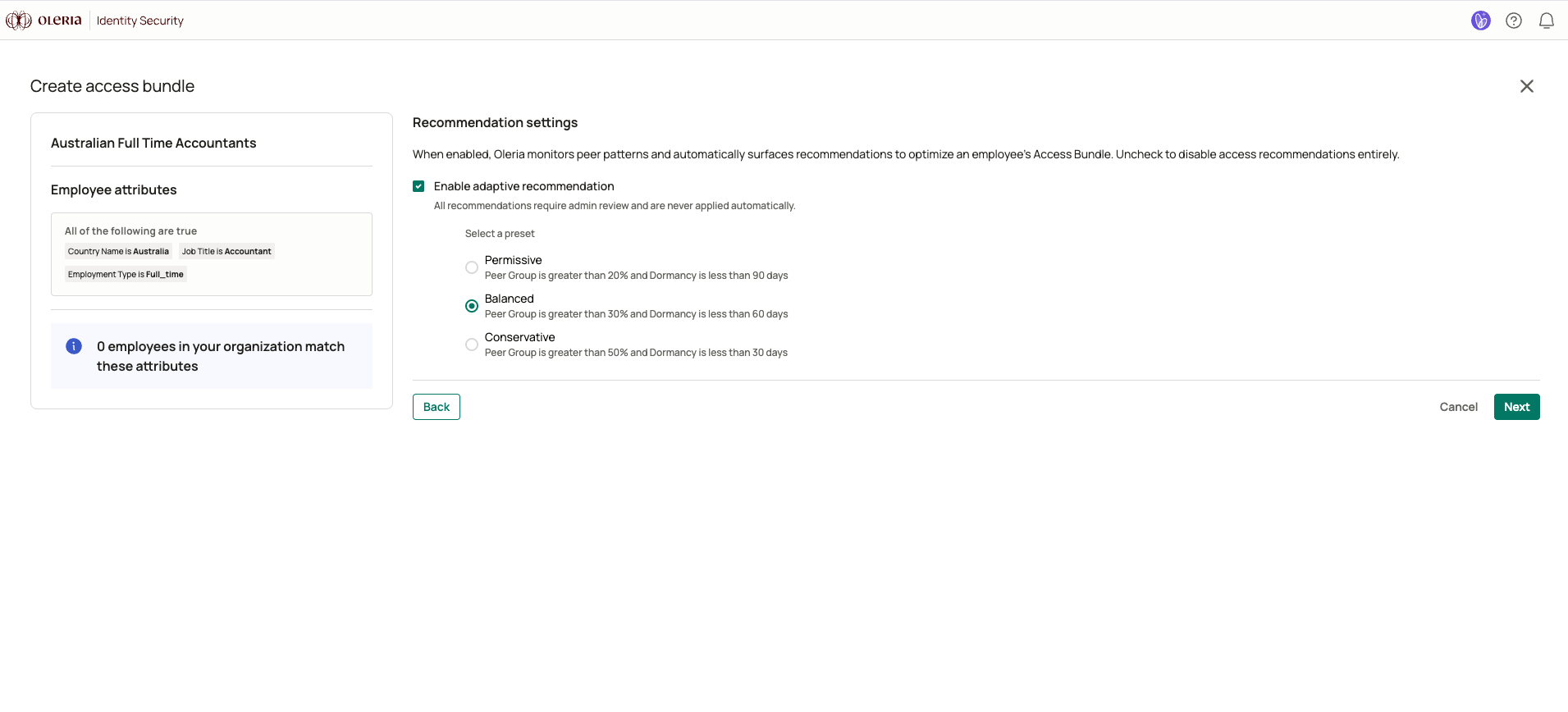
 Turn adaptive recommendations on or off, and choose a level. See [Recommendation levels](#recommendation-levels).
 Review your configuration and select **Create**. The bundle goes active immediately.
 ### Using presets
The presets flow builds bundles in bulk from your directory data. You choose one to three employee attributes - department, job title, cost center, manager, employment type, or country - and Oleria surfaces every combination that exists in your organization, with the number of employees in each. Selecting the combinations you want creates a bundle for each one, and the first recommendation run fills them in automatically, so every bundle starts with access grounded in what that population's peers actually hold and use.
See [Access Bundle Presets](/governance/access-bundle-presets) for the full walkthrough.
## How adaptive recommendations work
Recommendations refresh on a recurring schedule. On each run, Oleria evaluates the access the bundle's population touches, then compares what it finds against what the bundle already holds.
### How access is evaluated
Every candidate application and group is measured against the bundle's two thresholds:
1. **Peer group** - what share of its members hold this access.
2. **Dormancy** - how many days since anyone in the peer group last logged into it.
Both tests must pass. Popularity alone would import shelfware; recent use alone would surface the one tool a single person likes.
### What Oleria recommends
Access that passes both tests but is not in the bundle becomes an **add** recommendation. Access in the bundle that no longer passes becomes a **remove** recommendation.
Remove recommendations also cover access with no login data at all, however widely it is held - if Oleria cannot see the population using something, it cannot recommend keeping it. Because that same access is skipped for add recommendations, it will reappear as a remove recommendation on every run. This is the most common cause of an unexpected remove recommendation.
Dormancy on a remove recommendation is an estimate when nobody in the population has used the access. Oleria works from the earliest date it has for the application, so treat the figure as a floor rather than a measurement. A blank dormancy value means Oleria has no basis to estimate from.
### How groups are evaluated
Groups are tested the same way, with two changes. The peer group threshold counts how many peers belong to the group. Dormancy asks whether those members are still using the applications the group grants.
Oleria follows group nesting, so a group is judged on the applications assigned to it plus those assigned to the groups it belongs to.
### Recommendation levels
Three levels control the two thresholds.
| Level | What it means |
| :--------------- | :----------------------------------------------------------------------------------------- |
| **Permissive** | Peer group greater than 20%, dormancy less than 90 days - broader access, fewer removals |
| **Balanced** | Peer group greater than 30%, dormancy less than 60 days - the default for new bundles |
| **Conservative** | Peer group greater than 50%, dormancy less than 30 days - tighter, least-privilege leaning |
Threshold values are stored with the bundle when you set them, so a change to a level's definition in the future will not alter bundles you have already created.
To change the level later, open the bundle and select **Edit** - the edit wizard includes the recommendation settings step, where you can also turn recommendations off. If recommendations are currently off, the bundle detail panel offers **Turn on recommendations**. New settings take effect on the bundle's next recommendation run, not immediately.
## Reviewing recommendations
Open an active bundle from **Employee Lifecycle** -> **Access Bundles**. When recommendations are waiting, **Review recommendations** appears on the right. Nothing changes until you accept something.
### Using presets
The presets flow builds bundles in bulk from your directory data. You choose one to three employee attributes - department, job title, cost center, manager, employment type, or country - and Oleria surfaces every combination that exists in your organization, with the number of employees in each. Selecting the combinations you want creates a bundle for each one, and the first recommendation run fills them in automatically, so every bundle starts with access grounded in what that population's peers actually hold and use.
See [Access Bundle Presets](/governance/access-bundle-presets) for the full walkthrough.
## How adaptive recommendations work
Recommendations refresh on a recurring schedule. On each run, Oleria evaluates the access the bundle's population touches, then compares what it finds against what the bundle already holds.
### How access is evaluated
Every candidate application and group is measured against the bundle's two thresholds:
1. **Peer group** - what share of its members hold this access.
2. **Dormancy** - how many days since anyone in the peer group last logged into it.
Both tests must pass. Popularity alone would import shelfware; recent use alone would surface the one tool a single person likes.
### What Oleria recommends
Access that passes both tests but is not in the bundle becomes an **add** recommendation. Access in the bundle that no longer passes becomes a **remove** recommendation.
Remove recommendations also cover access with no login data at all, however widely it is held - if Oleria cannot see the population using something, it cannot recommend keeping it. Because that same access is skipped for add recommendations, it will reappear as a remove recommendation on every run. This is the most common cause of an unexpected remove recommendation.
Dormancy on a remove recommendation is an estimate when nobody in the population has used the access. Oleria works from the earliest date it has for the application, so treat the figure as a floor rather than a measurement. A blank dormancy value means Oleria has no basis to estimate from.
### How groups are evaluated
Groups are tested the same way, with two changes. The peer group threshold counts how many peers belong to the group. Dormancy asks whether those members are still using the applications the group grants.
Oleria follows group nesting, so a group is judged on the applications assigned to it plus those assigned to the groups it belongs to.
### Recommendation levels
Three levels control the two thresholds.
| Level | What it means |
| :--------------- | :----------------------------------------------------------------------------------------- |
| **Permissive** | Peer group greater than 20%, dormancy less than 90 days - broader access, fewer removals |
| **Balanced** | Peer group greater than 30%, dormancy less than 60 days - the default for new bundles |
| **Conservative** | Peer group greater than 50%, dormancy less than 30 days - tighter, least-privilege leaning |
Threshold values are stored with the bundle when you set them, so a change to a level's definition in the future will not alter bundles you have already created.
To change the level later, open the bundle and select **Edit** - the edit wizard includes the recommendation settings step, where you can also turn recommendations off. If recommendations are currently off, the bundle detail panel offers **Turn on recommendations**. New settings take effect on the bundle's next recommendation run, not immediately.
## Reviewing recommendations
Open an active bundle from **Employee Lifecycle** -> **Access Bundles**. When recommendations are waiting, **Review recommendations** appears on the right. Nothing changes until you accept something.
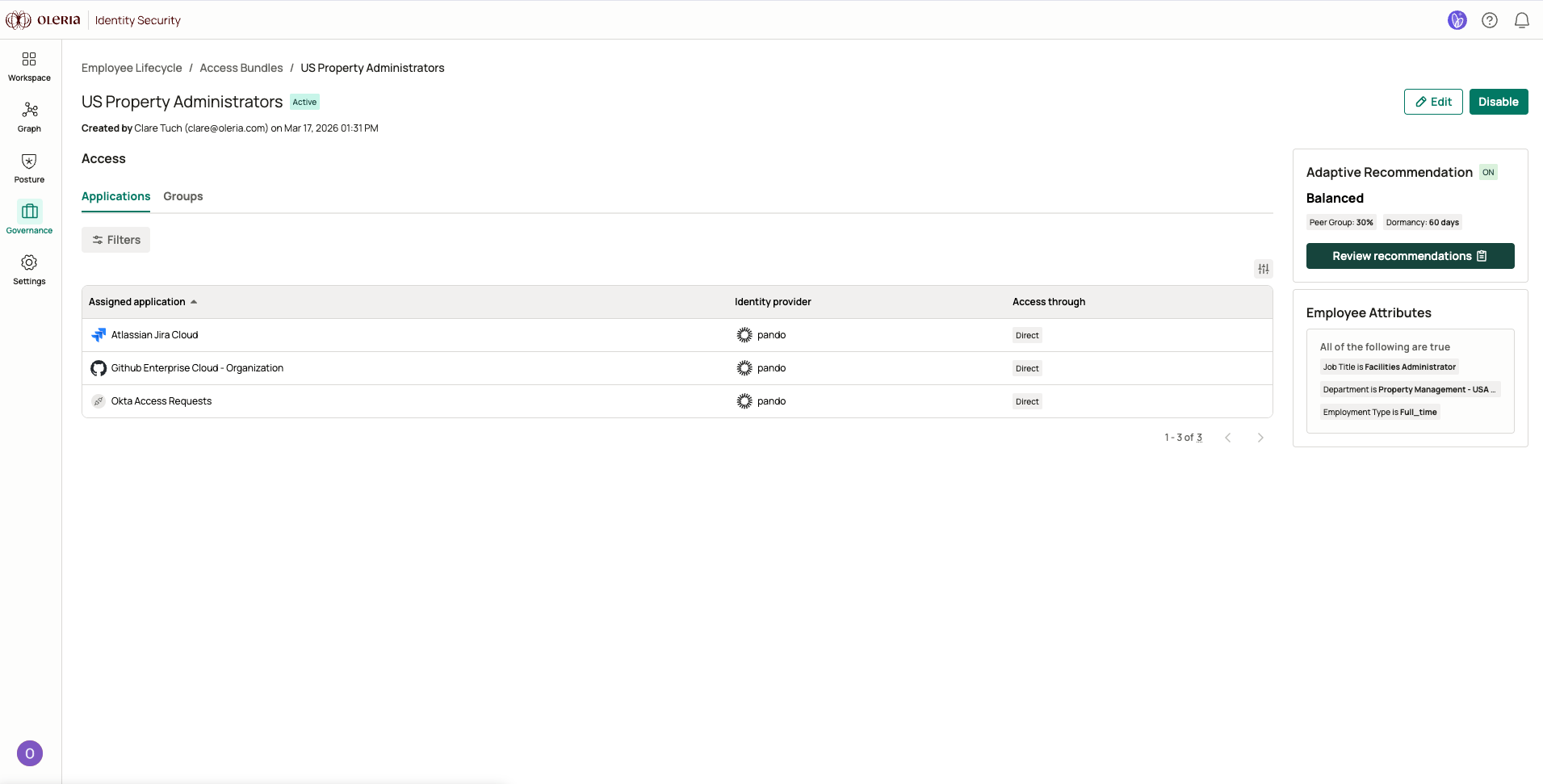 Selecting it opens a three-step wizard: group assignments, then application assignments, then a summary of everything you accepted.
Each row shows the recommendation type, the identity provider, the share of peers with access, dormancy, the group's member count, and how many applications the group confers. Select the application count to see exactly which applications it grants.
The bundle's current thresholds sit alongside the table, so you can see the settings that produced each row.
Selecting it opens a three-step wizard: group assignments, then application assignments, then a summary of everything you accepted.
Each row shows the recommendation type, the identity provider, the share of peers with access, dormancy, the group's member count, and how many applications the group confers. Select the application count to see exactly which applications it grants.
The bundle's current thresholds sit alongside the table, so you can see the settings that produced each row.
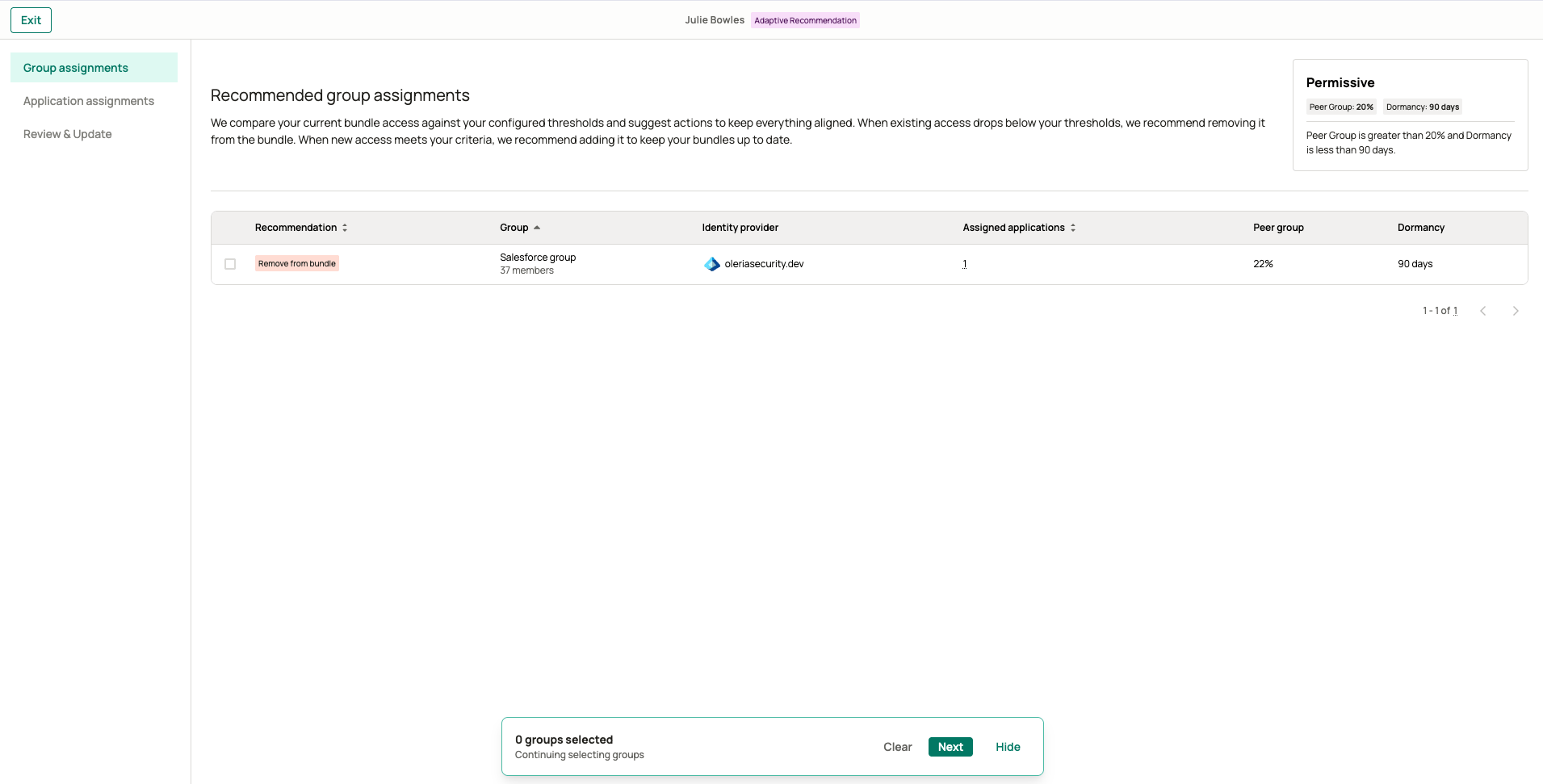 The same view for direct entitlements: recommendation type, application, identity provider, peer group share, and dormancy.
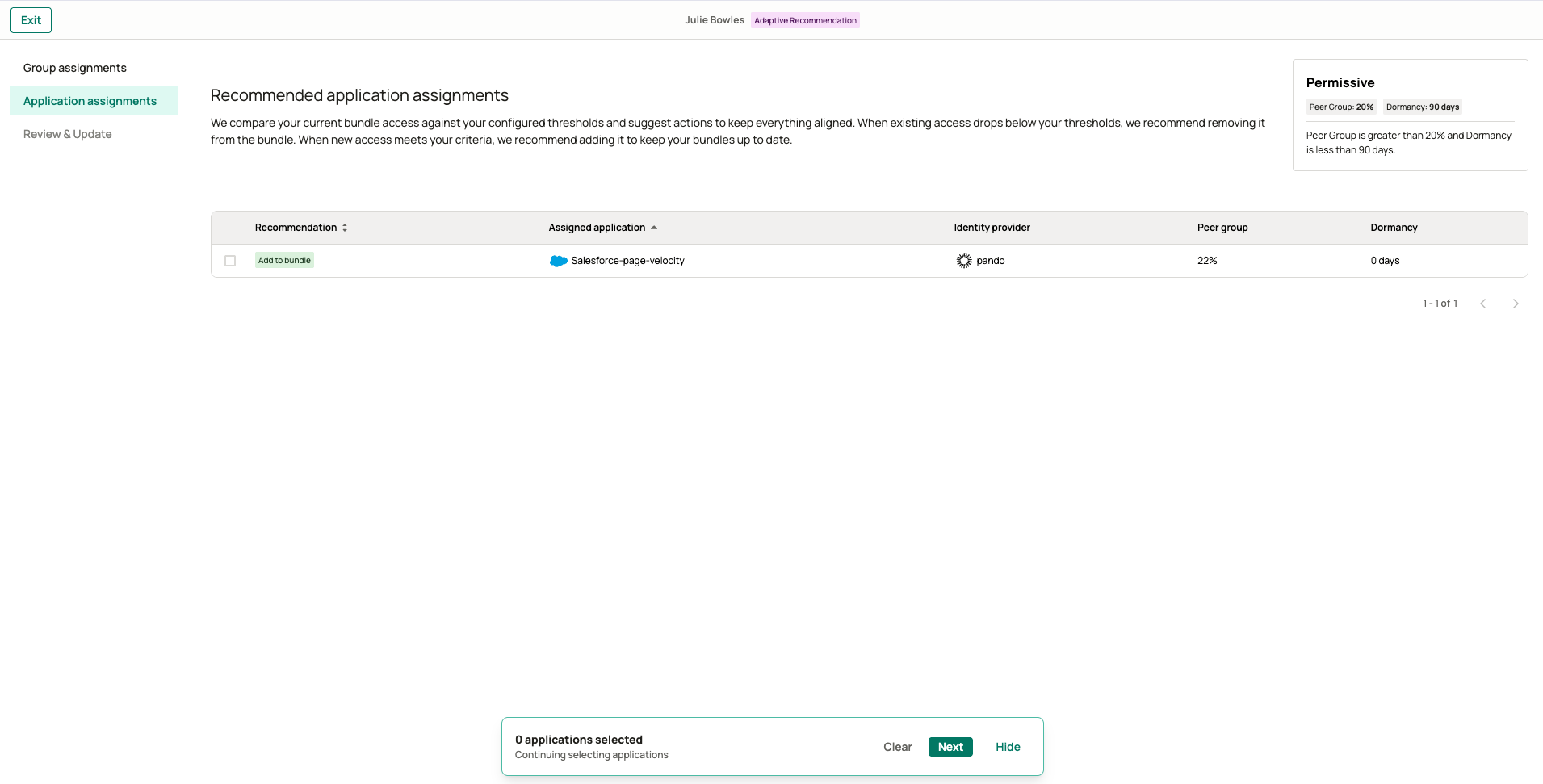 Your accepted group and application changes are shown together. Select **Update bundle** to apply them all at once.
### What applying a recommendation does
Applying edits the bundle immediately and clears the recommendation from the list.
* **Add entitlement** - the application is added to the bundle as a direct entitlement.
* **Remove entitlement** - the direct assignment is removed. If a group in the bundle also grants that application, the application stays in the bundle through the group.
* **Add group** - the group is added, along with a record of every application it confers, including through nested groups.
* **Remove group** - the group is removed. Each application it granted leaves the bundle too, unless another group still grants it or it was also added directly.
The bundle's application, group, and identity provider counts are recalculated afterward, and every apply is recorded in the audit log with the actor and the affected objects.
## How bundles affect joiners and movers
When a new hire's profile matches a bundle's filter, lifecycle workflows provision that bundle's entitlements and group memberships. When an employee changes roles, Oleria compares the bundles matching their old attributes against the bundles matching their new ones - access to add and access to remove go out for approval, while access they keep is approved automatically. Leavers are handled from the employee's actual access rather than from bundles, so leaver workflows are unaffected.
This is what makes a recommendation consequential: accepting one changes what every future joiner and mover in that population receives. Adaptive recommendations never touch anyone's live access on their own - they only edit the bundle definition, and lifecycle workflows carry that definition forward.
## Limitations
* **Adaptive recommendations must be on.** With them off, no recommendations are generated for the bundle.
* **Inactive bundles are skipped.** No recommendations are generated while a bundle is inactive.
* **The employee filter cannot be changed after creation.** To target a different population, create a new bundle.
* **Access with no dormancy is skipped for add recommendations but still produces remove recommendations.** See the note in [How adaptive recommendations work](#how-adaptive-recommendations-work).
* **An empty peer group clears recommendations.** If the filter matches no employees, Oleria publishes an empty set rather than leaving stale recommendations behind.
* **Bundles being processed cannot be edited.** Wait for the first recommendation run to finish.
## Contact us
For questions, contact us at [support@oleria.com](mailto:support@oleria.com).
Your accepted group and application changes are shown together. Select **Update bundle** to apply them all at once.
### What applying a recommendation does
Applying edits the bundle immediately and clears the recommendation from the list.
* **Add entitlement** - the application is added to the bundle as a direct entitlement.
* **Remove entitlement** - the direct assignment is removed. If a group in the bundle also grants that application, the application stays in the bundle through the group.
* **Add group** - the group is added, along with a record of every application it confers, including through nested groups.
* **Remove group** - the group is removed. Each application it granted leaves the bundle too, unless another group still grants it or it was also added directly.
The bundle's application, group, and identity provider counts are recalculated afterward, and every apply is recorded in the audit log with the actor and the affected objects.
## How bundles affect joiners and movers
When a new hire's profile matches a bundle's filter, lifecycle workflows provision that bundle's entitlements and group memberships. When an employee changes roles, Oleria compares the bundles matching their old attributes against the bundles matching their new ones - access to add and access to remove go out for approval, while access they keep is approved automatically. Leavers are handled from the employee's actual access rather than from bundles, so leaver workflows are unaffected.
This is what makes a recommendation consequential: accepting one changes what every future joiner and mover in that population receives. Adaptive recommendations never touch anyone's live access on their own - they only edit the bundle definition, and lifecycle workflows carry that definition forward.
## Limitations
* **Adaptive recommendations must be on.** With them off, no recommendations are generated for the bundle.
* **Inactive bundles are skipped.** No recommendations are generated while a bundle is inactive.
* **The employee filter cannot be changed after creation.** To target a different population, create a new bundle.
* **Access with no dormancy is skipped for add recommendations but still produces remove recommendations.** See the note in [How adaptive recommendations work](#how-adaptive-recommendations-work).
* **An empty peer group clears recommendations.** If the filter matches no employees, Oleria publishes an empty set rather than leaving stale recommendations behind.
* **Bundles being processed cannot be edited.** Wait for the first recommendation run to finish.
## Contact us
For questions, contact us at [support@oleria.com](mailto:support@oleria.com).