> ## Documentation Index
> Fetch the complete documentation index at: https://docs.oleria.com/llms.txt
> Use this file to discover all available pages before exploring further.
# Access Bundle Presets
> Bulk-create Access Bundles from your organization's employee attributes - Oleria generates candidate bundles from your real workforce data and you choose which to create.
An [Access Bundle](/governance/access-bundles-and-adaptive-recommendations) groups employees with the applications and groups they should have. Membership is defined by employee attributes (such as department or location), so people flow in and out automatically as their attributes change. Normally you build a bundle by hand - name it, define the membership rule, and attach access. Presets let you skip that manual work when you want many bundles at once.
With presets, you select up to three employee attribute keys and Oleria discovers every combination that actually exists in your workforce. Each combination becomes a **candidate bundle** - already named, already counted. You choose which candidates to create, set a recommendation policy, and Oleria creates them all in one batch. The result is ordinary Access Bundles: rename them, adjust their recommendations, add or remove applications and groups just like any bundle you built from scratch.
Presets hinge on the employee attributes synced from your connected HR or identity platform. The quality and completeness of that data directly determines which bundles Oleria can generate - employees with missing attribute values will not appear in any candidate.
Requires the Admin, Governance Operator, or Identity Lifecycle Operator role, and a connected HR or identity platform - Oleria builds candidate bundles from synced employee attributes. Because preset bundles are created empty and filled by their first recommendation run, you also need connected applications with login activity for those bundles to receive any access. See [Integrations](/integrations/overview).
## Creating access bundles from presets
Navigate to **Employee Lifecycle** → **Access Bundles**, select **New bundle**, and choose **Use presets**.
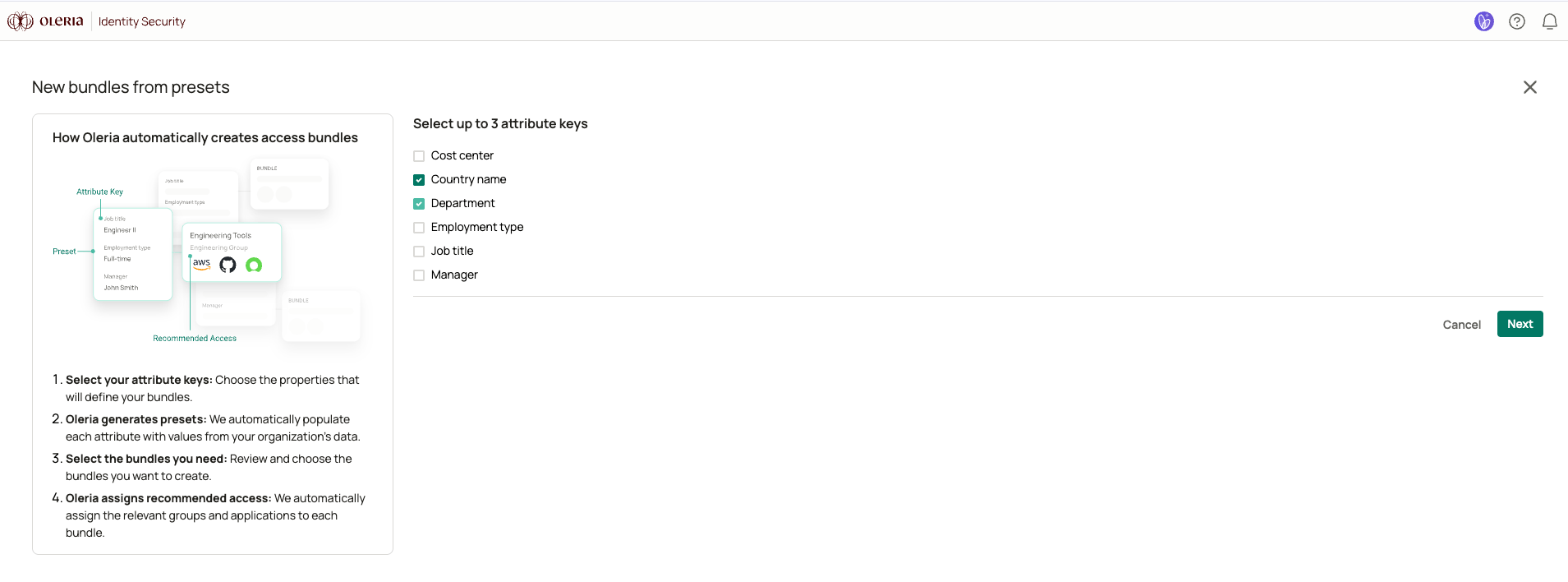
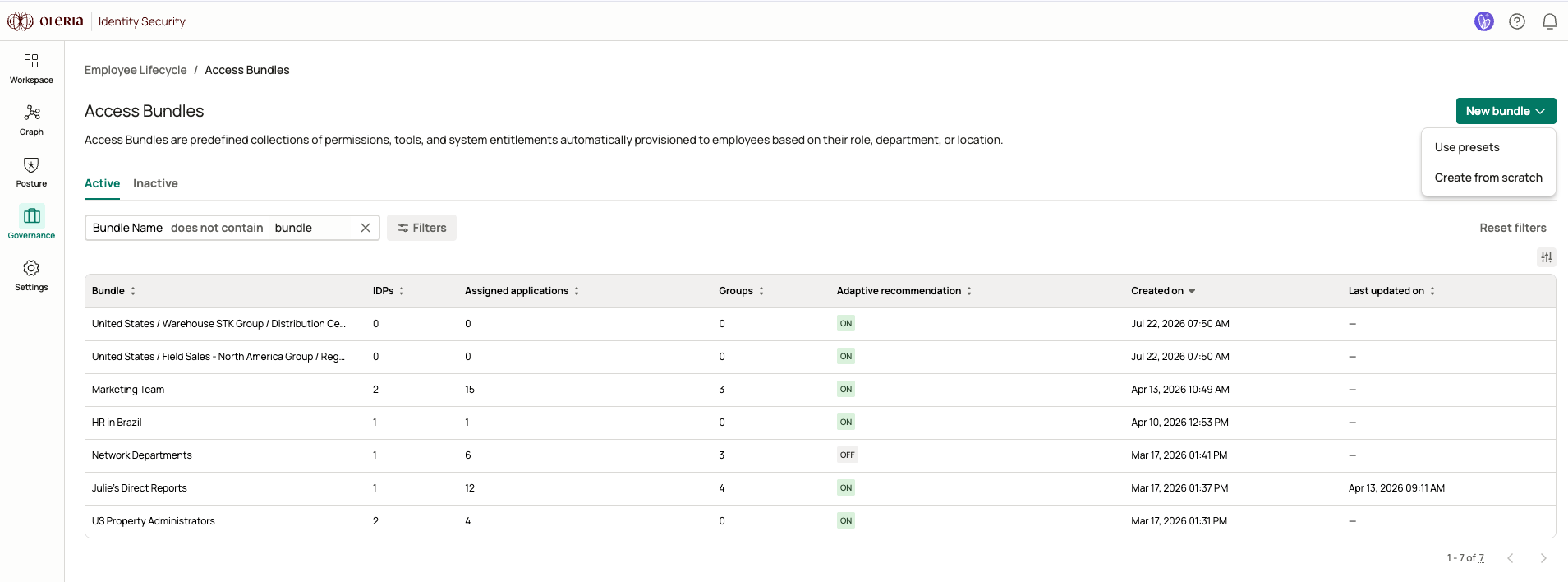 Choose the employee attributes that define your bundles. Select **between 1 and 3** of the six available attribute keys.
| Attribute key | What it represents |
| :------------------ | :--------------------------------------------------- |
| **Department** | The employee's department |
| **Job title** | The employee's title |
| **Country name** | The employee's location country |
| **Cost center** | The employee's finance or organizational cost center |
| **Employment type** | Full-time, contractor, and similar classifications |
| **Manager** | The employee's manager |
Fewer attributes produce fewer, broader bundles (for example, one bundle per department). More attributes produce more, narrower bundles (for example, department by title by location).
We recommend starting broad in order to control the number of bundles that need to be managed.
Select **Next**. Oleria groups your workforce by the selected attributes and generates a candidate bundle for every combination it finds.
Choose the employee attributes that define your bundles. Select **between 1 and 3** of the six available attribute keys.
| Attribute key | What it represents |
| :------------------ | :--------------------------------------------------- |
| **Department** | The employee's department |
| **Job title** | The employee's title |
| **Country name** | The employee's location country |
| **Cost center** | The employee's finance or organizational cost center |
| **Employment type** | Full-time, contractor, and similar classifications |
| **Manager** | The employee's manager |
Fewer attributes produce fewer, broader bundles (for example, one bundle per department). More attributes produce more, narrower bundles (for example, department by title by location).
We recommend starting broad in order to control the number of bundles that need to be managed.
Select **Next**. Oleria groups your workforce by the selected attributes and generates a candidate bundle for every combination it finds.
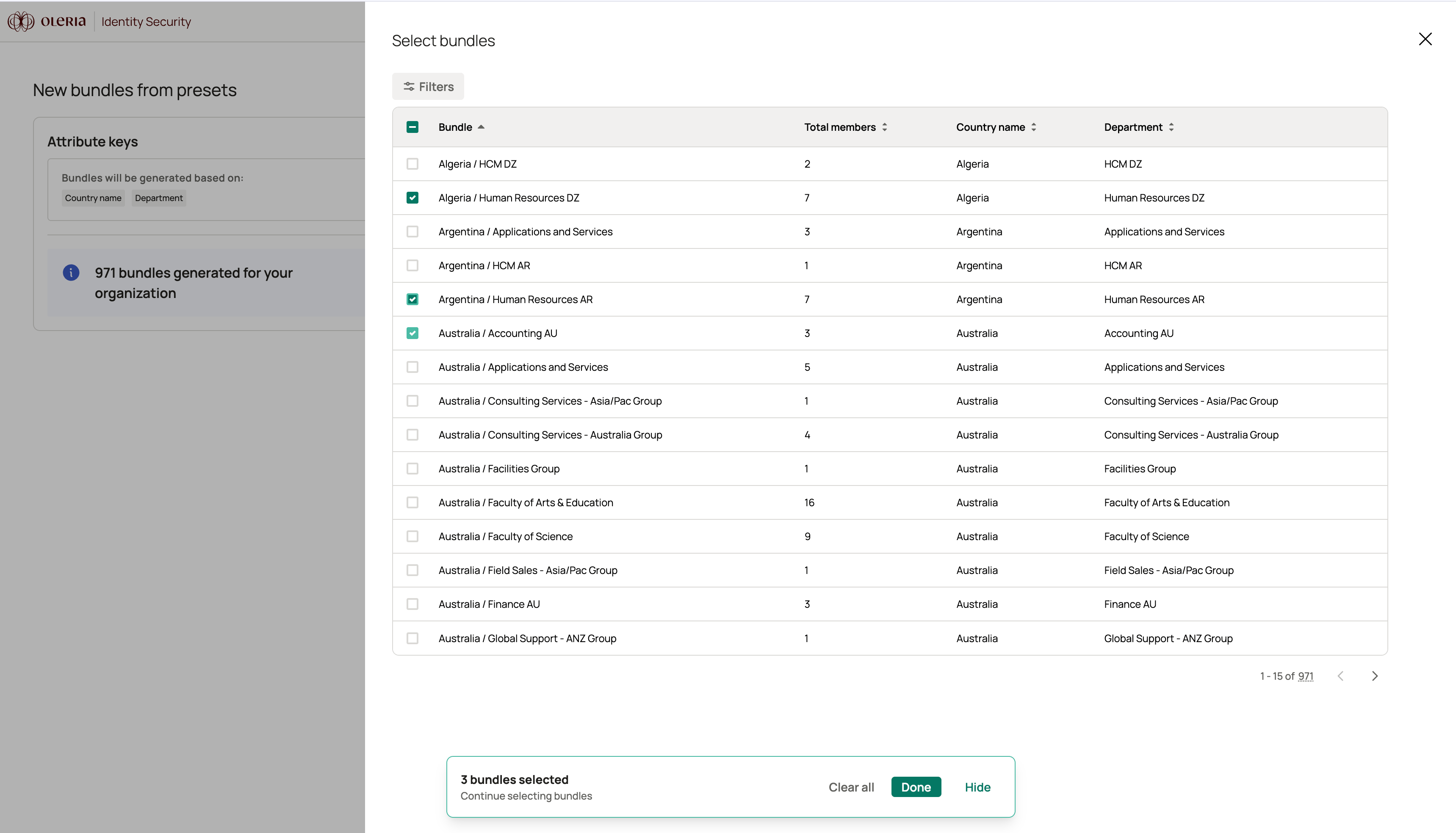
 Oleria presents every candidate bundle it generated. Each row shows the bundle's auto-generated **name** (attribute values joined together, such as "Engineering / Seattle"), its **Total members** count, and a column for each attribute you selected. Use the attribute columns to filter the list.
Select the bundles you want to create - up to **200 bundles** per run.
Member counts are a snapshot from the time of generation. If more than 200 candidates are useful, filter the list and run the wizard more than once.
Oleria presents every candidate bundle it generated. Each row shows the bundle's auto-generated **name** (attribute values joined together, such as "Engineering / Seattle"), its **Total members** count, and a column for each attribute you selected. Use the attribute columns to filter the list.
Select the bundles you want to create - up to **200 bundles** per run.
Member counts are a snapshot from the time of generation. If more than 200 candidates are useful, filter the list and run the wizard more than once.
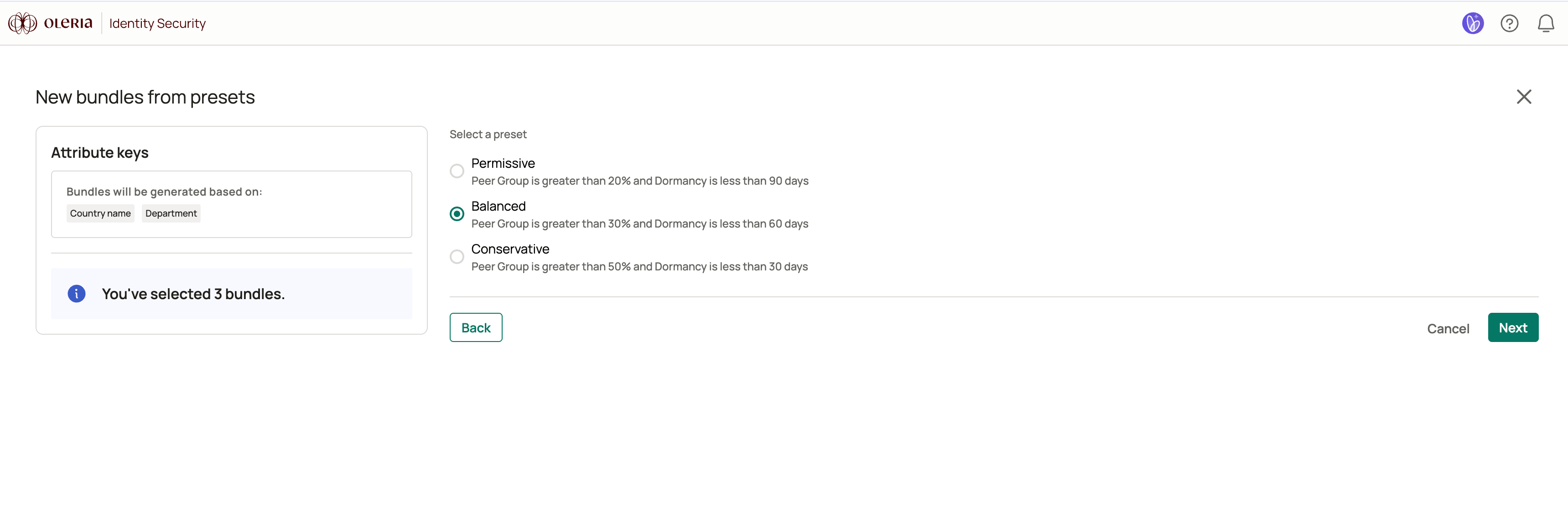
 Choose how Oleria recommends access for members of the selected bundles. [Adaptive Recommendation](/governance/access-bundles-and-adaptive-recommendations#how-adaptive-recommendations-work) compares each member against their peers and surfaces suggestions to grant commonly-held access and remove unused access.
Two measurements drive every recommendation:
* **Peer group** is the bundle's own members - everyone matching the attribute combination you selected. The peer group percentage is how many of them already have a particular application or group - 40 out of 100 members is 40%.
* **Dormancy** is how recently that access has been used: the number of days since anyone in the peer group last signed in to it.
Access has to clear both bars to be recommended. Something most of the team holds but nobody signs in to is not recommended, and neither is something one person uses constantly.
Select one preset level. **Balanced** is the default.
| Level | What it means |
| :--------------- | :----------------------------------------------------------------------------------------- |
| **Permissive** | Peer group greater than 20%, dormancy less than 90 days - broader access, fewer removals |
| **Balanced** | Peer group greater than 30%, dormancy less than 60 days - the recommended middle ground |
| **Conservative** | Peer group greater than 50%, dormancy less than 30 days - tighter, least-privilege leaning |
Lower percentages and longer windows grant access more generously.
Adaptive Recommendation is always on for preset bundles. Preset bundles are created empty, so the first recommendation run is applied automatically to populate them with an initial set of access. Every recommendation after that requires admin review.
Choose how Oleria recommends access for members of the selected bundles. [Adaptive Recommendation](/governance/access-bundles-and-adaptive-recommendations#how-adaptive-recommendations-work) compares each member against their peers and surfaces suggestions to grant commonly-held access and remove unused access.
Two measurements drive every recommendation:
* **Peer group** is the bundle's own members - everyone matching the attribute combination you selected. The peer group percentage is how many of them already have a particular application or group - 40 out of 100 members is 40%.
* **Dormancy** is how recently that access has been used: the number of days since anyone in the peer group last signed in to it.
Access has to clear both bars to be recommended. Something most of the team holds but nobody signs in to is not recommended, and neither is something one person uses constantly.
Select one preset level. **Balanced** is the default.
| Level | What it means |
| :--------------- | :----------------------------------------------------------------------------------------- |
| **Permissive** | Peer group greater than 20%, dormancy less than 90 days - broader access, fewer removals |
| **Balanced** | Peer group greater than 30%, dormancy less than 60 days - the recommended middle ground |
| **Conservative** | Peer group greater than 50%, dormancy less than 30 days - tighter, least-privilege leaning |
Lower percentages and longer windows grant access more generously.
Adaptive Recommendation is always on for preset bundles. Preset bundles are created empty, so the first recommendation run is applied automatically to populate them with an initial set of access. Every recommendation after that requires admin review.
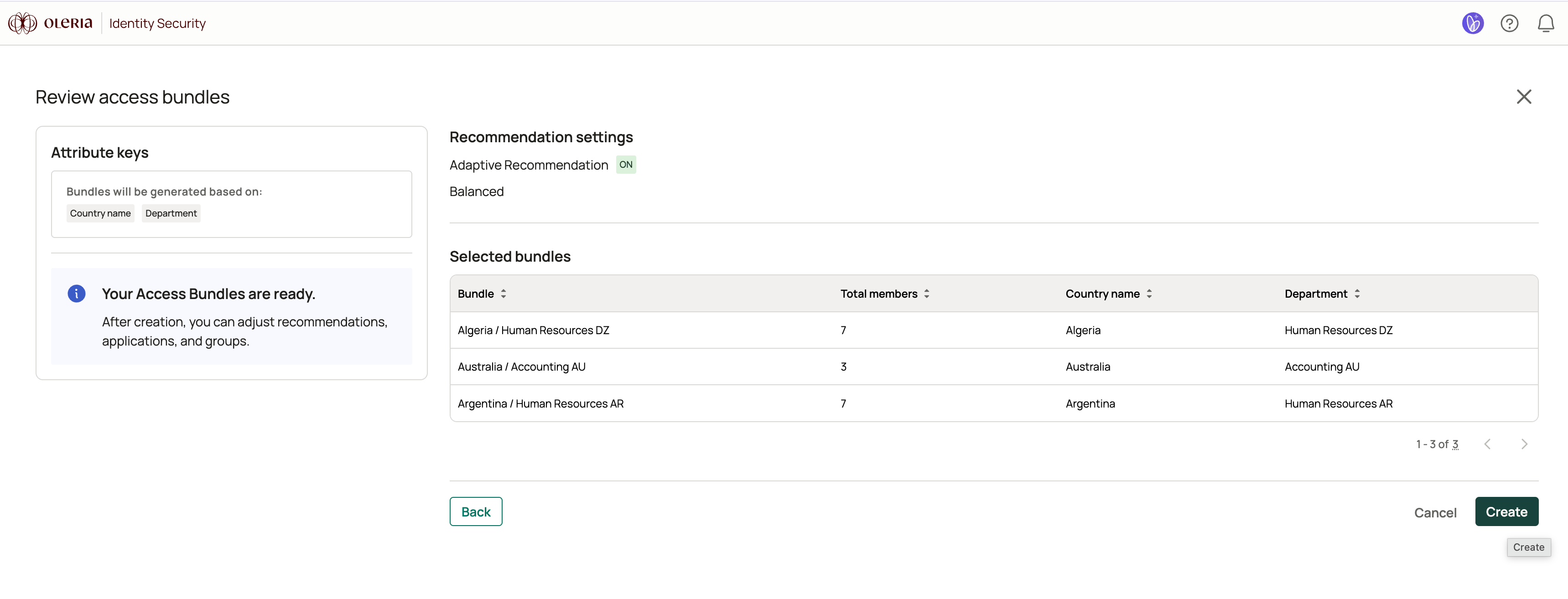
 Review your configuration. The **Recommendation settings** section shows the Adaptive Recommendation level, and the **Selected bundles** section lists every bundle you are about to create.
Select **Create** to generate all bundles at once.
Review your configuration. The **Recommendation settings** section shows the Adaptive Recommendation level, and the **Selected bundles** section lists every bundle you are about to create.
Select **Create** to generate all bundles at once.
 ## How Oleria generates bundles
When you select attribute keys and advance the wizard, Oleria scans your workforce once and groups every employee by the selected attributes. Each distinct combination that actually exists becomes one candidate bundle.
* **Names are derived from attribute values.** A Department-plus-Country preset yields names like "Sales / United States." Rename bundles after creation if needed.
* **Membership is an exact attribute match.** Each bundle's membership rule is an AND of equality checks on the attributes you chose (for example, department = Engineering AND country = United States). The member count shown during selection is the count you get - there is no drift between the preview and the created bundle.
* **Results are a point-in-time snapshot.** Candidate counts reflect your workforce at the moment you ran the wizard, not live-updated data. If you leave the wizard idle for an extended period, you may need to regenerate.
* **Coverage depends on your data.** Employees with missing or blank values for a selected attribute will not appear in any candidate bundle. Presets surface exactly what your connected HR or identity data contains - no more, no less.
## Limits
| Limit | Value |
| :------------------------ | :----------------------------------------- |
| Attribute keys per preset | 1 minimum, 3 maximum (of 6 available) |
| Bundles created per run | Up to 200 |
| Adaptive Recommendation | Always on for presets; level is selectable |
## After creation
Bundles created from presets appear in the Access Bundles list and immediately begin building access recommendations based on the level you selected. Because they are created empty, the first run is applied for you, so each bundle arrives already populated with the access its members' peers commonly hold and use. From then on, recommendations are never applied automatically - [review and approve](/governance/access-bundles-and-adaptive-recommendations#reviewing-recommendations) them before any access changes take effect.
From there, each bundle behaves like any other Access Bundle. You can rename it, change the recommendation level, and add or remove applications and groups. For more on managing bundles, see [Access bundles and adaptive recommendations](/governance/access-bundles-and-adaptive-recommendations).
## Contact us
For questions, contact us at [support@oleria.com](mailto:support@oleria.com).
## How Oleria generates bundles
When you select attribute keys and advance the wizard, Oleria scans your workforce once and groups every employee by the selected attributes. Each distinct combination that actually exists becomes one candidate bundle.
* **Names are derived from attribute values.** A Department-plus-Country preset yields names like "Sales / United States." Rename bundles after creation if needed.
* **Membership is an exact attribute match.** Each bundle's membership rule is an AND of equality checks on the attributes you chose (for example, department = Engineering AND country = United States). The member count shown during selection is the count you get - there is no drift between the preview and the created bundle.
* **Results are a point-in-time snapshot.** Candidate counts reflect your workforce at the moment you ran the wizard, not live-updated data. If you leave the wizard idle for an extended period, you may need to regenerate.
* **Coverage depends on your data.** Employees with missing or blank values for a selected attribute will not appear in any candidate bundle. Presets surface exactly what your connected HR or identity data contains - no more, no less.
## Limits
| Limit | Value |
| :------------------------ | :----------------------------------------- |
| Attribute keys per preset | 1 minimum, 3 maximum (of 6 available) |
| Bundles created per run | Up to 200 |
| Adaptive Recommendation | Always on for presets; level is selectable |
## After creation
Bundles created from presets appear in the Access Bundles list and immediately begin building access recommendations based on the level you selected. Because they are created empty, the first run is applied for you, so each bundle arrives already populated with the access its members' peers commonly hold and use. From then on, recommendations are never applied automatically - [review and approve](/governance/access-bundles-and-adaptive-recommendations#reviewing-recommendations) them before any access changes take effect.
From there, each bundle behaves like any other Access Bundle. You can rename it, change the recommendation level, and add or remove applications and groups. For more on managing bundles, see [Access bundles and adaptive recommendations](/governance/access-bundles-and-adaptive-recommendations).
## Contact us
For questions, contact us at [support@oleria.com](mailto:support@oleria.com).