> ## Documentation Index
> Fetch the complete documentation index at: https://docs.oleria.com/llms.txt
> Use this file to discover all available pages before exploring further.
# Email notifications
Oleria sends weekly email summaries to administrators so you can stay on top of security risks and dormant accounts without manually checking the product. Each email links directly into the relevant Oleria page so you can act on findings immediately.
## Weekly risk summary
The weekly risk summary gives administrators a consolidated view of security risks identified in their environment over the past week.
**Recipients:** All Oleria administrators
**Frequency:** Weekly
The email includes:
* A summary of risk metrics from the past week
* Highlighted risks categorized by access, identity, and security
* Direct links to the Risk Monitoring page in Oleria for immediate action
### Review the weekly risk summary
Open the email and review the summarized risk metrics for the week.

Select **View risks** to open the Risk Monitoring page in Oleria with full risk details.

Mitigate the risk in the relevant SaaS application, or create a ServiceNow ticket to alert your security team.
## Weekly dormant account summary
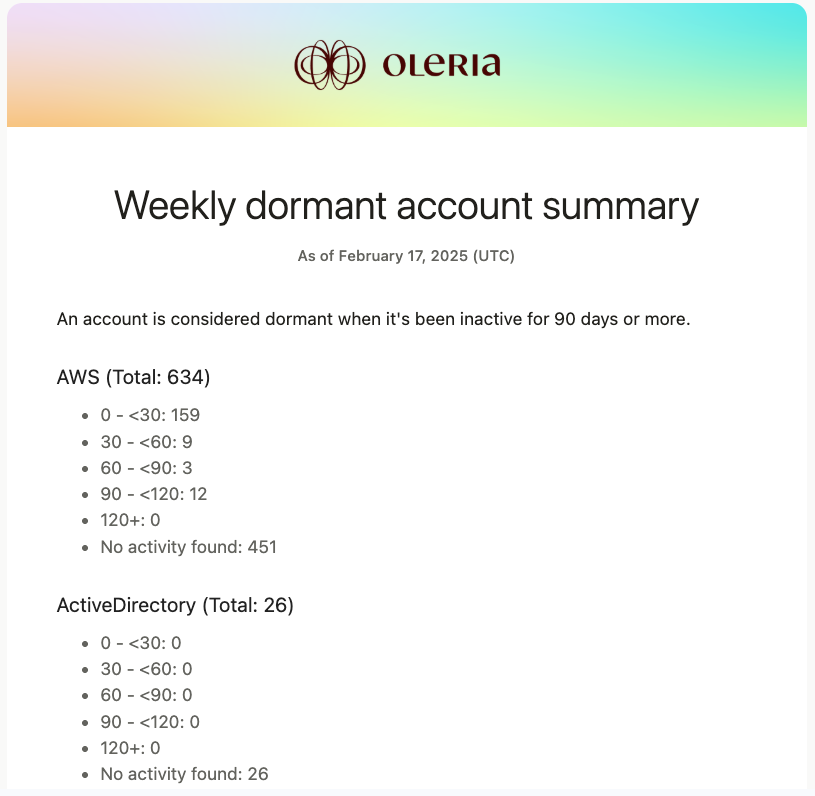
The weekly dormant account alert helps administrators stay on top of unused accounts that could pose a security risk.
**Recipients:** All Oleria administrators
**Frequency:** Weekly
The email includes:
* A list of user accounts dormant for 90 days or more
* Accounts categorized by application type
* Count of accounts by duration of inactivity
* Total dormant account count
### Review the weekly dormant account summary
Open the email and review the list of dormant accounts.
Select **View dormant accounts** to open the Account Analytics page in Oleria.
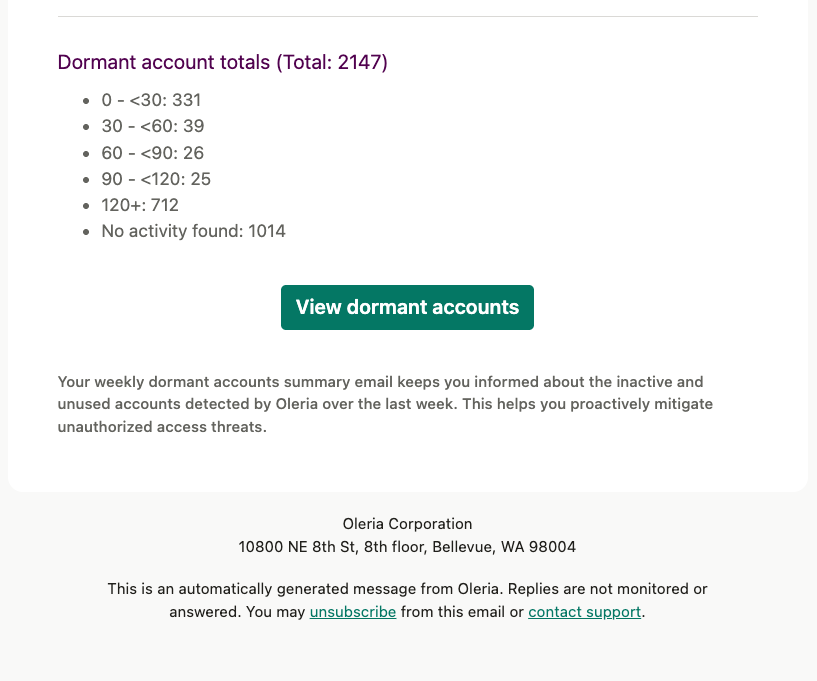
Review the listed accounts and disable any that are no longer needed.
## Manage email preferences
To update which emails you receive, see [User profile settings](/administration/user-profile-settings).
To unsubscribe, click the **Unsubscribe** link at the bottom of any notification email.
## Contact us
For questions, contact us at [support@oleria.com](mailto:support@oleria.com).